How To - Page 76
Trending Stories
How to Create Polls on Instagram
 Subin B


How to Try Out Experimental Netflix Features
 Beebom Staff


How to Fix Apple Watch Not Getting Notifications Issue
 Rajesh Mishra

How to Speed Up a Video on iPhone and iPad
Rajesh Mishra

 Bipradeep Biswas
Minecraft Texture Packs are a great way of modifying your vanilla game, by changing the appearance of your surroundings, mobs, structures and many more. This is a way to unleash your creativity to the maximum and bend the game according to what seems the best for you. So jump right in this article and find out all the steps to make a Texture pack and use it in the game.

 Arjun Sha
How to Make and Use Recovery Compass in Minecraft
 Udayveer Singh

How to Go Live on Facebook
Subin B

Here’s How Much the Samsung Galaxy A33 5G Costs in India
 Vanshika Malhotra

How to Make and Use a Beacon in Minecraft
Udayveer Singh

How to Reset HomePod mini Easily
Rajesh Mishra

 Abubakar Mohammed
One of the underrated taskbar customizations is automatically hiding the taskbar, which can be done on both Windows 11 and Windows 10. If you feel the Taskbar is taking up too much space, you can either resize it or hide the Taskbar when you're not using it. You can hide the taskbar by going to Settings > Personalization > Taskbar > Taskbar Behaviors > Automatically Hide the Taskbar.


 Radojka Travar
Fill command is a useful Minecraft command that you can use to make the building process easier and faster. It lets you create cubes or cuboids by providing two of its diagonal points. There are also five different keywords such as replace, destroy, hollow, outline and keep that you can use to affect the already-existing blocks while creating your new cuboids. In order to use the fill command, you have to have the cheats enabled. You can easily activate them in the world settings of the both Minecraft editions.

How to Connect HomePod to WiFi
Rajesh Mishra

Here’s How Much the Samsung Galaxy A73 5G Costs in India
 Dwaipayan Sengupta



Screen Time Not Working on Mac? Here is the Fix!
Rajesh Mishra

How to Get and Use a Command Block in Minecraft
Udayveer Singh


How to Update HomePod mini or HomePod
Rajesh Mishra
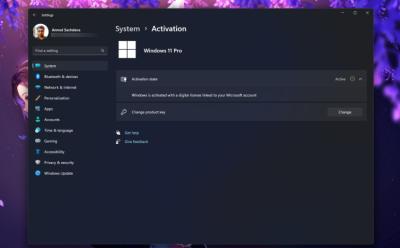

There are two ways to reset the password of your Windows 11 PC. If you set up Windows with a local account, you can essentially use Windows' troubleshooting menu and recovery image window to rename the accessibility menu to Command Prompt and change the password. Otherwise, if you set up Windows with a Microsoft account, you can go to the account recovery website using another computer and reset your password.

How to Run Android 12L on Your PC
 Upanishad Sharma
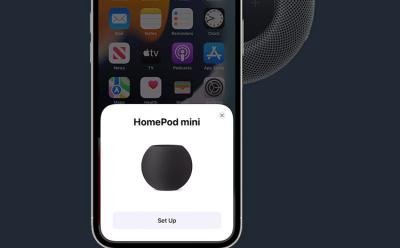
Get Started with your HomePod or HomePod mini
Rajesh Mishra




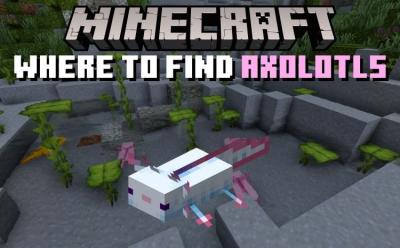
How to Find Axolotls in Minecraft
Udayveer Singh


How to Craft and Use Boat with Chest in Minecraft
Udayveer Singh