Emulators have come a long way and now, you can play thousands of retro tiles on your PC. Not only that, you can also enjoy Android games on a larger screen. Best of all, with improvements over time, you can play older classic games at better resolutions and frame rates than the original hardware. So if you are looking to play Nintendo and PlayStation classics on your PC, check out our list of the best emulators for PC.
Overview of Best Emulators for PC
RetroArch is the best emulator for PC as it brings support for over 200 systems via Cores. Other than that, you can check out Dolphin if you are a GameCube/Wii fan. And for those who love NES/SNES games, check out Mesen.
Emulators for PC Best Suited For Limitations Pricing RetroArch Users who want a single app to play all retro games Steep learning curve, beginners may be confused Free Dolphin GameCube and Wii fans with a mid-range PC Requires strong single-core CPU performance Free Mesen Best for NES/SNES gamers, and those who want to preserve games No Sega Genesis support Free Azahar The Citra successor for Nintendo 3DS emulation on PC Requires decrypted CCI files Free DuckStation Best PS1 emulator for PC, maximum accuracy and features Requires BIOS file dump from own hardware Free PCSX2 PS2 gamers who want 4K upscaling, supports a wide library of games Requires powerful CPU and GPU performance Free RPCS3 Best emulator for PS3 titles Requires high-end PC Free PPSSPP Top emulator to play PSP games, Supports low-end PCs PSP only support Free, Gold costs $5.99 BlueStacks Best emulator to play Android games on PC Heavy CPU and RAM usage Free with ads LDPlayer Lightweight emulator for Android gaming on PCs Privacy concerns Free
How We Tested the Best Emulators for PC?
First of all, to test the best emulators for PC, we checked each emulator on four criteria including compatibility, performance, ease of use, and features. We did our testing on a mid-range Windows PC to check how many games run without issues and monitored FPS, and stability. We also ensured that most emulators have essential features like save states, achievements, netplay, and shaders support.
Apart from that, active development is very important for an emulator so I checked community support, and update frequency. Strong community support helps you troubleshoot when a game crashes out of the blue. Finally, all these points were considered and we compiled the 10 best emulators for PC, covering both retro and Android games.
What is the Best All-in-One Emulator?
While RetroArch has a steep learning curve, it’s still considered the top emulator for PC. Within a single app, you can run over 200 gaming systems, so go ahead and check it out.
RetroArch: The Gold Standard
If you are looking for the best emulator for PC that does it all, RetroArch is the one you should install. It’s not just a single emulator, but a frontend where you can download something called “Cores” and play all kinds of retro classic games. You can play games from the Atari 2600 and NES to PlayStation 1, Nintendo 64, and even some arcade games.

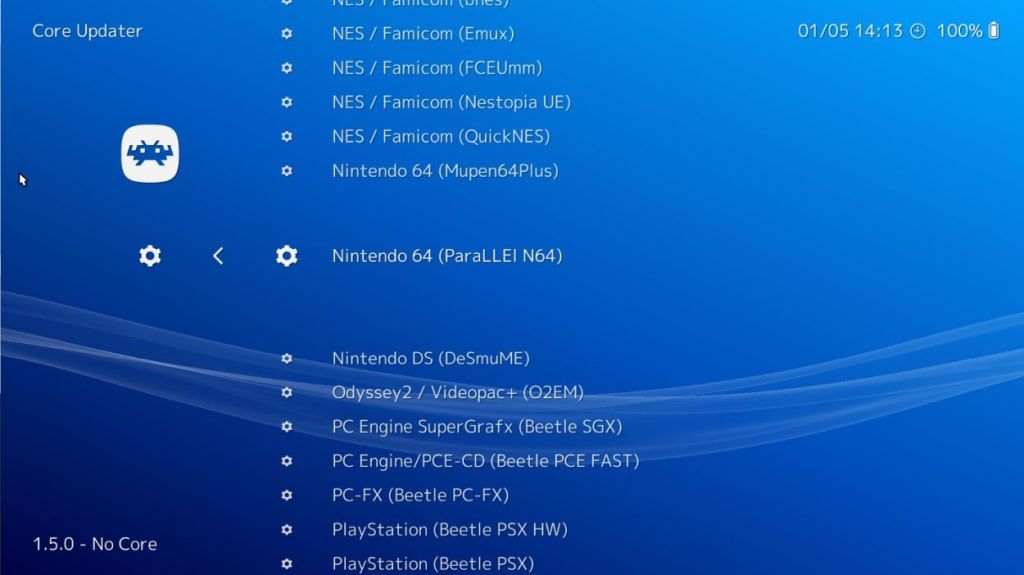
It uses the open-source Liberto API with access to over 200 downloaded cores. Currently, RetroArch is the backbone of modern retro gaming, and its technology is used on all platforms including Windows, Linux, and macOS. That’s why it’s on our list of best emulators for Android and iOS. It brings advanced features like CRT visuals, netplay, rewind, RetroAchievements, and video recording too. That said, it has a steep learning curve which can confusing to beginners.
Pros Cons Supports more than 200 gaming systems via Cores Steep learning curve for beginners Features include shaders, rewind, netplay, etc. Free and open-source
Pricing: Free
Best Nintendo Emulators for PC
If you love GameCube/Wii games, Dolphin is the best emulator for PC and you can take a look at Mesen to play NES/SNES titles. Following that, Azahar is a great emulator for Nintendo 3DS games.
Dolphin (GameCube/Wii)
For those who want to play GameCube/Wii games on their PC, Dolphin is the best emulator you can try. It supports the complete library for both systems and can run games up to FHD and even 4K. You get options like anti-aliasing, texture filtering, and widescreen patches. What is interesting is that Dolphin supports real Wii remotes over Bluetooth connection and GameCube controllers via USB adapters.

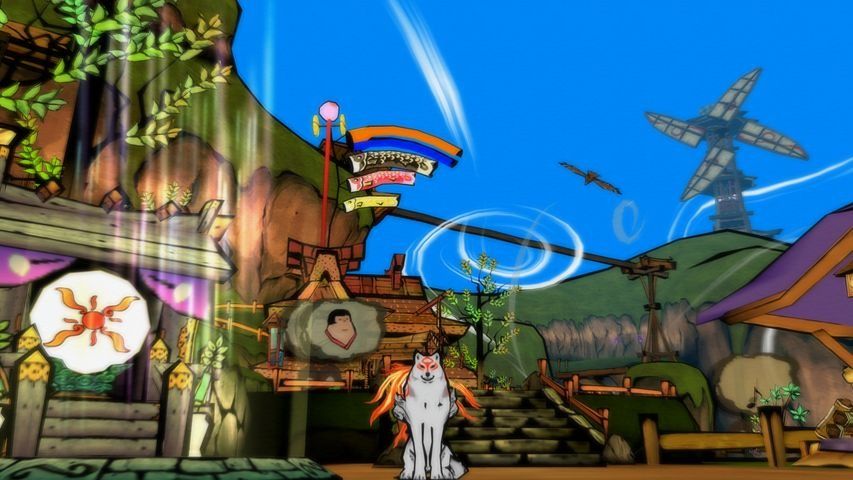
In fact, you can connect nearly all modern gamepad and it’s compatible with all of them. Dolphin is one of the rare projects that is still actively developed. It has now received support for RetroAchievements, graphical settings for each game, Netplay for multiplayer games, etc. That said, you need a PC with powerful single-core CPU performance to run the Dolphin emulator smoothly.
Pros Cons Runs full GameCube and Wii titles Requires strong single-core CPU performance 4K upscaling, HD textures Real Wii Remote and GC controller support
Pricing: Free
Mesen (NES/SNES)
Mesen is perhaps the most accurate emulator for PC for classic Nintendo titles. It was originally a standalone NES emulator, but now it has become a unified platform which covers NES, SNES games, Game Boy, GBC, GBA, and many other gaming systems. On accuracy tests, its emulation system has scored a perfect 100% with support for 290 mappers and including all licensed games.

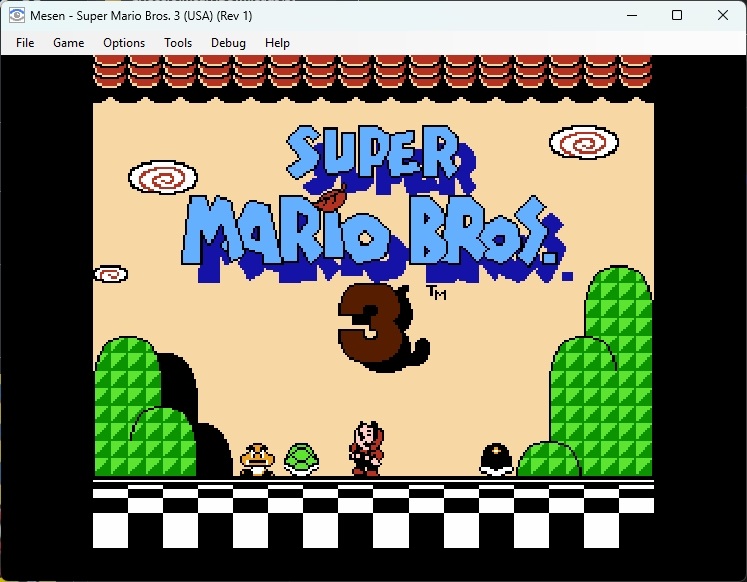
Its strength lies in cycle-accurate emulation which replicates the precise timing of the original hardware. That’s why Mesen is preferred mostly by ROM hackers and those who want to preserve classic games. As for features, you get save states, HD packs, NTSC video filters, netplay, and rewind. You can also overclock, and do Lua scripting if that is your cup of tea.
Pros Cons Great compatibility with NES games No Sega Genesis support yet Highly accurate emulation HD pack support
Pricing: Free
Azahar (Nintendo 3DS)
Azahar is currently the leading Nintendo 3DS emulator for PC. In 2024, Citra was taken down by Nintendo, so the developers behind Citra and Lime3DS came together to create Azahar. It has a strong community and receive active updates from the developer team. This emulator has achieved over 95% compatibility with Nintendo 3DS games, and it outperforms nearly all emulators in terms of accuracy and performance.

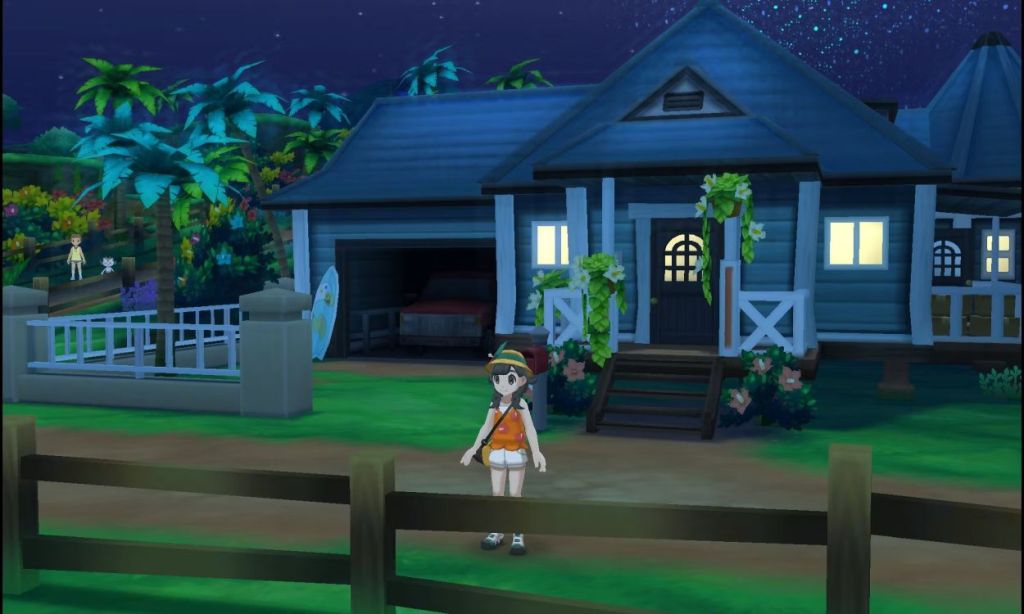
Azahar offers resolution upscaling, Vulkan and OpenGL rendering, online multiplayer through local wireless emulation, save states, and an easy-to-use interface. For 2D heavy titles, Azahar lets you disable right-eye stereoscopic rendering which significantly improves the performance. Having said that, you need decrypted games files in the CCI format so keep that in mind.
Pros Cons Supports nearly all 3DS library Requires decrypted game files Vulkan backend for improved performance Actively developed
Pricing: Free
Best Sony PlayStation Emulators for PC
DuckStation is arguably the best PS1 emulator for PC as it has wide compatibility and great accuracy. For PS2 emulation, I would recommend PCSX2 and RPCS3 for PS3 games.
DuckStation (PS1)
DuckStation is one of the best PlayStation emulators for PC. For PS1 titles specifically, DuckStation maintains great compatibility and playability. You get amazing speed and performance with long-term support for older titles. You can even upscale games beyond the PS1’s native 240p resolution with the GPU enhancement options. It includes texture filtering, geometry correction and widescreen patches.

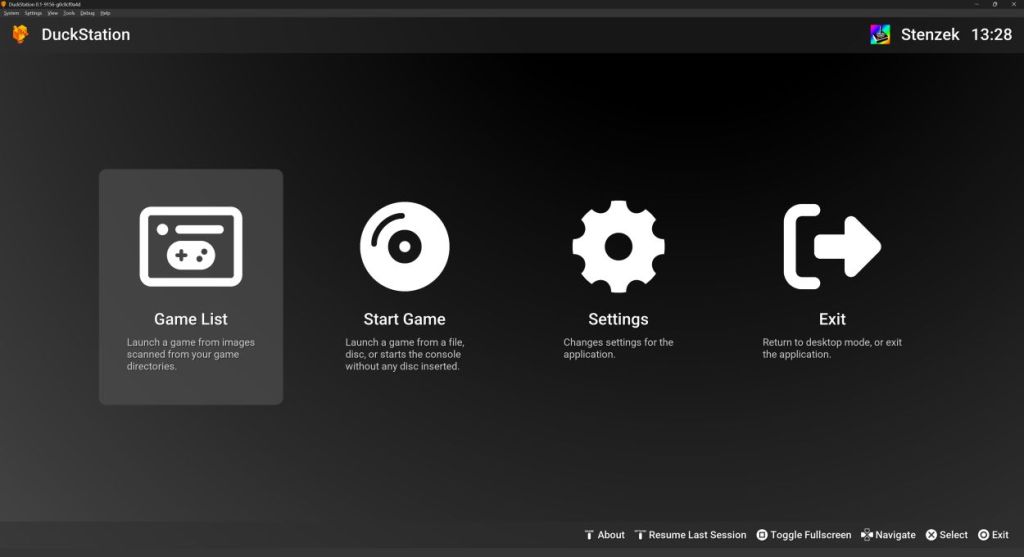
It even uses AMD’s FSR tech to perform AI-based upscaling. And the CRT shader option lets you replicate the video quality of television sets. In terms of features, DuckStation supports RetroAchievements, and virtual memory cards. You can connect DualShock, DualSense controllers or any other gamepad via the USB connector. That being said, make sure you have a PlayStation BIOS dump from your own console to play retro PS1 games on your PC.
Pros Cons Most accurate emulator for PS1 Requires BIOS dump from original hardware RetroAchievements and save state support Modern and clean UI
Pricing: Free
PCSX2 (PS2)
PCSX2 is one of the oldest PS2 emulators for PCs and it’s being actively developed even to this day. It supports a vast library of PS2 titles as it emulates the PS2’s Emotion Engine CPU and Graphics Synthesizer. PCSX2 has support for 4K upscaling, 60FPS patches, virtual memory cards, and real hardware controllers.

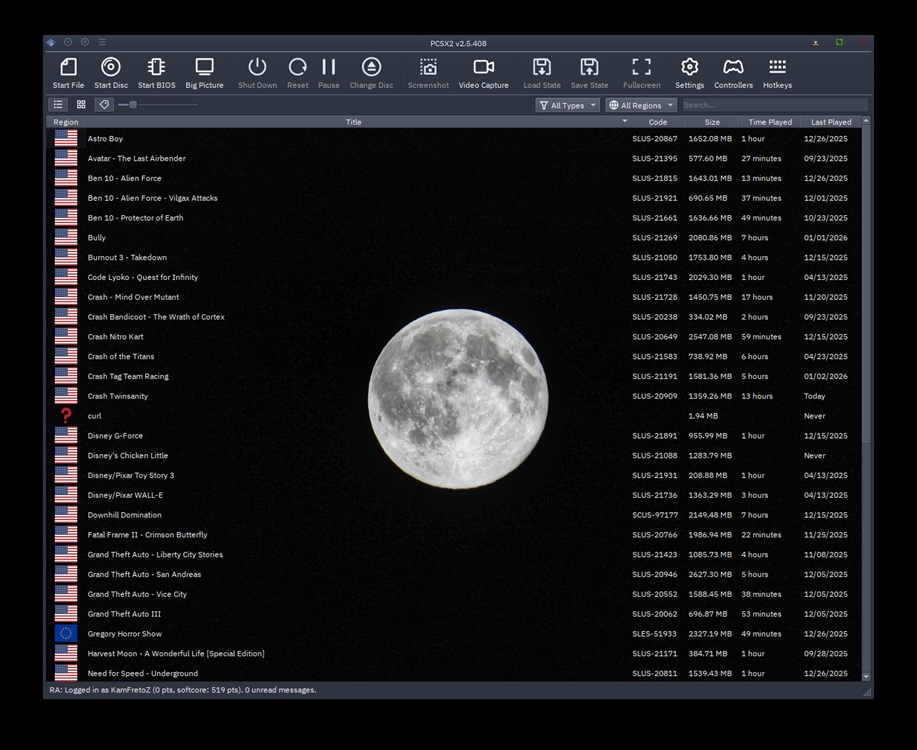
Unlike other PC emulators, you don’t need to configure each game. Its compatibility is top-notch and with minimal configuration, you can play popular titles at full speed. However, you need a PS2 BIOS dump to run the games. In addition, you need powerful CPU and GPU to run the PS2 emulator on your PC, especially if you are running a graphically-intensive game.
Pros Cons Supports nearly all PS2 library Requires PS2 BIOS dump 4K upscaling, and 60FPS patches available Free and open-source
Pricing: Free
RPCS3 (PS3)
There are not many PS3 emulators for PCs, but RPCS3 has shown that it can run PS3 titles without a hiccup. PS3 had a complex Cell processor architecture, which was hard to emulate. However, the developer team managed to do some remarkable engineering to run PS3 games. It’s written in C++ and supports various graphics APIs including DirectX 12, Vulkan, and OpenGL.

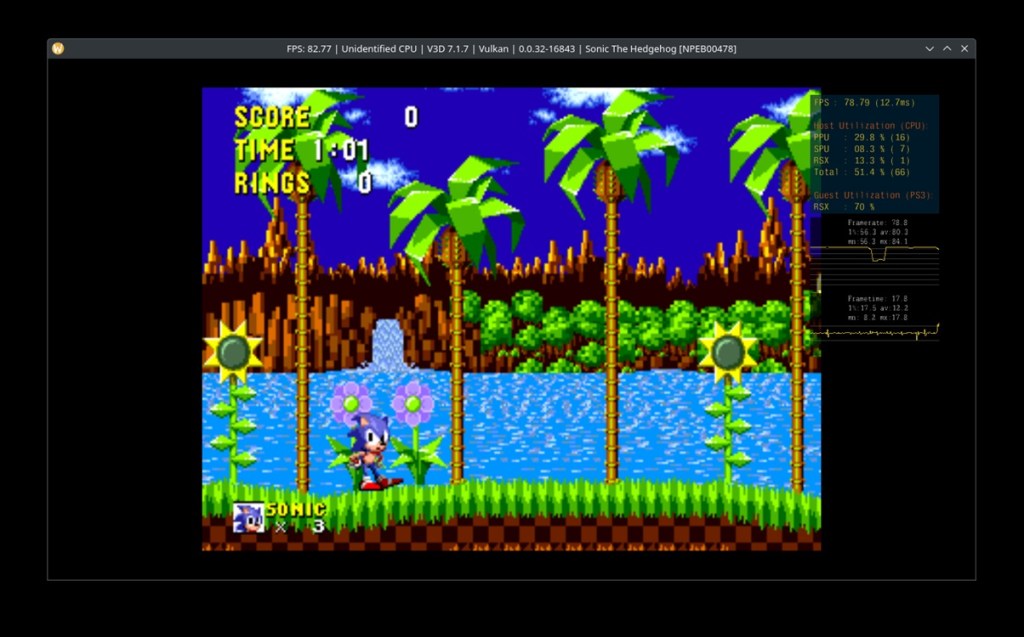
Currently, RPCS3 supports over 60% of the PS3 commercial library and over time, more and more titles are reaching the status of Playable and Perfect. Popular games like God of War III, Red Dead Redemption, and Metal Gear Solid 4 are now playable. It supports 4K rendering and compatible with DualShock 3, DualShock 4, and DualSense controllers. Again, you need PS3 firmware and powerful hardware (more than 16GB RAM) for stable performance.
Pros Cons The only PS3 emulator for PC Requires powerful hardware 4K support and Vulkan rendering Supports DualShock 3, 4 and DualSense
Pricing: Free
PPSSPP (PSP)
PPSSPP is ranked among the best PSP emulators for PC. It has been created by the same developer behind the Dolphin emulator. For PlayStation Portable games, PPSSPP is a near-complete emulator and runs the entire PSP library with high compatibility. Key features include resolution upscaling to 1080p, color correction, texture scaling, and fast hardware rendering via OpenGL, Vulkan or Direct3D.

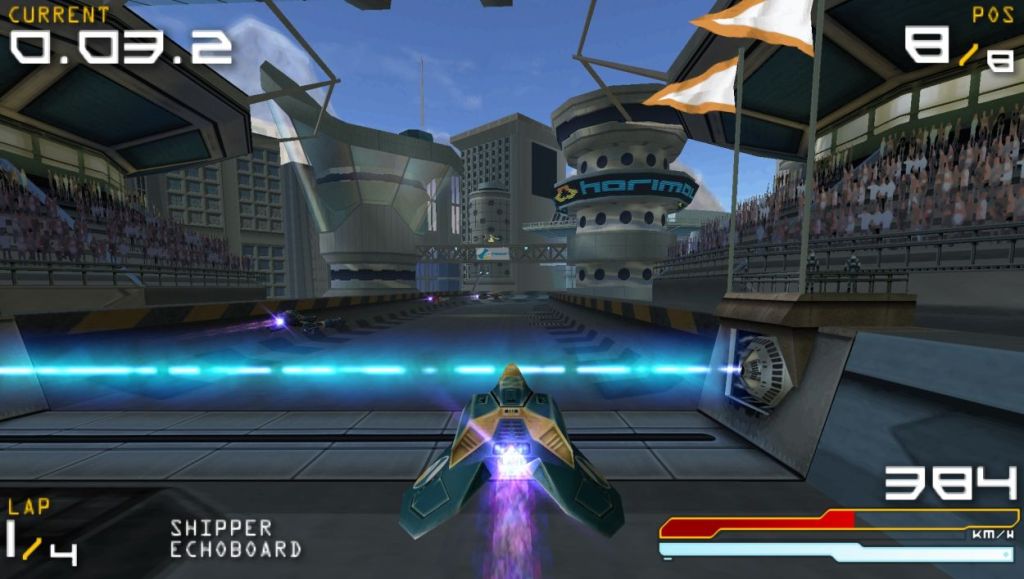
What is great about PPSSPP is that is runs efficiently even on low-end hardware. Not to mention, the emulator is feature-packed and supports save states, cheat code, and button mapping. It even has a clean UI for beginners and you can play games like Crisis Core: Final Fantasy VII and Monster Hunter Freedom Unite. Basically, PPSSPP is a free and open-source emulator for PSP classics.
| Pros | Cons |
|---|---|
| Supports complete PSP library | Only PSP exclusive |
| Runs well even on low-end hardware | |
| Clean UI and easy for beginners |
Pricing: Free, Gold costs $5.99
Best Android Emulators for PC
Those who want to play Android games on a PC, check out BlueStacks. It’s feature-rich and highly optimized for Android gaming on PC. As a lighter alternative, you can also take a look at LDPlayer.
BlueStacks
BlueStacks is one of the best Android emulators on Windows and many people use this emulator to play Android games on a larger screen. It’s currently running on Android 11 and supports nearly all mobile games. You can customize game controls for each game, enable shooting mode, play multiple games simultaneously, and even record games with a single keypress.

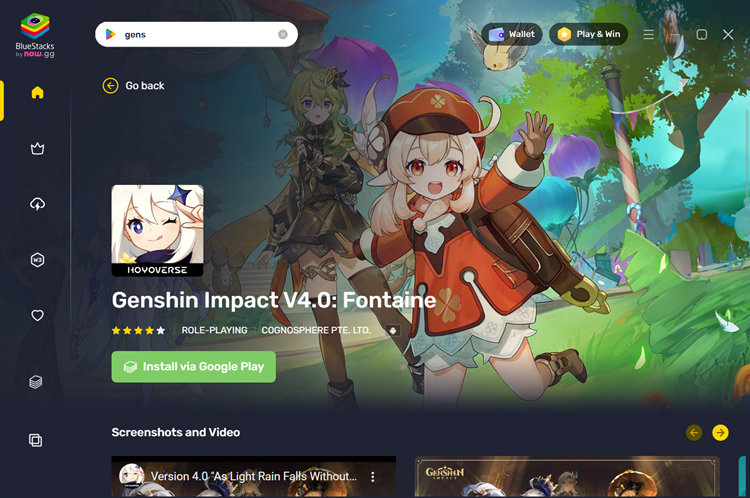
BlueStacks has been heavily optimized for running Android games on Windows PCs and after years of development, it has matured into a stable platform. Thanks to the optimization, you can enable higher frame rates, lock cursor in shooting games, play games in your local language, and more. That said, Bluestacks is pretty resource-intensive. In that case, you can use its subsidiary now.gg to play Android games on the cloud.
Pros Cons Wide compatibility with Android games Heavy CPU and RAM usage Feature-packed, heavily optimized for PC Persistent ads Easy APK sideloading
Pricing: Free with ads
LDPlayer
LDPlayer is another Android emulator for PC and it acts like a lightweight alternative to BlueStacks. It’s heavily optimized for fast performance and uses virtualization to run Android 9 or Android 12. Unlike other PC emulators, LDPlayer is specifically developed for Android gaming on PC. It lets you customize keyboard and mouse, brings support for macro recording and multi-instance support.

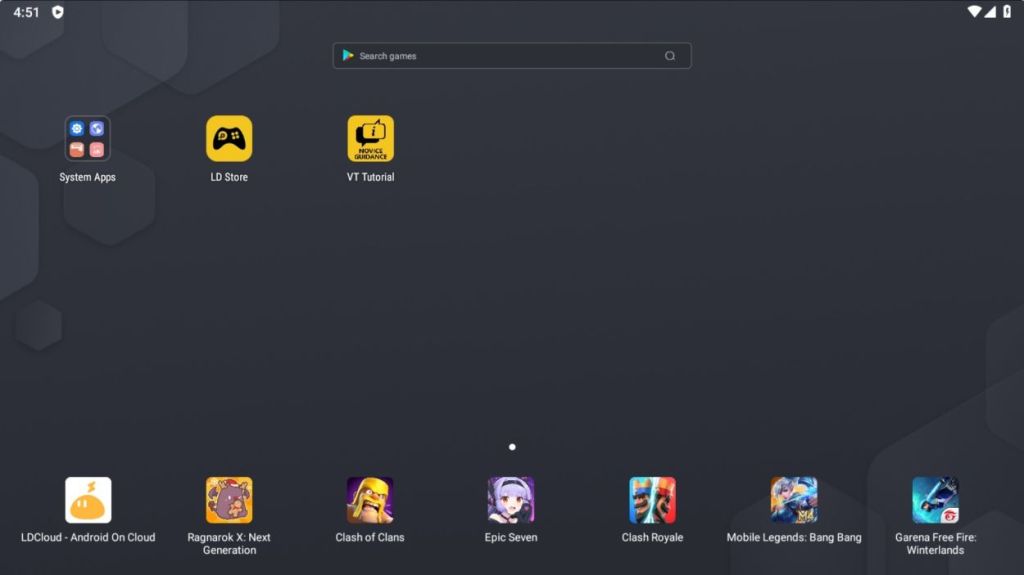
You can also enable high-FPS optimization settings for a smoother frame rate. In benchmarks, LDPlayer has shown that it uses less RAM and CPU than BlueStacks so you can definitely consider it. That said, it’s owned by a Chinese group, which is a privacy concern for many. Nevertheless, if you have a low-end PC and want to play Android titles, you can definitely try LDPlayer.
Pros Cons Lightweight Android emulator on PC Chinese origin, privacy concerns Minimal advertising Custom key mapping
Pricing: Free
How to Choose the Right Emulator for Your Hardware?
Before anything, the single biggest factor is your PC’s single-core CPU performance. Most emulators, especially for older systems like PS1 and NES rely on single-core speed much more than multi-core performance. So, if you want to play older classics, you should have a decent CPU with good single-core performance.
Next, if you have a mid-range PC with 8GB RAM and a dedicated GPU, you should check out Dolphin, PCSX2, and DuckStation. However, RPCS3 requires 16GB RAM and at least a 6-core CPU. If you are not sure where to start, I would recommend RetroArch with a lighter core. You can reduce accuracy settings for better performance. Otherwise, you can pick a standalone emulator for a gaming system which will require less configuration.
Is Emulation Legal? Everything You Need to Know
To the question whether emulation is legal, the straight answer is that yes, emulators are legal, but ROMs are a bit complicated. In most countries, writing software that emulates hardware behavior is protected as reverse engineering. In fact, courts in the US have upheld this many times. So, emulation is not the problem.
The grey area is the game files. Downloading ROM files of games that you don’t own is copyright infringement. Some emulators like DuckStation and PCSX2 require BIOS files dumped from your original hardware. Using them is generally acceptable, but downloading them from the internet is considered illegal. In this case, Nintendo has been aggressive in taking down multiple emulators. So the safe bet is to rip your own discs and use your own BIOS files.
RetroArch is considered the top emulator for PC. It’s the gold standard for retro emulation as it supports games from the Atari 2600 to Nintendo 64, all in a single app.
To play classic retro games on a PC, RetroArch is still the best emulator for fast performance. You can customize game settings and reduce accuracy to improve performance.
In terms of compatibility and feature, BlueStacks is better. However, for efficient performance, I would recommend LDPlayer.