- Portrait mode on Snapchat softens the background and focuses on your face to make you stand out.
- To get the portrait mode on Snapchat, open Snapchat camera > bring down Control Centre > go to Snapchat Controls > tap on Portrait icon.
- This feature is only available on Snapchat for iPhones, but Android users can use lenses for a similar result.
I, like many other Snapchat users, take a lot of selfies on the app, but there are times when some unwanted elements pop up in the background, spoiling the otherwise picture-perfect Snap. If you want to blur the background and keep the focus on your face, here’s how you can get portrait mode on Snapchat using your iPhone. It’s actually pretty easy.
What is Portrait Mode on Snapchat?
If you have ever had your picture taken with a DSLR camera, you might notice how it blurs everything in the back. This is what portrait mode tries to mimic on Snapchat. It turns normal photos into portraits by softening your background. It works with the front camera of your iPhone.
Some of you who have an iPhone with Face ID, like iPhone X and above, may find portrait mode on Snapchat enabled by default. The feature is not available for Snapchat on Android for some reason. However, you can get a similar effect with some custom lenses available on the app.
Why the Blur Effect Matters for Your Snaps
The blur effect, also called Portrait Mode, instantly makes your Snapchat photos look more professional and helps you stand out. It separates the subject (your face) from the background, creating a depth effect that naturally draws attention to your face. This is especially useful in crowded environments where the background might look messy or distracting.
It also helps improve lighting, making your face look sharper even in less-than-ideal conditions. Personally, portrait mode on Snapchat adds a subtle cinematic touch that makes selfies look more polished. Whether you are posting Stories or sending snaps to friends, the blur effect simply makes your photos stand out without heavy editing.
Step-by-Step: How to Enable Portrait Mode on iPhone
Here’s a quick process to get portrait mode on Snapchat. Just follow these steps on your iPhone.
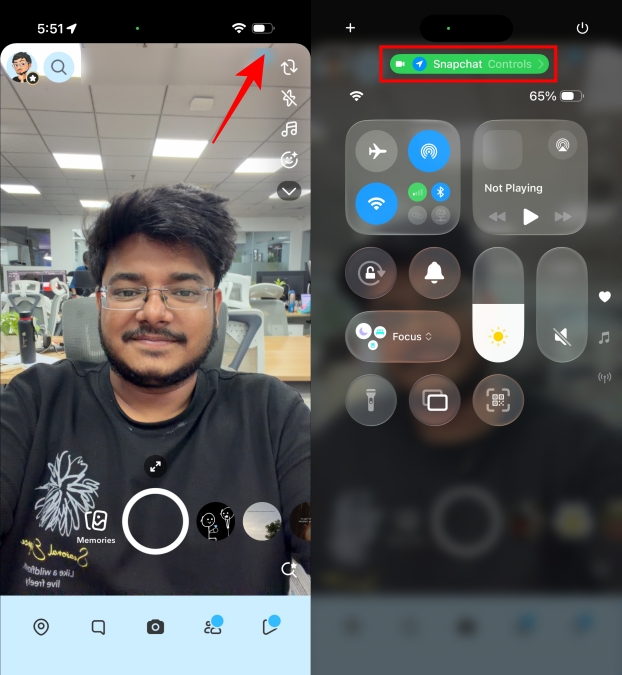
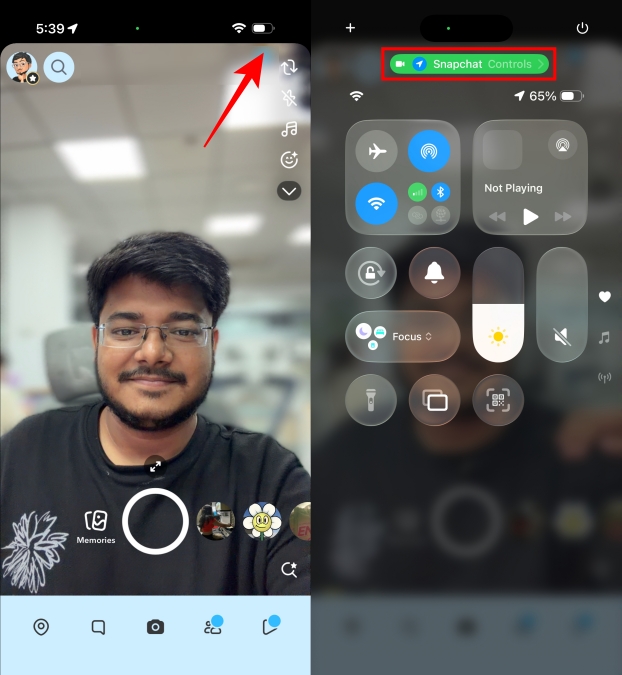
- Open the Snapchat camera and swipe down from the top right to bring up the Control Center.
- Here, tap on Snapchat Controls at the top.

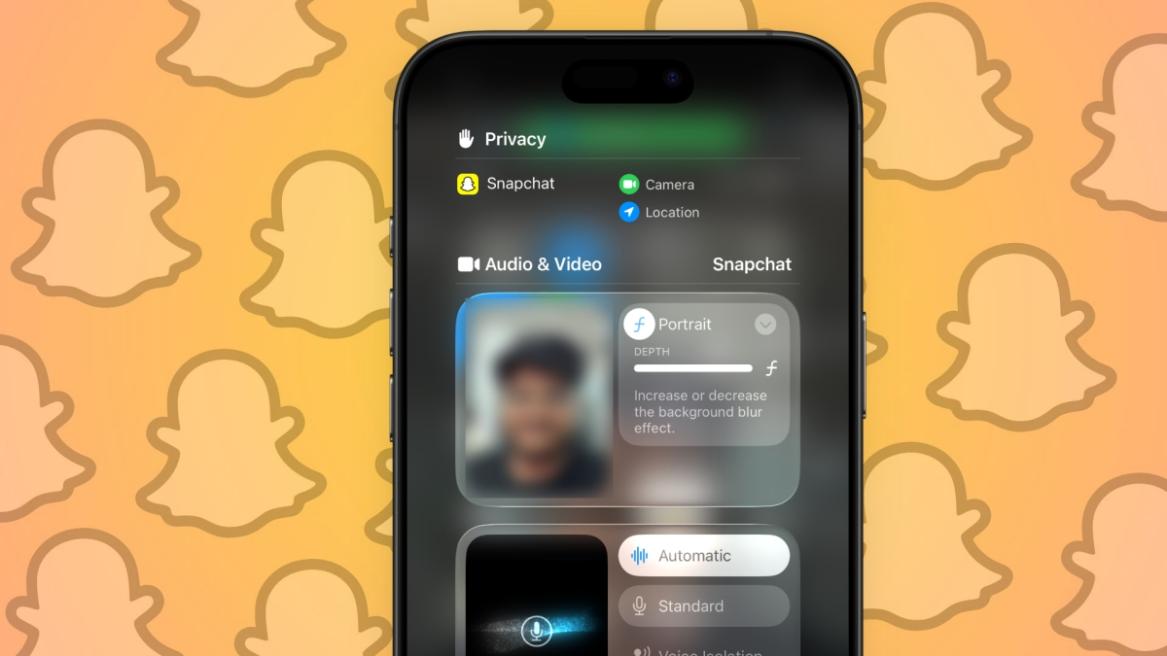
- Tap the Portrait icon so it’s highlighted in white.
- Now, Snapchat camera will blur out everything except your face.
How to Adjust Blur Intensity (Depth Control)
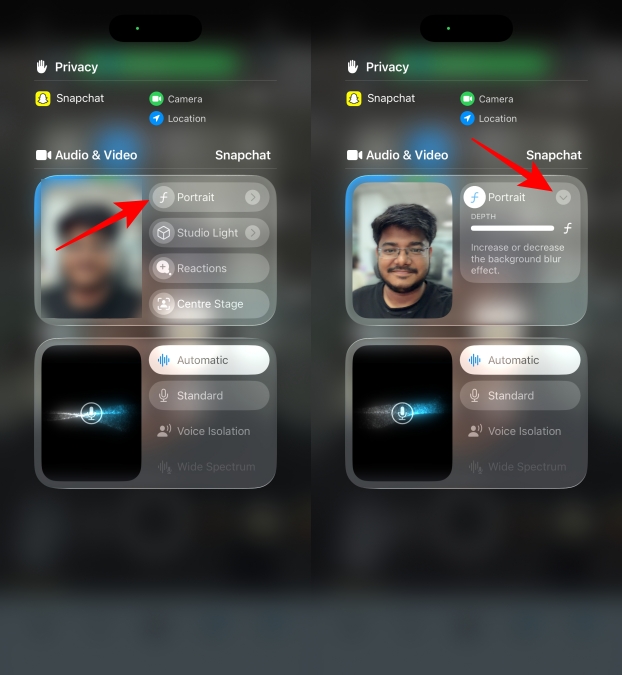
If you want to control the intensity of the blur applied to the background, you can follow these steps:
- On the iPhone Control Center, tap on the arrow icon inside the Portrait section.
- Here, drag the Depth slider rightwards or leftwards to increase or decrease the blur effect.
- You can also turn on Studio Lights, Reactions, and Centre Stage on Snapchat using this method.
Which iPhone Models are Compatible with Snapchat Portrait Mode
Portrait Mode on Snapchat relies on your phone’s ability to detect depth and separate the subject from the background. On iPhones, this works best on devices that support Portrait Mode or have a TrueDepth camera system used for Face ID. So, Snapchat Portrait Mode works on:
- iPhone X and newer models (including Pro, Pro Max, and Mini variants)
- iPhone XR, XS, XS Max, and later
- iPhone SE (2nd generation) and newer
- iPhone 7 Plus and 8 Plus (mainly rear camera depth support)
How to Get the Portrait Effect on Snapchat for Android
Android does not have a native option to use portrait mode on Snapchat like the iPhone. However, you can still create a similar background blur effect using Portrait or Focus lenses available inside Snapchat. Here’s how:
- Open Snapchat and go to the camera screen.
- Tap the smiley (Lens) icon next to the capture button.
- Search for lenses using keywords like Portrait, Blur, Focus, or Bokeh.
- Select a lens that applies background blur.
- Capture your photo or video.
Alternatively, you can use your Android phone’s camera app to click a portrait photo and upload it to Snapchat using the Camera Roll lens.
Troubleshooting: Why is my Snapchat Camera Blurry?
If you have noticed that your Snapchat selfies look typically more blurry lately, you might want to try these troubleshooting tips to fix the issue.
- Dirty Camera Lens: Smudges, fingerprints, or dust on the lens can make photos look blurry. Try cleaning the camera with a nano-fiber cloth to see if it fixes the issue.
- Poor Lighting Conditions: Low light forces the camera to adjust exposure, which can result in softer or blurry images.
- Focus Problems: If the camera does not lock focus properly, your photos could come out looking messy and out of focus. Tap on the screen to refocus before taking the snap.
- Outdated Snapchat App: Using an older version of the app can cause camera issues. Update the app to solve the problem.
- Weak Internet Connection: Snapchat compresses images before sending them, so poor connectivity can make snaps appear blurry after capture.
- Check Snapchat lens: Some Snapchat lenses over softens your photos to give a hazy effect. Try changing to a different lens to see if it makes any difference.
How to Turn off Portrait Mode on Snapchat on iPhone
If portrait mode is turned on by default on Snapchat, here’s how you can turn it off.
- Open the Snapchat camera.
- Bring down the Control Centre by swiping down from the top right.
- Tap on Snapchat Controls at the top of the Control Centre.
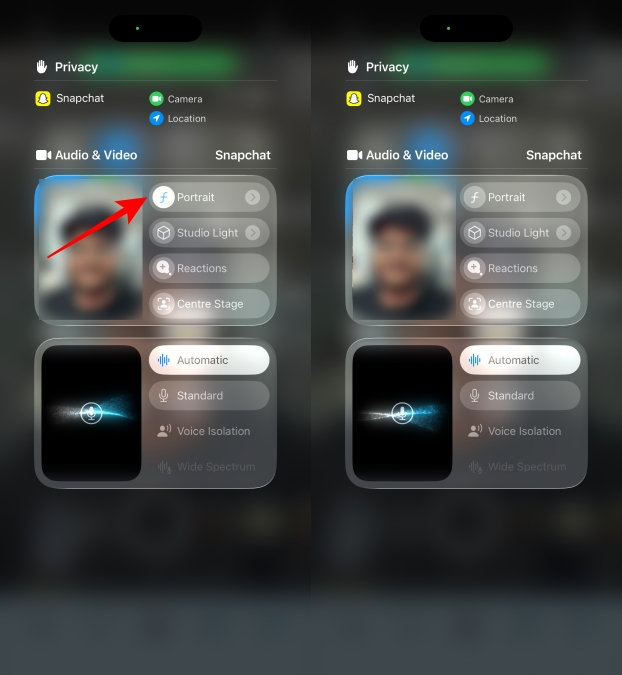
- Then, tap on the Portrait (f) icon to disable it.
- Now, if you go back, the Snapchat camera won’t show any blur effect.
The portrait effect is a great way to improve your selfies, and I frequently use it when I am clicking photos to share with my friends for our Snapchat streak. But I can understand why some people might not like it and would prefer to keep it off. Either way, I hope this guide helped you with portrait mode on Snapchat.
No, Snapchat on Android does not come with the portrait effect feature, as it’s exclusively available for iPhones. However, Android users can find lenses on the app that offer the same blur effect.
It could be because you might have portrait effect enabled on your iPhone that artificially blurs the background, which is why your Snapchat camera looks blurry.
On some iPhones, especially those with Face ID, portrait mode on Snapchat is turned on by default, and there is no option to permanently turn it off. You will have to disable it every time from Snapchat Controls in the Control Centre.
No, turning on portrait mode does not affect the image quality, as it only softens the background to make the subject stand out more. This does not improve or reduce image resolution or quality of the photo.
Yes, you can use all lenses along with the portrait effect on the Snapchat camera. It does not affect any other Snapchat feature, only blurs your background while taking selfies.