- The easiest way to recall an email in Outlook is by using the Recall option in the ribbon.
- You can also click on the 3-dots icon > Advanced actions and Recall message.
- Finally, you can use the 3-dots icon on Android and tap Recall on Android or iPhone apps.
Admit it, we’ve all sent emails with embarrassing mistakes, sometimes without the “Attached” documents (you know, the ones we meant to attach but forgot). However, platforms have been quite generous in letting you undo or recall emails because we all know, to err is human. If you’re new to an email service, you might not be aware of the ability to recall an email on it. And if you’ve recently started using Outlook, here’s how to recall an email in Outlook.
How We Tested the Outlook Recall Feature in 2026
To test the Recall feature in Outlook, we used it across multiple platforms on both New Outlook and Classic Outlook in 2026. We sent emails from Windows, Android, and iOS and tried to recall the email to see whether it works or not. We also tried different scenarios such as unread emails, and already-opened emails to test if the Recall feature breaks down.
Not to mention, we tracked outcomes by enabling the “Tell me if recall succeeds or fails for each recipient” option which generates a Message Recall Report inside the inbox. Note that in cross-platform scenarios like sending and recalling an email from Outlook to a Gmail address didn’t work.
Requirements for Outlook Email Recall
Before we get started, it’s worth noting that recall in Outlook will only appear to those subscribed to Microsoft 365 and belong to the same organization (or use Microsoft Exchange). Personal email accounts such as Gmail, Hotmail, and Outlook.com cannot use message recall. Also, for the Outlook email recall feature to work, the recipient must not have opened the message yet.
In case, they have already opened it, they’ll receive a notification saying the email was recalled. The original message will still be visible, though. This makes it a bit different from Gmail’s Undo Send feature.
Recalling Email in New Outlook & Web
There are a couple of ways to recall an email in Outlook’s Desktop app. You can either use the top bar to select the recall option, or use the options in the email body to do it.
Method 1: Recall Email From Outlook’s Top Bar
The process to recall an Outlook email is pretty easy. If you use the Outlook app on Windows or the web app, here’s how to do it.
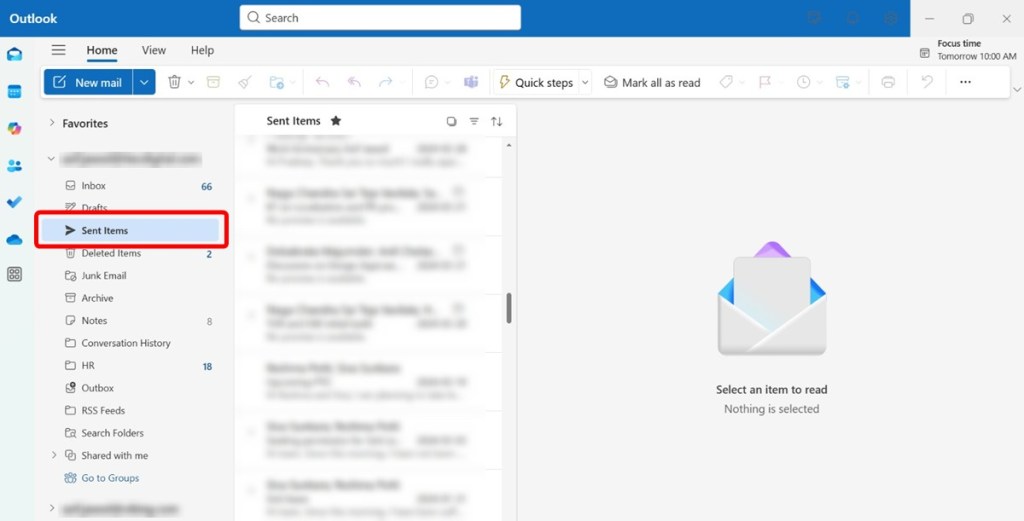
- Launch Outlook and head over to the Sent Items from the left pane.
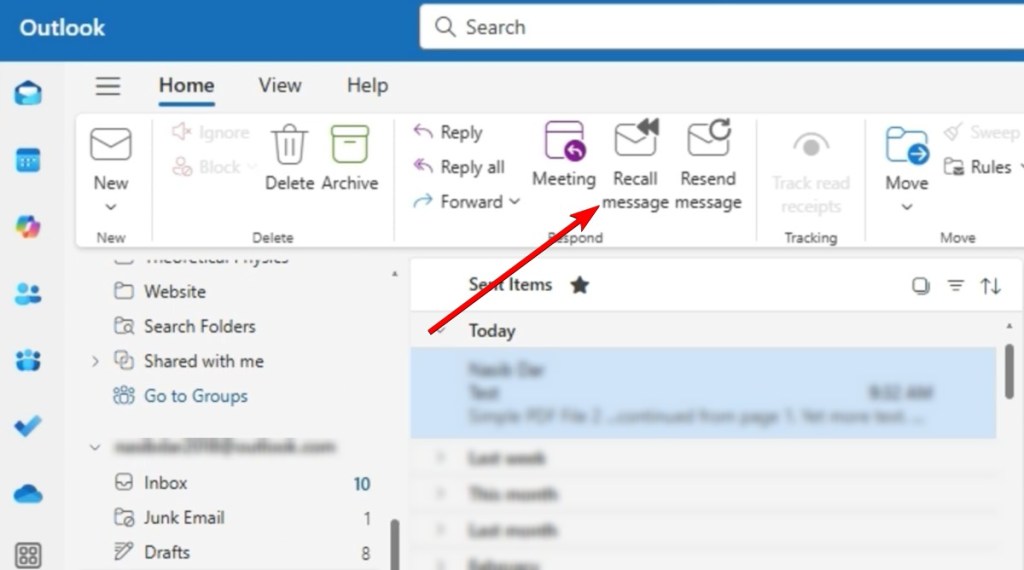
- Select the Outlook email you want to recall and click on Recall message from the top toolbar.
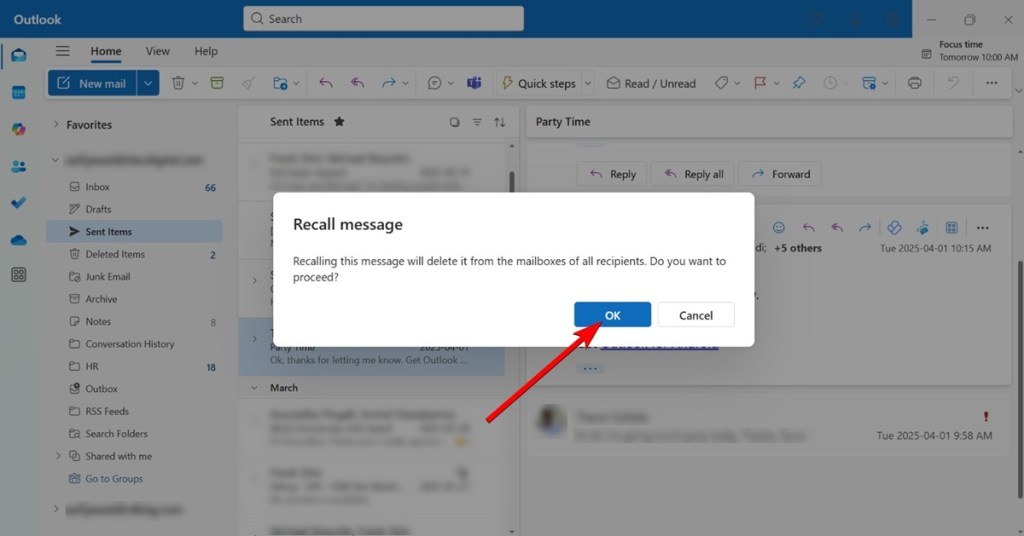
- In the prompt that pops up, click on OK to recall the email and Outlook should attempt to recall it.
- Similarly, you can right-click on the sent email, go to Advanced actions, and click on Recall message.
Method 2: Unsend in Outlook Using More Actions
Outlook has two interfaces for drafting and viewing content — one that remains inside the main Outlook window, and another opens up the draft in a separate window. One thing that both have in common is that you get a few action options you can use by clicking on the three-dot icon. It also houses an option to recall email in Outlook. Here’s how to use it:
- Double-click on a message to open it in a new window, or just click it once.
- Click on the 3-dots icon and go to Advanced actions.
- From the list, select Recall message, and click on OK inside the prompt.
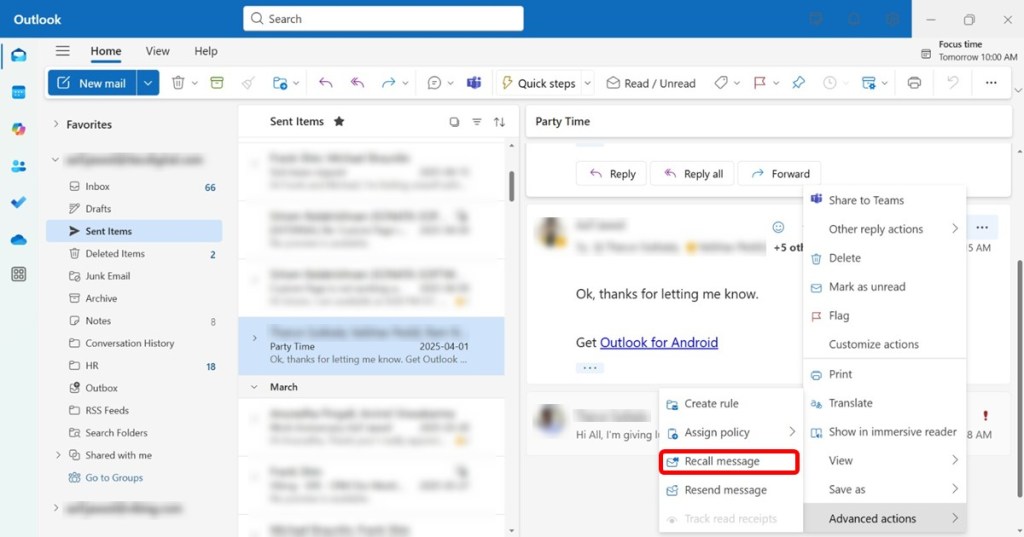
In both cases, if the Outlook recall was successful, you should get a new message with a “Recall Report.” Clicking on the same will tell you if the message recall request succeeded.
Recalling Email in Classic Outlook (Desktop)
Recalling email is a bit different on the classic Outlook app. You need to first open the sent email in a separate window and perform the recall operation. Here is how to do it.
- Launch the classic Outlook app, and move to the Sent items folder.
- Here, double-click on the sent email that you want to recall. It will open the email in a separate window.
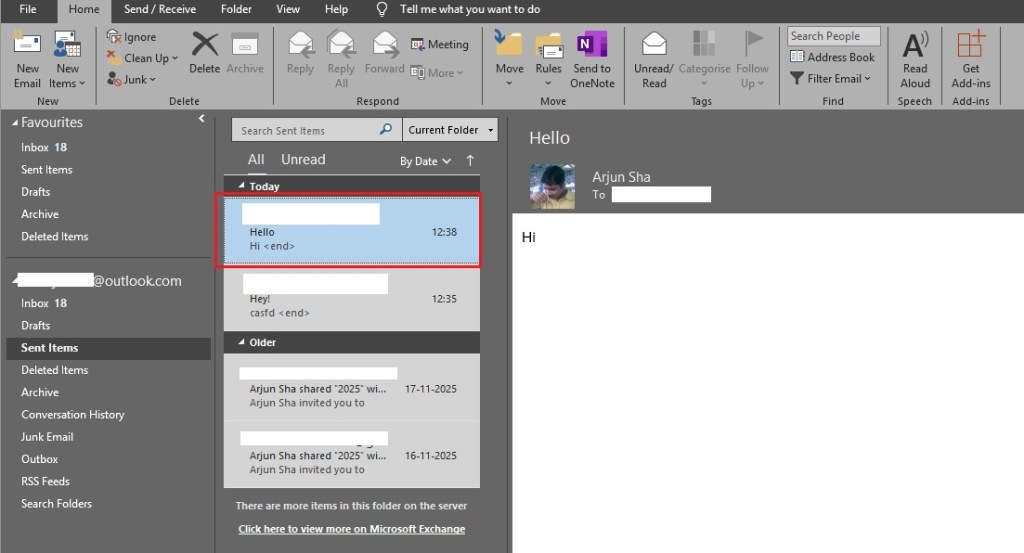
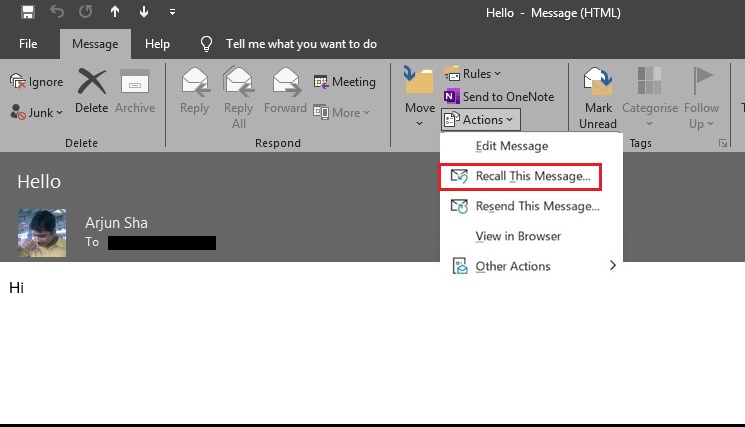
- Next, move to the Message tab and click on Actions.
- Now, click on Recall This Message and that’s it.
How to Recall Email on Outlook Mobile (Android & iOS)
The Recall option is present on both Android and iPhone versions of the Outlook app. The process is more or less the same in both the clients, so we’ve chosen Android for this tutorial.
- Launch Outlook on your on Android or iPhone, tap on your profile picture at the top left and select Sent from the left sidebar.
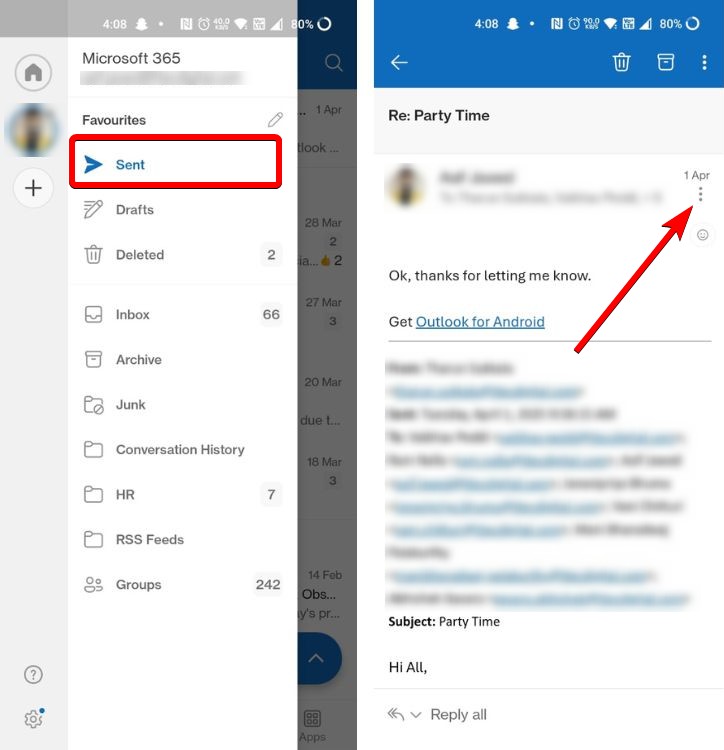
- Tap on the 3-dots icon from the top right, select Recall, and tap on OK to confirm.
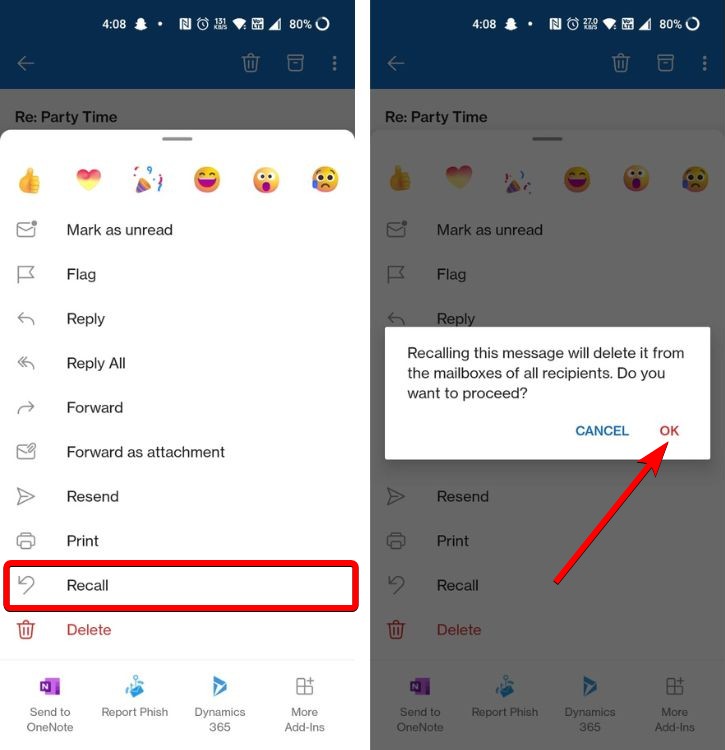
- Once sent, you shall receive a notification about whether Outlook succeeded in recalling it.
Why Your Outlook Recall Might Fail?
Even if you meet the requirements, often, the Outlook Recall feature might fail to work. It could be due to the original email has been opened by the user, or it has been moved to a folder other than the inbox. Some users create rules that move specific emails to a certain folder, and that may break the recall feature.
On top of that, if the recipient’s mailbox is temporarily unavailable, Outlook will retry for up to 24 hours before marking it as failed. There is no automatic trigger here, and you will have to re-run the recall feature to execute it right away.
Better Alternative: How to Set Up ‘Undo Send’ in Outlook?
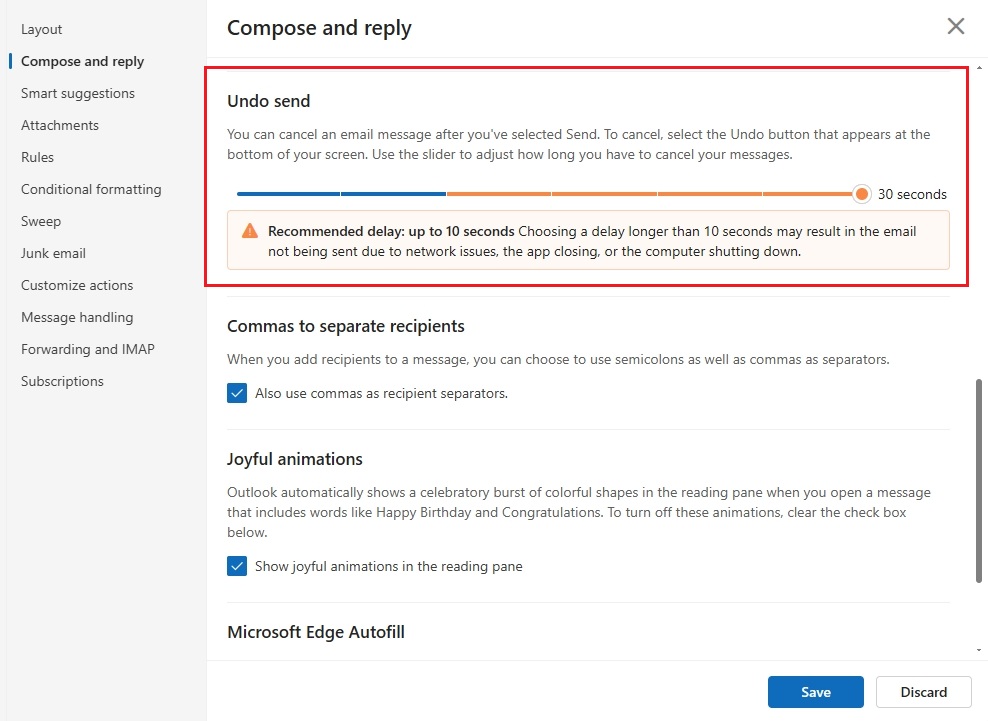
If the Outlook recall feature is not available for you, you can set up the ‘Undo Send’ feature which works universally and for cross-platform email clients too. It basically delays the actual sending of your email for a short period (up to 30 seconds), giving you a small window to cancel it before the email leaves your outbox. Sure, it’s not a true “unsend” feature which can be recalled after delivery. Nevertheless, here is how you can set up ‘Undo Send’ in Outlook.
- Launch the Outlook app, and move to View > View Settings.
- Next, under “Compose and reply”, scroll down and look for Undo send.
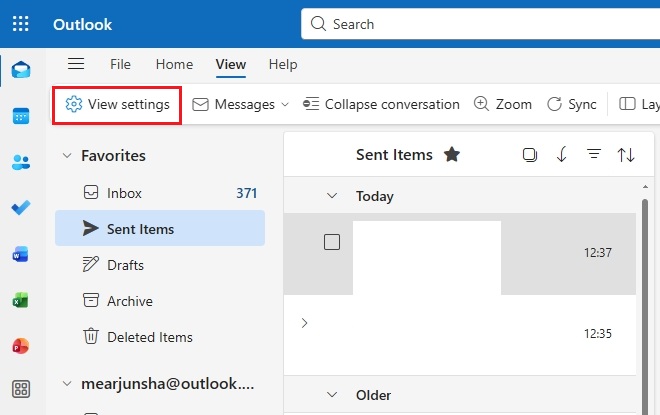
- Adjust the slider to choose your time window, from 5 seconds to 30 seconds. Click on Save and you are done.
To recall an email on Outlook desktop, go to Sent items, click on the email you want to recall, and click on Recall message from the top bar. On Android or iOS, go to Sent items, open an email, tap on the 3-dots icon, and tap on Recall message.
If you recall after the recipient opened the message, they will be notified that you’ve recalled it and the original message will still appear in their inbox.
Yes, if the recipient has already opened the email, they will be notified.
Once you recall an email, you should receive a link with the status of the recall. Here, you will see the current status like succeeded, pending, or failed.



 Anmol Sachdeva











 Anshuman Jain