- The 007 First Light crashing error arises when the iGPU is used to run the game.
- Enabling the High Performance mode for the 007 First Light app on the graphics settings is the best fix.
- You can also try disabling the iGPU manually, verifying the game files on Steam, or updating your NVIDIA driver.
Gamers were excited to become James Bond and go on a globetrotting adventure in 007 First Light. However, players are currently posting online that 007 First Light is repeatedly crashing, preventing them from enjoying the game. So, if you are also facing the 007 First Light crashing issues, check out the possible fixes for the error here.
All Possible Fixes for 007 First Light Crashing Error
Currently, it seems like the root cause of the 007 First Light crash is that the game is automatically utilizing the iGPU instead of your dedicated GPU. So, here are some possible fixes that allow the game to run on your preferred GPU:
Switching to High Performance Mode
According to Venture2099’s Steam Community post, the best fix for the 007 First Light crash is to switch to the High Performance Mode in graphics settings. By doing this, the game will only run on your dedicated GPU. So, here is how to enable the High Performance Mode on your PC step-by-step:
- First, you need to find the location of the 007 First Light folder.
- In case you don’t know how to locate the files, right-click on the title on Steam, select Manage, and click Browse Local Files, and you will be taken straight to the file location.
- It should be like: D:\SteamLibrary\steamapps\common\007 First Light\Retail. Copy the location path and keep it ready.
- Then type ‘Graphics Settings’ in your Windows search bar and hit enter to open the settings menu.
- Click the Add Desktop Button and paste the copied file location here.
- Select the 007 First Light game file.
- Once the game is added, click the drop-down arrow and set the GPU Preference to ‘High Performance.’
- That’s it! Now restart your PC and try relaunching the game.


Disabling iGPU
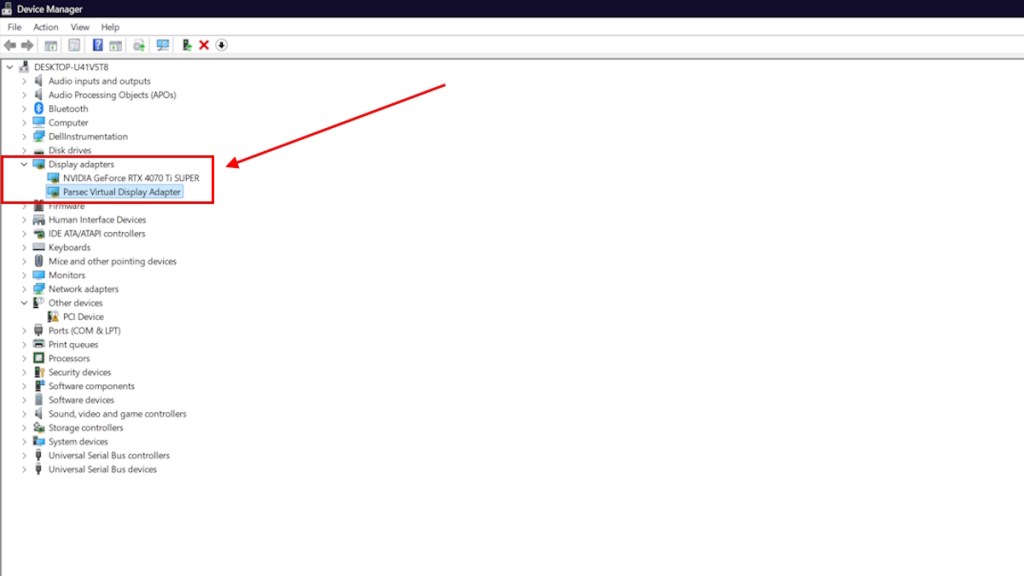
In case the game still crashes even after enabling the High Performance Mode, you can try disabling your iGPU manually to let the game run on your dedicated GPU to avoid 007 First Light crashing. Here is how you can disable the iGPU:
- Type Device Manager in your Windows search bar and open the settings menu.
- Look for Display Adapters and select the drop-down button.
- Right-click on your iGPU and click Disable Device.
- Select yes when the warning prompt pops up on your screen.
- Restart your PC once, and now try running the game.

Verify the 007 First Light Steam Files
If disabling your iGPU didn’t do the trick, then you can try verifying the integrity of game files on Steam. Here is how to do it:
- Right-click on the 007 First Light title on Steam and select Properties
- Go to the Installed Files tab and select the Verify Integrity of Game Files button.
- It will take some time for the Steam client to verify your game files.
- After the verification is done, try relaunching the game.


Updating your NVIDIA Drivers
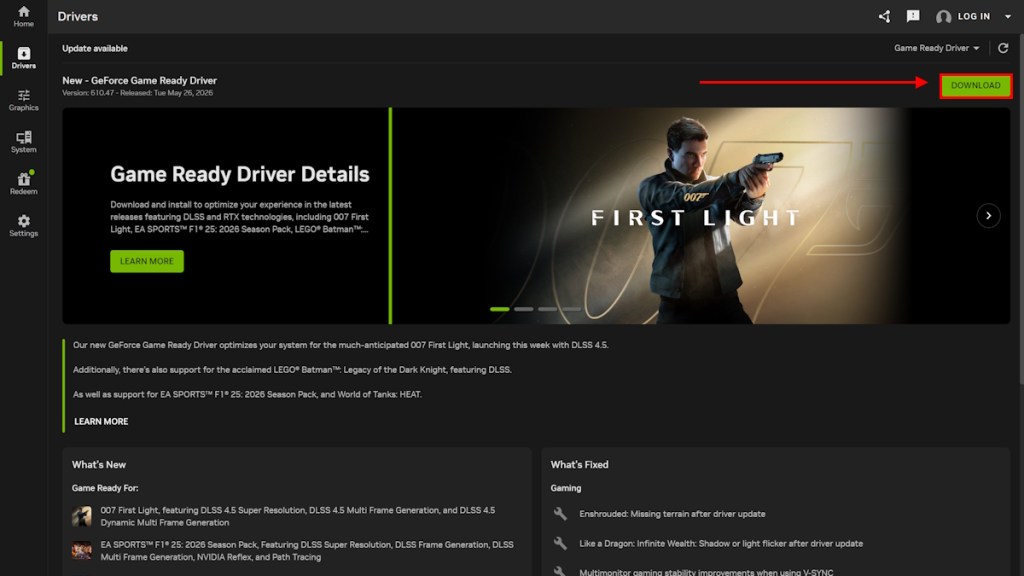
Lastly, you can try updating to the latest NVIDIA drivers to fix the 007 First Light crashing error. NVIDIA has already released a game-ready driver. Here is how to download and update the latest GeForce Game Ready driver for 007 First Light:
- Launch the NVIDIA app.
- Head over to the Drivers section.
- Click the Download button and install the latest NVIDIA driver.
- Restart your PC and then launch the game.
And that’s a wrap on the 007 First Light crash fix guide. We hope the solutions we provided here helped you prevent the crash. If not, the only option is to wait for IO Interactive to roll out a patch soon, which will fix the crashing. That said, if one of our methods worked, let us know in the comments below.