The Windows operating system has always been pretty customizable. And Rainmeter lets you tweak your Windows desktop to the fullest, with new widgets, custom UI elements, live wallpapers, and more. Rainmeter skins can completely overhaul the look o f your device, and in this article, we bring you the 25 best Rainmeter skins you can use in 2026.
What is Rainmeter?
Rainmeter is a free desktop customization program that lets you completely transform the way your desktop looks. It can be used to display a truckload of extra information (clock, network statistics, processor usage) on the desktop, which itself can be tweaked in unimaginable ways, thanks to the countless skins available for the same.
Trendy Rainmeter Skins for Windows 11
Windows 12 is one of the latest Rainmeter skins for Windows 11 and it’s getting quite popular. You also have Frost Glass and Mond has made a comeback. Check out all of them right below.
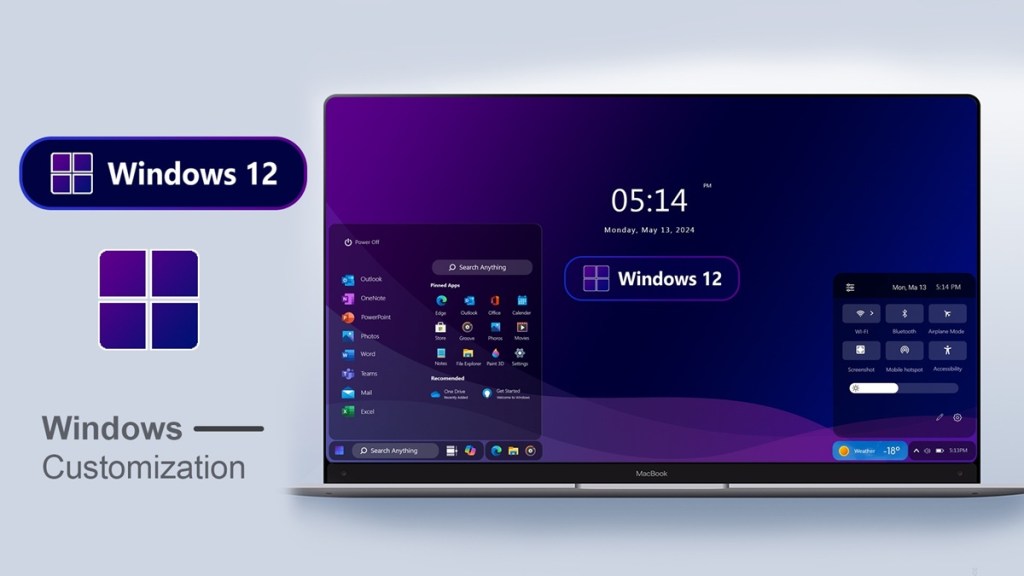
Windows 12 Rainmeter Skin
Windows 12 is one of the best Rainmeter skins that completely changes the look of your Windows 11 desktop. While Microsoft has not confirmed that Windows 12 is coming, a custom Rainmeter skin lets you change the look with a minimal-looking Start menu and Quick Settings menu. This Rainmeter skin also changes the Taskbar alignment and moves it to the left, and adds a weather widget to the Taskbar.
Frost Glass
Windows 11 does have some mica effect in its UI elements, but it’s not very pronounced. Some users like to have that frosted touch to UI elements. And if that’s what you want, then the Frost Glass Rainmeter skin is great. It paints the whole UI with a frosted glass look and also adds a dock, just like macOS. You also have the option to open the side panel, where you can access your favorite apps.

Stellar
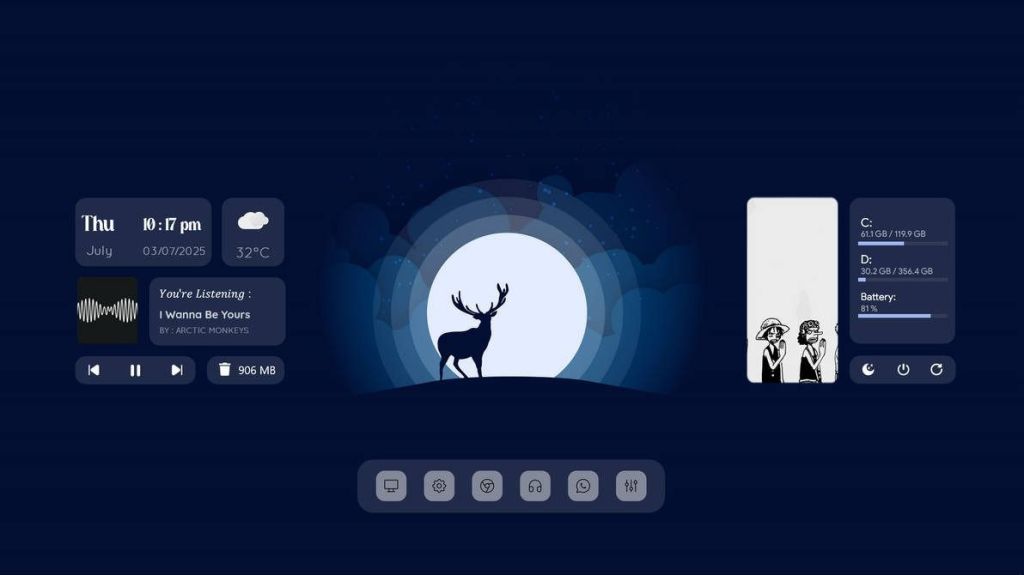
Stellar is a minimalist Rainmeter skin for Windows 11 and it has gotten quite popular in just a few months. It has a clean setup with widgets on the desktop and a minimal dock at the bottom. I like that you can easily control your music, check weather, and clear the bin — all from one place. In addition, you can also check the storage, battery usage, etc. For Windows 11 laptops, Stellar is a great Rainmeter skin.
Mond Rainmeter Skin
Mond has been one of the most popular Rainmeter skins for Windows 11 and it’s back. You can use this excellent skin on Windows 11 with desktop widgets, music player, and more. Note that if you use Foobar2000, you have to install another plugin to make it work. Besides that, MusicBee users need to enable CD Art Display plugin. Other than that, Spotify support is already there. So go ahead and install this popular Rainmeter skin on your PC.

Rainmeter Skins for a macOS Look on Windows 11
Here, you will find Mac-themed Rainmeter skins for Windows 11. You have macOS Monterey style skin and one for Big Sur.
MacOS Monterey Rainmeter Skin
While we have mentioned the Big Sur skin, if you want to try the macOS Monterey theme on your Windows 11 PC, you can check out this Rainmeter skin. It adds desktop widgets for multiple apps, and the font and design choices are very similar to macOS. From a calendar to a music player, weather info, and everything is available on the desktop.

Big Sur Rainmeter Skin
Are you a Windows user who craves macOS Big Sur widgets? Fortunately, this skin is exactly what you’re looking for. It brings a bunch of widgets, including a music player, system, calendar, to-do list, clock, weather, volume and brightness toggles, and more. One unique aspect of the skin is that you get the latest news articles right on your desktop.

Anime Rainmeter Skins
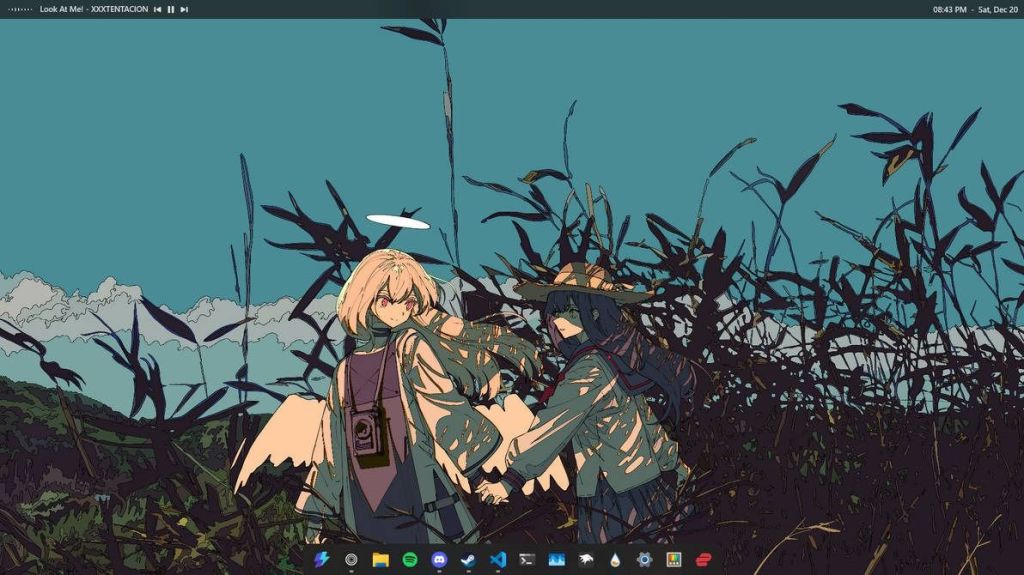
Anime lovers would find these Rainmeter skins absolutely gorgeous. Paradise is currently trending along with Solo Leveling and WindowsBar 1.0.
Paradise
Paradise is a gorgeous Rainmeter skin for Anime lovers. It’s an anime-inspired artwork and the visuals have Kawaii elements. It seamlessly integrates time and date widgets on your desktop screen. That said, it’s not free and you need to pay $2 to get the skin. Nevertheless, those who love this kind of anime illustration, can check out the Rainmeter skin from the below link.

Solo Leveling Rainmeter Skin
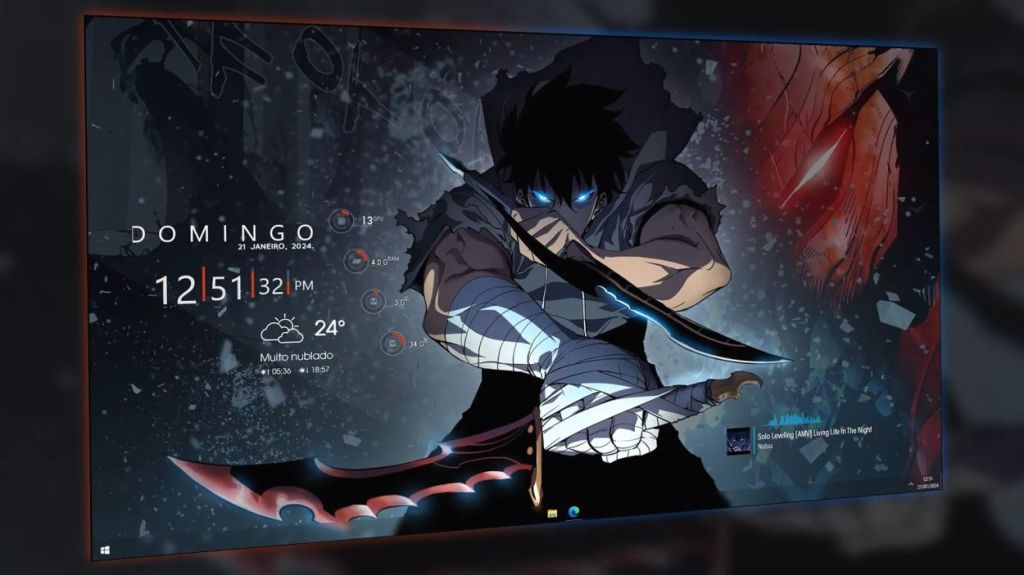
Based on Solo Leveling, this is a fantastic Anime Rainmeter skin that you can install on your PC. It comes with a couple of widgets including a weather widget, music player, date and time information, and more. In addition, you can also check out PC metrics like CPU usage, battery level, RAM usage, and more. If you are an Anime fan, you should check out this Rainmeter skin.
WindowsBar 1.0
If you are looking for an Anime-inspired Rainmeter skin for Windows 11, take a look at WindowsBar 1.0. It looks gorgeous with the Anime wallpaper, clean Taskbar, and revamped title bar. It even features a music widget so you can quickly change tracks from the title bar itself. What is even more impressive is the Taskbar which is perhaps further optimized using Windhawk. If you are an Anime lover, you should definitely try this Rainmeter skin.
Rainmeter Skins for Gamers
Cyberpunk 2077 ranks among the best Rainmeter skins for gamers with support for widgets. You can also check out Spiderman-themed skins as well.
Cyberpunk 2077
After multiple delays, we finally have Cyberpunk 2077 on all leading platforms. If you just can’t get enough of the game, this skin should help you step up your desktop’s look and feel. You get essential desktop shortcuts for quick access, along with time, CPU info, download and upload speeds, and system info.

It goes without saying that to use these skins, you need to have Rainmeter (download) installed on your Windows PC. It’s compatible with all Windows versions, from XP to Windows 11.
Spiderman 2
The Spider-Man game series from Insomniac is easily one of the best games, and the Spider-Man 2 Rainmeter skin is inspired by the Spider-Man 2 (review) game. It’s available in multiple resolutions, including 4K, and includes handy shortcuts. Other stuff includes Music, Volume Control, CPU, GPU stats, and Network Speeds.

Spiderman
Who doesn’t fancy a Spider-Man theme? Well, we certainly do, and that’s exactly why this theme has made it to our list. The skin brings Spiderman-inspired icons to your desktop, which complements the wallpaper (present in My Documents/ Rainmeter/ Skins/ Spiderman). Moreover, you’ll find all the essential stats, including download & upload speeds, disk info, and memory info in the left-side menu.

Rainmeter Skins with Widgets
Finally, those who prefer skins with multiple widgets, this section has you covered. You will find ClockWorld with a modern dock and desktop widgets. There are many such Rainmeter skins under this section.
ClockWorld
ClockWorld is a modern Rainmeter skin that has garnered thousands of views on DeviantArt. It offers a complete package with desktop widgets, music player, quotes on the desktop, calendar, apps, and more. I particularly love the newly designed icons which look quite refreshing. If you are looking for a colorful Rainmeter skin, I would definitely recommend ClockWorld.

The Gemini Suite
The Gemini Suite is a simple Rainmeter skin featuring a CPU, RAM, and storage widget, as well as a date and time widget on top. However, there are a few interesting things about this skin. You can add your choice of games and apps to the left widget. Additionally, you can integrate your Steam account to open and launch games instantly.

The best part is that Xbox Game Bar is also part of this skin, and you can launch many gaming tools with one click. And the wallpaper is embedded with the skin, so that is great. Simply put, if you are a gamer, then give it a shot at The Gemini Suite skin.
Sonder
If you’re looking for a minimalistic-looking theme with a nature-inspired aesthetic, you’ll feel right at home with Sonder skin. It uses green accents on the clock, calendar, weather, and CPU stats. Combined with TaskbarX for a centered transparent taskbar, this Rainmeter skin should elevate your home screen. Moreover, the skin still has active development, so you should be getting new features in the future.

Everon
If you want to blend minimalism with information at a glance, Everon is one of the best Rainmeter skins you can download. First up, it comes with lots of widgets, including CPU, GPU, RAM, and System Monitor. It also shows you the time, weather, and also integrates with Spotify to show you the current track that’s been played with effects.

Senja Suite
If you’re a fan of minimalism, you’re going to love Senja Suite. Lightweight and clean, it’s a Rainmeter skin that just takes care of the basics, but does them extremely well, without throwing too much stuff in your face.

The information displayed includes Time, a User profile button with an expandable bar for System folder shortcuts, a slideshow of favorite pictures, Media information with control buttons, and Shutdown/Restart/Log off buttons.
Advansity
If you’re all about the futuristic aesthetics, Advansity is the best Rainmeter skin you can get. For starters, it contains lots of widgets like statistics for CPU, GPU, Network, Clock, and Calendar, alongside the ability to deeply customize them. The widgets are mildly colorful, which adds greatly to the modern aesthetic. It also has a neat music player, which is nice.

Speed
Yet another skin with frosted glass and transparency effects, Speed looks great when matched with muted and minimal wallpapers. All of the skin’s sub-modules have a consistent look and can be rearranged to suit desktops of different resolutions. It can display system Time/Date, RSS feeds, Network status, Unread email count, CPU/RAM usage (via neat-looking gauges), and of course, Temperature with a three-day forecast.

T-R-A-N-S-F-O-R-M-E-X Mod
Are you ready to dial it back to the 2010s and catch a hint of this Rainmeter skin, which looks like JetAudio took over your entire Windows desktop? Dubbed T-R-A-N-S-F-O-R-M-E-X, this skin is quite nostalgic and permits you to add everything from the CPU, RAM, SWAP, location, and weather info on the desktop. You also get 3D icons for programs and power functions at the bottom, with a visualizer-like background.

Enigma
Probably one of the most (if not the most) downloaded Rainmeter skins of all time, you can spend hours at a stretch configuring Enigma. In fact, it’s so amazing that it was chosen as Rainmeter’s default skin in 2009. Enigma can show just about every piece of system information you can think of.

Image Credit: DeviantArt
All of its sub-modules are highly configurable and can be individually rearranged. Some of the stuff Enigma can show on the desktop includes World time and Weather, Media playback status/control, multiple RSS feeds, Picture slideshow, CPU and RAM usage, Quick notes, Real-time active processes, and then some more.
Wisp
What makes Wisp unique is the fact that its sub-elements don’t really have any “containing” boundaries, so they appear as they are written or drawn directly on the desktop background, rather than appearing as discrete widgets.

This can make for some really amazing-looking desktop when Wisp is paired with the right wallpaper. The neat-looking skin features modules for displaying information such as disk partitions’ space usage, Temperature, System date and time, CPU/RAM usage, and Network bandwidth consumption.
LIM!T
If you don’t really care for complicated looks and prefer something that conveys more meaning via mere text, LIM!T is definitely a Rainmeter skin worth checking out. Composed almost entirely of big, clean fonts, it conveys lots of information by filling up the inside(s) of the textual content.

It displays based on the minute numbers are filled up steadily, and increment after reaching full mark, every 60 seconds. The information displayed includes Date/Time, CPU and RAM usage, Current media playback status, and Weather statistics.
Clouds
If you like to use minimal Rainmeter skins, then check out Clouds. It does not have a plethora of widgets and plugins, except for time, date, and music visualizer. The skin is clean, so it doesn’t use much of your system resources. On top of that, it brings a soothing wallpaper to boot, which is great. If you want to add other plugins, you can, of course, customize the skin using Rainmeter.

Moderate
The reason I am mentioning Moderate skin is that it looks very similar to Android user interface. It has got a launcher, quick settings toggle, music controls – everything is available on the home screen.

If you have a touchscreen laptop, then I would highly recommend this Rainmeter skin. And to give a familiar aesthetic look between the skin and desktop background, I have used ‘Futuristic City’ wallpaper (check it out) from Reddit. Overall, I love this Rainmeter skin, and you should definitely try it on your computer.
You need to first install Rainmeter. Once you download a skin with the “.rmskin” extension, double-clicking it will automatically add it to the Rainmeter app.
Once installed, the skin should automatically load up. If not, you can load it manually by clicking on it in the Rainmeter app and clicking Load.
You can delete Rainmeter skins by simply going to the location where the skin is installed and deleting it. The location of the skins is usually \Users\username\Documents\Rainmeter\Skins.










 Anshuman Jain