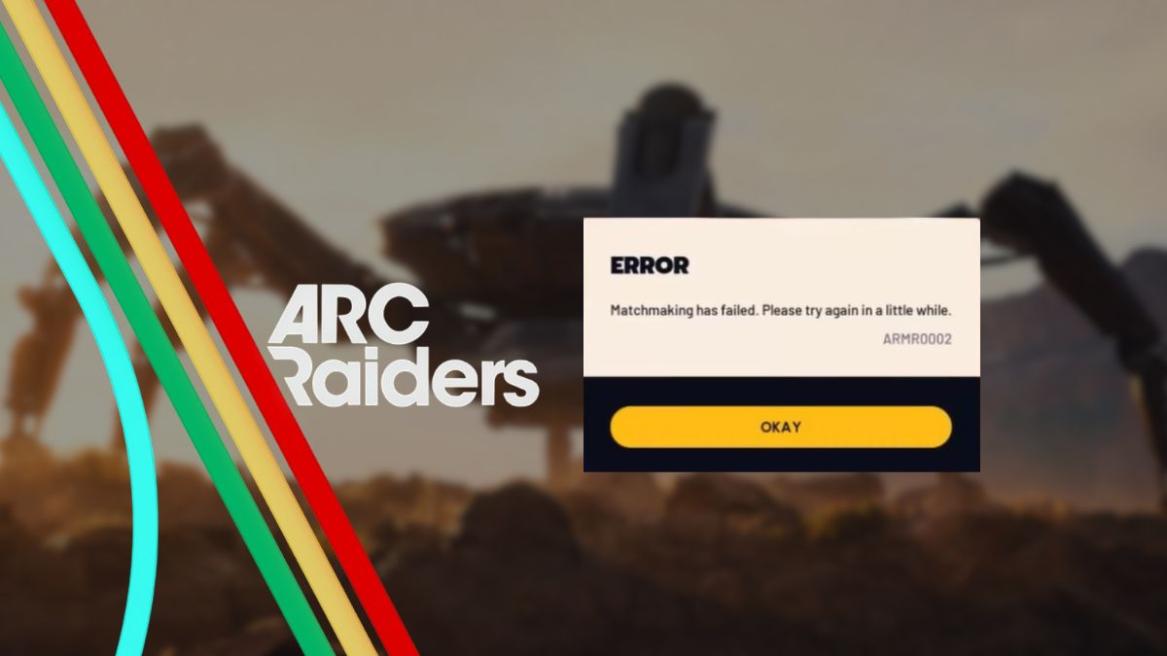
- The Arc Raiders ARMR0002 error is a matchmaking issue that usually stems from a faulty network.
- Players can try verifying their game files through Steam to see if it fixes the error.
- You can also try modifying your DNS settings to try to fix the Arc Raiders ARMR0002 error.
Arc Raiders takes players on a journey through a harsh and hostile world, where Raiders have to fight not only each other but also dangerous ARC enemies. However, apart from dying with all your loot, nothing is more frustrating than an error stopping you from joining an Arc Raiders match.
Arc Raiders ARMR0002 is one such matchmaking error, which actually made its first appearance back during the Arc Raiders playtest. Unfortunately, it has persisted to this day, even after the Arc Raiders 1.15.0 update. If you have also run into the annoying Arc Raiders ARMR0002 error, here’s what you can do to try and fix it.
All Possible Fixes for Arc Raiders ARMR0002 Error
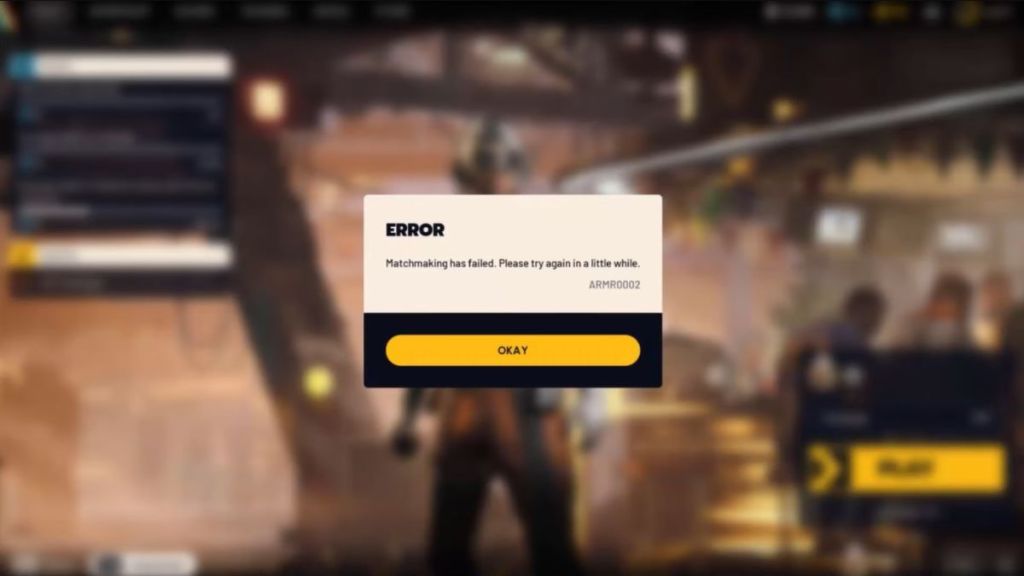
ARMR0002 is an extremely common matchmaking error in Arc Raiders, and the core of this error lies with your network, preventing you from joining a match and taking down ARC enemies. Here are the possible fixes you can use to fix this bug:
Power Cycle Your Network
One of the most common reasons behind the Arc Raiders ARMR0002 error is a faulty internet connection, which usually happens when your router’s DNS cache gets “stuck.” You can simply restart your browser to refresh your IP and clear out any routing glitches. Here are the steps you can follow to effectively reset your network:
- Unplug your router and modem.
- Wait for 60 seconds.
- Plug them back in.
- Wait for the network to stabilize after turning it back on.
- Restart your PC or Console.
Verify Game File Integrity
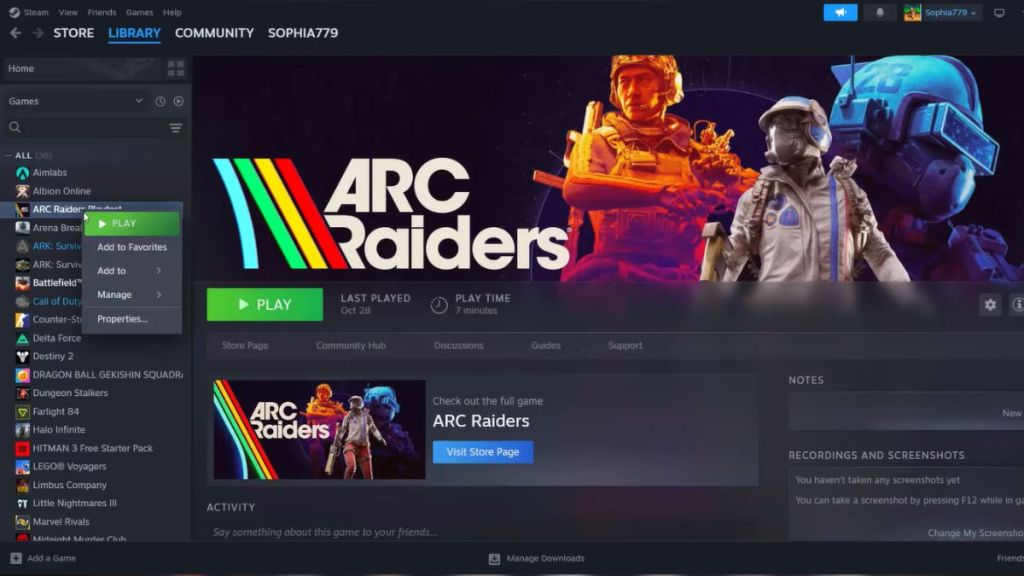
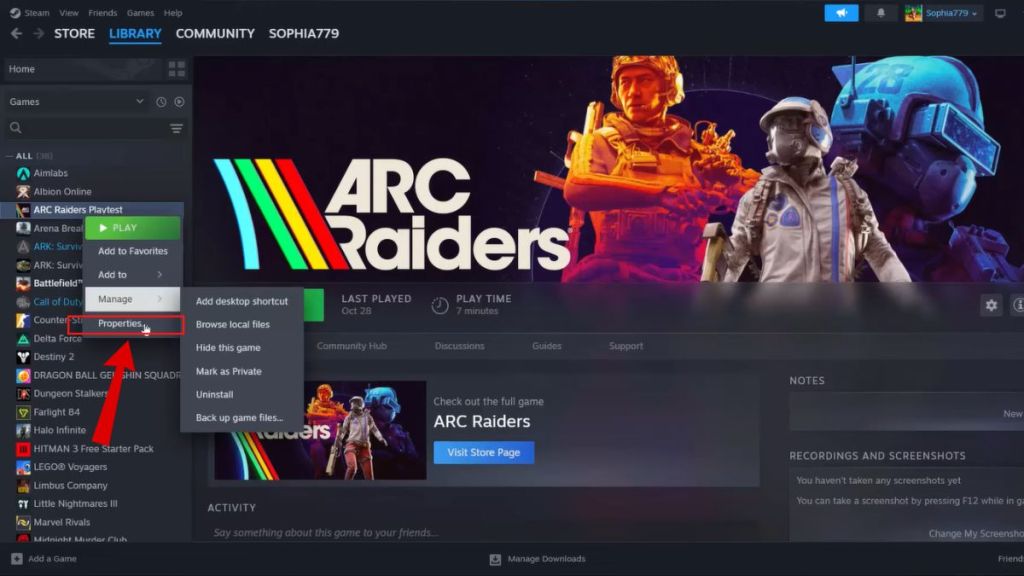
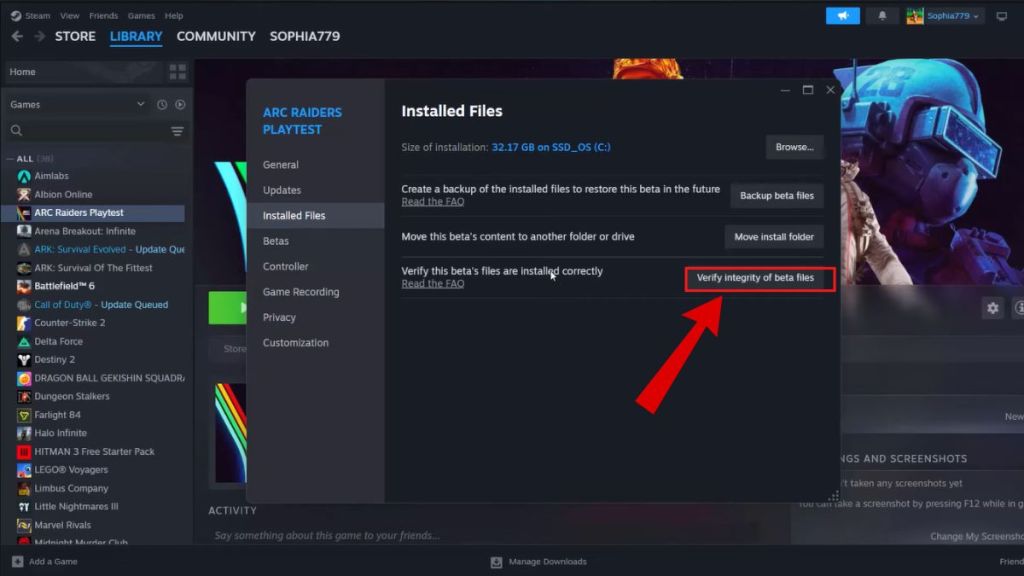
Another common culprit for the Arc Raiders ARMR0002 error is corrupted game files. If even a single network-related file is out of place, the game fails to establish a connection with the servers, resulting in the error. Verifying your game files through your launcher of choice can help you fix the ARMR0002 error. Here are the steps you can follow for both Steam and Epic Games:
Steam
- Launch Steam.
- Right-click on Arc Raiders in your Steam Library.
- Select Properties, and then Installed Files.
- Click Verify integrity of game files
Epic Games
- Open Epic Games Launcher.
- Go to your Library.
- Look for Arc Raiders and click on the three dots next to its name.
- Select Manage and then Verify.
Sync Your System Clock
This might sound like an unrelated fix for the Arc Raiders ARMR0002 error, but the game uses time-based tokens for its matchmaking services. If your PC’s clock is off by even 30 seconds from the server’s time, the digital handshake will fail and lead to the error. Here are the steps you can follow to sync up your system’s clock:
- Right-click the Time/Date on your taskbar.
- Select Adjust date and time.
- Make sure Set time automatically is toggled ON.
- Click the Sync now button under Additional settings.
Change Your DNS Settings
Many service providers use slow DNS (Domain Name System) servers. If your service provider’s DNS takes too long to find the game server, the connection times out and throws the ARMR0002 code. You can try switching to a higher speed DNS to try and solve this by following these steps:
- Open Control Panel.
- Go to Network and Internet, and then Network and Sharing Center.
- Select Change adapter settings.
- Right-click your active connection and select Properties.
- Select Internet Protocol Version 4 (IPv4) and click Properties.
- Select Use the following DNS server addresses and enter 8.8.8.8 as the preferred and 8.8.4.4 as the alternate.
- Check Validate settings upon exit and click OK.
- Restart your computer.
If you have tried all of these fixes and yet can’t get rid of the ARMR0002 error in Arc Raiders, it is possible that the issue lies with Embark’s side of things. You can check if Arc Raiders is down, and wait for servers to become operational again to try and get rid of the ARMR0002 error.
These are all of the possible fixes for the Arc Raiders ARMR0002 error. Were you able to fix this matchmaking error? Did you find any other methods that work? Tell us in the comments below!


 Pranav Maytray
 Ishan Adhikary
 Ishan Adhikary
 Pranav Maytray