- Minecraft Java Edition finally debuts a built-in Friends list feature.
- Players can invite friends to join their world without servers or Realms.
- This feature works similarly to the Bedrock Edition multiplayer system.
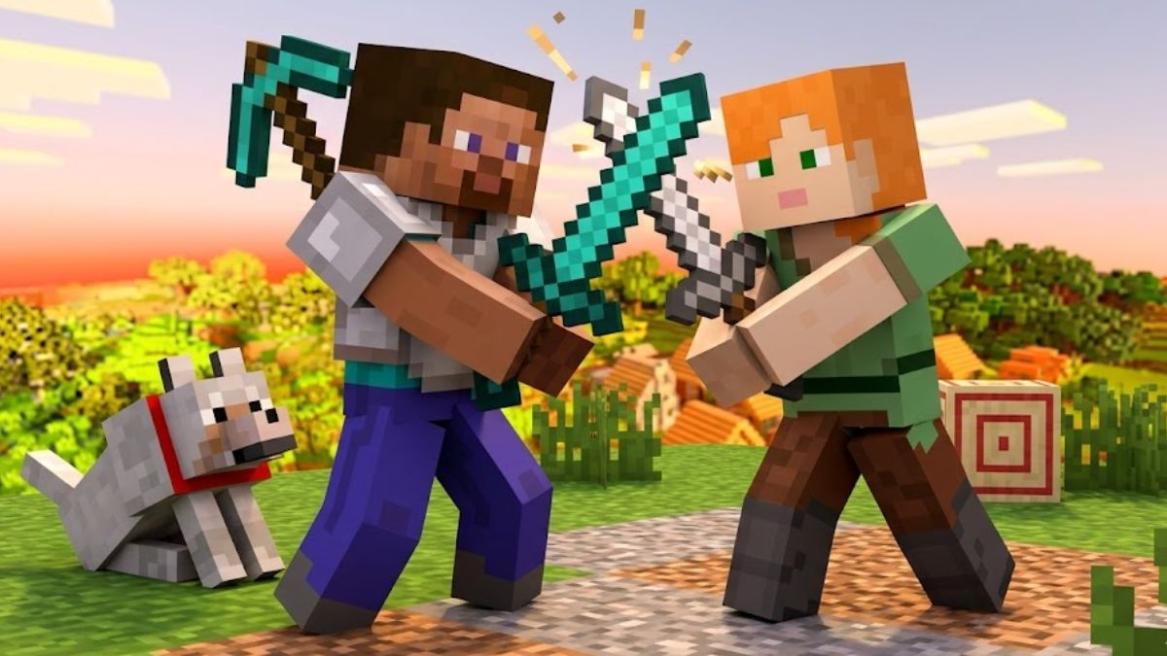
The Minecraft Bedrock Edition has had a simple built-in friends system for years that made joining worlds almost effortless. Meanwhile, Java Edition players have always had to rely on online servers, a LAN connection, or third-party mods to play with their friends. This gap is finally starting to close as Java Edition is introducing an easier way to play Minecraft with friends. In this guide, learn how to add friends in Minecraft and invite them to play together in the same world.
Editor’s Note: At the time of writing, the ‘Friends List’ feature is only available on Minecraft 26.2 Snapshot 7 and above.
How to Play Minecraft with Friends
The Minecraft Chaos Cubed update, releasing next month, will have a new Friends List system, a built-in social feature, for the Java edition. This will help players enjoy Minecraft with their friends without needing to connect to a common LAN or rely on Minecraft server hosting.
Now, you can simply add your friends using their Minecraft profile name and invite them directly to your world. Here is how to add friends in Minecraft and play with them:
- First, download the latest Minecraft beta update, Minecraft 26.2 Snapshot 7 or higher.
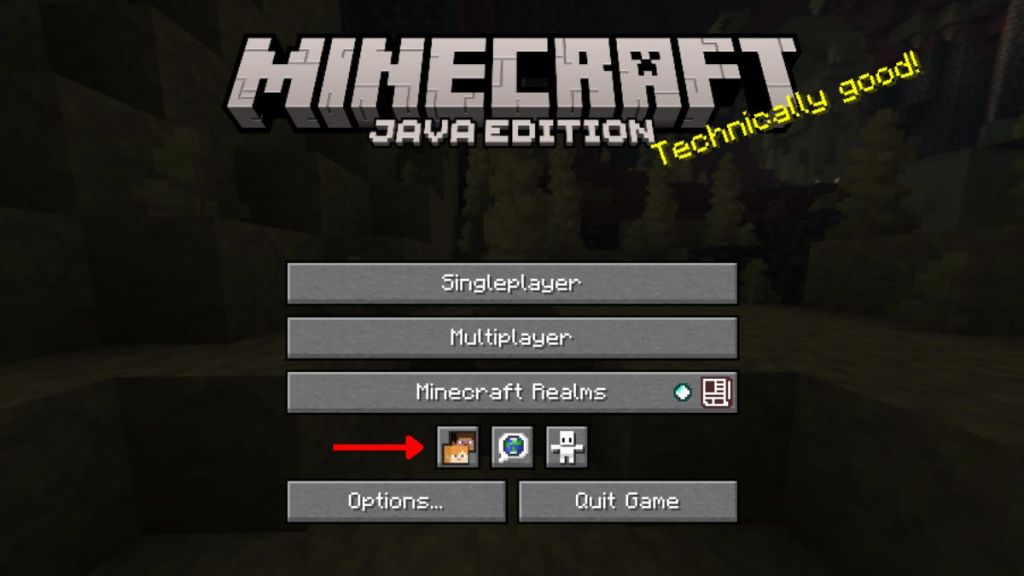
- On the title screen, you will see three new icons below Minecraft Realms.
- Click on the Friends icon on the left to open a new window.
- Now, type your friend’s Minecraft profile name in the text box.
- Click on the Envelope icon on the right to send them a friend request.
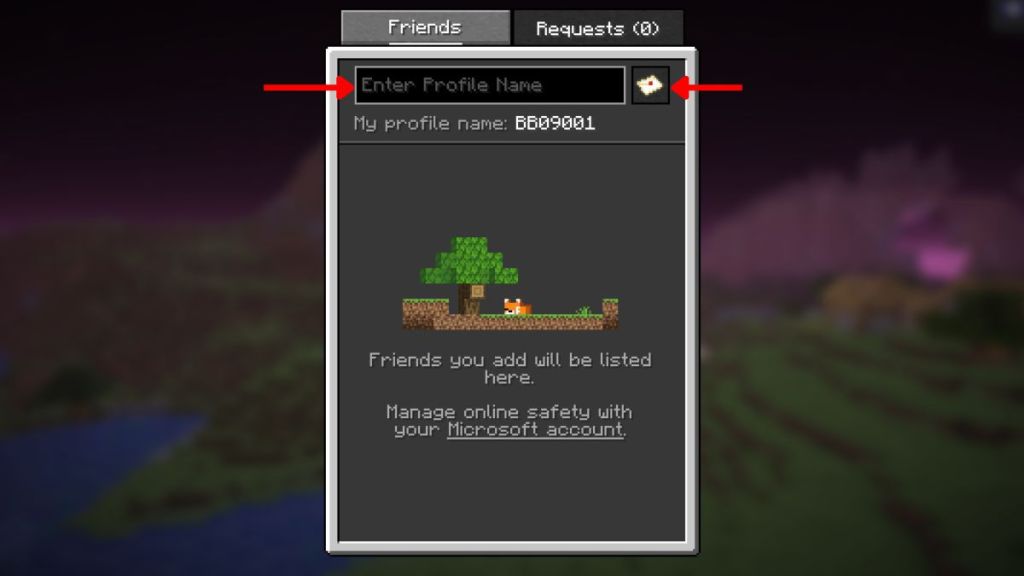
Once your friend accepts the request, you can invite them to your Minecraft seed. Similarly, you can check your pending friend requests from the Request tab on the top right. Here, you can accept or decline friend requests as per your need.
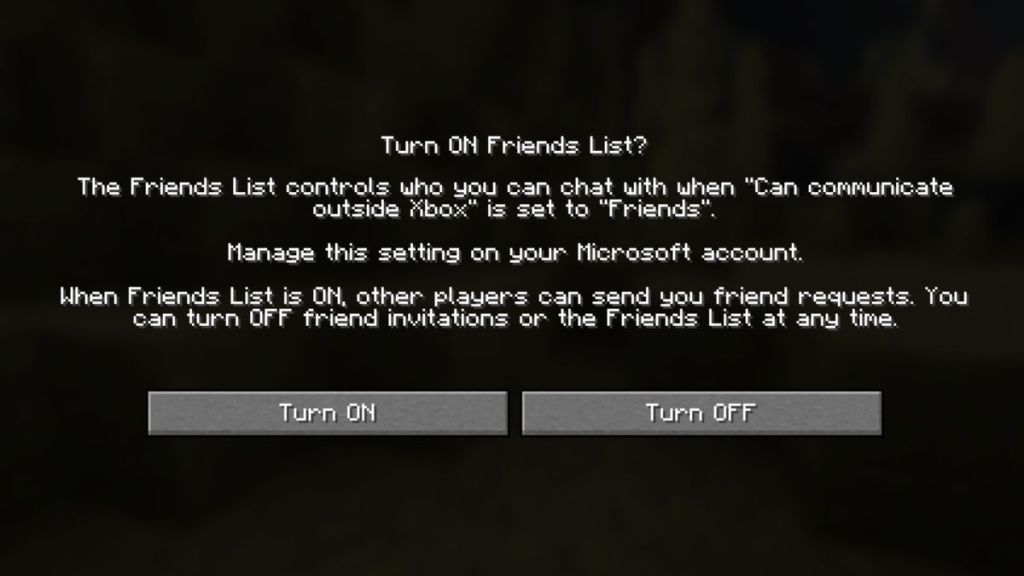
However, do note that before you can send or accept any friend requests, you’ll have to turn on the Friends List feature. Clicking the Friends icon for the first time pops up a prompt to toggle it on or off, as shown in the image below.
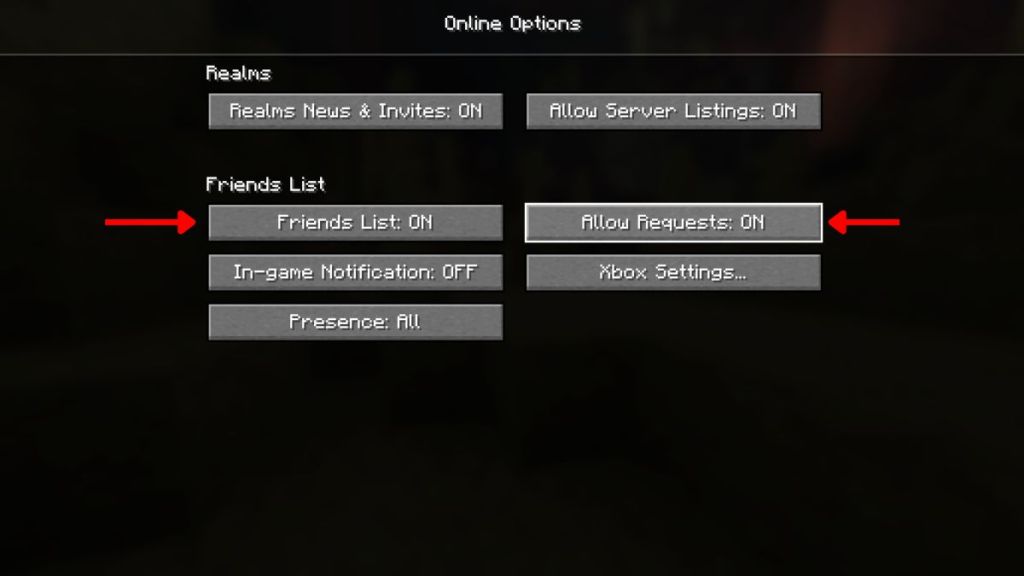
Alternatively, if you turned it off before but need to re-enable it now, click on the Options button on the title screen. Then, go to the Online settings and ensure that both the ‘Friends List‘ and ‘Allow Requests‘ toggles are set to ON.
How to Add Friends on Minecraft Java World
Mojang has also added peer-to-peer multiplayer support for Java Edition, which the community has long requested and which has existed in Minecraft Bedrock for many years. Now, you can open your single-player worlds online and invite friends without making a new Minecraft server or purchasing a Realm.
Once your friend group is set, hosting a session is simple. Here is how to open your Minecraft Java world to your friends list:
- Start up your single-player Minecraft world.
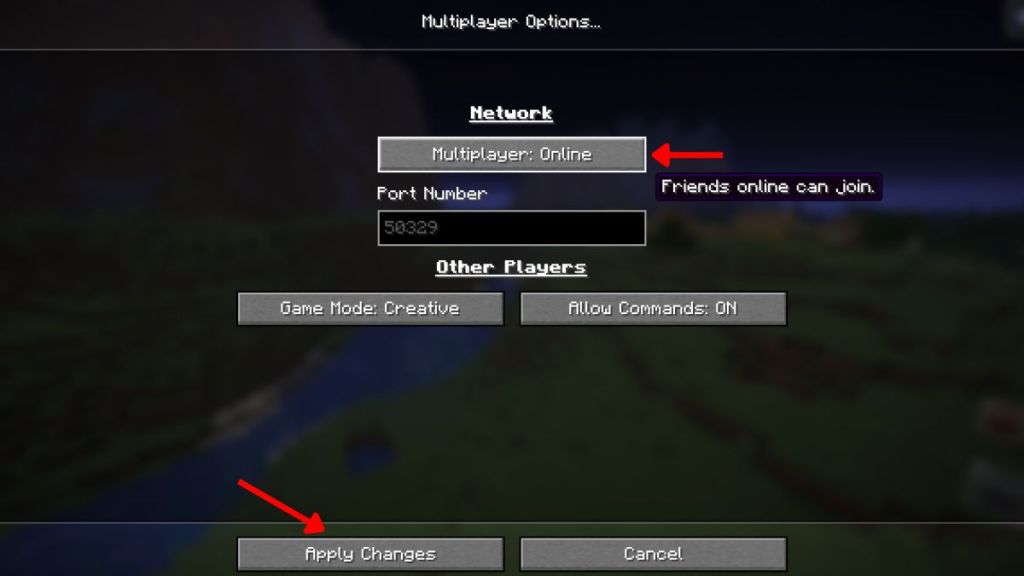
- On the Pause Menu, click on the Multiplayer button.
- In the new window that opens, set the ‘Multiplayer: Online‘ toggle to ON.
- Now, your friends can join the same world as you without a LAN connection.
- Click on Apply Changes to save the setting.
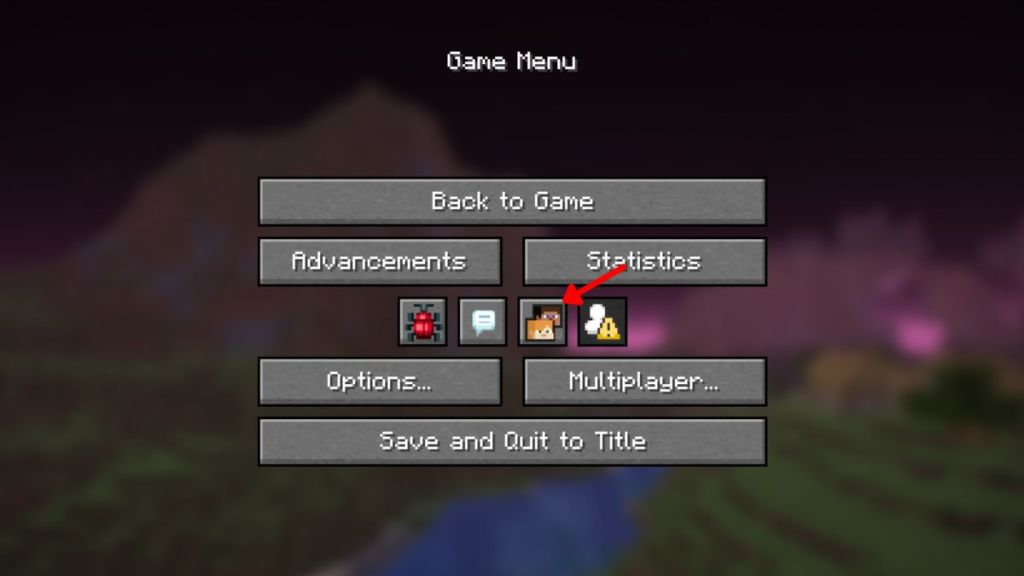
- Now, press the ‘O‘ key or go to the Pause Menu and click on the Friends icon.
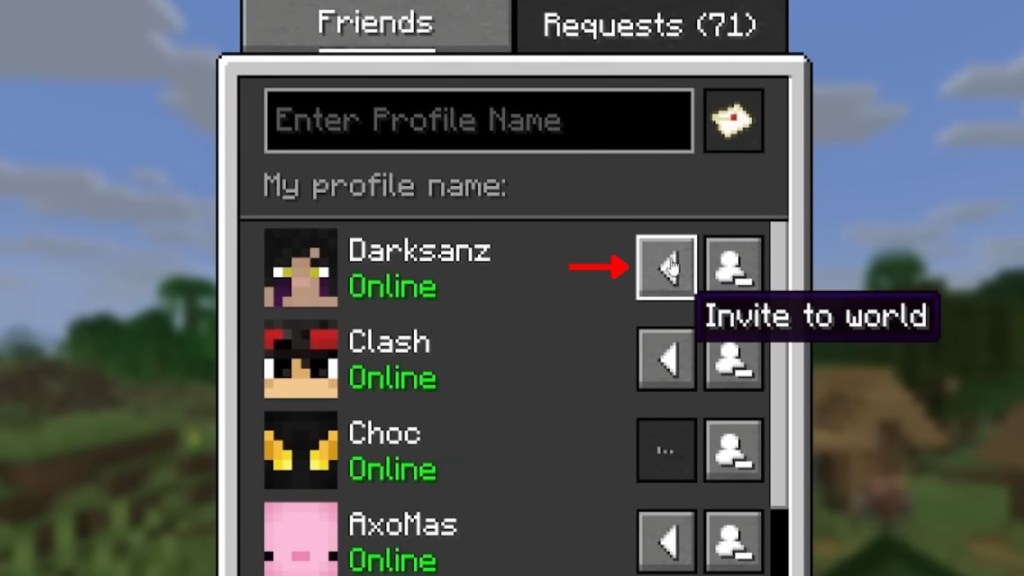
- Under the Friends tab, you can see all your friends who are online or playing in another world.
- Click on the Left Arrow button beside your friend’s name to invite them to your world. Make sure your friends accept the invite if you two want to play together.
- This will send you another request visible under the Friends tab. Once you accept it by pressing the ‘Tick‘ button, they will instantly join your Minecraft world.
This new peer-to-peer system turns single-player worlds into multiplayer sessions, making the co-op survival in Minecraft far easier than before. Currently, the feature is in its early stages and may have a few bugs. Mojang will iron out the kinks before multiplayer support is ready for primetime.
Yes, Mojang has added a new Friends List feature, and you can invite friends to play together starting with Minecraft 26.2 Snapshot 7.
Some friend request issues may occur due to Xbox’s privacy settings, so you might need to change them. Also, make sure the ‘Allow Requests’ option is enabled.