- To enable Vulkan, players need to go to Options -> video settings -> graphics API -> prefer Vulkan.
- At the time of writing, this is an experimental feature and can be tested in Minecraft 26.1 snapshots.
- Using the Vulkan graphics API, the game delivers higher FPS and the performance becomes stable.
After updating Minecraft with Vibrant Visuals, the game’s developer, Mojang, is making the blocky world snappier with the Vulkan rendering engine. For decades, the game has relied on OpenGL, but Minecraft has finally embraced Vulkan as the new graphics rendering engine. Wondering how you can enable Vulkan graphics in Minecraft? Keep reading.
After first talking about its plan to switch from OpenGL to Vulkan in February 2026, Minecraft 26.2 Snapshot 1 (aka the first snapshot for the Minecraft Cubed Chaos update) has introduced the Vulkan graphics option for Java Edition. The Vulkan API promises better GPU utilization and stability over time.
In this guide, learn the step-by-step process to turn on Vulkan in Minecraft. Also, we downloaded the latest snapshot to test the performance difference between Minecraft OpenGL and Vulkan. This will give you a better perspective on which graphics engine you should be using.
What is Vulkan in Minecraft?
Vulkan is a modern graphics API that grants more control to developers over the GPU as compared to OpenGL. This helps in making the gameplay smoother and more efficient with systems that have a powerful dedicated graphics card. This is the primary reason for Minecraft moving to Vulkan.
Currently, the Vulkan implementation in Minecraft is experimental and may not be “as performant or stable,” as per Mojang’s blog post. The game falls back to OpenGL on older hardware and drivers. You can test the Vulkan graphics feature by downloading the Minecraft 26.2 Snapshot 1 or later.
How to Enable Vulkan in Minecraft
Enabling Vulkan in Minecraft is simple; however, make sure that you’re using the latest Minecraft snapshot version to play the game. Now, follow the steps below to turn on Vulkan in Minecraft:
- Open the Minecraft Launcher, select the latest snapshot version (to the left of the Play button), and click the Play button. You might need to download it first to access it.
- Once inside the game, click on the Options button and go to Video Settings.
- Here, click on the ‘Graphics API‘ option to toggle between OpenGL and Vulkan.
- You can change the setting from Default to ‘Prefer Vulkan‘ to switch the graphics option.
- Click on Done to save the settings and exit the options menu.
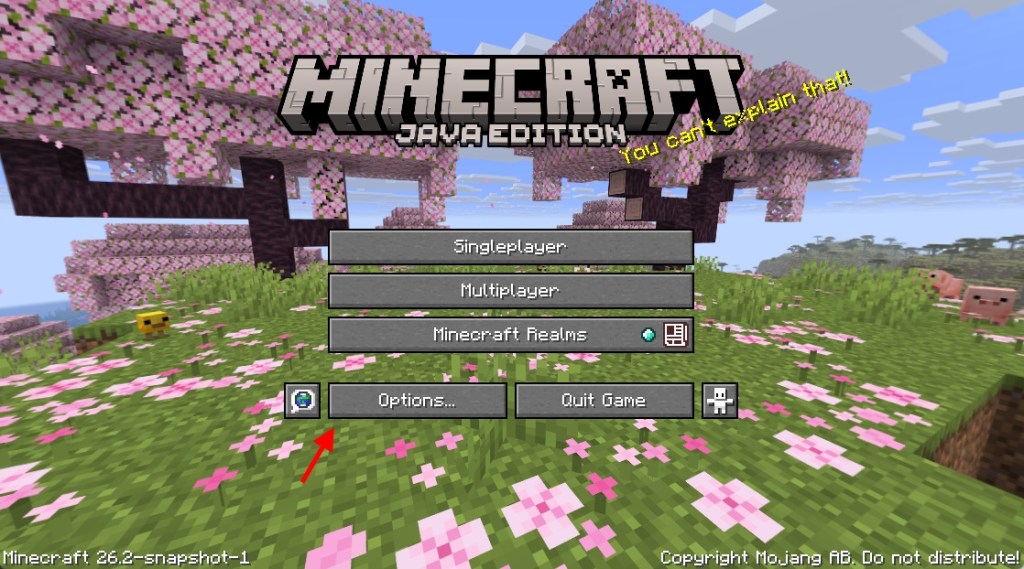
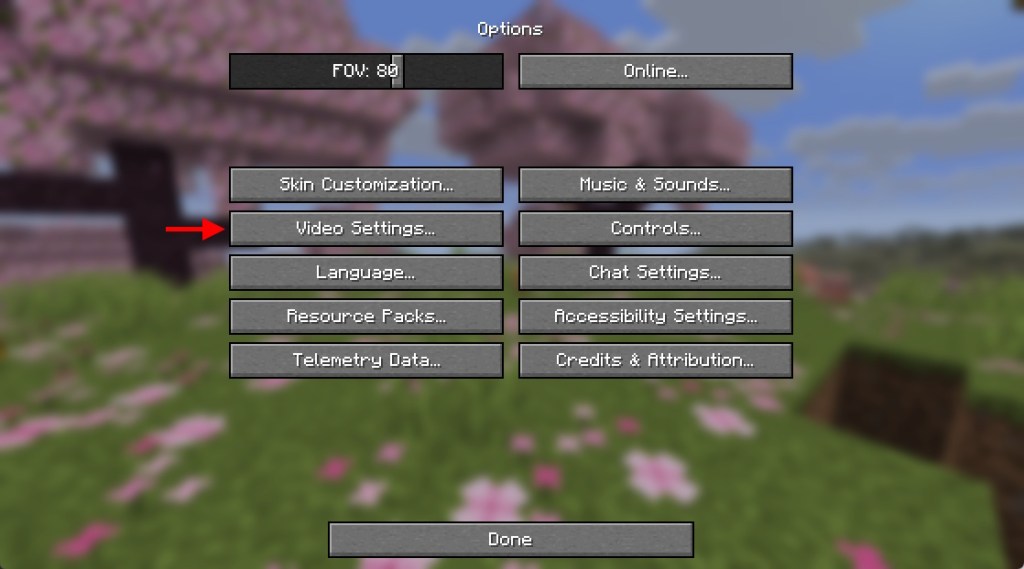
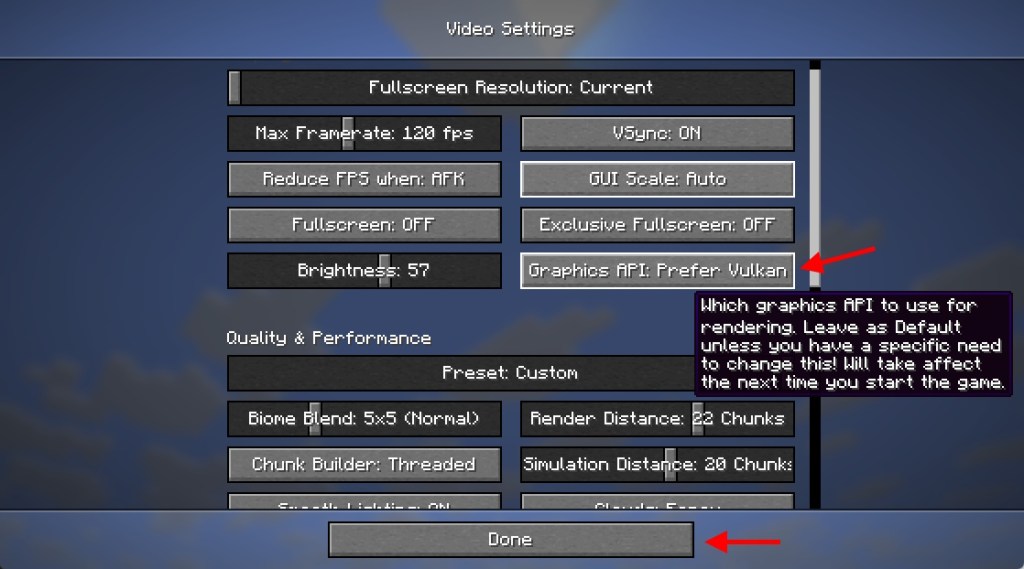
Now, restart the game to ensure the changes are applied correctly. An important thing to note here is that while using the Vulkan API, Minecraft prefers the dedicated GPU over integrated graphics.
Once you have enabled Vulkan, hop into your Minecraft world to notice the improvements. Also, if you’re someone who loves to install cool Minecraft mods, you no longer need the Vulkan Minecraft mod for better performance.
Minecraft OpenGL vs Vulkan Performance: Are There Any Improvements?
After Vulkan is enabled, you can enter a world and press F3 to open the Minecraft debug screen and check that Vulkan is displayed instead of OpenGL in the system_specs section on the right. Since Vulkan support is still experimental (will stay in testing until stable), the performance numbers may vary for players.
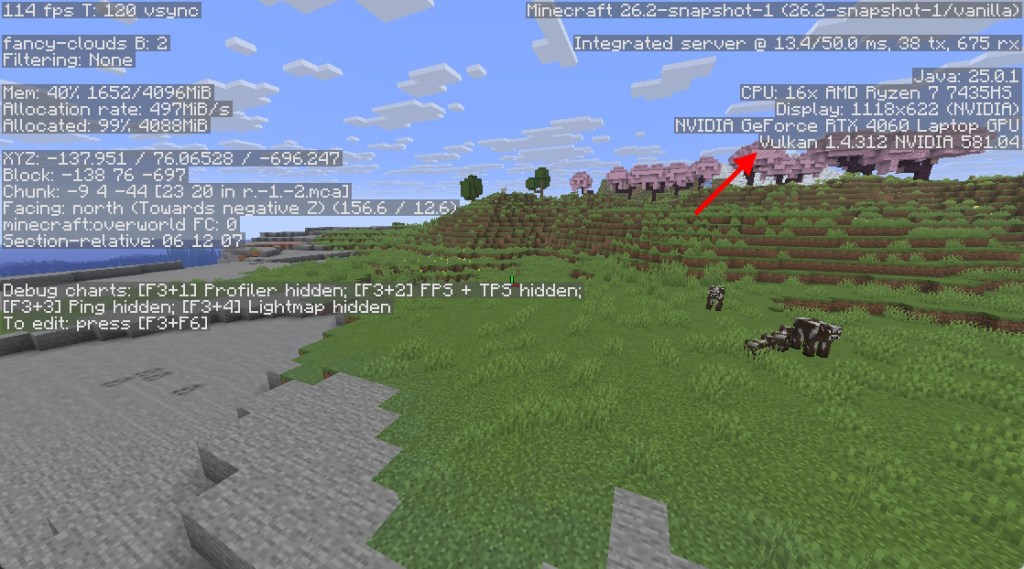
To get a clearer picture of how Vulkan performs compared to OpenGL, I test both graphics APIs on my mid-range gaming laptop. Here are the system specs for your reference:
- CPU: AMD Ryzen 7435HS (octa-core up to 4.5 GHz)
- GPU: NVIDIA GeForce RTX 4060 (8GB GDDR6 VRAM)
- RAM: 24 GB DDR5 RAM
- Storage: 512GB SSD
- Operating System: Windows 11
This setup is easily capable of handling Minecraft at high frame rates. So, here is the comparison of average FPS across different Minecraft dimensions:
| Area | OpenGL | Vulkan |
|---|---|---|
| Overworld | 280 FPS | 490 FPS |
| The Nether | 270 FPS | 530 FPS |
| End Dimension | 230 FPS | 280 FPS |
While testing the FPS numbers, I used Windowed Fullscreen mode with 1440p resolution, graphics set to the ‘Fancy’ preset, FPS set to ‘Unlimited’ with Vsync OFF, and the Minecraft 26.2 Snapshot 3 (the latest snapshot at the time of testing). Also, the game was set to use the dedicated GPU in the ‘Advanced display’ settings.
In my testing, Vulkan offers smoother gameplay, as is evident from the higher peak FPS it achieves compared to OpenGL. When looking at a dense cluster of trees or lots of Nether structures, OpenGL performance drops down to around 250-280 FPS on average. Vulkan, on the other hand, provides a more stable experience with the average FPS hovering around 500.
On Macs, as revealed by Mojang, Vulkan performance varies by generation. Users with newer chips (like Apple M3 and above) report that Vulkan comes close to OpenGL in terms of FPS. Older Macs, on the other hand, still rely on OpenGL even though it has been deprecated on macOS. For Macs, it has been revealed that Mojang is using MoltenVK to translate Vulkan to Metal.
That’s everything you need to know about switching to Vulkan in Minecraft, and how it affects your in-game performance. So, have you installed Minecraft 26.2 snapshots and tested this new graphics setting? Tell us in the comments below.
In terms of performance and stability, Vulkan provides smoother gameplay and higher FPS than OpenGL in Minecraft.
Yes, in the latest Minecraft 26.2 snapshots, you can enable Vulkan from the video settings and join a new world with this graphics API.