- Xbox servers are back online after a 20-hour-long outage that took place on July 27, 2026.
- Players who are still running into problems with Xbox connectivity should try restarting their console and network router.
- The Xbox 0x87dd000f error can be fixed by removing and re-adding accounts and/or changing DNS settings.
Sitting down for a gaming session on your Xbox console, only to run into server errors, is one of the most frustrating feelings ever. This usually leads all players to ask the same question: are Xbox servers down right now? Luckily, we have an answer for you right here, along with possible fixes for certain frustrating errors.
Are Xbox Servers Down Right Now?
No, Xbox and all of its services are currently online. Players on Xbox consoles reported that they are facing problems with login and server connections on July 27, 2026, following a widespread outage. This also included the Xbox 0x87dd000f error, which has grown to become a pain that many players run into when trying to log into Xbox servers.
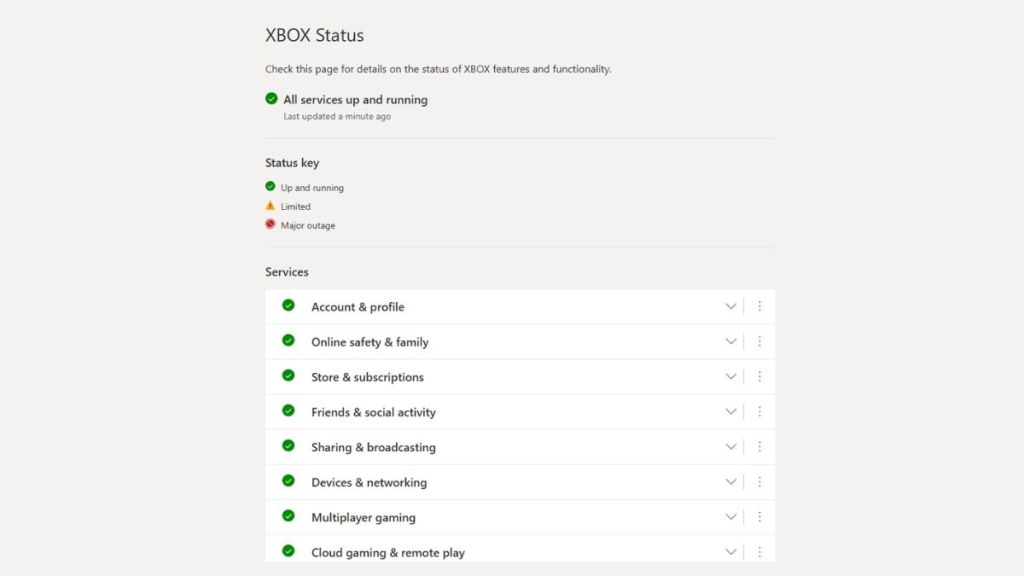
You can also head to the official Xbox server status website to check if Microsoft has reported any outages or issues.
How to Fix Xbox 0x87dd000f Error
The Xbox 0x87dd000f error is one of the most common connection errors on Xbox consoles. The error means your Microsoft account sign-in failed due to a network connectivity issue. It usually triggers right after a server outage has ended, or when the handshake between your console and the Xbox servers fails.
That said, here are the possible fixes you can try to get rid of the Xbox 0x87dd000f error:
Restart your console
The age-old solution to any issue is to simply restart your console. It is important that you do not just put your console into sleep mode. You need to hold down the Xbox button on the front of the console until it shuts down completely. Then, you can unplug the power cable and plug it back in after 30 seconds. This step helps you clear the hardware cache, which might be hindering your console from establishing a firm connection.
Reboot your network hardware
Since the issue can also stem from your network not performing properly, you can also try unplugging your modem and router from their power outlets. You should then wait a while before plugging them back in. This allows your router to completely reboot and clear out clogged IP configurations, refreshing your route to Xbox servers in the process.
Remove and Re-add Your Profile
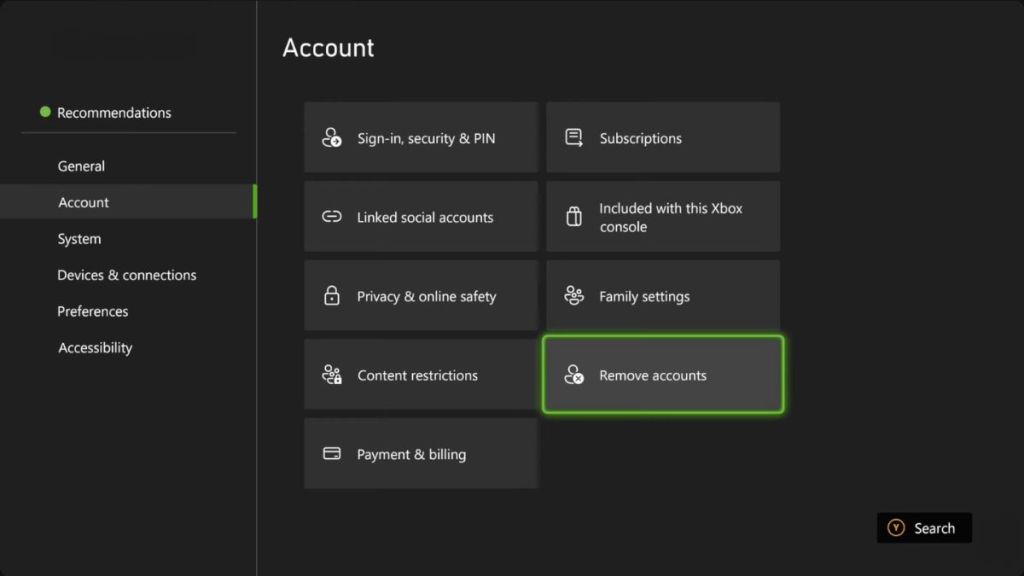
If the Xbox 0x87dd000f Error persists, it might be because your local save profile is temporarily glitched. Go to Settings > Account > Remove accounts and select your profile. Once the profile has been removed, you can restart the console, return to the account menu, and select Add new to re-download your cloud profile.
Change Your DNS Servers
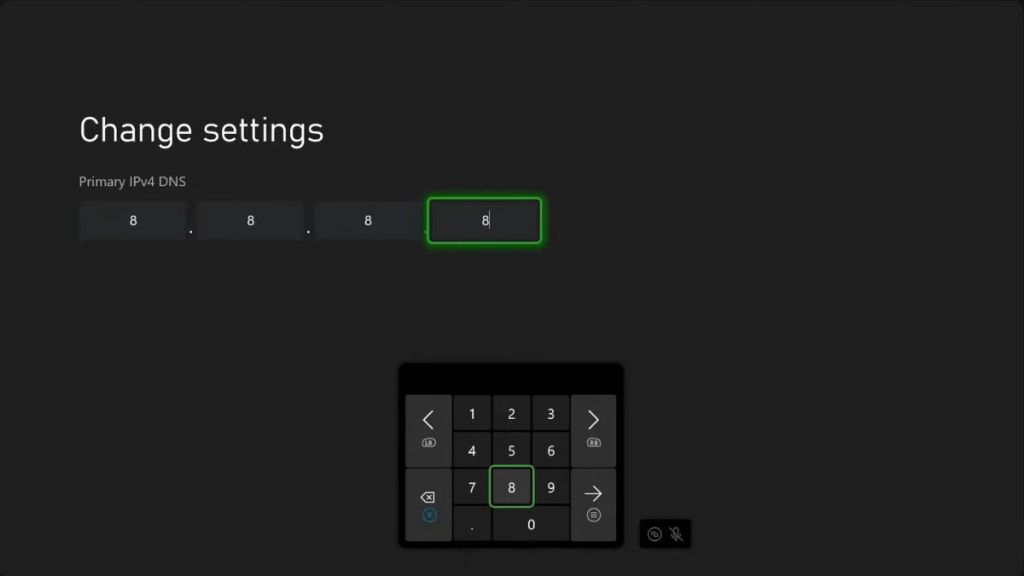
If your internet provider’s default DNS is slow, your console will have a hard time sending your login data to servers. To change your DNS settings, you can follow these steps:
- Go to Settings > General > Network settings > Advanced settings.
- Select DNS settings and choose Manual.
- Enter one of these public DNS options:
- Google DNS: Primary 8.8.8.8 / Secondary 8.8.4.4
- Cloudflare DNS: Primary 1.1.1.1 / Secondary 1.0.0.1
- Save the settings, restart your console, and try logging in again.
Check for a System Update
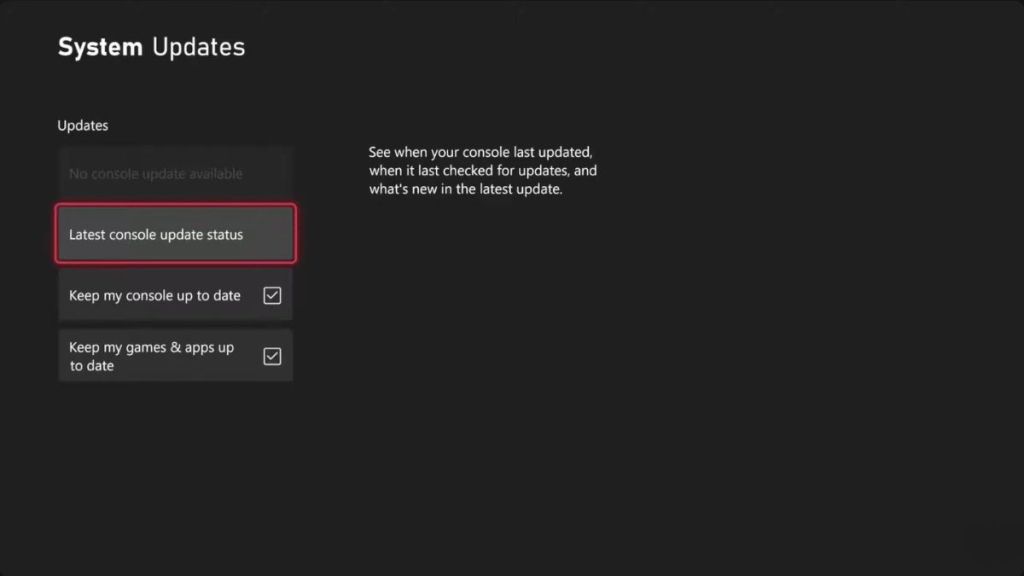
Finally, if your console was interrupted during a system update, it might throw the Xbox 0x87dd000f Error code while trying to connect to live services like Xbox Game Pass. To fix this, go to Settings > System > Updates, and check if an update is available or stuck halfway through. If it is, connect your console to a network and finish the download.
If you follow these steps, you should be able to fix the Xbox 0x87dd000f error. However, if the steps fail, it is advised that you wait for an official fix from Microsoft.
Have you been facing issues with your Xbox login lately? Did we miss a possible fix for the error? Tell us in the comments below!