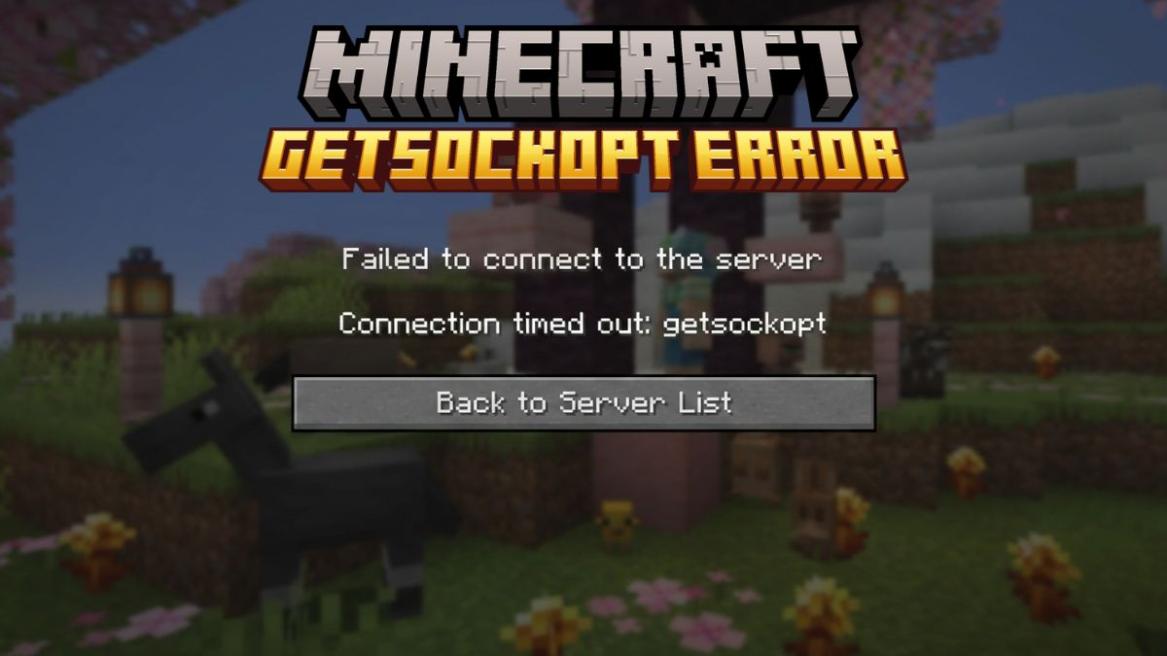
- The getsockopt error is a network issue in Minecraft that is usually caused by firewall blocks, DNS problems, or an unstable internet connection.
- The quick fixes include restarting your router, checking server status, and allowing Minecraft through the firewall.
- Some advanced solutions include changing your DNS or updating the Java drivers.
Playing Minecraft with your friends for the first time can be an amusing experience until you get hit with the dreaded “Connection timed out: getsockopt” error. We all know how frustrating it feels because the single-line message doesn’t exactly explain the problem, and you might spend an entire day just to find out how to fix it. So, if you want a clear step-by-step method and learn how to fix the getsockopt error in Minecraft, check this guide right now.
What is the Getsockopt Error in Minecraft?
The getsockopt Minecraft error is a network-related issue that generally happens when your game fails to establish or maintain a stable connection with the Minecraft servers or even on Minecraft modded servers. In simple words, you can imagine a scenario where you’re calling your friend, but the signal keeps dropping before they can pick it up. So, you see, a connection attempt is made at your end in Minecraft, but something interrupts it before it completes. This results in the getsockopt error.
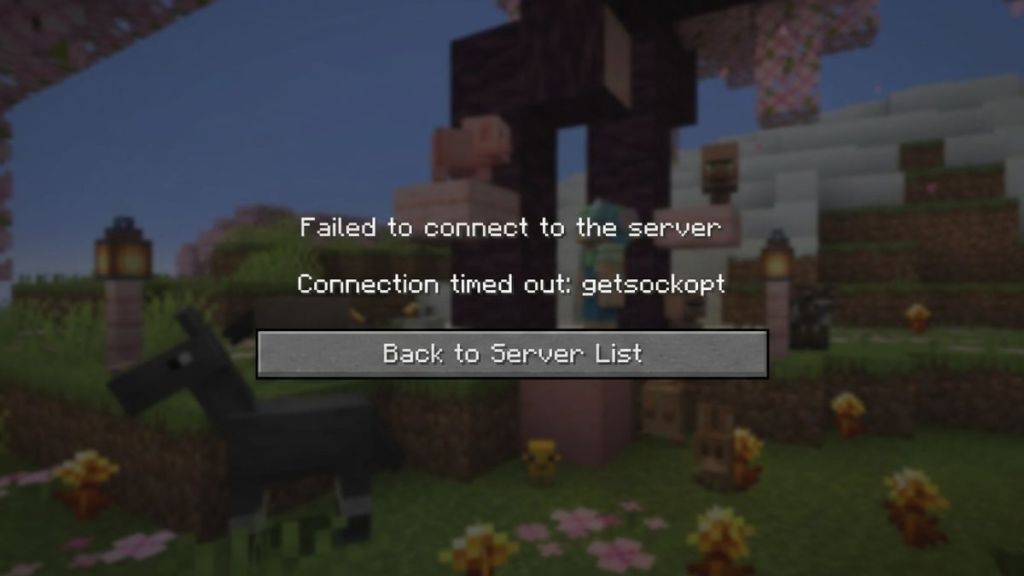
What makes the Minecraft getsockopt error tricky to fix is that it is not caused by just one thing. It can arise from a number of sources, like firewall restrictions, DNS problems, server downtime, or even outdated software. Sometimes these can share similar sources related to the Minecraft Exit Code 1 error as well, so double-check the error you’re facing.
That is why some catch the exact problem quickly, while others tend to struggle with this. In some cases, you may even encounter the connection refused getsockopt message instead, meaning that the server actively rejected your connection request.
How to Fix the Getsockopt Minecraft Error
Before heading on to the main steps to fix this issue, let’s first make sure you have double-checked the basic networking stuff. First, check whether the Minecraft server you want to connect to is even online, and then see whether your Wi-Fi is working properly.
Sometimes, a simple router restart can also fix such issues with the getsockopt Minecraft server error without changing your network settings. Make sure that it is not a simple Minecraft JNI error that occurs because of an outdated or incompatible Java version.
These are some basic fixes for the Minecraft error getsockopt that are often overlooked, and a lot of time is wasted doing random things. Once you have checked the above and are sure the error is not yet fixed, consider doing the following:
Allow Minecraft Through Firewall
Sometimes your firewall or antivirus software does its job so well that some online game features get blocked. While these tools protect your system, they can also block the Java-based connections that Minecraft relies on, resulting in the getsockopt Minecraft error. So, before you learn how to join a Minecraft server, perform the following steps:
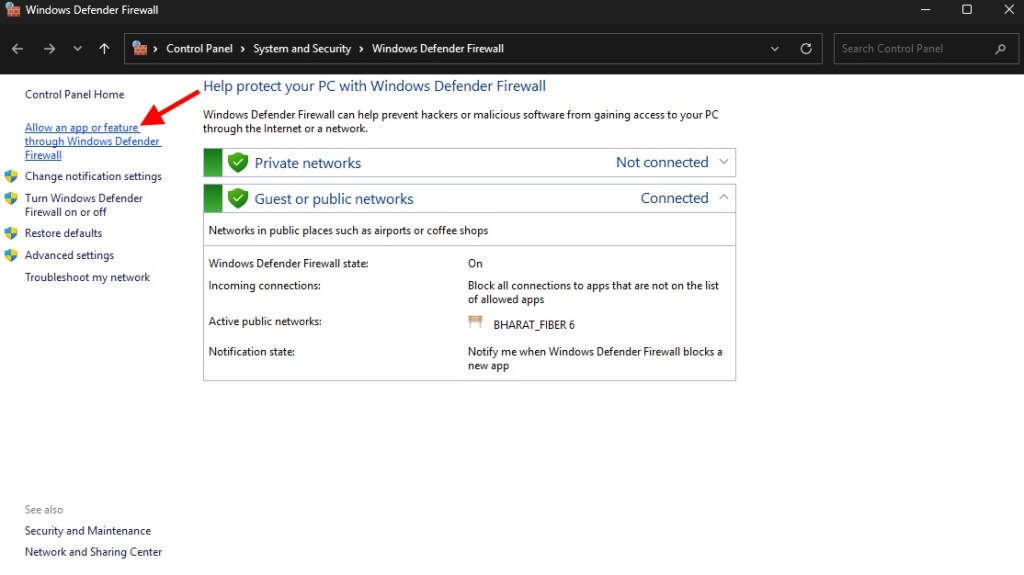
- On the Start Menu of your PC, search for ‘Windows Defender Firewall‘ and click on it.
- Now, click on Allow an app or feature through Windows Defender Firewall.
- On the pop-up menu, scroll down to find javaw.exe or the Java Platform SE binary. Once you find them, check the boxes in both the Private and Public columns.
- Then look for Minecraft and Minecraft Launcher in the list and check both boxes.
- If you cannot find either of the Minecraft apps, click on the Allow another app button below and add them from the folder where they’re installed.
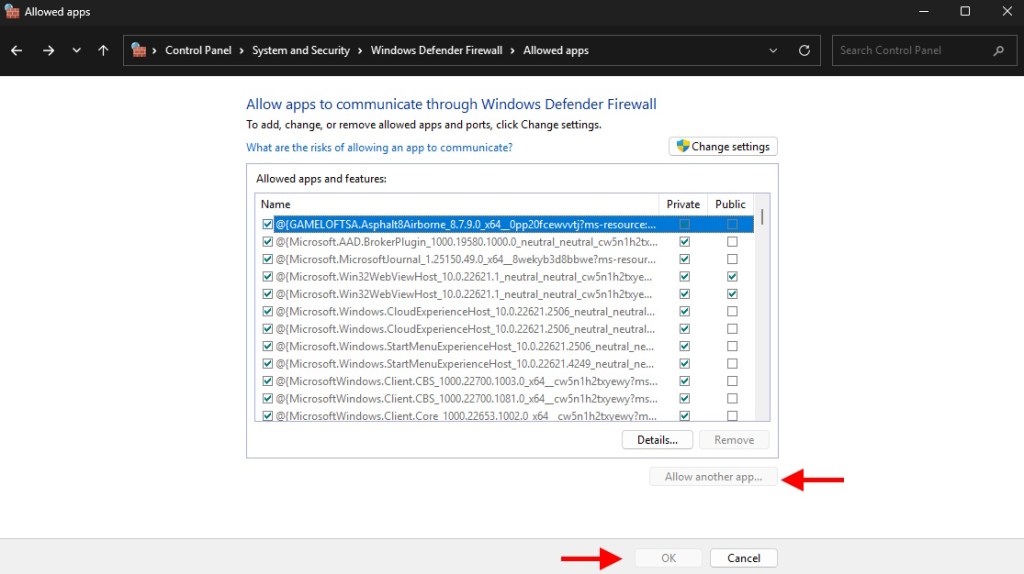
This ensures that your system doesn’t treat the game as a threat, and it often fixes the getsockopt Minecraft issue. If you face issues in opening the Launcher and get the message ‘Minecraft failed to find product errors,’ check the methods in our linked guide to solve it.
Disable Firewall Temporarily
If allowing Minecraft and Java apps through your Firewall doesn’t fix the getsockopt error in Minecraft, maybe your antivirus is overly aggressive when it comes to network activity. Now it is not as simple as an Abandoned Connection Closed error in Minecraft. So, follow the steps below to disable your Firewall temporarily:
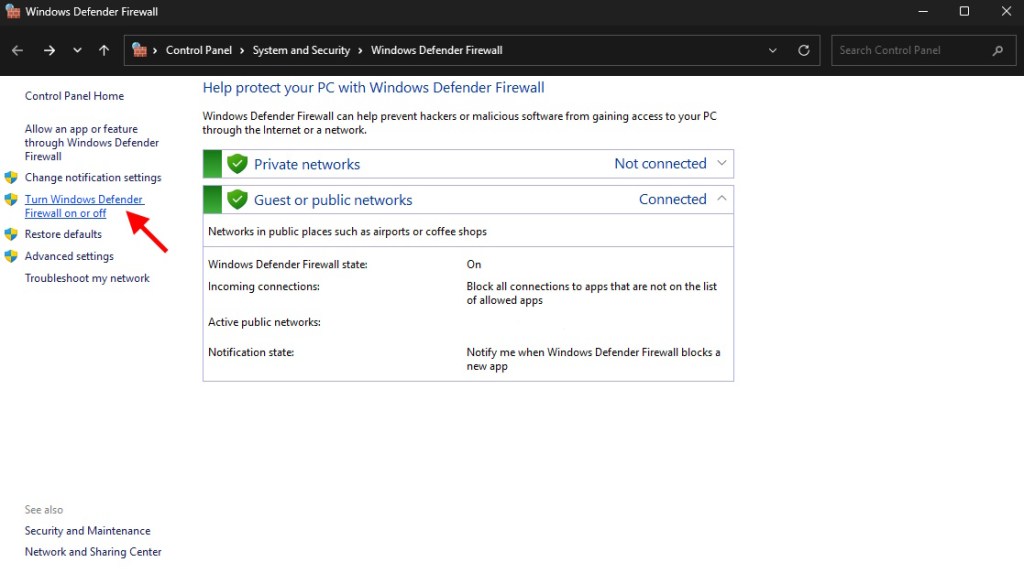
- On the starting screen of your Windows Defender Firewall, click on ‘Turn Windows Defender Firewall on or off‘ on the left.
- For both the private and public network settings, click on the checkbox to turn off Windows Defender Firewall, and then click on Ok.
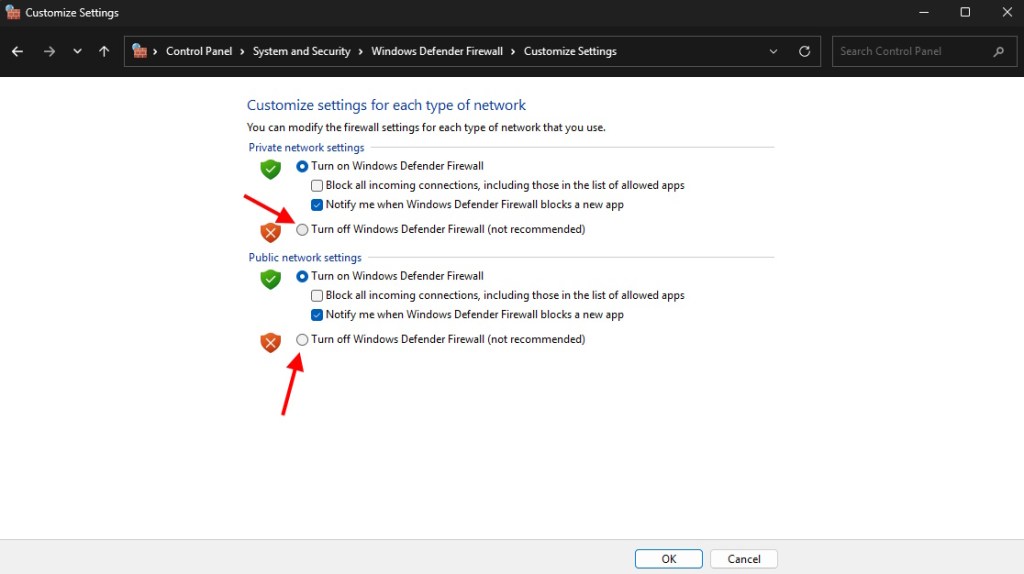
Do note that this will put your PC at risk of getting infected with viruses or malware when you’re surfing the internet with the Firewall turned off. So, make sure that you have turned it back on when you’re done playing online, whether it’s the best Minecraft survival servers or Minecraft Dungeons 2. If the connection times out and the getsockopt error disappears after disabling the firewall, you’ll know that the security software is causing the issue.
Change DNS Settings
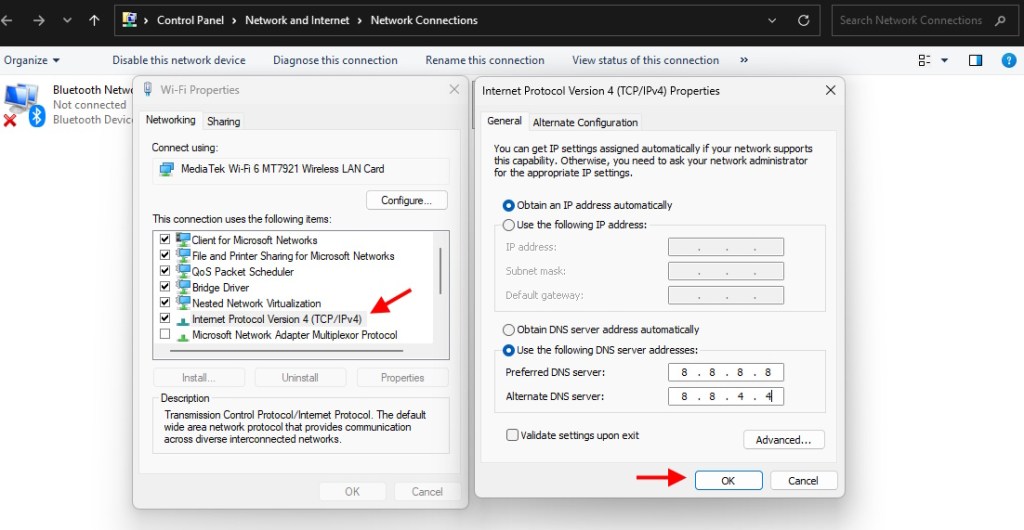
The DNS (or Domain Name System) is like a phone book of the internet. If your default DNS is slow and unreliable, it can cause connection issues. Here’s how you can switch to Google DNS and improve the connection stability, thereby helping to fix the Minecraft getsockopt error:
- On your Start Menu, search for Control Panel and click on it.
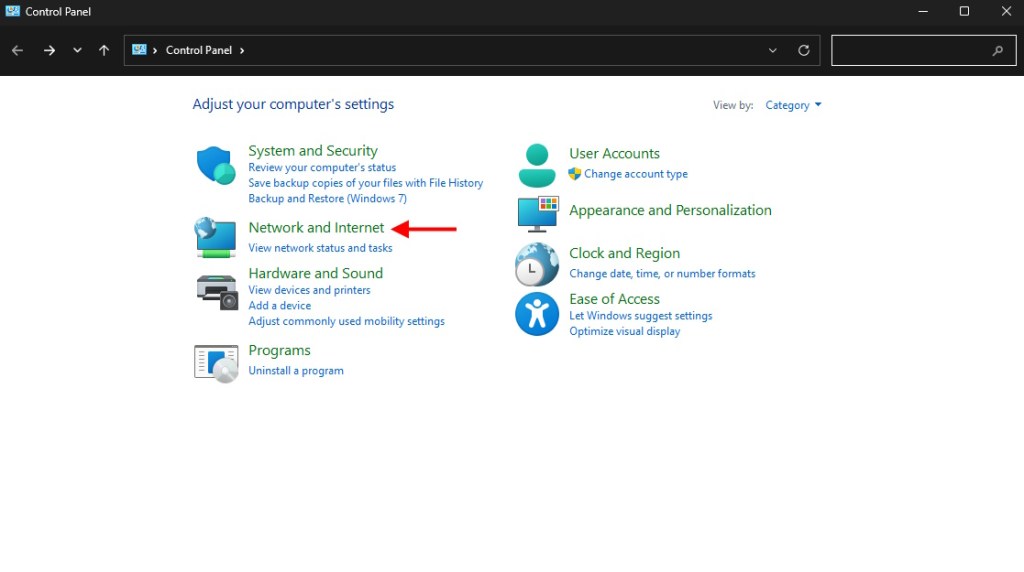
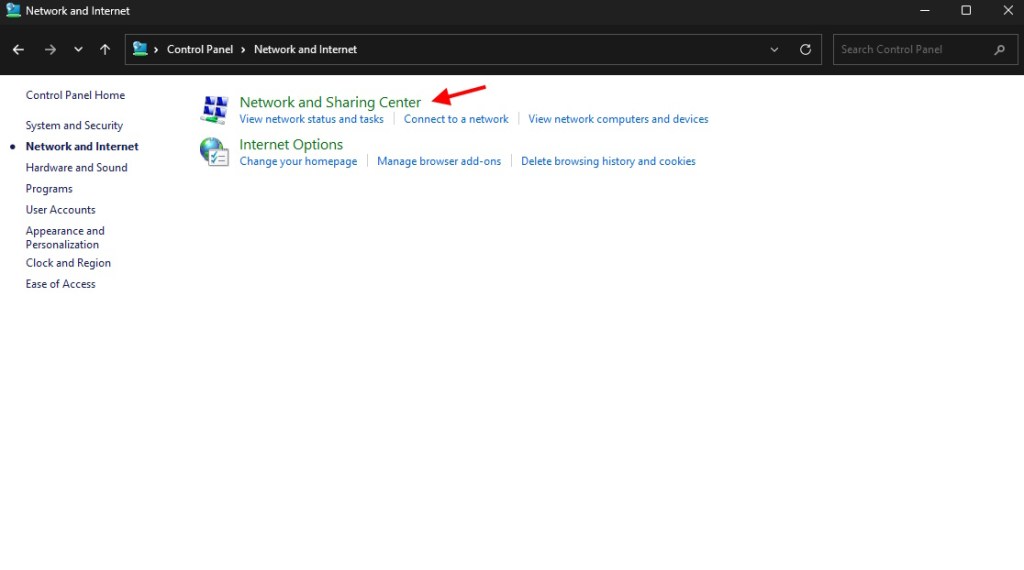
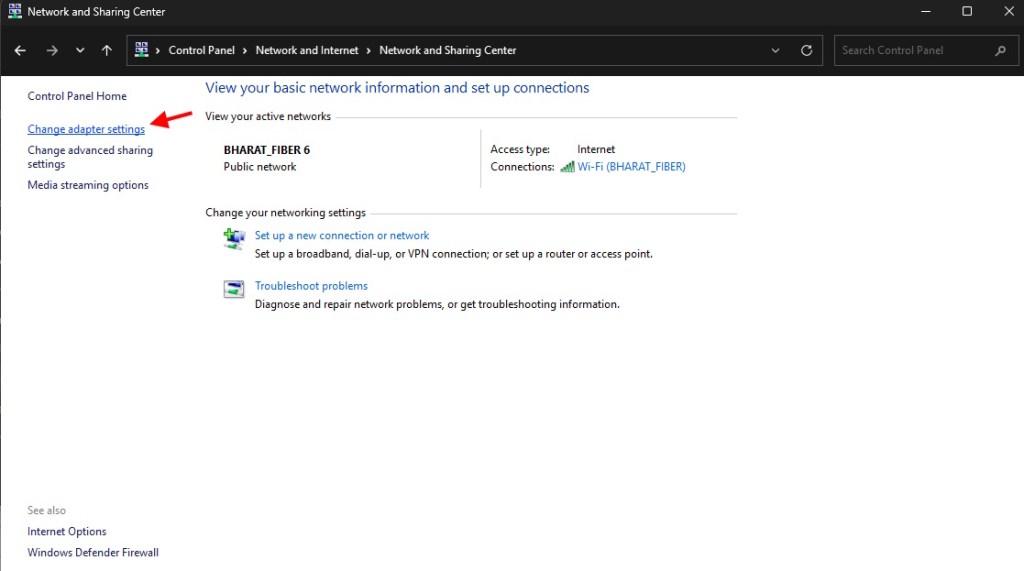
- Click on Network and Internet. Then click on Network and Sharing Center, and click on Change Adapter Settings.
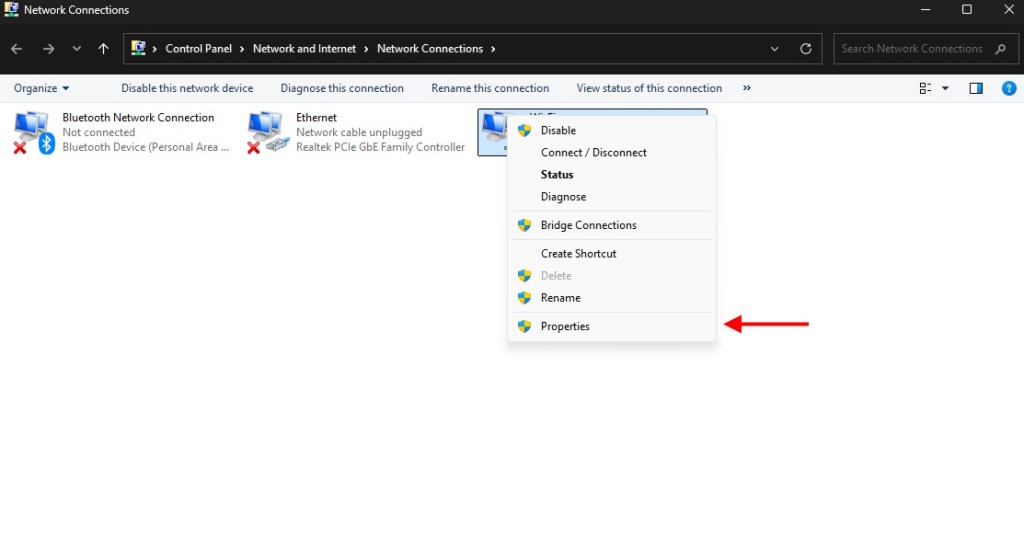
- Right-click on either your Ethernet or Wi-Fi, which is actively working right now. Then click on Properties.
- Search for the Internet Protocol Version (TCP/IPv4) from the list and click on Properties.
- Under the General tab, select Use the following DNS server address and change the Preferred DNS server number to ‘8.8.8.8‘.
- Also, change the Alternate DNS server number to ‘8.8.4.4‘. Now restart your PC to apply the changes.
Apart from these fixes, you should always double-check the server IP address, as even a small typo can cause a connection refused getsockopt error. Minecraft runs on Java, and therefore, the outdated versions can also cause compatibility issues. So, try updating the Java software. Furthermore, if you’ve tried everything and still face the issue, consider contacting Mojang Studios for support.
And that is all about how to fix the Minecraft getsockopt error. Once you’re done solving the issue, you can check the latest Minecraft Chaos Cubed update or use our list of the best Minecraft seeds to generate a world with useful loot structures.
This refers to a network connection failure where the system cannot establish a stable link with the server.
No, the getsockopt error is unrelated to mods and is mainly caused by a network or firewall issue.
No, you should only disable the firewall temporarily to fix the getsockopt error in Minecraft and turn it back on when you’re done playing.