
Much like Wordle, Quordle has become a morning essential for a lot of players around the world. So, Quordle not working when you sit down with your morning coffee can be incredibly frustrating. If you are running into errors while trying to play Quordle, check out what you can do to get back to guessing those four words for your answer.
How to Fix Quordle Not Working?
Quordle relies on a stable internet connection and your browser functioning properly. Issues like corrupted cached data, browser settings, or temporary connectivity problems can prevent the game from loading or working as expected. Here are some troubleshooting steps you can use to get back to the game:
Refresh Your Browser
Sometimes, a temporary glitch occurs while the game is trying to load. This can prevent certain elements from appearing or stop the game from responding to your inputs. The simplest fix is to refresh your browser page to force the game to reload.
You can do this by simply clicking the refresh icon next to the address bar or pressing Ctrl +R on Windows (Command + R on Mac). If that doesn’t work, try closing the Quordle tab entirely, opening a new one, and navigating back to the game.
Clear Your Browser Cache and Cookies
A possible reason behind Quordle not working is the website data that browsers store to help pages load faster. However, if any of this cached data becomes corrupted or outdated, it can potentially break a site and prevent it from loading properly. To fix this, you can go to your browser’s Settings or History menu and clear your browsing data.
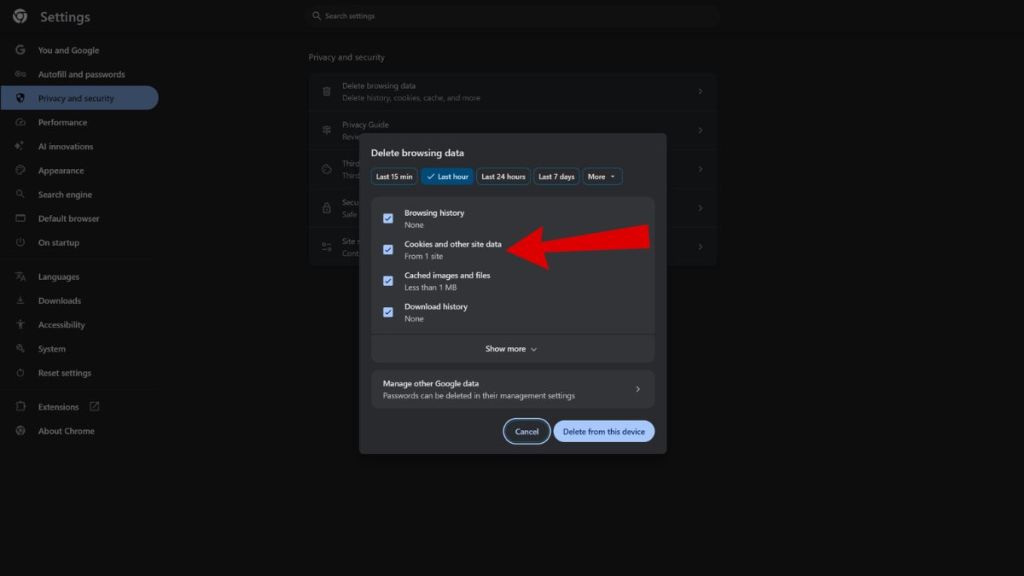
When clearing the browser data, make sure you select “Cookies and other site data” and “Cached images and files.” Once you’ve cleared them, restart your browser and try playing Quordle again. Keep in mind that clearing cookies may sign you out of websites, while deleting site data could affect saved preferences or progress.
Try an Incognito or Private Window
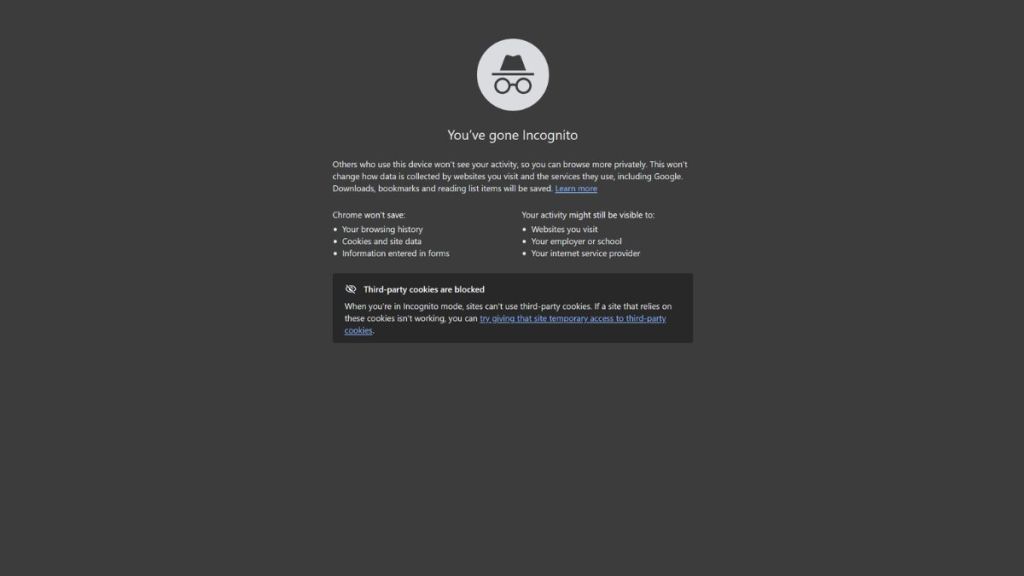
Browser extensions like ad blockers or privacy tools can sometimes interfere with your game and cause Quordle to stop working properly. One way to check if an extension is causing an issue is to open Quordle in an Incognito or Private window.
If the game works perfectly in a private window, that suggests one of your installed extensions is likely the culprit. You can then disable your extensions one by one in your regular browser window to find the one causing the conflict. Once you identify it, you can either keep it disabled or adjust its settings to allow Quordle to work properly.
Check Your Internet Connection
Quordle requires a stable internet connection to load the game and verify your guesses. So, if your connection isn’t functioning properly, it can lead to Quordle not working as expected. Make sure your Wi-Fi or cellular data is active and working properly. You can also try switching between different networks if possible.
Another simple way to test your connection is to load a website other than Quordle or run an internet speed test. If other websites aren’t loading either, the problem is likely with your internet connection rather than the game. And if you are playing on mobile data and feel like your internet connection is spotty, try turning Airplane Mode on and off to reset your connection and see if that resolves the issue.
Update Your Browser or Try a Different One
Sometimes, an outdated browser can cause compatibility issues and prevent certain websites or their features from working properly. If you’ve tried the fixes above and Quordle still isn’t working, check whether your browser has any pending updates.
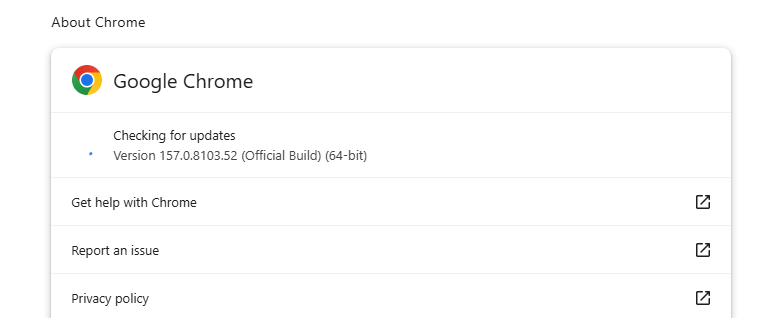
You can also try opening the game in a different browser. For instance, if you’re using Google Chrome, switch to Microsoft Edge or Firefox and see if Quordle works there. If it does, the issue is related to your original browser’s settings or configuration.
Check Quordle’s Server Status
If you’ve tried all the fixes above but still can’t get Quordle to work, there’s a chance the issue isn’t on your end. Sometimes, Quordle’s servers can go down for maintenance or due to unexpected technical outages.
You can check Quordle’s server status to see if the website is experiencing an outage. You can also check community forums or social media to find out if other players are reporting familiar problems. If other players are facing the same issue, it’s likely a server-side problem. In that case, there’s not much you can do except wait for the servers to come back online or for the developers to push a fix.
So, that was all about fixing Quordle when it isn’t working. Hopefully, one of these solutions helped you get back to the game. Now that everything is up and running, head over to our Quordle answer today guide if you need a little help figuring out today’s four words.
Quordle might not be working for you due to an unstable internet connection, corrupted browser cache or cookies, conflicting browser extensions, or a temporary server outage.
You can fix Quordle not working by refreshing your browser, clearing your cache and cookies, opening Quordle in an Incognito window, or resetting your internet connection. If that doesn’t work, check Quordle’s server status.
Yes, you can play Quordle on different browsers, including Google Chrome, Microsoft Edge, and Firefox. So, if the game isn’t working on your usual browser, try opening it in another one to check whether the issue is browser-specific.

Wordle Hints and Answer Today - November 26, 2026 (#1986)
 Rishabh Sabarwal
NYT Mini Crossword vs Wordle: Which Puzzle Is Harder?
 Pranav Maytray
NYT Games Fall Harvest Event Makes 8 Archived Puzzles Free for Everyone
 Daksha Gupta
Wordle Bot: What It Is, How It Works, and How to Use the Tool to Get Better at Wordle
Daksha Gupta
NYT Games Reset Time Guide: When Do Wordle, Strands, Connections and Other Games Reset?
Daksha Gupta
What Does Carnation Mean? Nov 26 NYT Connections Answer
Daksha Gupta
6 Common Mistakes to Avoid in Quordle
 Bipradeep Biswas
NYT Mini vs Midi Crossword: Key Differences Explained
Bipradeep Biswas
8 Best Games Like Quordle You Must Play
 Ajith Kumar
Daksha Gupta
Blossom Word Game vs Spelling Bee: Key Differences Explained
Ajith Kumar