The internet is buzzing with discussions about Clawdbot (OpenClaw). It is a new open-source AI agent that lives inside your computer. Think of it like having a 24/7 AI assistant that you can message from WhatsApp, Telegram, or Slack. And it can use other tools on its own to complete your tasks. Sounds ingenious, right? Its popularity alone is driving the sales of the Mac Mini. But if you have one already, then here’s a complete guide on how to set up Clawdbot on your Mac Mini.
Update (January 30, 2026): As of January 30, 2026, ClawdBot has been renamed to OpenClaw, replacing MoltBot. The reason prompting this change is that the first name was too similar to Anthropic’s Claude AI, forcing OpenClaw to change its name.
What is Clawdbot (OpenClaw)? What Can It Do?
Clawdbot is an open-source AI agent that can run persistently on your computer or a VPS server. You install it on your machine and connect it to your everyday messaging apps like WhatsApp, Telegram, iMessage, or Slack to give it instructions.
As an AI agent, it can carry out actions for you or automate mundane tasks by connecting with your computer’s browser or terminal. And when it’s done, it will respond in the same chat. This makes it feel more alive compared to other AI assistants like ChatGPT or Gemini. So, here are some key things only Clawdbot can do.
- Clawdbot has persistent memory, so no matter what you told it today or last week, it will remember it nonetheless. It does not “reset” and adapts to your preferences and tone over time.
- Given the necessary permissions, it can carry out most digital tasks for you. Whether it is summarizing or replying to emails, working with developer tools, installing environments, or creating a morning briefing.
- Clawdbot is proactive in nature. So rather than waiting for your command, it will automatically send you briefings, alerts, or reminders that you have set up.
- It is a self-hosted service. So all your data remains inside your computer, there is no service to subscribe to, and no data collection is going on.
The combination of all these features makes Clawdbot such a compelling option over other AI chatbots from big tech companies. Some people on X are calling it the first step towards AGI (Artificial General Intelligence), while others consider it an agent to look over all your AI agents.
How to Set Up and Install Clawdbot (OpenClaw) on a Mac Mini
Believe it or not, the process to set up Clawdbot on your Mac Mini is pretty easy. It’s not just limited to the Mac mini; it can be installed on any other Mac. The only reason users are seeking the Mac mini is that it’s the cheapest macOS device you can get at the moment. While it’s easier on a Mac, you can also set up Clawdbot on Windows using Windows PowerShell.
Even someone like me, who doesn’t understand a line of code, was able to install Clawdbot in just a few minutes. So, simply follow these steps to get started:
- Now open a Terminal window on your Mac, copy and paste this code, and press Return.
curl -fsSL https://openclaw.ai/install.sh | bashThe program will run automatically, installing all the necessary files and components on its own.
- Follow the setup wizard, and it will show this prompt. Here, select Yes and press Return.
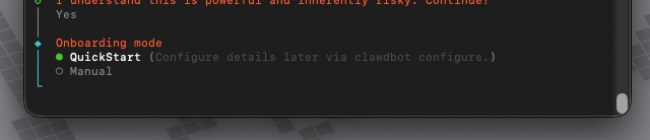
I understand this is powerful and inherently risky. Continue?- Next, for Onboarding mode, select Quickstart.
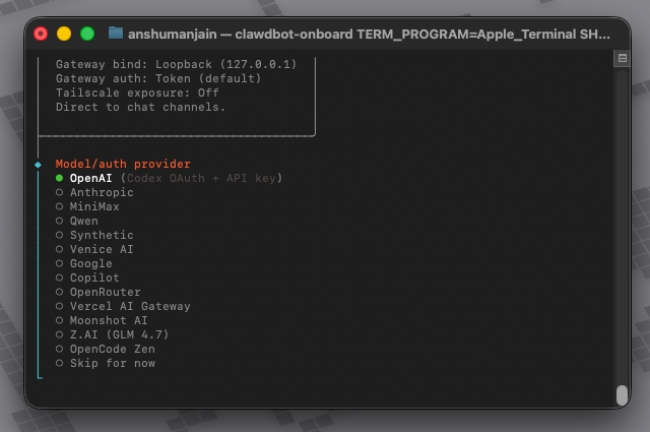
- Now, pick your model/Auth provider. I suggest you go with ChatGPT, but you can select your preferred LLM model.
- If you selected OpenAI like me, you will be asked to pick an OpenAI Auth method. Select OpenAI API key. (Head over to platform.openai.com/api-keys to create your own API key)
- After pasting your API key, you will be asked to pick a model. Select the one you prefer. (I suggest the latest version)
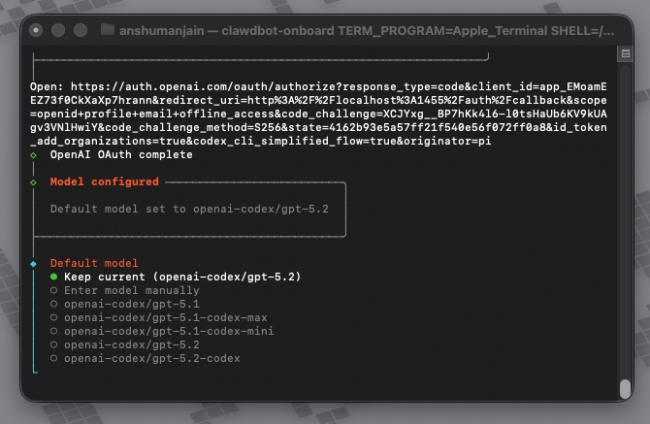
- Now, you will be asked to select a channel. This is where it asks you to select your preferred messaging app to give commands to Clawdbot.
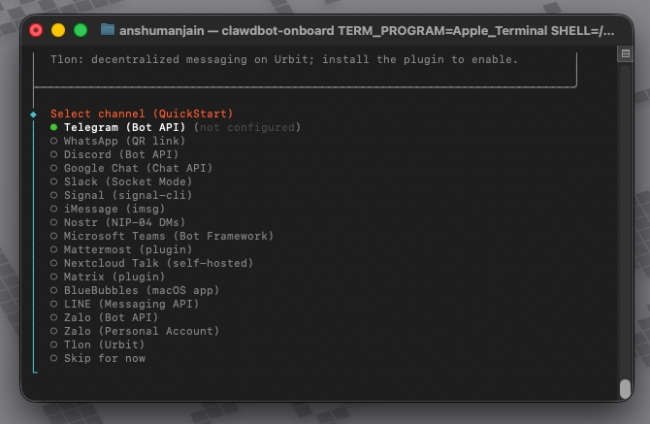
- Use arrow keys to pick an app, and press Return. Follow the wizard to set up the app.
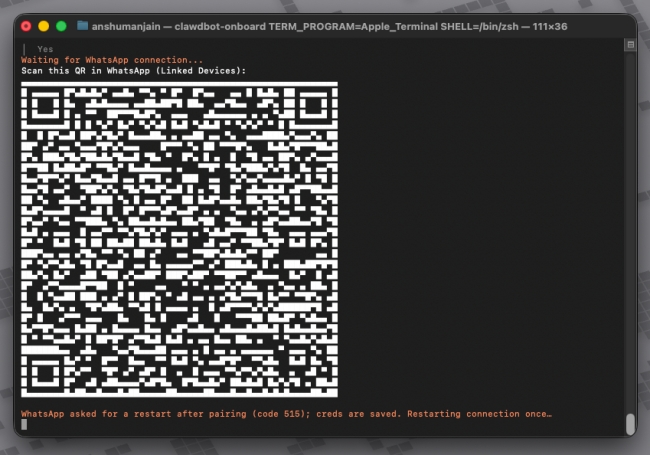
- If you choose WhatsApp, you will be shown a QR code that you need to scan using the Linked Device option in the app.
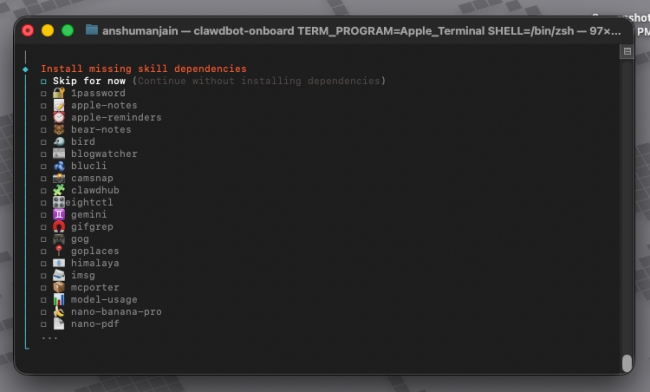
- Next, it will prompt you to Configure skills. Then, choose Yes, and select the skills you want to allow Clawdbot.
Once all is set up, you can start messaging Clawdbot to give it commands on your Mac Mini. It will then start executing them right away.
How to Uninstall Clawdbot (OpenClaw) from Mac Mini
It goes without saying that installing Clawdbot is quite a privacy risk, as it has complete access to your machine and its local files. So, if you want to uninstall Clawdbot from your Mac Mini, here’s how to do it:
- Open Terminal app on your Mac, then copy and paste this line of command and press Return.
openclaw uninstall- The wizard will ask which components to uninstall. Select all of them by pressing the spacebar.
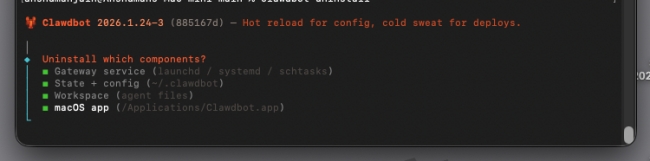
- Press Return to submit your selection.
- It will ask again, “Proceed with uninstall?” Select Yes.
Clawdbot will be successfully uninstalled from your system. If you have provided linked device access to it for WhatsApp, remove it right away.
That’s about it on how to install Clawdbot on your Mac Mini. Remember, this is a powerful AI agent that can do wonders if used correctly. So make sure you know what you are doing to make the most out of it. In case you faced any sort of error while setting up the AI agent for yourself, then do let us know in the comments section below.
You can head over to the openclaw.ai website and copy the terminal command line from there to install it on your Mac Mini or other Mac system.
No. You don’t necessarily need a Mac Mini or a Mac itself to install Clawdbot. It can be set up on a Windows machine using a VPS server that you can get for free or less than $10 a month.
If you are using OpenAI as an Auth for Clawdbot, then yes, you will need to generate and provide a secret API key that is linked to your ChatGPT account.
Clawdbot runs locally, and none of the data leaves your system, which makes it more secure than other AI chatbots. However, it has access to your browser, as well as other files on your system, which may concern privacy-centric users.