- Players can join a public Minecraft server from the Multiplayer section by entering the server IP address.
- To play with friends on the same private world, use the LAN method or the built-in social features.
- Another way to play multiplayer on Minecraft Java includes creating or renting a dedicated server or using Realms to host a 24/7 online world.
Playing Minecraft alone can be fun, but exploring the new biomes and surviving the night with your friends is where the chaotic nature of the game steps in. Thankfully, there are multiple ways to call in your friends or even join an online server for the entertaining mini-games. So, whether you want to create a local LAN connection, join a public server, or use Realms, this guide on how to play multiplayer on Minecraft Java will help you out.
Requirements to Play Multiplayer on Minecraft Java

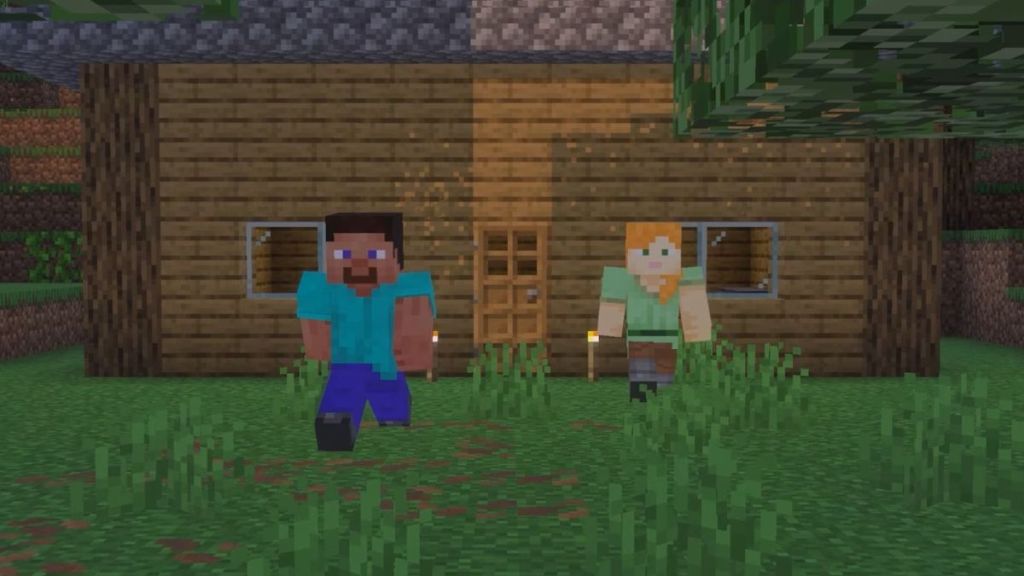
Before hopping into a multiplayer world in Minecraft, make sure that you have the following requirements met:
- An official copy of Minecraft: Java Edition and a Microsoft account connected to its purchase.
- A stable internet connection and the same compatible versions for all players for a LAN connection.
- If you’re joining a public Minecraft server, you’ll need its IP address.
- If you’re joining a Realm, you’ll need its invitation from the owner. Creating a Minecraft Realm will cost you a subscription fee after the 30-day free trial period.
Important Note: Minecraft Java and Bedrock Edition use different multiplayer systems in some cases, and this guide focuses on the former for Windows, macOS, and Linux systems.
How to Play Multiplayer on Minecraft Java Using LAN
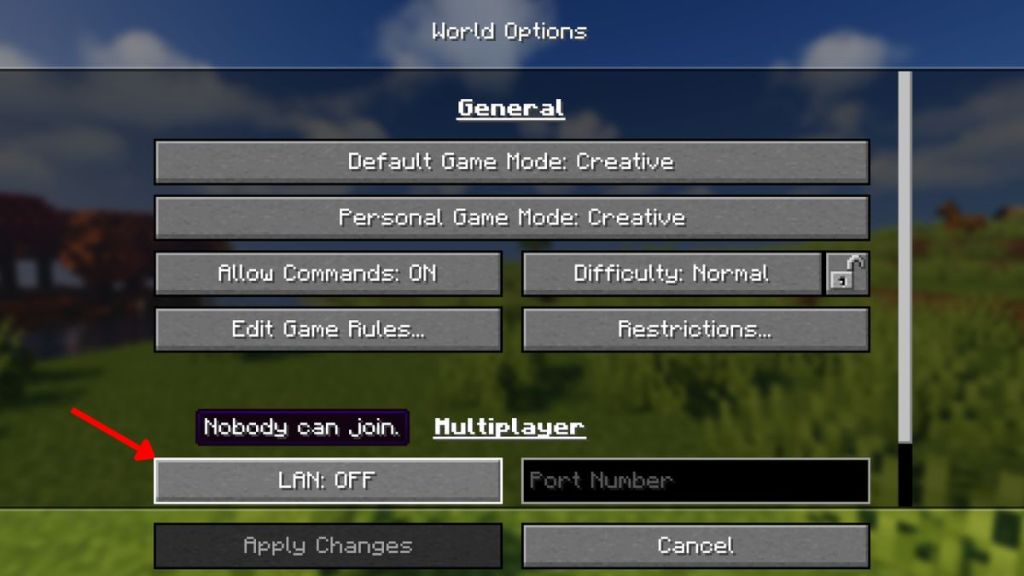
LAN is the simplest way to play multiplayer in Minecraft Java with your friends. However, it requires all the devices to be connected to the same Wi-Fi connection or router. So, here’s how to play Minecraft multiplayer using LAN:
- Launch Minecraft Java Edition and select Singleplayer from the main menu.
- Choose an existing world or create a new one. Once inside, go to the pause menu.
- Click on World Options and toggle on the LAN button. Click on Apply Changes.
- Now, your friends can launch the game, select the Multiplayer option from the main menu, and your world will be available on their local network.
- Any player on the same network will now be able to join your world through this option.
How to Play Multiplayer on Minecraft Java Using Servers
Not everyone likes to pay for additional services in a game, and fortunately there’s a way to make a Minecraft server for free. Additionally, you can also join a public Minecraft server if you’re looking for more than just vanilla gameplay. So, here’s a detailed process for it.
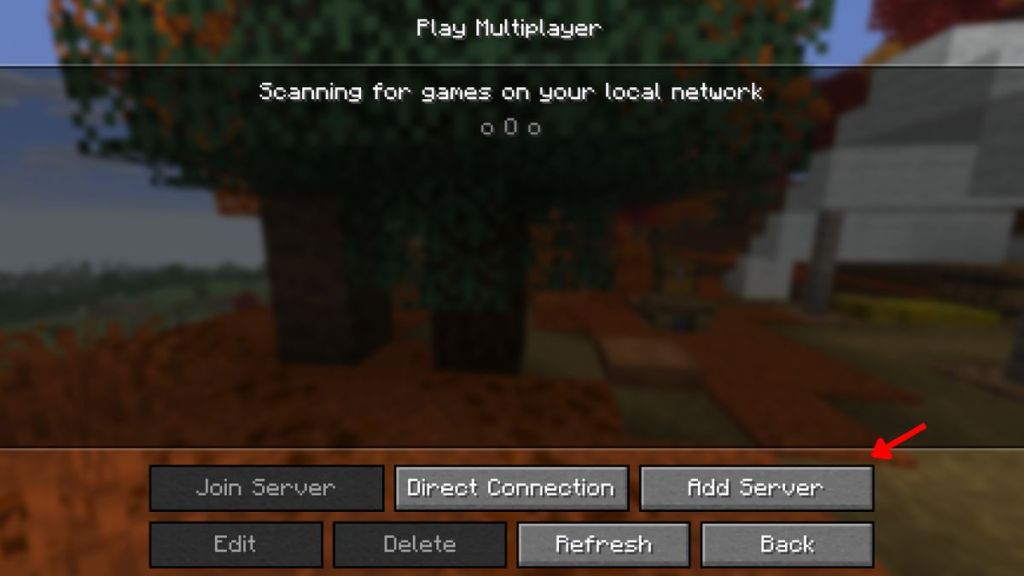
- From the main menu of Minecraft, click on Multiplayer and then the Add Server button.
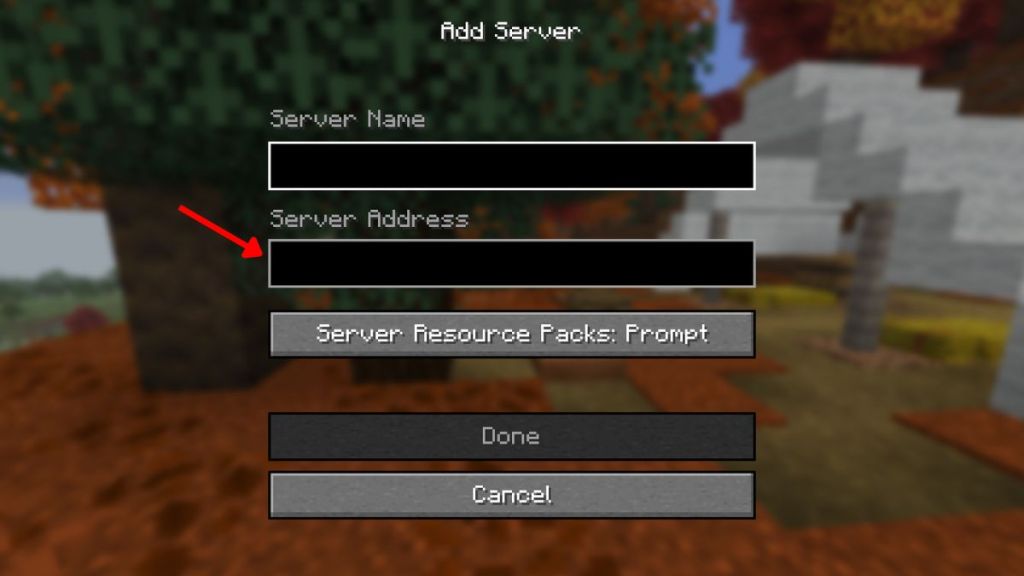
- Enter the name of the server and paste its IP address or server URL in the address field.
- Click Done to save the server, then select it from the multiplayer list to enter it.
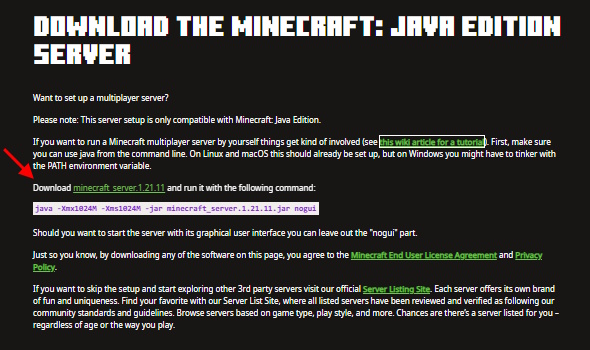
- Alternatively, you can also create your own server in Minecraft by downloading the official Java software.
- More details on creating your own server and sharing its address are stated in the guide linked above for your reference.

How to Play Multiplayer on Minecraft Java Using Friends Feature
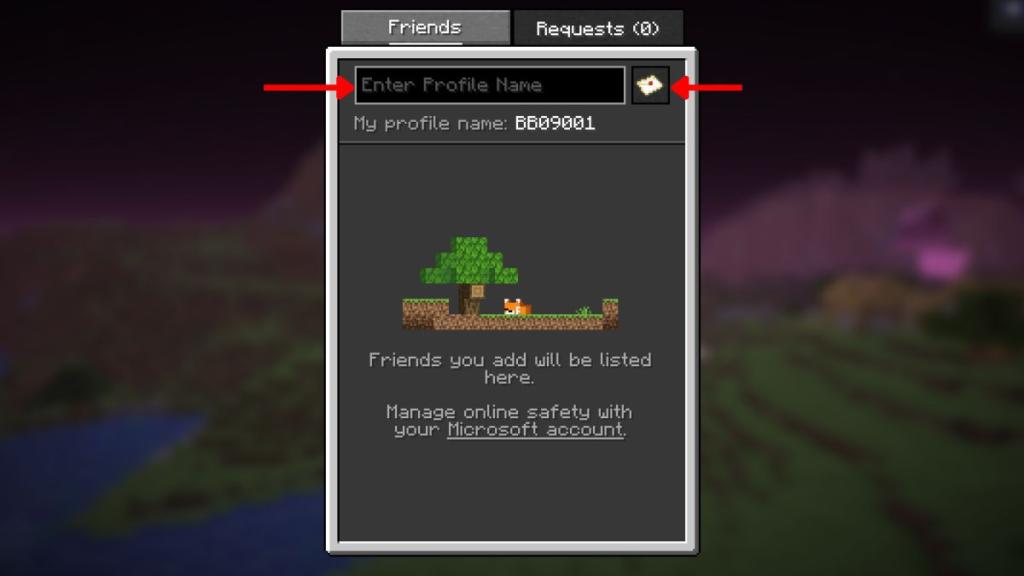
Recently, a built-in social feature was added to the Java Edition after the Minecraft Chaos Cubed update. This allows you to call your friends to join the same local world you’re in using a peer-to-peer connection. Although it requires an internet connection, it’s simpler than setting up your own server and also doesn’t rely on a local network for all players. So, here’s how to do it:
- Launch the Minecraft single-player world you want to invite your friends.
- Go to the pause menu and click on the Friends icon.
- In this list, enter the profile name of your friend and click on the envelope icon to send a request.
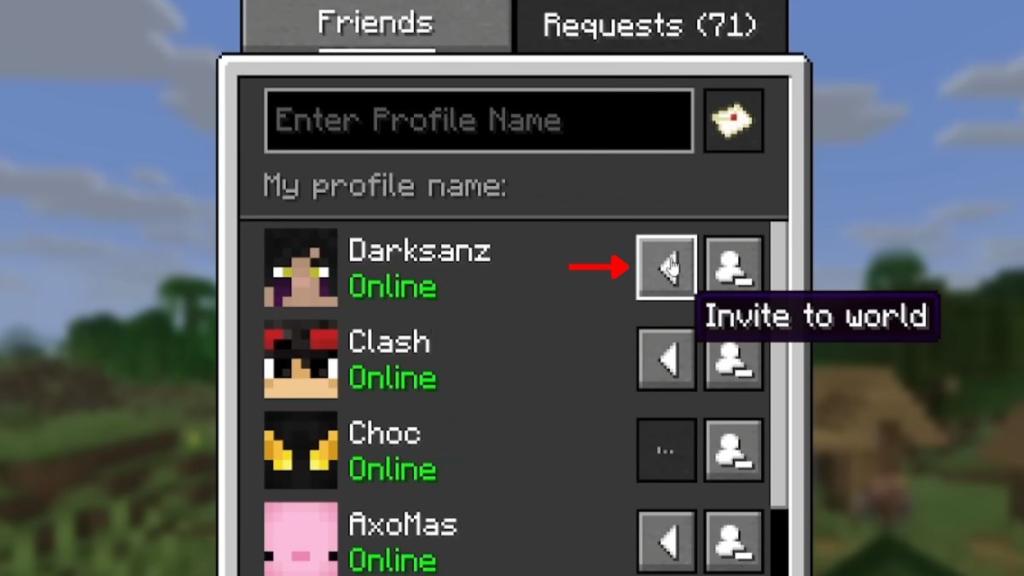
- Ask your friend to accept the request, then you can send them an invitation to join your world.
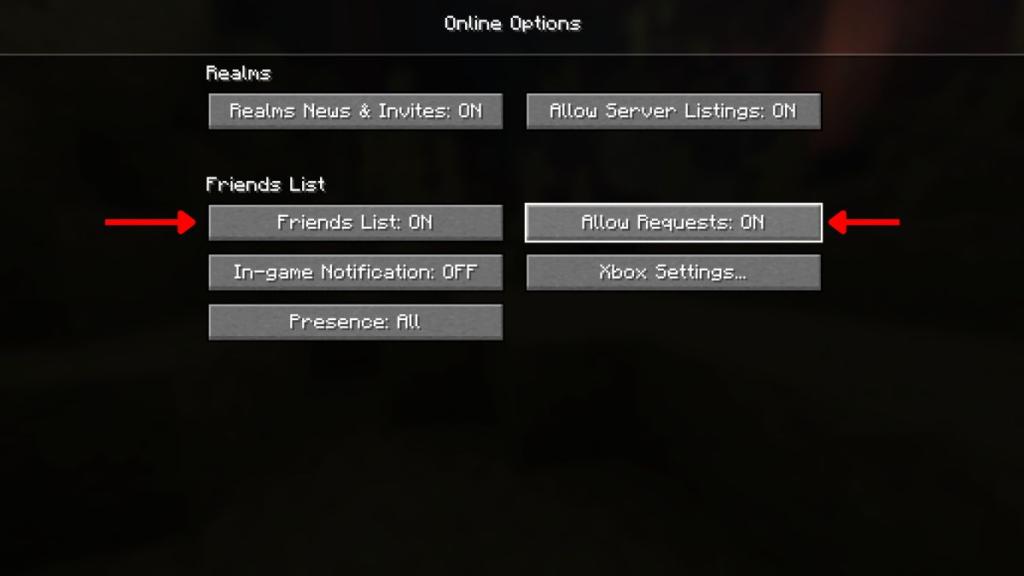
Before completing the above steps, make sure that you have all the options in the Friends List turned on. These settings can be changed by clicking on the Options button in the main menu and selecting the Online button. For more help, our guide on how to add friends in Minecraft will help you out.
How to Play Multiplayer on Minecraft Java Using Realms
Minecraft Realms is Mojang’s official subscription-based multiplayer hosting service. It allows you to maintain an online world that invited friends can access without needing to run a server on your computer. The best part of Realms is that these servers stay online 24/7, so the owner doesn’t need to come online at all times. So, here are the steps you need to proceed with:
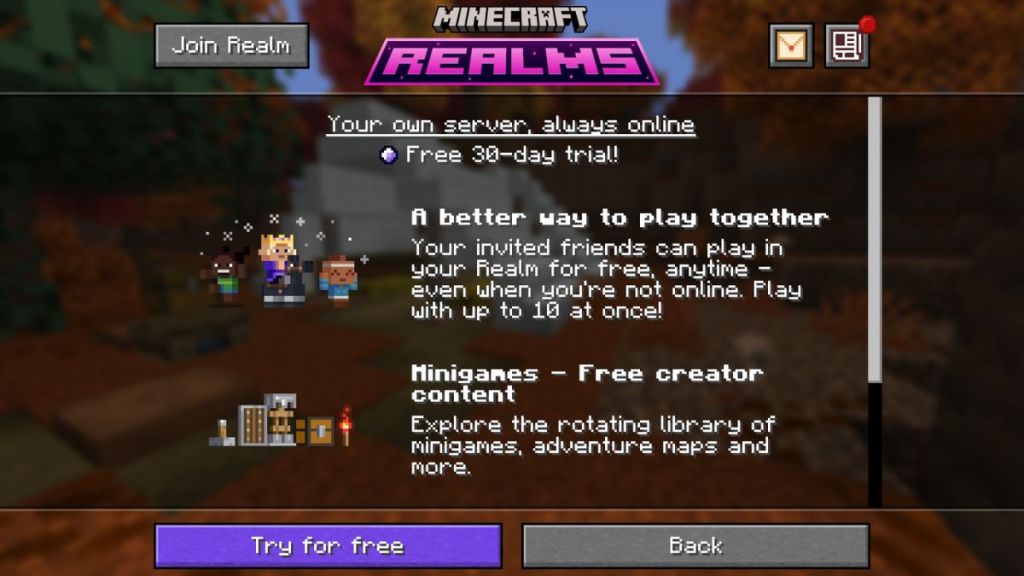
- Launch Minecraft Java on your system and click on Minecraft Realms in the main menu.
- You can try Realms for the first 30-days for free before purchasing the subscription model.
- Alternatively, if your friend has purchased the Realm, they can send you an invite, and you can accept it from the notifications.
- Our guide on how to join a Minecraft server explains joining a Realm server in great detail to help you out.
You can also try out the best Minecraft server hosting services for playing multiplayer in the Java Edition. Unlike Realms, these are third-party services that offer a similar 24/7 online server on a subscription-based model.
While all of the above methods are a pain in the head for adding Minecraft mods and plugins, Realms and third-party server hosting services offer a seamless experience if you want a modded world.
And that is all you need to learn about how to play multiplayer in Minecraft Java. So, which method are you going to consider from the above? Tell us in the comments below.
You can play multiplayer on Minecraft Java in 2026 by joining a public server, hosting a private server using LAN, inviting friends through the supported feature, or joining a Minecraft Realm.
To play Minecraft Java with friends on different networks, you can join a public server, use a hosted private server, or play on Minecraft Realms.