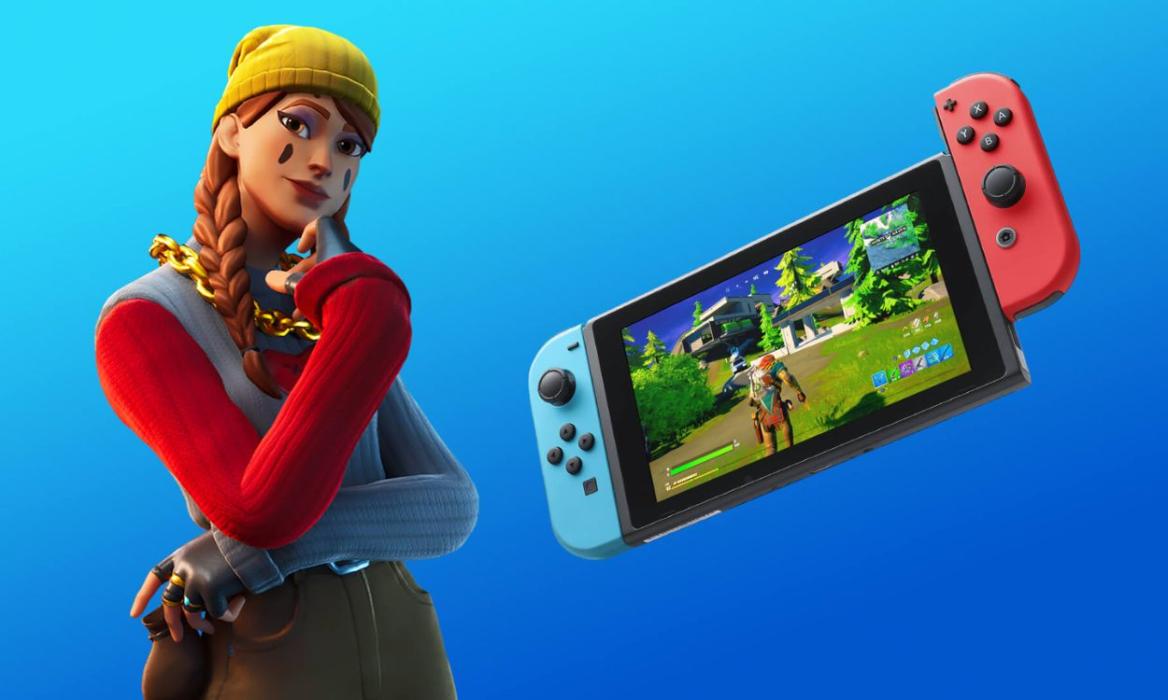
- Nintendo Switch users can download Fortnite directly for free from the Nintendo eShop.
- To get started, you must create and link an Epic Games account on your computer to save progress.
- No Nintendo Switch Online subscription is needed to play Fortnite online.
As much fun as Fortnite is on all platforms, there’s a special kind of joy in playing it on a handheld. If you’re a Nintendo Switch gamer looking to play Fortnite, this one’s for you. Want to get started but don’t know how? Well, keep reading as we walk you through the step-by-step process of how to download and play Fortnite on the Nintendo Switch here.
How to Download Fortnite on Nintendo Switch
Before you start downloading, make sure your Nintendo Switch is connected to the internet, and you’re logged in to your Nintendo account. You’ll also need enough storage space, as Fortnite takes up about 20 – 25 GB. The download process is simple, but you must go through the Nintendo eShop. Follow the steps below to do so:
- Turn on your Nintendo Switch and log in to your Nintendo account.
- Find and click the Nintendo eShop icon.
- Select Search from the left menu and type “Fortnite” to select it.
- Click the “Free Download” button.
- Confirm by clicking “Free Download” again.


How to Link Epic Games Account to Nintendo Switch
While your game downloads, you’ll need to set up an Epic Games account. This saves your progress and lets you play with friends. Follow the steps below to do so:
- Visit the official Epic Games store website and sign in.
- Click on your username and then on Account from the dropdown menu.
- Click on the Linked Accounts section from the left sidebar.
- Finally, click on the Link button next to the Nintendo account.


From then on, just sign in to your Nintendo account, and you’re all done. Once Fortnite finishes downloading, open the game and accept the user agreement. The game will automatically connect to your Epic account since you’ve already linked it. This is an extremely important step, as it makes sure that any Fortnite V-Bucks cards that you redeem accurately reflect in your Nintendo account.
How to Add Nintendo Switch Friends to Fortnite
Adding friends in Fortnite is a bit different from adding friends on the Switch. Since Fortnite uses Epic Games’ system, you’ll need to add friends through the game itself. Here’s how to do it:
- While Fortnite is open, press the minus (–) button.
- Press Y to open the friend request screen.
- Enter your friend’s Epic Games username or email.
- Press the plus button (+) or select OK to send the request.
Once your friend accepts, they’ll appear on your Fortnite friends list. Remember that this is separate from your Nintendo Switch friends list. Just because someone’s your friend on Switch doesn’t mean they’ll automatically appear in Fortnite.
Can You Use Headphones for Fortnite Voice Chat on Nintendo Switch?
Yes, players will be happy to know that plug-in headphones work natively with Nintendo Switch. You can plug a 3.5mm headphone directly into the Switch’s port for voice chat to work. If you are looking to take part in tournaments and have a chance at earning free Fortnite skins, Wired headphones are preferred over wireless, as standard Bluetooth earbuds might experience significant mic lag and latency.
Fortnite Nintendo Switch Controls
Fortnite, as a game, needs a lot of granular control. As such, you can’t play using a single Joy-Con to play the game. However, here are all the ways you can play Fortnite on Nintendo Switch:
- Both Joy-Cons in the grip that came with your Switch
- Both Joy-Cons are attached to the Switch in handheld mode
- Joy-Cons separated (one in each hand)
- Nintendo Switch Pro Controller
If you want to adjust your controls, you can do this in the game menu. Just press the plus button (+), then A, and use R to tab over to the controller settings. You can change button layouts and adjust sensitivity to match how you like to play.
Best Fortnite Settings for Nintendo Switch: Maximize FPS and Reduce Lag
To maximize your experience while playing Fortnite on the Nintendo Switch, you need to strip away the settings that can be taxing on the Switch’s limited CPU and GPU. Since the Switch is locked at 30 FPS, your aim is to make that 30 FPS as stable as possible. Not only can this help you improve your overall gameplay, but also optimize the game so you can enjoy Fortnite live events without visual bugs or errors. Here are the settings you can use for Fortnite on Nintendo Switch:
| Setting | Recommended Value | Why It Helps |
| Power Saving Mode | Off | Allows the Switch to use its full power without worrying about the battery. |
| Motion Blur | Off | Makes the game look sharper and reduces visual lag. |
| Show FPS | Off | A tiny boost to CPU stability. |
| Brightness | 125% – 150% | Helps you see enemies better. |
| Matchmaking Region | Lowest MS (Manual) | “Auto” can sometimes put you in high-ping servers. |
| Auto-Open Doors | On | Reduces the number of buttons you need to press. |
| Record Replays | Off (All) | Huge FPS boost. Stops the CPU from recording in the background. |
| Look Input Curve | Linear | Provides 1:1 movement; essential for reducing input lag. |
| Build/Edit Sensitivity | 2.0x – 2.2x | Allows for fast building even with lower look sensitivity. |
| Look Speed (Horizontal/Vertical) | 40% – 45% | The sweet spot for 30 FPS tracking. |
| ADS Speed (Horizontal/Vertical) | 8% – 11% | Very low ADS is required for precision on Switch Joy-Cons. |
| Deadzone | 6% – 10% | The lower this is, the faster your character reacts to sticks. |
| HUD Scale | 65% – 75% | Smaller HUD elements reduce the load on the console. |
| Spectator Count | Off | Cleans up the screen and saves minor processing power. |
| Vibration | Off | Improves battery life and removes physical distraction. |
Getting Fortnite up and running on your Switch isn’t complicated, but there are a few steps you need to follow. The whole process, from downloading the game to setting up your account, usually takes about 15-20 minutes, depending on your internet speed.
Once you’re done, you’ll have everything you need to start playing. Don’t worry if the game takes a few minutes to load the first time you open it, as that’s totally normal. Have you run into any issues? Drop your questions in the comments below, and we will help you out!
In 2026, Fortnite takes up approximately 20-25 GB of storage on the Nintendo Switch.
Yes, you can play Fortnite on the Switch Lite, as the game is fully compatible with all models of the Nintendo Switch family.