- To fix Minecraft Dungeons 2 Error Code 0064, use Windows app settings to terminate and repair the Minecraft launcher before starting the game again.
- Check the time zone on the system and enable automatic time before trying to launch Dungeons 2.
- Sign out and then sign back in to the Microsoft account associated with the game, or try reinstalling if everything fails.
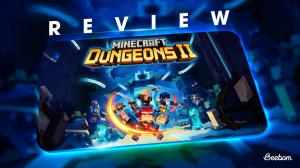
Minecraft Dungeons 2 has finally arrived, but some players are running into login and startup problems instead of smacking down the Illager Council. The Minecraft Dungeons 2 error code 0064 is one such issue that is preventing players from accessing the game. While there is no guaranteed solution to the error code 0064 in Minecraft Dungeons 2, we’ve jotted down several troubleshooting solutions that can help resolve the problem.
Minecraft Dungeons 2 Error Code 0064: Possible Reasons and Solutions to Log In Failed Error
Some players are facing the issue of being stuck while launching Minecraft Dungeons 2, while others are seeing the error code 0064 alongside a login failed message. So, repairing your Minecraft Launcher, checking the system’s date and time, signing back into your Microsoft account, or ultimately reinstalling the game are some of the viable troubleshooting solutions for the Minecraft Dungeons 2 log in failed error.
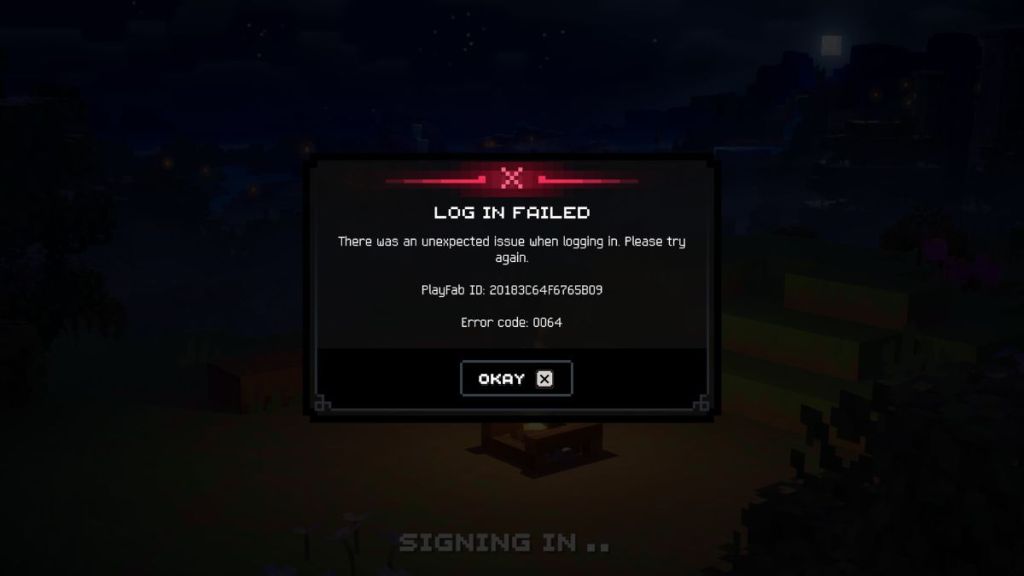

So, try the following methods if you encounter the Minecraft Dungeons 2 error code 0064 and the log in failed error screen:
Repair the Minecraft Launcher
A damaged or incorrectly functioning Minecraft Launcher can sometimes interfere with the game’s startup and authentication process. Repairing the launcher first is a good step while dealing with the Minecraft Dungeons 2 error 0064. Here’s what you need to do:
- Open Windows Search and type Minecraft Launcher.
- Right-click on the Minecraft Launcher and click on App Settings.
- Scroll down and click on the Terminate option to completely close the launcher.
- Now, click on the Repair option and wait for Windows to finish the process.
- Once the repair is complete, start Minecraft Launcher again and click on Minecraft Dungeons 2 to check whether the error has disappeared.


This might be a simple solution to start the game and check out the Minecraft Dungeons 2 Sift dimension. However, if the error code 0064 persists, try out the following solution.
Check and Sync Your Date and Time
Having your system on an incorrect date, time, or time zone setting can interfere with the Minecraft Dungeons 2 multiplayer and online modes. It can also contribute to the login failed error. So, here’s what you need to do to synchronize the system clock with an online time server in Windows:
- In the Windows Search bar, type Change the date and time and press Enter or click on it.
- On the corresponding Windows settings page, make sure that the Time Zone is set correctly.
- You can select your respective Time Zone manually from the drop-down menu or toggle on the Set time automatically button.
- Make sure that you scroll down and click on the Sync now button under the Additional settings tab.
- Wait for Windows to finish syncing the date and time, restart the Minecraft Launcher, and try booting up the game again.


Re-Log in to Your Microsoft Account
Another potential solution for the error code 0064 in Minecraft Dungeons 2 is to sign out of your account from the Minecraft Launcher and then sign back in. This refreshes the authentication session. So, follow the steps below:
- Open Minecraft Launcher and look for the Microsoft account in the top-left corner.
- Click on the account profile and select the option to Log Out.
- Now sign back in to the same Microsoft account by entering your credentials.
- Launch the game again and check whether you can access it now.
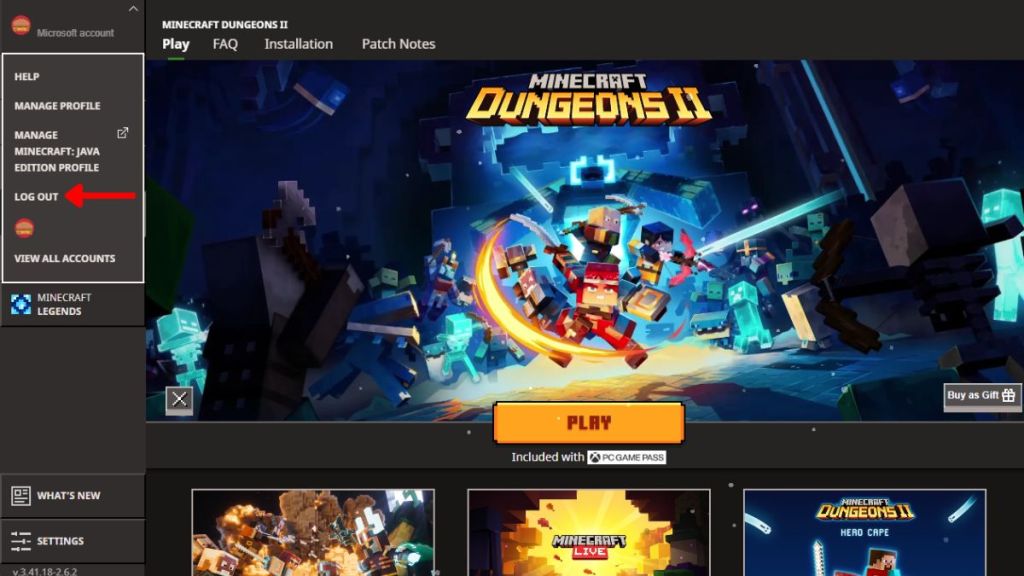
This method is also worth trying if you’re specifically receiving the Minecraft Dungeons 2 login failed message. Once you’re in, you can also claim the exclusive Minecraft Dungeons 2 capes from the codes you’d saved earlier.
Update the Xbox App and Xbox Game Bar
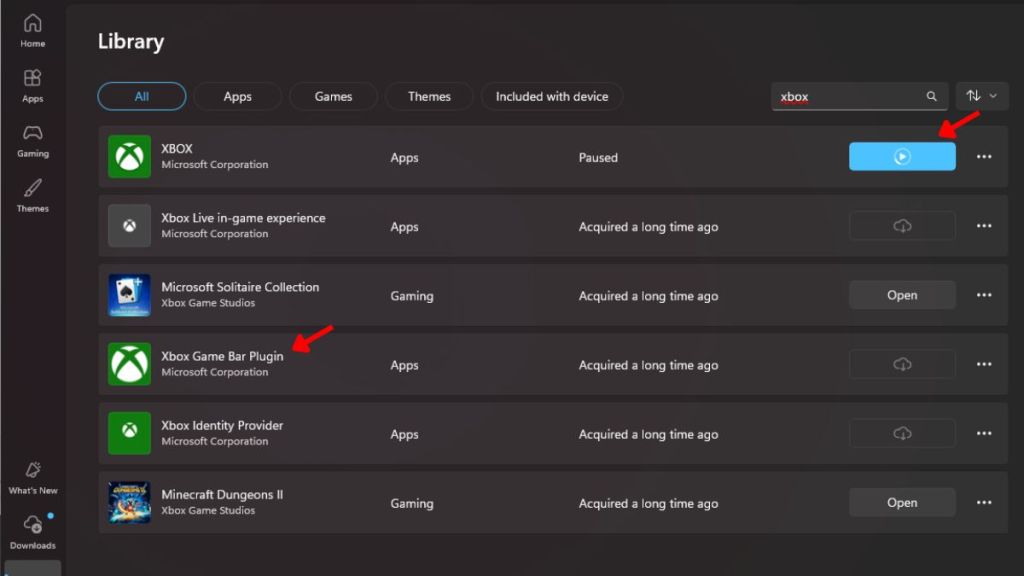
Minecraft Dungeons 2 is free on Xbox Game Pass, so a lot of players might have accessed it from there. So, those who have bought it on Steam or Xbox can try working out the following troubleshooting methods. Updating the Xbox App and Xbox Game Bar is one way to start fixing the error code. This is how you can do it:
- Look for Xbox App and Xbox Game Bar updates on the Microsoft Store.
- Complete the updates if available and then restart your PC.
- Later, you can try launching the game again to check if the error persists.
Sign in to the Xbox App
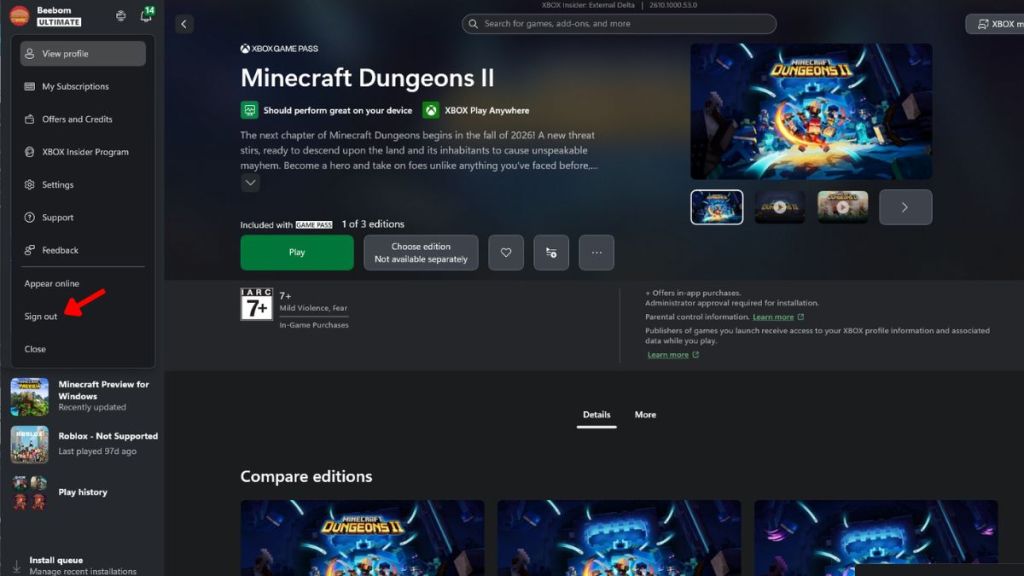
If Minecraft Dungeons 2 is having trouble authenticating your Microsoft account with the Xbox app, this error code 0064 or 0029 can pop up while starting the game. So, here’s what you can do:
- In your Windows Xbox app, check that you’re signed in with the same Microsoft account used for purchasing the game.
- Sign back in if you’re using a different account and relaunch the game.
Link the Steam Account to Your Xbox Account
Steam players may encounter additional problems when the game attempts to connect the Steam version to a Microsoft or Xbox account. So, one potential solution for error code 0064 and error code 0029 in Minecraft Dungeons 2 is to link your Steam account with Xbox or Microsoft.
Once the accounts have been linked, you can restart the game to access it without any errors.
Do Not Run Minecraft Dungeons 2 as Administrator
Running Minecraft Dungeons 2 as administrator can sometimes change how it interacts with Steam’s authentication and account-linking process. Many players have reported launching it as administrator and facing the Minecraft Dungeons 2 error code 0029.
So, if you’ve figured it out, consider running the game without selecting the administrator option to prevent the error code from popping up. Once the error is gone, you can head into the Overworld, check the Minecraft Dungeons 2 beginner’s guide for a quick walkthrough for all new mechanics introduced in the game.
Reinstall Minecraft Dungeons 2
If the previous methods do not work, try reinstalling Minecraft Dungeons 2 as a last resort. Getting a clean installation can potentially remove any corrupted or incorrectly installed game files.
- In Windows Search, type Add or Remove Programs and press Enter.
- On the new page, scroll down or look for the Minecraft Dungeons 2 application.
- Having found it, click on the three-dot menu next to the game and select the Uninstall option.
- Once done, open Minecraft Launcher and, from your library, try installing the game once again.


Finally, start Minecraft Dungeons 2 and check whether the error code 0064 is still present. Reinstalling the game takes considerably more time than other methods, so make sure you have tried the above three before doing this.
And this completes all the solutions that can fix the Minecraft Dungeons 2 error code 0064. So, which method helped you out? Tell us in the comments below.