- On a Bedrock edition, players can join the multiplayer server either from the featured ones available or by adding a new one.
- While on the Java edition, players can head to the multiplayer tab and add a new server.
- Players can also join Minecraft Realms on either of the editions with a shared link.
The online world of Minecraft is packed with massive multiplayer servers, custom game modes, and exclusive biomes. If you’re only playing offline, you’re missing out on a huge part of the Minecraft experience. That is why you must know how to join a Minecraft server, whether you’re playing on PC, console, or mobile. We have provided instructions for both Java and Bedrock editions, and therefore, you won’t have any platform-related issues. So, dive right in to know more.
What are the Requirements to Join a Minecraft Server?
Before learning how to join a Minecraft server, you need to fulfill these basic requirements:
- A device that supports and runs vanilla Minecraft smoothly
- A Microsoft account that is connected to Minecraft
- At least 2-3Mbps internet speed (on vanilla servers with a limited number of players)
- At least 10Mbps internet speed (on custom servers with more players)
- Server address or public IP address of the Minecraft server
- Same or compatible game version as the server
Do keep in mind that you can’t join multiplayer servers on pirated copies and custom Minecraft launchers. You need an official copy of the game to play online. As for the server address, you can find it on the server’s website, or you can get it from the host. In case it’s a Realm server in Minecraft, the address will be a six-digit code. You can read all about Minecraft Realm servers via the linked guide.
Console Online Memberships
Console players need to spend more money beyond the game’s cost to play on an online server. Depending upon your console, you need the following subscriptions to join servers in Minecraft:
- Xbox Game Pass for Xbox One, Xbox Series X, and S ($9.99 per month)
- PlayStation Plus for PS4 and PS5 ($9.99 per month)
- Nintendo Switch Online for Nintendo Switch ($3.99 per month)
To reiterate, these prices are for the monthly subscription. You might get a better deal with annual memberships and bundles like Xbox Game Pass.
How to Join Minecraft Server on Bedrock Edition (Xbox, PS4/ PS5, Switch, & Mobile)
Minecraft Bedrock supports various platforms, including Windows 10 and 11, Android and iOS, PS4 and PS5, Xbox One, Xbox Series X and S, and Nintendo Switch. You can use the following steps to learn how to join Minecraft servers on any of these platforms.
- Launch Minecraft Bedrock and press the “Play” button on the homescreen.

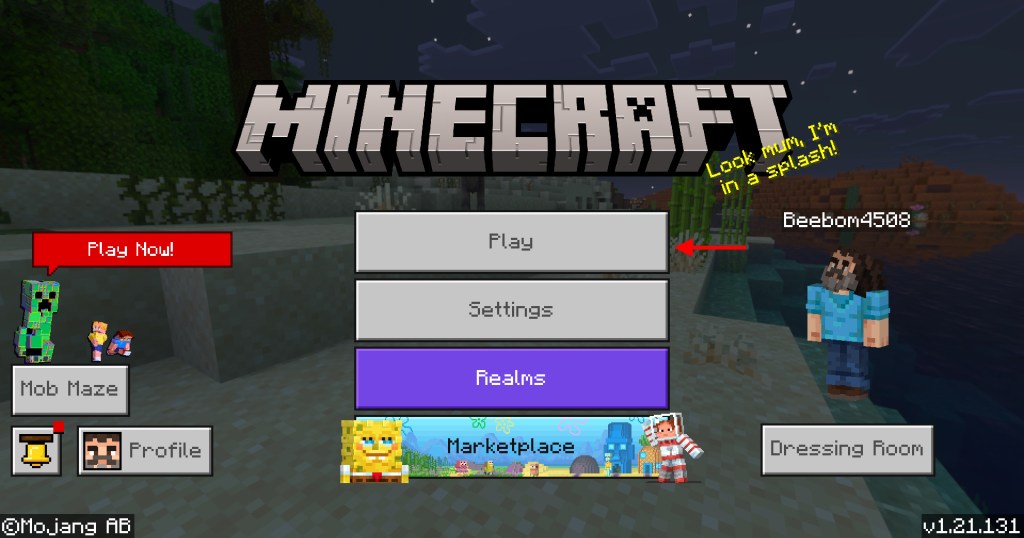
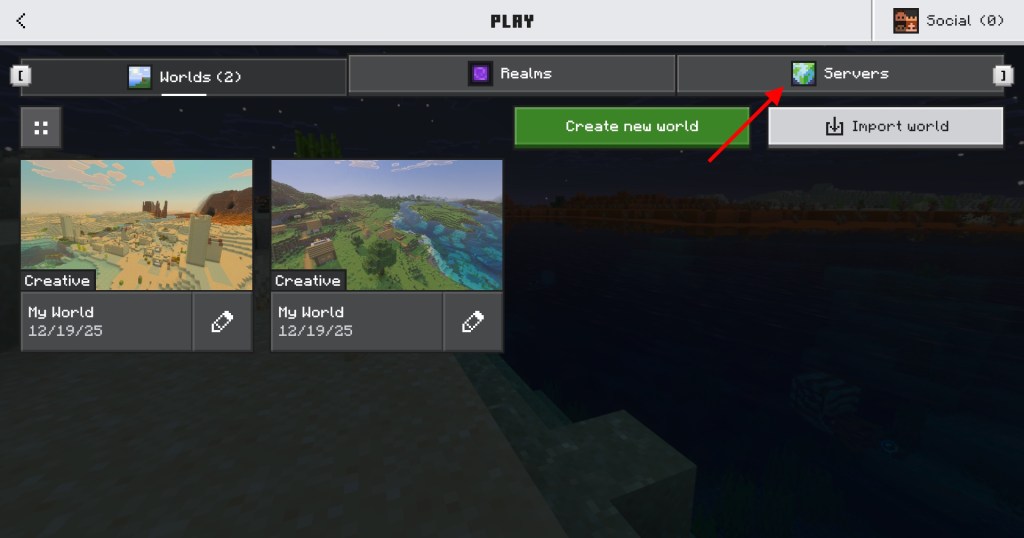
- Then, move to the “Servers” tab by clicking on it. It’s the right-most tab in the top menu.
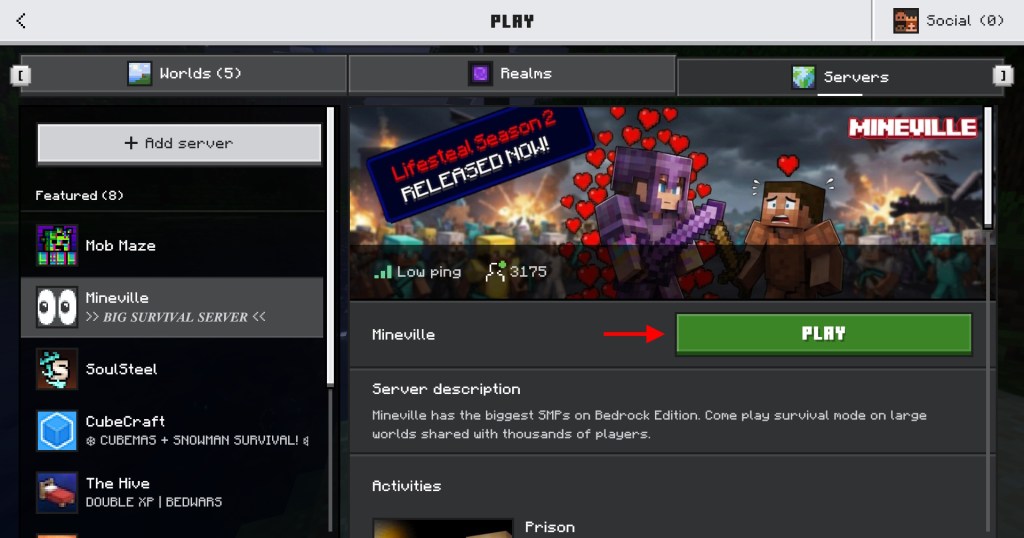
- Now, Minecraft will present you with some of the most popular servers in its featured servers list. If anything interests you, first click on the server’s name, then the “Play” button in its description to join it.
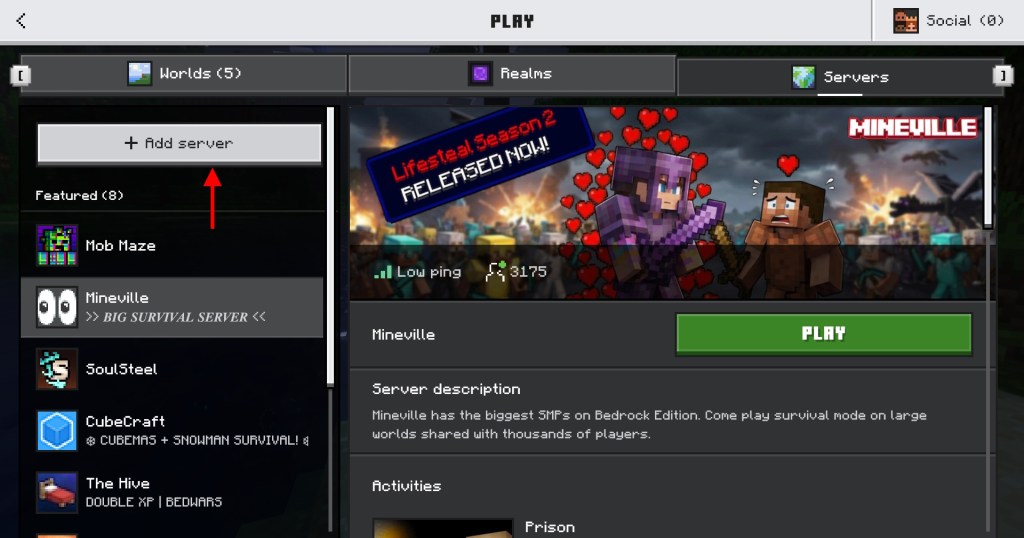
- In case you are not interested in the featured servers, scroll to the top and choose the “Add Server” option.
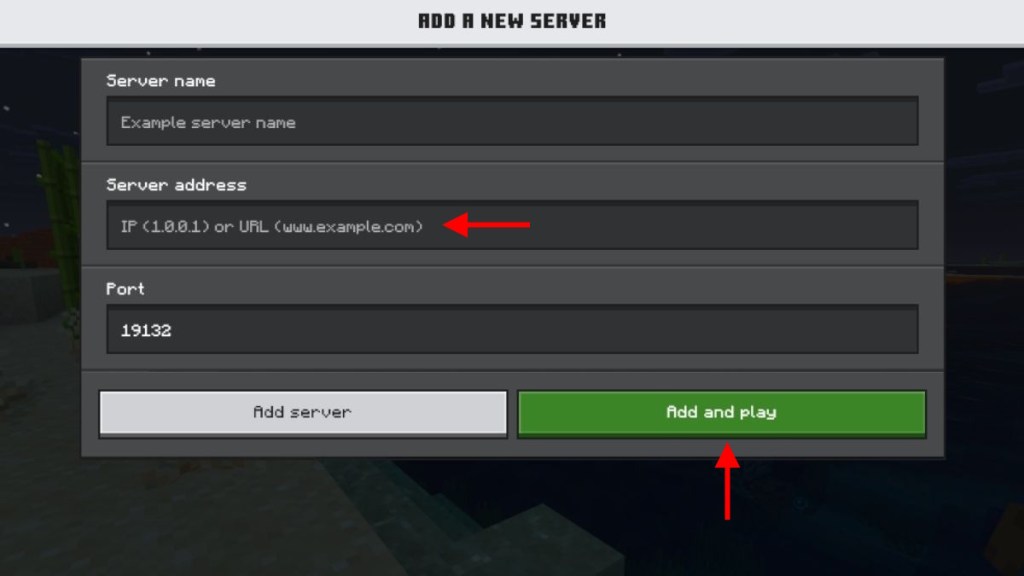
- Minecraft will now ask you to enter the server’s details, including server name, server address, and port. The port, unless specified by the server manager, should always be 19132.
- Meanwhile, you need to enter the server’s IP or regular address in the “server address” textbox. After that, click on the “Add server” or “Add and Play” button.

How to Join a Minecraft Server on Java Edition (Windows, Mac, & Linux)
Unlike the Bedrock edition, there are no featured servers in the Java version of the game. However, you can find plenty of reliable options to choose from in our list of the best Minecraft servers. With that said, here’s how to join a Minecraft server on macOS, Linux, and Windows.
- First, open Minecraft Java Edition and click the “Multiplayer” button. It’s located just below the “Singleplayer” button that you use to play the game offline.
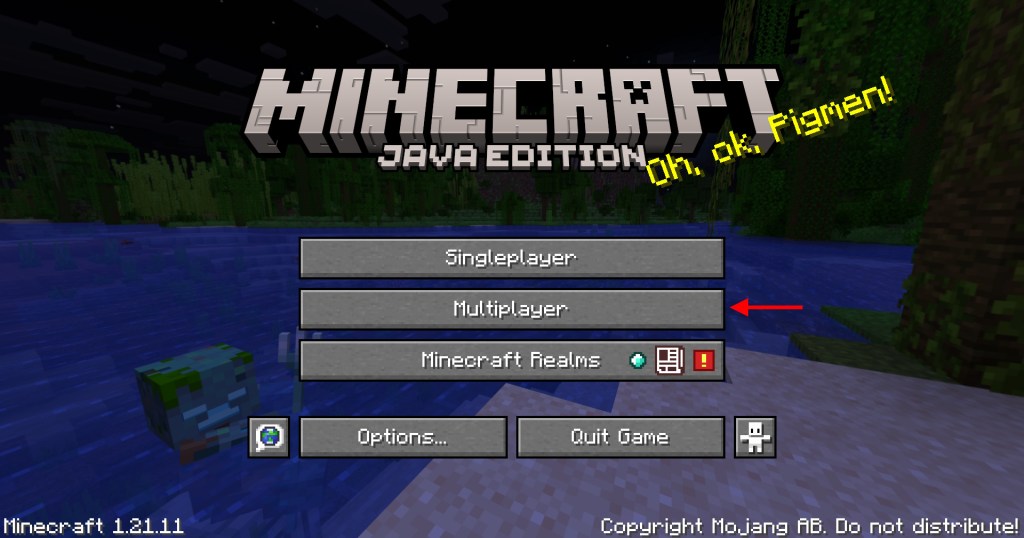
- Minecraft will then warn you that online servers are not suitable for everyone. After reading the warning, click on the “Proceed” button to continue.


- Now, if the server you are trying to join is hosted locally, it will automatically appear on your screen.
- Otherwise, click on the “Add Server” button. You can also use the “Direct Connection” button to simply connect to the server and not save it on the server list.
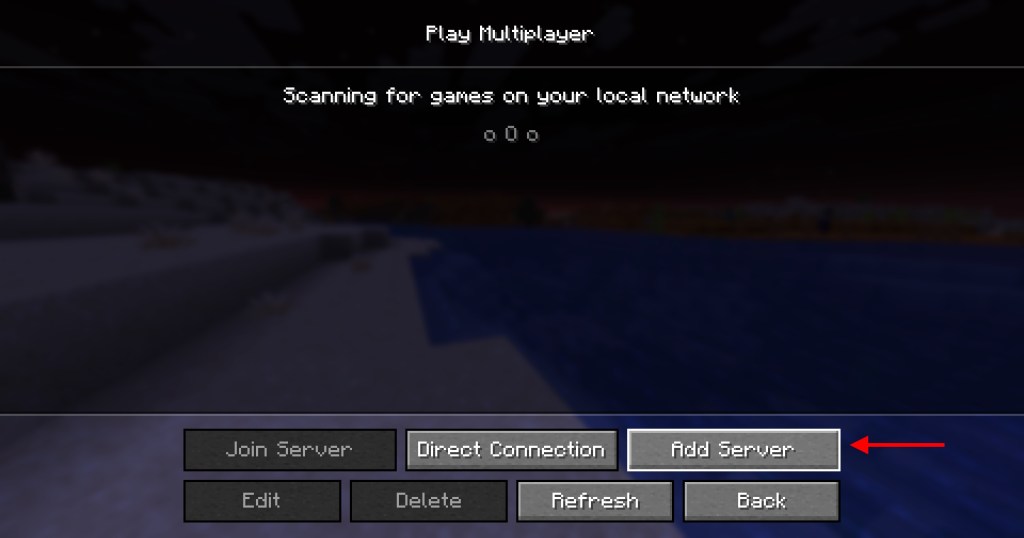
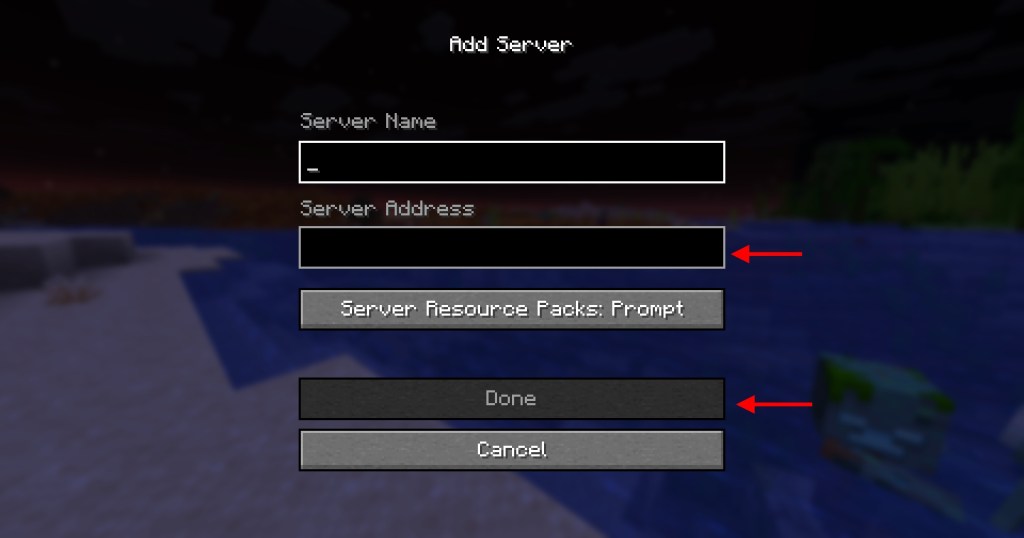
- Finally, enter the server address along with the desired name for the server you are connecting to. Additionally, you can also turn on resource packs attached to each server under the server address section. Then, click on the “Done” button to save and join the server.
How to Join a Minecraft Realm Server
Beyond the manual options, Minecraft also offers a modern way to join online servers, but only for Realms players. But before you can join a Realm server, you need to meet the following criteria:
- A copy of Minecraft with the same edition as the Realm server
- An Xbox gamertag
- A share link or gamertag invitation
- If joining on console, an active subscription to its online service
1. Join Servers on Minecraft with Share Link


If you are playing on PC, you can click on the “share link” option sent to you by your friend. It will automatically load your game and join the Realm server. A similar thing happens when you accept the gamertag invite on a PC. But if you are not on a PC, some manual work is required to join a realm server in Minecraft.
2. Join via Realm Code on Bedrock Edition
All Realm links are in the following format: “realms.gg/abc-abc123,” where the last 6 characters of the URL are the Realm code. You have to copy it, load your Minecraft game, and paste it using the “Join” option to join the server.
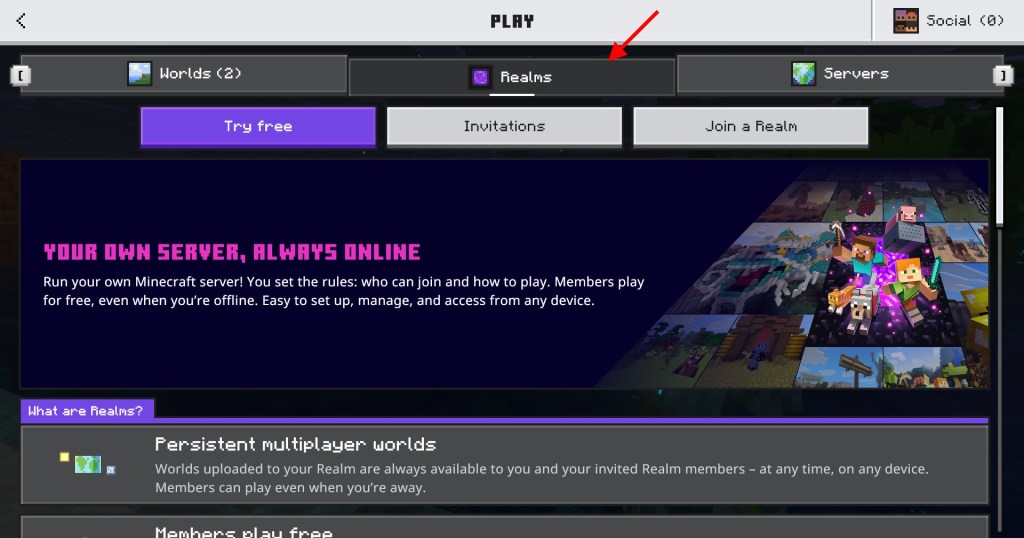
You can find the invite as well as the “Join Realm” option under the “Friends” tab. Once you have played on this server, the Realm will show us at this spot only.
3. Join via Realm Invite on Minecraft Java

The Java edition has the “Minecraft Realms” option on its homepage. You can use this section to purchase as well as join a realm server. If a friend invites you to join their realm, the same button will show a mail-like icon (see screenshot above). You can click on it to join their realm server.
So that’s pretty much everything you need to know about how to join a Minecraft server on every platform. All you need to do now is get your friends ready and find some exciting servers to hang out on. So, what are some of your favorite Minecraft servers? Tell us in the comments section below.
There can be a variety of causes that can stop you from joining a server. Some of the common ones are – unstable or slow internet connection, server is full, or has blocked your username, or your game version or server’s game version is too old. Moreover, players on Minecraft Preview and beta versions cannot play on regular or Realm servers.
Even though both editions are much more similar than ever before, Minecraft still doesn’t support crossplay between the two. But there are many online servers that have separate dedicated segments for both editions with the same world. And unfortunately, that’s the closest we can get for now.
There are a variety of Minecraft servers, ranging from dedicated servers to online ones. You can use our guide to easily make Minecraft servers on Java and Bedrock editions for free.