- You can easily enable Secure Boot on Windows 11 to run online games.
- Press "F2" or "Del" while booting up and enter the BIOS/UEFI screen. Now, head to Security, Boot, or Windows OS Configuration.
- Here, look for Secure Boot and enable the option right away.
Secure Boot and TPM 2.0 are mandatory requirements to play online multiplayer games. While most Windows 11 PCs already come with the features turned on, the game will be quick to alert you if they’re not. In this case, you’ll see a ‘Secure Boot not enabled’ error while attempting to launch the title. So, if you’re looking to fix the problem, here’s how to enable Secure Boot to play online multiplayer games.
Enable Secure Boot on Windows 11 to Play Games
To enable Secure Boot and play multiplayer games like Highguard on your Windows 11 PC, you’ll have to enter the BIOS/UEFI screen. Follow these steps:
- While your computer boots up, press “F2” or “Del” to enter the BIOS/UEFI screen.
- You can also follow our detailed guide to enter BIOS/UEFI screen if the above key doesn’t work.
- Once you have entered BIOS/UEFI, go to Settings and select Security or Windows OS Configuration.
- You may also find the Secure Boot option under Boot, depending on your motherboard manufacturer. Just look around and find the Secure Boot option under various menus.

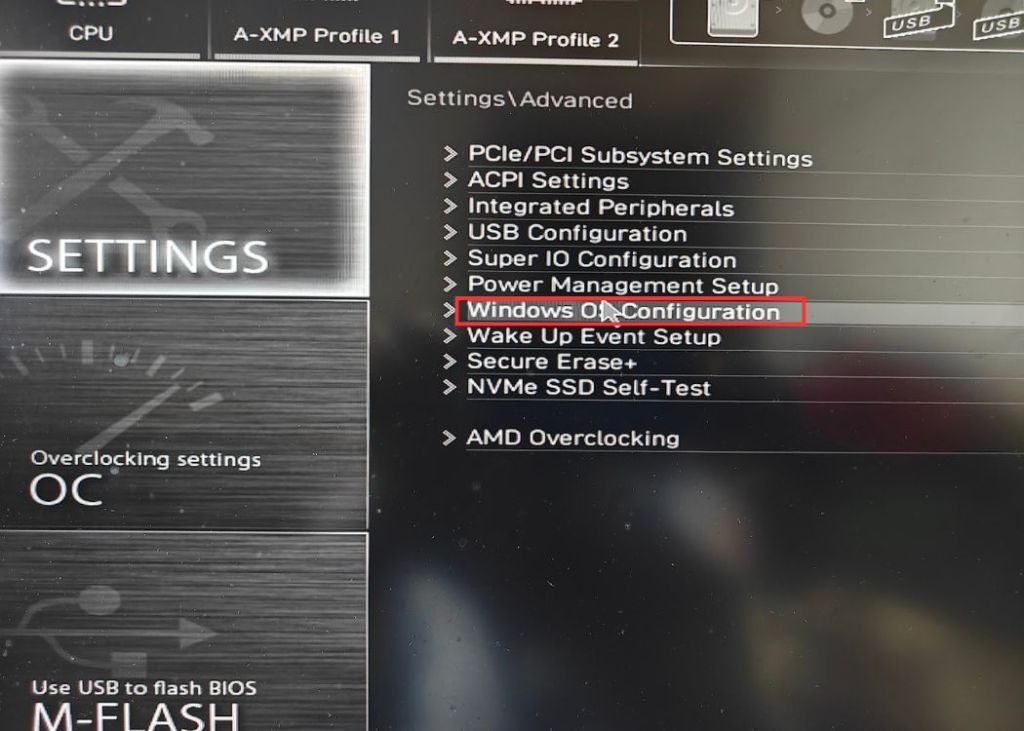
5. Now, click on Secure Boot to open more options. Here, you can easily enable secure boot.
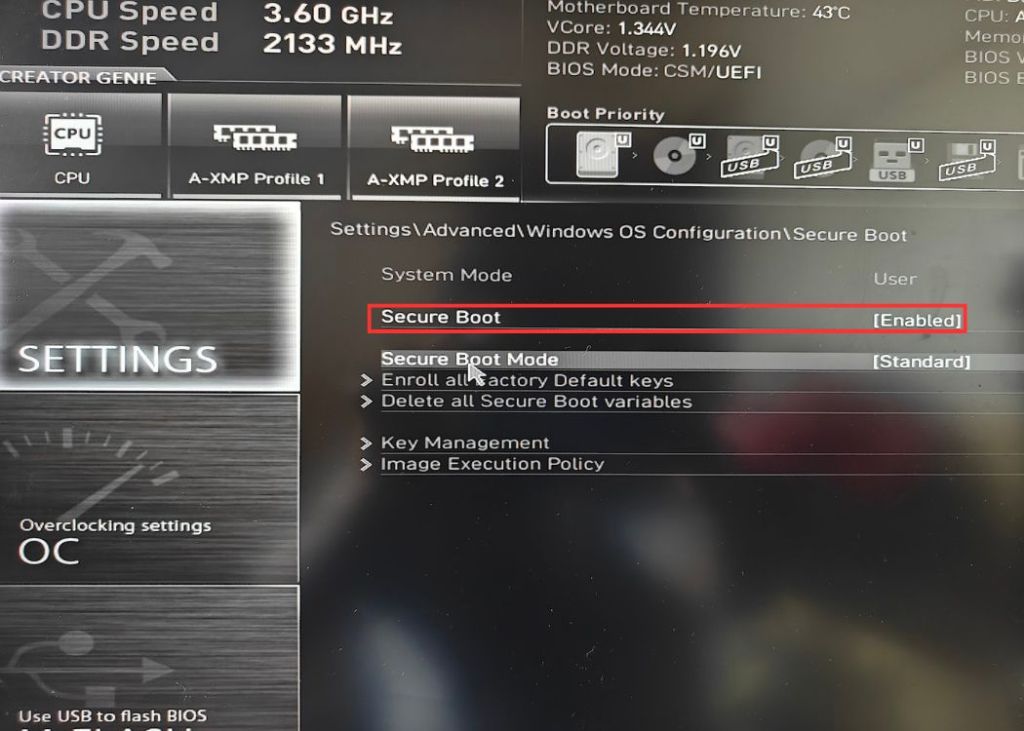
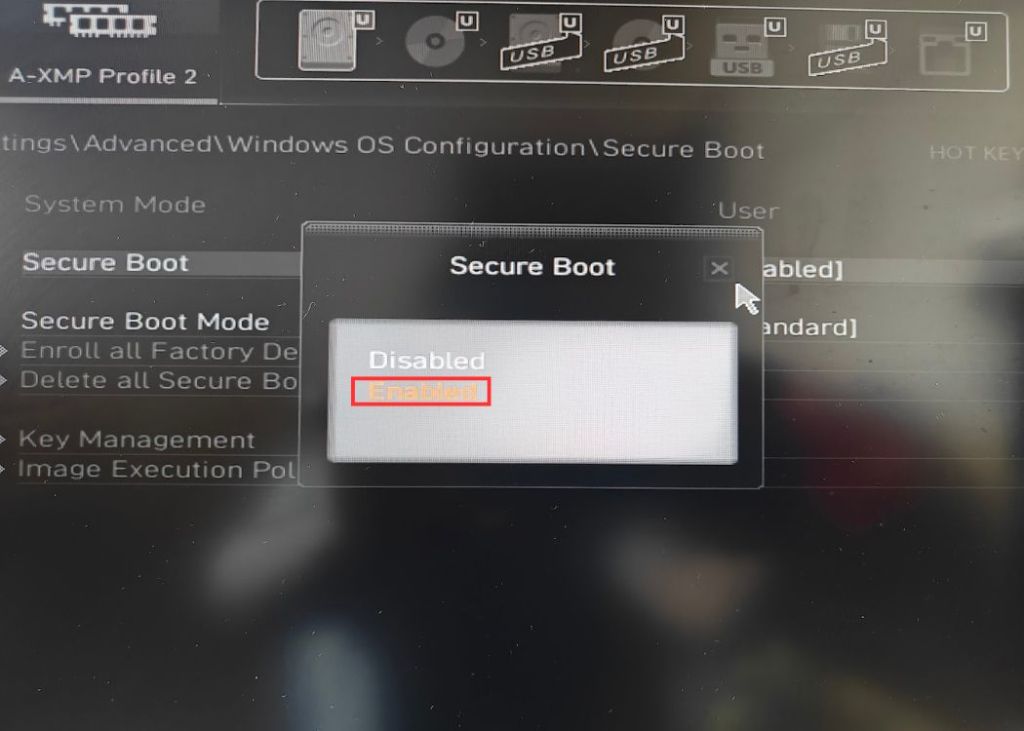
6. If the value reads “Disabled”, change it to “Enabled”.
7. Once done, save settings and exit the BIOS/UEFI screen. Now, reboot normally, and you will be able to play BF6 without any issues.
How to Check if Secure Boot is Enabled on Windows 11
Once you enable Secure Boot and boot into Windows 11, you can check if Secure Boot has been enabled by following these steps:
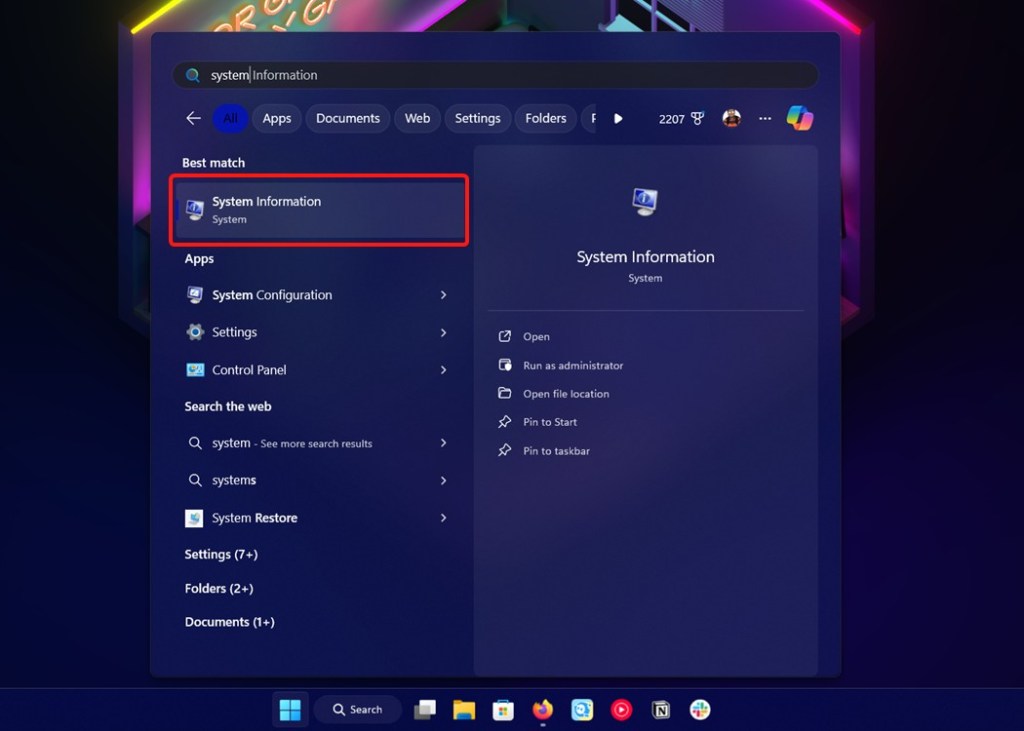
- Launch the Start menu, search for “system information”. Now, open System Information.
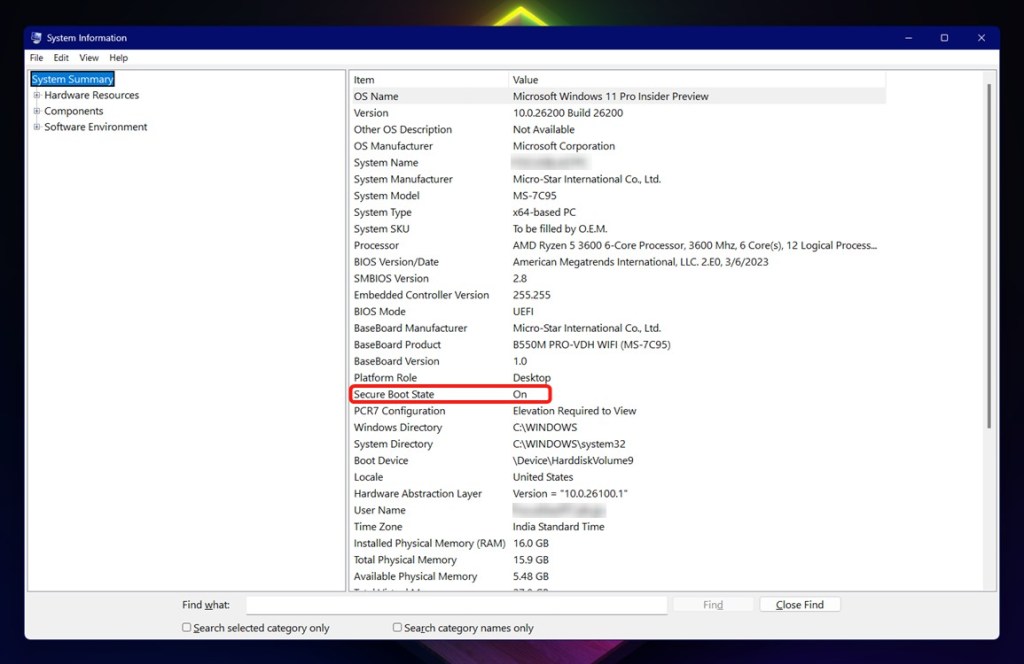
- Here, under System Summary, check if Secure Boot is enabled. If it reads “On” then you can run online games on your PC.

And that’s how you can enable secure boot on a Windows 11 PC and run online games without any issues. If you wish to enable TPM on Windows 11, we have a dedicated guide for you.
Yes, accessing Secure Boot requires you to open the BIOS or UEFI screen, where you can find the Secure Boot setting.
This could happen if your BIOS is set to Legacy mode. One of the other reasons is that you just can’t find it because it’s hidden very deeply. In which case, you can use the search feature if your BIOS has one.
This could happen if your computer doesn’t support TPM 2.0 or if TPM is disabled. To enable it, head over to the BIOS again.
You should be using Secure Boot on Windows, no questions asked. It will protect you from any malicious program that may try to start during startup.




















![[OPINION] I Want to Discover GTA 6 My Way and the Leaks Are Making That Impossible](https://static.beebom.com/wp-content/uploads/2026/09/GTA-6-Lucia-hanging-out-of-a-car-chased-by-police.jpg?w=300&quality=75)