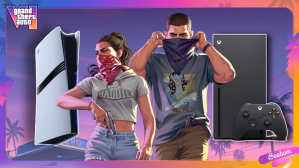
GTA 6 takes players across the streets of Vice City and the wider Leonida region, so you will want your TV settings to do the game’s visuals justice. Whether you are playing on a PS5 or Xbox Series X, a few adjustments can improve picture quality, HDR accuracy, and controller response. So, go check out the best TV settings to play GTA 6.
- TV Settings to Change Before You Play GTA 6
- Best TV Settings for GTA 6 on PS5
- Best TV Settings for GTA 6 on Xbox
TV Settings to Change Before You Play GTA 6
Before launching GTA 6, you should adjust these settings on your Sony, LG, Samsung, or other TVs. These options help reduce input lag and improve color accuracy, shadows, and highlights.
With GTA 6 locations in Leonida being vibrant and colorful, you wouldn’t want things to look bland or over-tuned. Also, modern TVs come with multiple gaming features, so why not use them all?
Enable Game Mode
Game Mode is the first setting you should enable on your Smart TV. It reduces background image processing, which helps lower input lag and makes controller inputs feel more responsive.
Depending on your TV manufacturer, this option may have a different name:
- LG: Game Optimizer
- Samsung: Game Mode
- Sony: Game Mode
- TCL: Game Mode
If your TV supports Auto Low Latency Mode (ALLM), enable it or set it to Automatic. This allows your console to automatically switch the TV to low-latency mode when you start playing a video game.

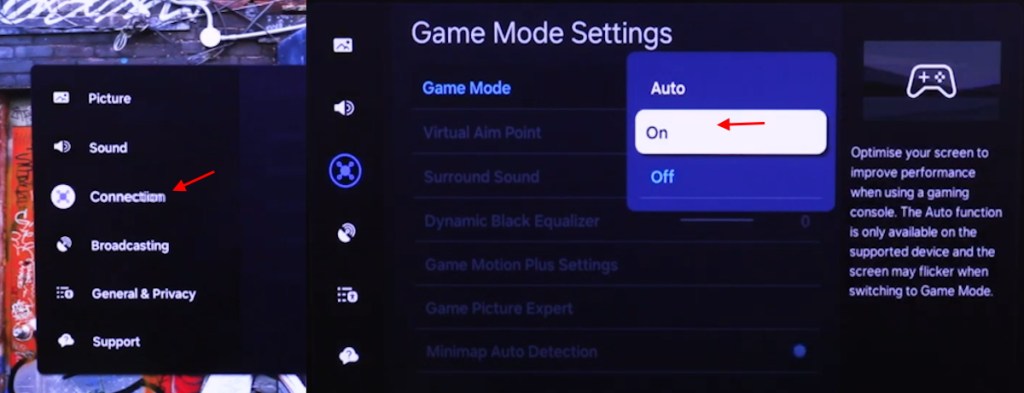
You will find the Game Mode option under your TV settings. Remember, on most TVs, ALLM and Game Mode are only available when you are using the HDMI 1 port.
Turn Off Motion Smoothing
Turn off motion smoothing and frame interpolation features on your television. These settings create artificial frames between existing ones to make movement look smoother.
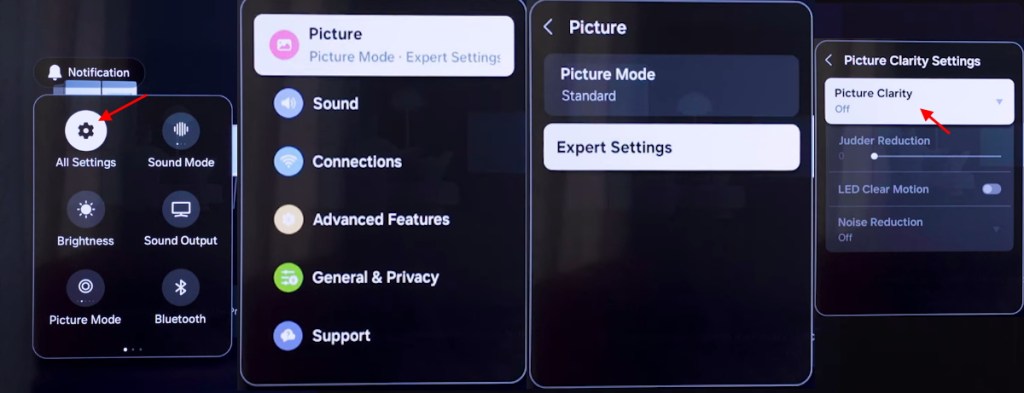
While motion can work well for movies and TV shows, it can add input lag when gaming. They can also make fast movements look unnatural. And with GTA 6 not releasing at 60 FPS, you wouldn’t want to force it to run at higher frame rates.
Here are some common motion smoothing options you should disable in your TV settings for a better GTA 6 experience:
- LG: TruMotion
- Samsung: Picture Clarity/ Motion Plus
- Sony: Motionflow
- Hisense: Motion Enhancement
- TCL: Motion Clarity/ Action Smoothing
Enable HGiG and Adjust HDR
HDR plays an important role in improving how the bright highlights and dark scenes look. This is especially useful for GTA 6 visuals, where you will travel between sunny Leonida Keys streets, neon-lit Vice City buildings, and dark interiors.
If your television supports HGiG (HDR Gaming Interest Group), enable it in the HDR picture settings. HGiG prevents the TV from applying additional dynamic tone mapping on top of the HDR calibration handled by your console.
You should also disable Dynamic Tone Mapping (DTM) if HGiG is available. Once you adjust these settings, use your console’s built-in HDR calibration tool to match the output to your television.
Adjust Color Temperature and Sharpness
For more natural-looking colors, set your TV’s color temperature to Warm or Warm 2. On some LG televisions, this option is available as Warm 50.
This setting provides a more accurate white balance and avoids the overly blue appearance that some default picture presets produce. If you want your GTA 6 map to look more vibrant, you can turn the tone a bit warmer, but it will make the overall look artificial.
As for sharpness, keep it at its neutral setting. Avoid adding extra sharpening, as it can introduce unwanted outlines around objects and buildings.
Turn Off Energy Saving
One of the best ways to make your TV run at full power is by turning off energy saver modes of any kind. Disable Energy Saving, Eco Mode, and automatic brightness adjustment features on your television.
These options can reduce screen brightness depending on the room’s lighting conditions. This can make it difficult to see details in darker scenes or maintain consistent HDR brightness.
You can adjust the brightness manually based on your room and TV panel instead.
Enable VRR and 120Hz Output
Thre Variable Refresh Rate (VRR) setting allows your TV to synchronize its refresh rate with the frames produced by your console. This helps reduce screen tearing and stuttering when a game’s frame rate fluctuates.

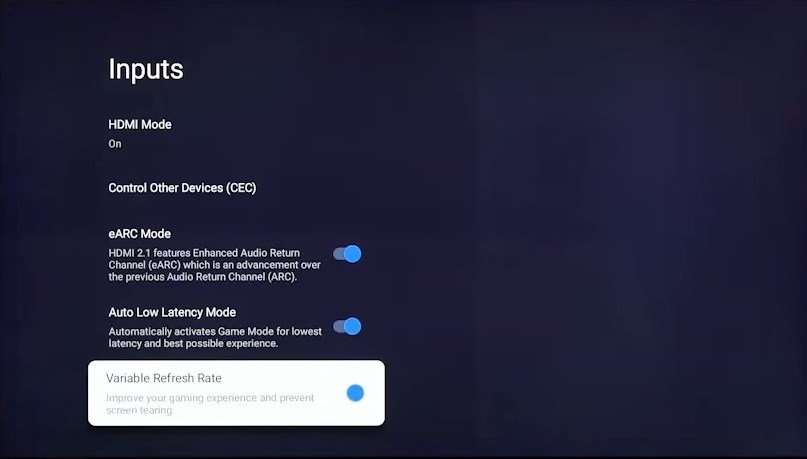
Set VRR to Automatic if your television supports it. You should also enable 120Hz Output to make sure your console can use these features when supported.
Best TV Settings for GTA 6 on PS5
After adjusting your TV, you should also optimize your PS5 settings for GTA 6 to make the most of its display features. Here are the recommended settings:
PS5 Setting Recommended Option Resolution Automatic 120 Hz Output Automatic VRR Automatic Apply to Unsupported Games Off HDR On When Supported RGB Range Automatic ALLM Automatic
Best TV Settings for GTA 6 on Xbox
If you are playing not a PlayStation gamer, here are the Xbox settings for GTA 6 you must use to get better results on your TV:
Xbox Setting Recommended Option Resolution 4K UHD Refresh Rate 120Hz (if supported) Allow 4K Enabled Allow HDR10 Enabled Allow Variable Refresh Rate Enabled, if supported Allow Auto Low Latency Mode Enabled, if supported Color Space Standard
These are all the TV settings you must utilize to get the best visuals and performance on GTA 6. What TV are you using to play the game? Let us know in the comments.
Enable Game Mode, use an HDMI 2.1 port, turn off motion smoothing, and enable HGiG if your TV supports it. You should also calibrate HDR through your console for accurate brightness and contrast.
A TV is a good choice if you prefer playing from a couch on a larger screen, while a gaming monitor is better suited to a desk setup.
No, you can play GTA 6 on a television with HDMI 2.0 or any supported connections on PS5, PS5 Pro, and Xbox Series X|S.
Yes, if your television supports HDR properly. Enable HDR on your console, calibrate it using the built-in tool, and use HGiG if available to avoid double tone mapping.