

Wondering which is the best note-taking app for iPad? Well, you can consider Microsoft OneNote, Apple Notes, or Notion. However, not every app will meet your needs. You must make an informed decision about which app to pick, as this will be where you will keep all of your essential notes. So, in this read, we will discuss some of the best note-taking apps for iPad in 2026, and which one is best suited for you.
Quick Comparison: Best Note Taking Apps for iPad at a Glance
Here is a quick comparison of our top picks for the best note-taking apps for your iPad. We have also discussed who it is best suited for, along with its pricing, to make it easy for you to decide.
Best iPad Note Taking Apps Best Suited for Pricing Goodnotes 6 Students and professionals who want handwritten notes, Apple Pencil support, and digital notebooks Free, with in-app purchases Notability Users who want versatile note-taking with audio recording, mixed media support, and Apple Pencil integration Free, with in-app purchases Apple Notes Those who want a simple, free and basic note taking solution on an iPad Free Microsoft OneNote Windows users or those who work with Microsoft Office 365 suite of apps and services Free, with in-app purchases Obsidian People who want a full fledged note taking experience to link other notes and create mind maps Free, with in-app purchases CollaNote Students and creatives who want to scribble notes or create drawings and illustrations Free, with in-app purchases Bear Writers and students who want a minimalist, Markdown-based notes app for iPad with a clean design Free, with in-app purchases Noteful Those who want an affordable, Apple Pencil–focused notes app with simple organization and no subscription Free, with in-app purchases Notion Users who want an all-in-one workspace, notes, databases, tasks, and collaboration Free, with in-app purchases Evernote Anyone who needs cross-platform syncing, powerful search, and note organization for work and personal use Free, with in-app purchases
How We Tested the Best Note-Taking Apps for iPad
To make sure that we pick the top note-taking apps, we referred to the highest-rated apps on the App Store. And installed them on the iPad 11th Gen to get a better hands-on experience with each note-taking app.
Moreover, we looked for key features for every app, ease of use, and their pricing. We also considered user reviews and suggestions from Reddit posts and comments. Finally, shortlisting these particular apps.
The Heavy Hitters: Best Premium iPad Note Taking Apps
Let’s start with the more premium and well-rounded note-taking apps for iPad, like GoodNotes and Notability.
Goodnotes 6: Best for Digital Stationery
The latest version of GoodNotes brings a lot of amazing features for note-taking. For starters, you get support for notebooks that you can fully customize, complete with multiple cover options and page styles to suit your needs. Once you’ve set up your notebook, you can start taking notes with your Apple Pencil. It supports the tilt functionality as well, so you can shade in your sketches, too.

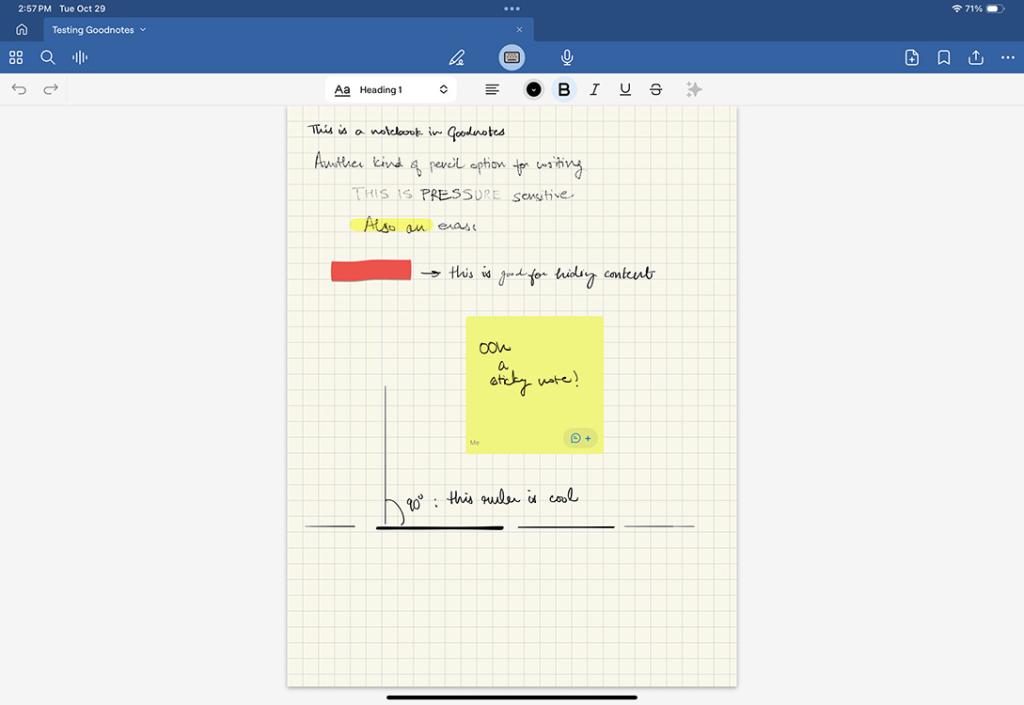
You also get Sticky Notes, a ruler, and an audio recording functionality. Plus, the app supports Math Notes, which means you can write equations within your notes, and GoodNotes can solve them for you. This makes it a great note-taking app for students.
Pros Cons Versatile set of tools Audio recording does not sync with the notes Math Notes support Subscription can be pricey Study Sets are useful Excellent writing experience
Notability: Best for Audio-Synced Lectures
Notability is another best note-taking app for iPad that you can consider. It comes with a simple interface without too many UI items straight on your home screen. Notability offers a bunch of features, including everything you can do with GoodNotes. You also get support for creating “subjects” to categorize and organize your notes.
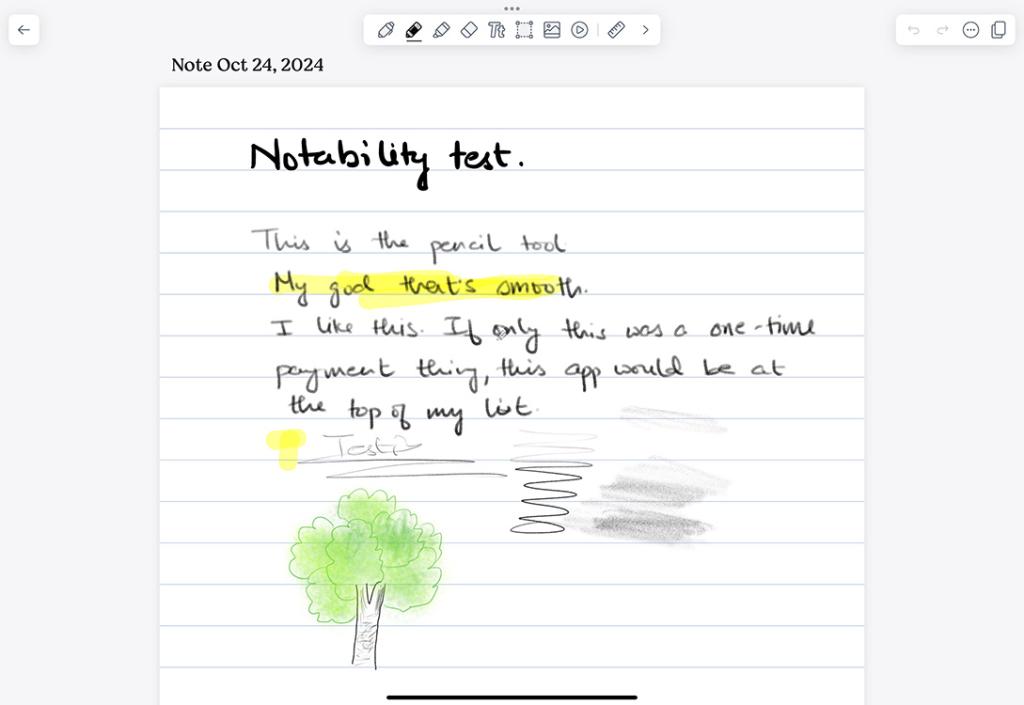
One of the standout features of Notability is definitely the audio recordings, which are synced with your writing. So, when you play back the recording, Notability will highlight what you were writing at that moment, and you can also tap on a particular part of your note to see what was being said at that moment. You also get support for stickers, images, PDFs, and even GIFs in your notes.
Plus, if you’re using an iPad with Apple Pencil Pro, you can squeeze and hold your Apple Pencil to start erasing items in your notes. I personally really like this feature, because it’s easier than double-tapping to switch to the eraser.
| Pros | Cons |
|---|---|
| Clean and simple UI | No one-time payment option |
| Plenty of tools to get the job done | Organization options aren’t as good |
| Audio recording with writing sync |
Best Free Note-Taking Apps for iPad
There are also some great note taking alternative for iPad that are available completely for free. This includes the likes of Apple Notes and the powerful Microsoft OneNote app. Here’s a closer look at these apps.
Apple Notes: The Native Note-Taking Powerhouse
Your iPad already comes with a powerful built-in note-taking app called Apple Notes. It is excellent for jotting down notes and adding sketches, etc. It also offers plenty of collaboration features for working with a team. Obviously, it supports Apple Pencil. Plus, you can switch between handwriting and typing on the fly if you want to.
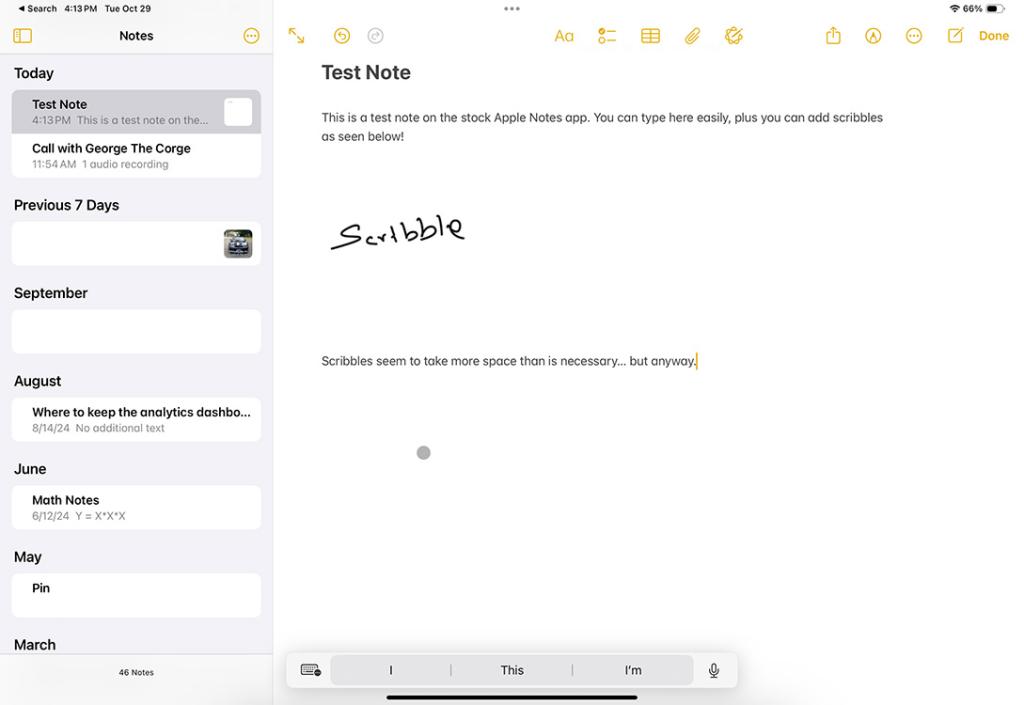
The stock Notes app also does a decent job of organization. You can create folders to separate notes into different categories, and you can use iCloud to sync your notes across all your Apple devices.
However, Apple Notes can drain the battery a tad too much when you’re taking longer handwritten notes. Plus, people have reported that the app starts to lag with very long notes; however, I haven’t observed any such issues on my iPad 11th Gen. Basically, I would recommend that you start off by using the stock Notes app on your iPad.
Pros Cons Built-in app Can be heavy on the battery Full Apple Pencil Pro support Not as feature-packed as some other options on this list Easy to use
Microsoft OneNote: Best for Multi-Device Users
Microsoft OneNote is one of the more popular entries in this list, and I am sure most of you have used it already. It offers excellent collaboration features and cloud sync with OneDrive. So you can access your notes anywhere. This is great, especially if you use a Windows desktop along with your iPad. It also supports both Apple Pencil and text mode, and you can use both in a single note, too.
OneNote also works great with organisation, and it features Microsoft’s Copilot AI. This allows you to draft longer notes or quick lists with a simple AI prompt. While most of OneNote’s features are free to use, you will need the Copilot add-on along with an Office 365 subscription to be able to use the AI within OneNote. So, if you are looking for a powerful, multi-device, free note-taking app for your iPad, this is the best out there.
Pros Cons Seamless integration with Windows devices Can be heavy on the battery Cross device syncing and collaborative note taking features Copilot AI features require paid subscription Includes Copilot AI integration along with Microsoft Office 365 suite
Specialist Apps: Infinite Canvas & Knowledge Graphs
Those of you trying to find a special type of note-taking app which offers the ability to create knowledge graphs or features an infinite canvas can check out their options below.
Obsidian: Building a Second Brain
If you’re looking for an iPad note-taking app focused on typing instead of handwriting, you should definitely check out Obsidian. It does not support handwriting, which can be a deal breaker for some, but it makes up for it by bringing in a lot of extremely powerful features. It supports markdown, link management, and graph view. This is perfect for when you’re taking notes and want to link them to other notes, creating a knowledge graph on your iPad.
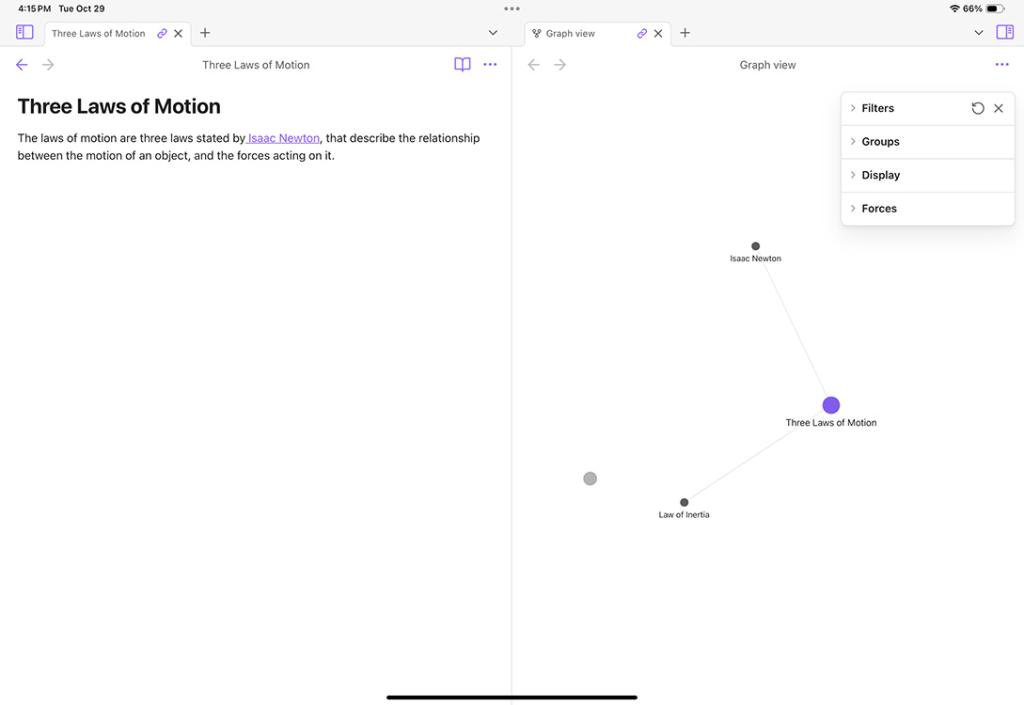
Plus, you can also create links to notes that don’t exist yet, to highlight information you want to get back to and take a deeper dive into when you get the time. Overall, Obsidian is a great second-brain app for your iPad that can let you create detailed notes, with backlinks and embeds. The app is completely free to use, but you can subscribe to add sync or publishing features as add-ons.
Pros Cons Linking notes and the graph view is very useful Sync feature is a paid add-on Markdown format makes exporting easy No handwriting support Completely free to use
Collanote: Best for Visual Brainstorming
Callanote is a great note-taking app for your iPad that can essentially replace your sketchbook. For starters, you get a bunch of pen tools to write with, along with multiple colors to pick from. You can also quickly draw shapes with the pen, and the app will automatically convert them into a proper shape. Apart from that, you get a highlighter tool, a lasso, a text box, stickers, and more.
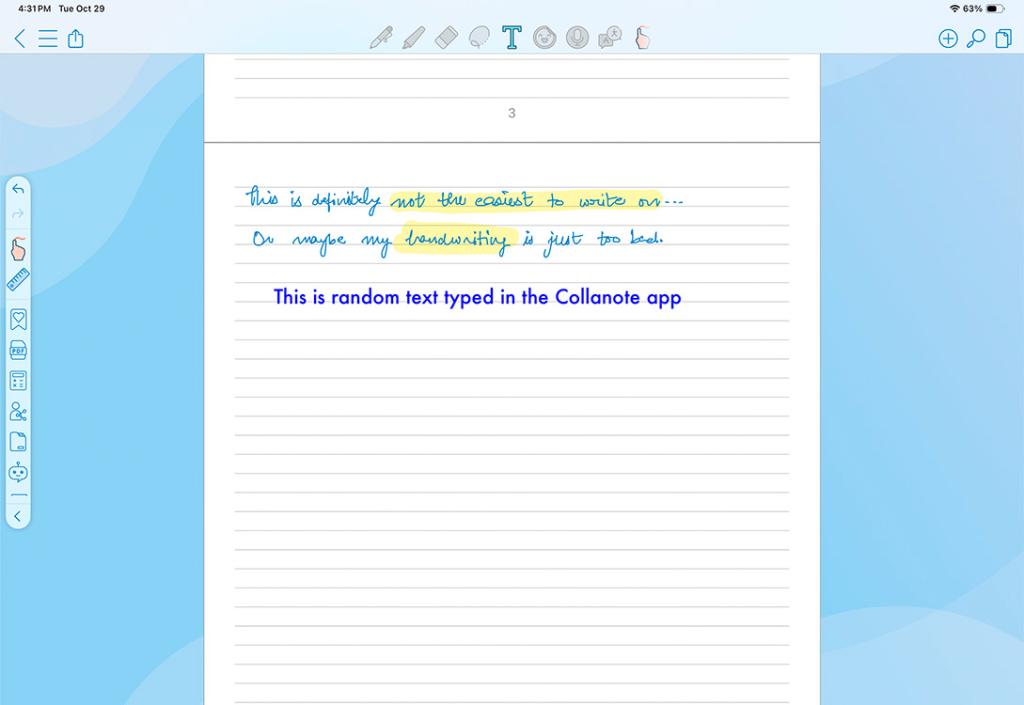
You can also add images to your notes. Plus, if you get the Pro version of Collanote, you get support for adding graphs and unlock stabilisation settings for the pen tools. The app also supports a hand calculator along with a scientific calculator, so all your mathematical needs are sorted as well. You can also import PDFs into the app and annotate them or fill them out. Collanote also supports flashcards, which are useful for revision and for learning key topics and concepts.
Pros Cons Free version has plenty of features Default stabilisation is not good Handwriting calculator UI looks dated Graph support Flashcard support
Best Note-Taking App for iPad for Students
Whether you are a student in a school or college, having a handy note-taking app for your iPad can be quite beneficial. Not only does it make it easy to store all your notes in one place, but also makes it easy to share assignments with friends and edit PDFs. And for that reason, Bear and Notefull are my top picks for this category. Here’s why.
Bear: Great Note-Taking App for Students
Bear is a simple, beautiful-looking note-taking app for iPad that supports markdown, which means you can quickly and easily start taking notes on your iPad. The app also brings support for additional things, such as the ability to embed a whiteboard where you can scribble with the Apple Pencil, adding images, links, and more to your notes in-line.
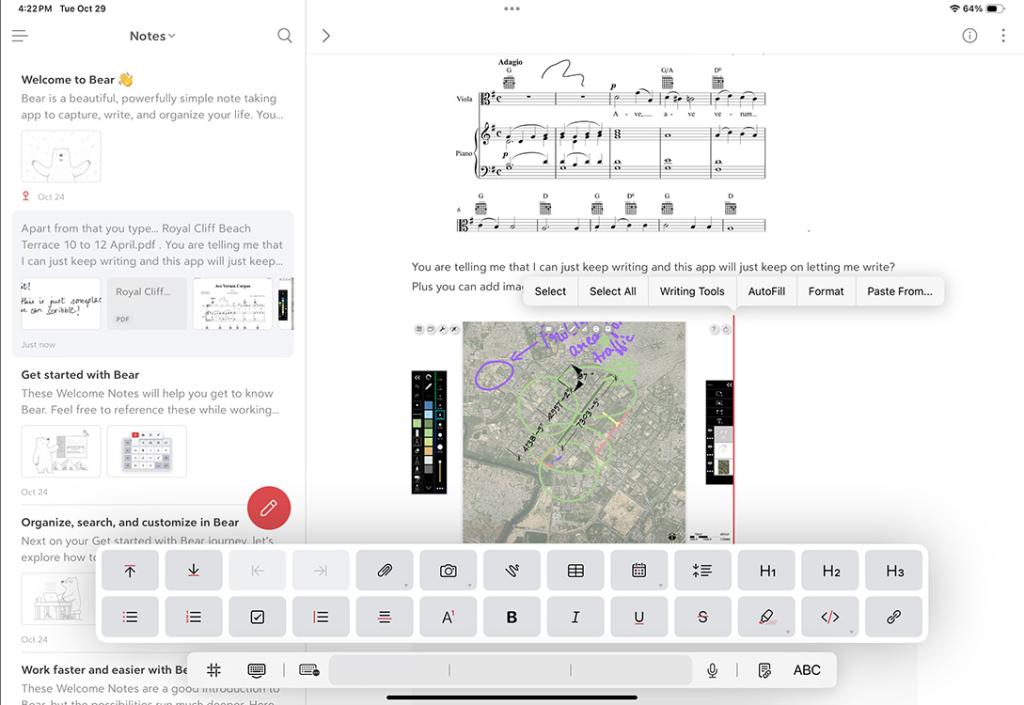
There are also options to highlight text, create superscripts, add code embeds, and a lot more within the styling pane. Bear supports adding PDFs directly within the note itself. The free version of the app is probably going to be enough for most users, since it comes with most of the required features. However, if you want things like iCloud syncing, themes, and the ability to password-protect your notes, you will have to subscribe to Bear Pro.
Pros Cons Good set of markdown and text editing features Export to PDF not available in the free version Annotate and edit PDFs iCould sync limited to the paid version Supports iCloud syncing Plenty of features even in the free version
Noteful
Another app that you should check out is Noteful. It comes with a clean UI and a decent amount of categorization options. You can create new notebooks complete with cover designs and paper styles. There are not as many writing tools, but you get 3 versatile pens to write with. Plus, you get other useful tools like a highlighter, eraser, lasso, laser pointer, and more. You also get stickers and the ability to add tags, images, shapes, and more to your notes.
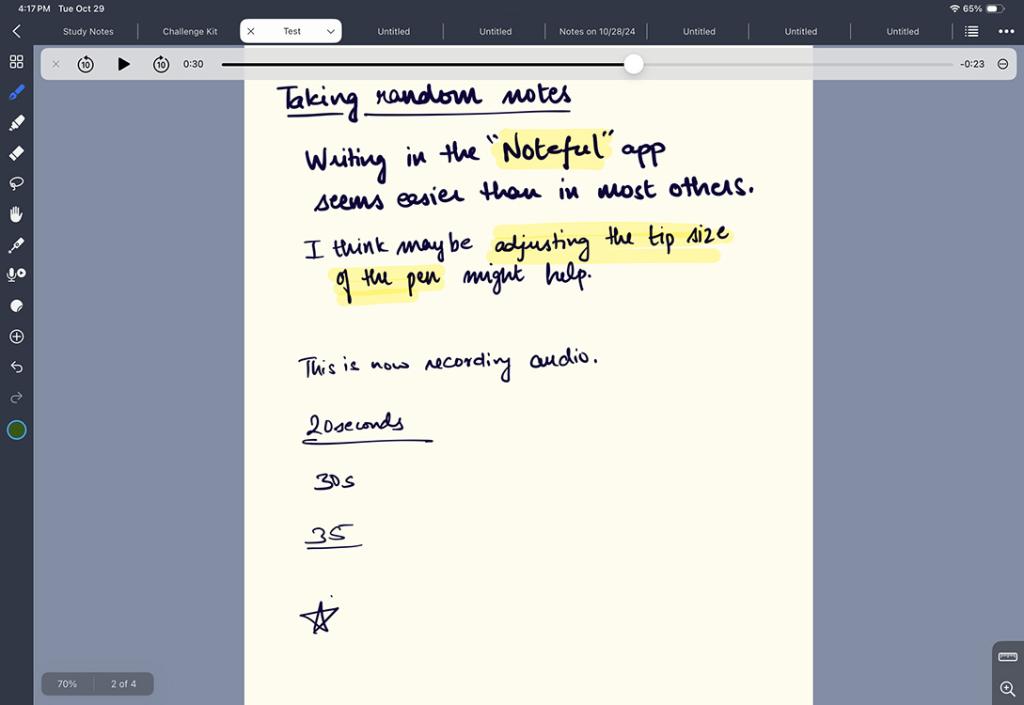
Also, similar to Notability, you get an audio recording feature here that syncs your writing with the recorded audio. While Noteful can be used for free without too much of a hassle, I would recommend that you upgrade to Noteful Pro if the app seems good for your needs. It’s a one-time purchase and brings unlimited notebooks, unlimited layers, outlines, bookmarks, image cropping, and a lot more that can really take your note-taking experience to the next level.
Pros Cons Free version is perfectly usable Only three pen tools to use in the free version Audio sync with writing is useful Reasonable one-time payment for unlocking full version
Best AI Note Taking Apps for iPad
In case you need a particular note-taking app for iPad with AI capabilities, then look no further than Notion and Evernote. Two of the most popular and capable notes app.
Notion: Comprehensive Note and Task Assignment App
Notion is an app that we use every day for office use, and for good reason. The reason is simple: it combines the best qualities of OneNote and Obsidian, offering collaborative and cloud syncing features, while also covering a comprehensive list of features and options. This is why it was rated one of the best AI notes apps in our list.
Notion is primarily a typing-based app, so while it does support Apple Pencil, you will rarely be able to use it. It allows you to create pages within pages, has tables, and has the option for all text formatting tools, and you can even create custom actions in Notion as well. You can assign tasks, deadlines, filter through different lists and sections.
As for the AI part, it has received features to complete your notes and drafts and help with brainstorming. While most of what I have discussed is available for free, you can get a paid subscription to unlock Notion’s full potential.
| Pros | |
|---|---|
| Supports syncing across multiple devices and platforms | Not beginner friendly |
| AI tools to help you write and brainstorm ideas | Some extensive features require paid subscription |
| Full fledged notes and collaborative app | |
| Can create pages within pages, and assign tasks |
Evernote: Versatile AI Note-Taking App
Evernote is a note-taking app that is primarily focused on typing, but will also let you add some scribbles and sketches in between. The app comes with a clean-ish UI, though it’s not as good as some of the other options on this list. You can obviously type anything you want to, but Evernote also brings support for adding scribbles on a whiteboard of sorts that can be embedded directly inside your note. You can also transcribe your scribbled information with the help of AI.
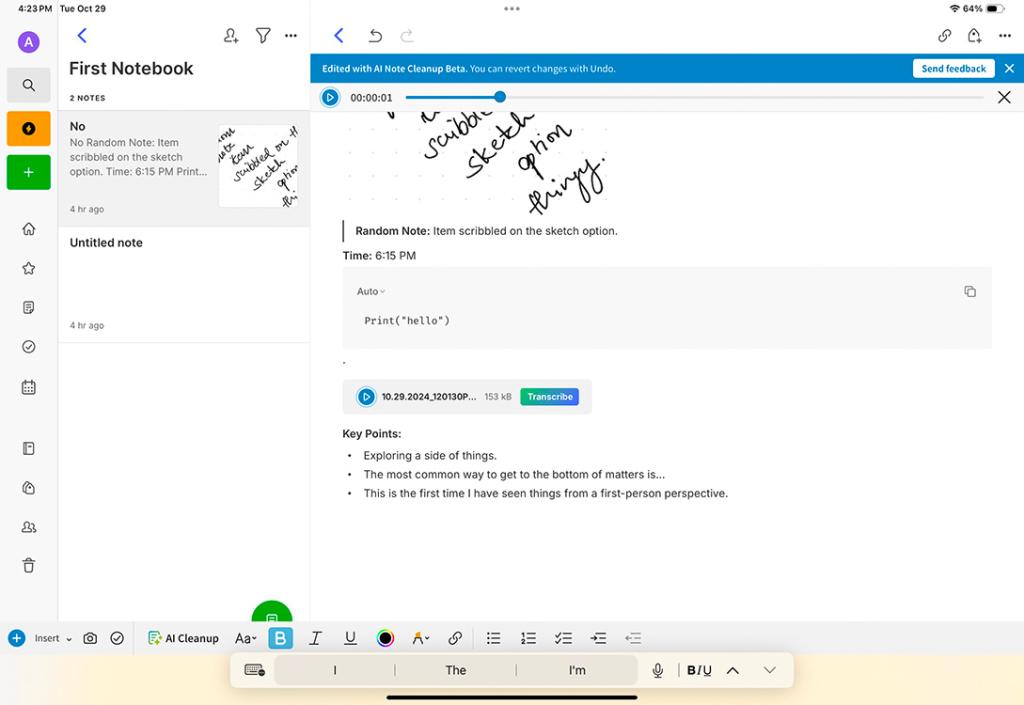
Apart from that, Evernote supports adding code blocks, inserting images, links, tables, checklists, and even a table of contents for longer notes with multiple sections. You can also style your text, and there is a highlight tool as well to mark important information. Evernote also has an audio recording feature, which is nice, but do note that it doesn’t sync your writing with the audio, so it’s not as versatile as something like Notability or Noteful’s audio recording.
Pros Supports multiple types of content within notes UI isn’t as neat as some competitors Supports cloud syncing AI Cleanup can make notes cleaner
How to Choose the Right Note-Taking App for iPad
Choosing the right note-taking app for iPad depends less on features and more on how you actually use your device. The best app is the one that fits your workflow, writing style, and, of course, ecosystem. Here is a checklist that you should consider.
- Apple Pencil Support: If you use an Apple Pencil, go with an app that supports it and all its features. Look for natural ink feel, shape recognition, and handwriting-to-text conversion if you switch between writing and typing.
- Typing vs Handwriting: Some apps let you type, others let you use your handwriting, and some offer a mix of both. So pick the note-taking app that suits your preferred method.
- Organization & Search: If you have an OCD for proper management, then you might want to go with an app with extensive note management and notebook features.
- Cross-Device Sync: If you use a Mac, iPhone, or Windows device alongside your iPad, check for an app with seamless syncing options.
- Pricing & Subscription Model: Some apps offer a one-time purchase, while others lock advanced features behind subscriptions. Get the app that not only fits your needs but also your budget. If you think the pro features of a certain app will improve your workflow then go for it or else resort to the freebies.
Well, those were the 10 best note-taking apps for iPad that you should check out. I have tried to include apps that suit the needs of various kinds of use-cases, including casual users, university and college students, personal usage, and more. Hopefully, you were able to find an app that best suits your needs. If you have any questions or queries, or if you think I should include another app in this list, let me know in the comments.

