Whether you are a fan of cheats or not, Minecraft has undeniably the best in-game commands (or cheats) in comparison to any other video game. They not only give you special abilities, but you can even change every component in your world using these commands. Depending on the scenario, some of these commands can be more useful than others, but all of them will make your gameplay easier. Having said that, let’s check out the most useful Minecraft commands of all time in this guide!
List of Most Useful Minecraft Commands
There are over 115 commands in Minecraft. So, we have selected only the most useful ones whose actions can’t be replicated by in-game blocks. But their usage purely depends upon personal preferences. So, feel free to explore them at your convenience using the table below.
| Command | Use |
|---|---|
| /tp | Can teleport you to any place in the game |
| /gamemode | Helps in changing the game modes to creative, survival, spectator, and adventure |
| /summon | Can bring forth any block, mob, or item. |
| /locate | Returns the coordinates of any structure, biome, or point of interest |
| /time | Can change or add a query to the world’s time |
| /gamerule | Can change and add queries to the game rules of Minecraft |
| /fill | Helps in filling up a region with blocks, items, or portals |
| /kill | Can kill any player or entity |
| /camerashake | Helps in enabling or disabling the camera shaking effect |
| /give | Can grant any item to the player |
| /clone | Helps in copying blocks to another location |
| /help | Gives you information of all the commands in Minecraft |
| /fillbiome | Helps in filling a region with any biome you want |
| /music | With this, you can play, pause, and control music tracks. |
| /enchant | Applies an enchantment to the item you or any other player is holding currently |
1. Teleport in Minecraft
- Syntax: /tp or /teleport <target> <location coordinates>
- Example: /tp @s 112 14 423
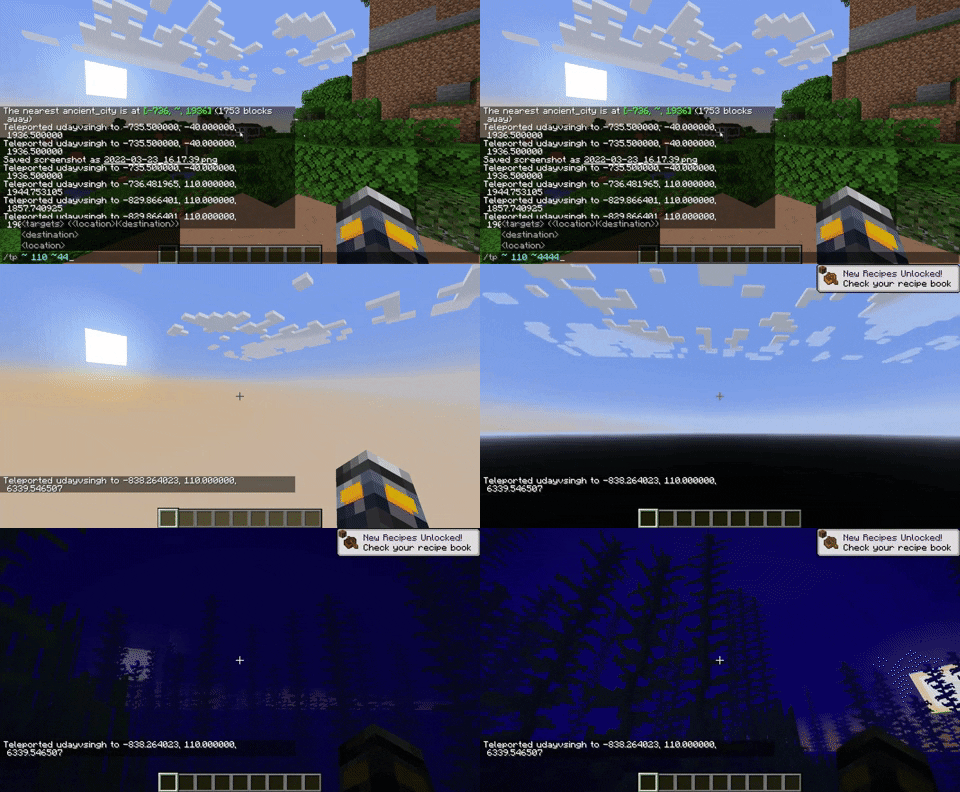
In comparison, the fastest mode of transportation right now is Nether portals, and they come nowhere close to teleportation. Moreover, unless you are in a Minecraft boat, only teleportation allows you to travel with other players in the game.
2. Change Game Mode
- Syntax: /gamemode <mode name>
- Example: /gamemode creative
Minecraft has a variety of game modes that offer different gameplay experiences. This useful command allows you to quickly switch between them without ever leaving the world.
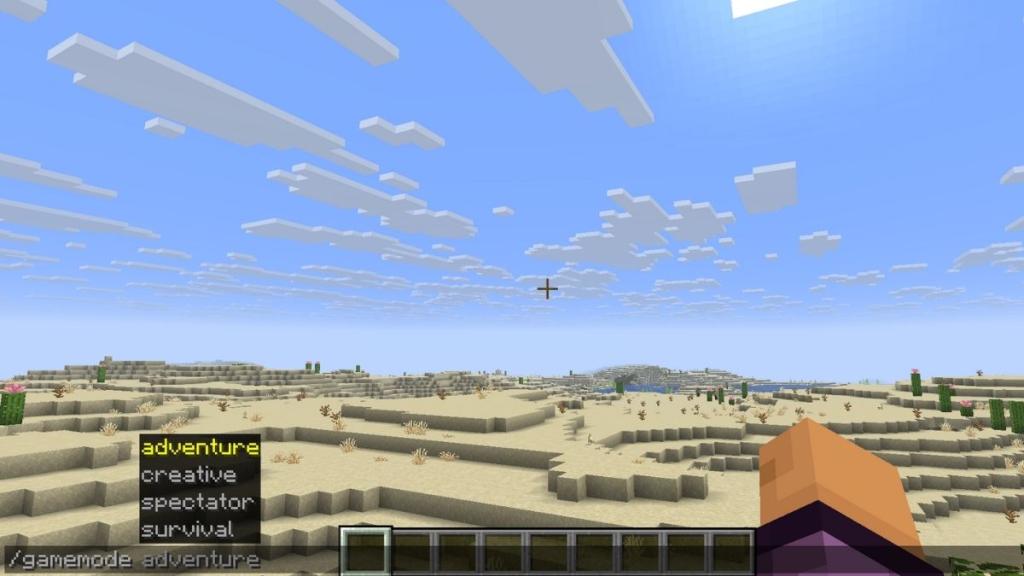
Here are the four game modes you can switch to in the game:
- Survival is the default game mode that focuses on open-world gameplay and exploration. You can respawn in it.
- Creative mode is great for building structures and making Minecraft maps. Your character is practically invincible in this mode, and all hostile mobs ignore you.
- Spectator mode enables you to explore the world as a ghost. You can’t interact with blocks and can fly through them.
- Adventure mode is for playing custom Minecraft adventure maps and limits players’ abilities to mine, craft, and more.
3. Summon Any Entity in Minecraft
- Syntax: /summon <entity name>
- Example: /summon minecraft:warden
The term “entity” in Minecraft refers to all moving objects in your world. This command allows you to summon any of them. These entities can include:
- Mobs
- Boats and Minecarts
- Blocks affected by gravity
- Items with “use” control, and
- Mobs riding other mobs
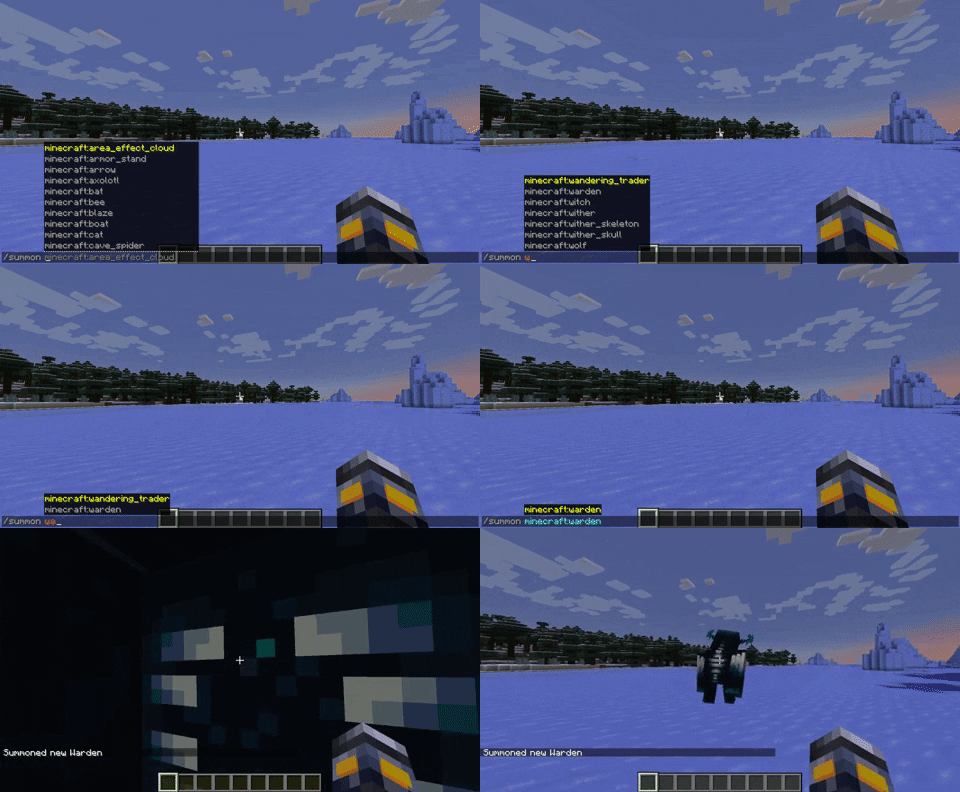
Taking it a step further, this is one of the only commands that allow you to access objects that are not already in the game. For example, you can summon a giant zombie in your world by using the “/summon giant” command.
4. Easily Locate Structures
- Syntax: /locate <structure/biome/poi> <name>
- Example: /locate structure minecraft:ancient_city
Unless you have access to a list of the best Minecraft seeds, it can be hard to come across rare in-game structures. And if you are looking for rare locations like the Woodland mansions, you might never even find them in a normal world. That’s where the locate command comes in handy.
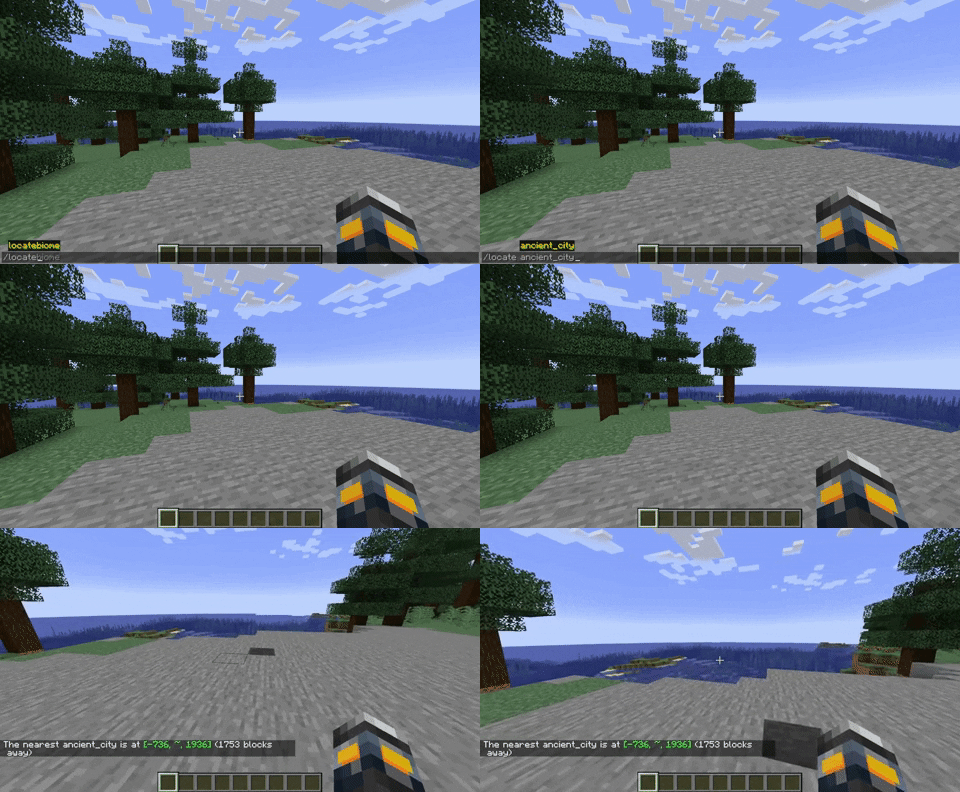
You just have to tell it what you want to find, and the game will give you that biome or structure’s location. Then, you can use the teleportation command we covered earlier to reach that location. Not to forget, there is also a similar “/locatebiome” command, which can give you the coordinates of different Minecraft biomes.
5. Change the Time of Your World
- Syntax: /time <add/set/query> <time>
- Example: /time set day
Time within the Minecraft world moves much faster than in the real world. But even with that, it can feel too slow at times. Fortunately, all you need to do is use the time command to switch between different quarters of the time. You can even use this command to skip just a few hours in your in-game day.
Such changes are useful if you are trying to grow crops in Minecraft. However, if you want to increase or decrease the overall speed of time, this command isn’t useful. For that, you have to use our next Minecraft command.
6. Change Game Rules
- Syntax: /gamerule <rule name> <change>
- Example: /gamerule randomTickSpeed 233
Our next useful Minecraft command is quite powerful. As the name suggests, you can use it to change how entities, players, and even the world behave. It can change the speed of time, the spawning of entities, and even give players some special abilities. However, keep in mind that many changes made by this command can permanently affect your world.
7. Make Structures and Place Blocks
- Syntax: /fill <location start> <location end> <block name>
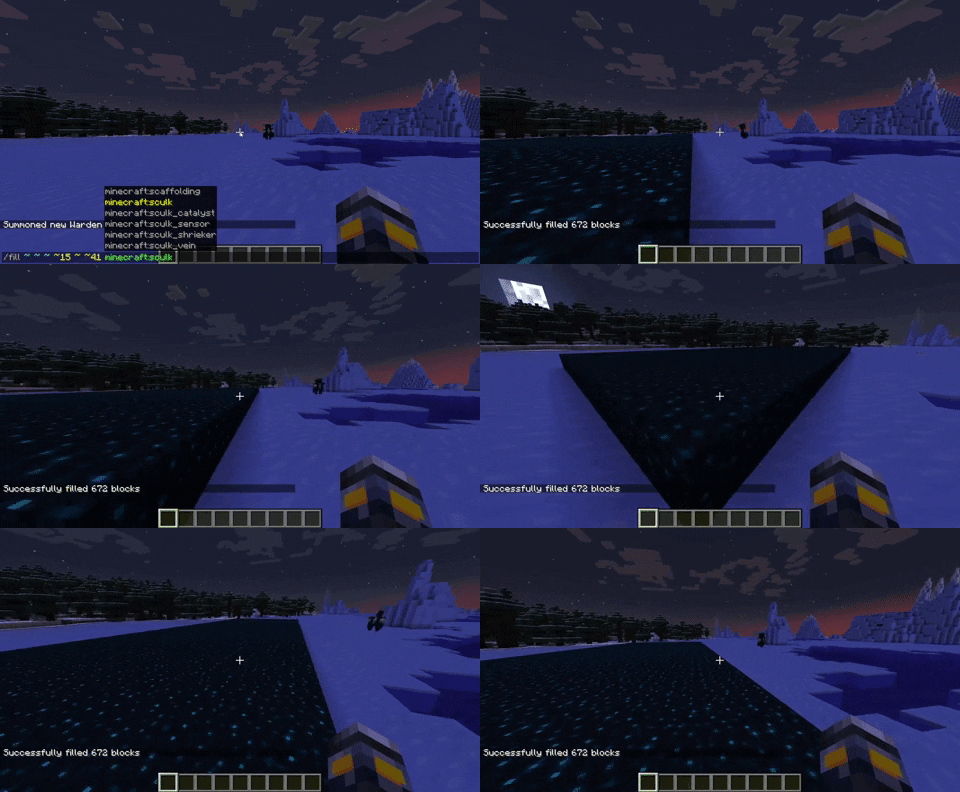
- Example: /fill 11 23 34 ~ ~ ~ minecraft:sculk
If you are a builder in the world of Minecraft, you will love this next Minecraft command. It enables you to make cuboid structures from all placeable items in the game. So, not only can you make cuboid structures out of blocks, but even make untouchable objects like light, air, water, and even portal frames.
8. Kill Any Mob
- Syntax: /kill <target name or code>
- Example: /kill steve
Whether it is an accidentally spawned creeper or an unplanned fight with the Wither, things can get pretty out of hand pretty quickly in the world of Minecraft. Fortunately, you can use the kill command to instantly kill any entities around you. The killed entities still drop experience orbs and mob loots as they would in a normal combat death.
If you are somehow glitched into a tricky situation or wish to restart your world, the kill command is also useful in that situation. As long as you have your inventory safe, you can use this command to kill yourself and respawn back into the world. However, you might have to work a little to find your house in the Minecraft world.
9. Get a Shaking Effect
- Syntax: /camerashake <target> [intensity] [time] [shake type]
- Example: /camerashake @s 0.25 5 positiona
Minecraft has very few visual effects in its gameplay. However, the Minecraft Bedrock and Education players can unlock a secret camera shake effect with the “camerashake” Minecraft command. It makes you feel that your world is having an earthquake, but without causing any destruction.
10. Get Any In-Game Item
- Syntax: /give <target> <item> <quantity>
- Example: /give @s minecraft:apple 999
If you are in the creative mode, you can get most of the items in the game with the click of a button. But what you can’t get in the creative inventory is accessible using the “give” command. It’s also one of the few ways to spawn command blocks in Minecraft.
You can also set the number of items you want to spawn into your inventory. Some players use this command only to get unreleased secret items in Minecraft betas.
11. Clone Locations
- Syntax: /clone <area begin> <area end> <destination area> [mask mode] [clone mod]
- Example: /clone 123 21 322 122 25 325 453 664 665 [replace] [move]
One of the most annoying parts of building a base in Minecraft is finding the perfect location. Some are close to villages, while others have a glitched mansion. But how about moving structures and locations to a particular spot in your world? Yeah, you can easily copy and paste locations, including structures, wherever you want with the clone command.
You just need to know the coordinates surrounding your target area to make its copies. Ever thought of having a desert temple on the ocean surface? Now you can make it happen.
12. Keep Learning Commands
- Syntax: /help <command name>
- Example: /help teleport
At this point, you already know how amazing commands are in the game. So, if you want to keep exploring them, Minecraft offers a special help command. It allows you to understand and use all in-game commands with ease. In case it fails, you can always reach out to us in the comments section.
13. Change Minecraft Biome
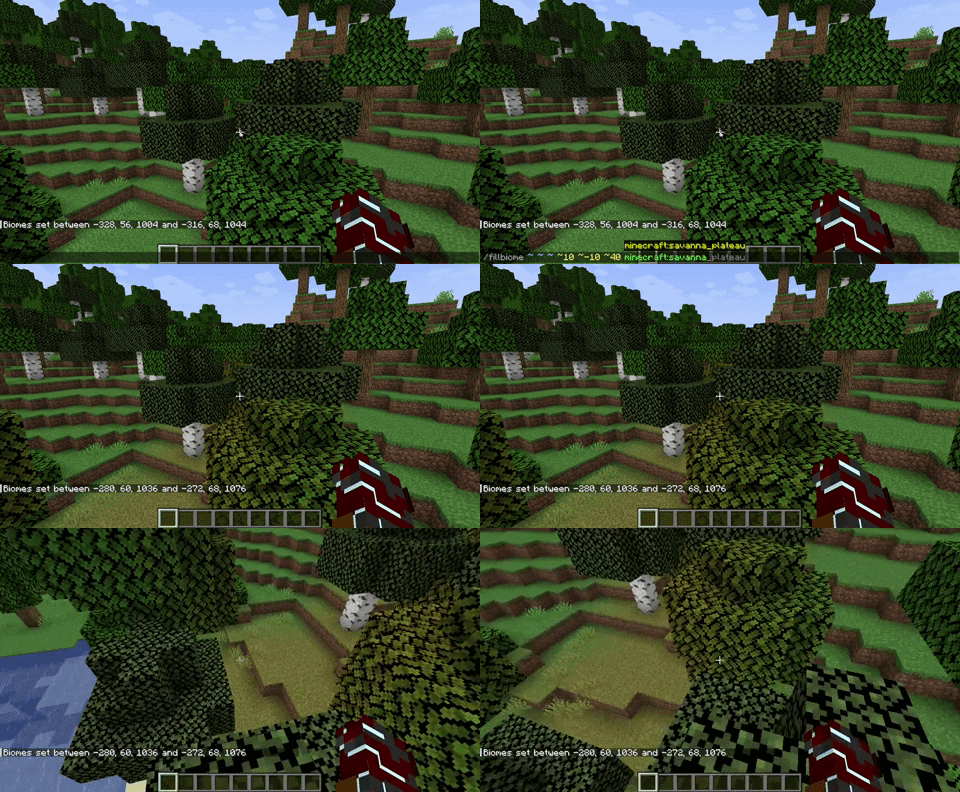
- Syntax: /fillbiome <area start> <area end> <biome name>
- Example: /fillbiome 123 44 231 122 54 234 minecraft:plains
The “fillbiome” command is one of the newest and also a heavily requested Minecraft command. You can use this command to change the biome of any particular region within your Minecraft world to the biome of your choice.
While doing so, the area’s blocks don’t get replaced. Instead, its environmental aspects, weather settings, and mob spawning are affected. Moreover, you get to move biomes from one dimension to another, which unlocks huge potential for a variety of Minecraft farms.
14. Play Music
- Syntax: /music <play/queue/stop> <track name> [volume] [fade seconds] [repeat mode]
- Example: /music play record.cat 1 0 loop
While recent updates have added new soundtracks for random parts of the game, Minecraft is still far behind other games in terms of idle music. Luckily, you can take control in your hand and play your favorite in-game music whenever you want to use this command. Though, do take a consensus to choose a track if you are on a multiplayer server. Not every soundtrack is loved equally in the community.
15. Enchant Any Item
- Syntax: /enchant <target> <enchantment> [level]
- Example: /enchant @s sharpness 2
Minecraft enchantments are a major turning point for every player. They can effectively make or break a fight. Yet, the highest potential of various enchantments is not even obtainable in vanilla Minecraft. That’s where you have to use this command to push your enchanted item to levels beyond what the game is suggesting.
As you will discover, several enchantments get capped at level 3 in the main game, but can go up to level 5 with this command. It doesn’t feel right to limit magic, so your enchantments shouldn’t be limited either. Moreover, you can use it to enchant items that can’t even be enchanted.
How to Use Commands in Minecraft
In Minecraft, there are two ways to use commands. Firstly, you can just enter the commands in your chatbox to use them. It works on both Minecraft Java and Bedrock on all their supporting platforms. But if you want to tweak, extend, and repeat them, you will have to use a command block in Minecraft. Our linked guide can help you learn everything about command blocks in depth.
Coming back to their usage, you need to enter the “/” symbol followed by your command to use it. Most commands in Minecraft have additional modifier keywords that allow you to further customize their functionality. But that’s a topic for another day. For now, let’s move on to some of the most useful Minecraft commands.
With that, you now have a collection of the best Minecraft commands that you can use. However, if you wish to approach the game in a more traditional manner, some of the best Minecraft enchantments. So, which other useful Minecraft commands should we have included in this list? Tell us in the comments below!
Some of the most useful commands in Minecraft include /summon, /locate, /tp, and /gamemode. Summon can spawn in any mob, locate helps in finding biomes and structures, tp helps in teleporting to any place, and gamemode helps in changing to survival, creative, or any other.
You can use the /fill command for building complex and massive structures in Minecraft, as it can spawn blocks or fill up a confined space with anything you want.
While using commands in Minecraft, you can write @a to affect all players, @e to affect all entities, @p to affect the nearest player, @r to affect any random player, and @s to affect yourself, for the command you are using.
You can use the /give command in the following syntax: /give [amount]. This will give that player any number of items required.