Just hours after launch, Subnautica 2 players are already running into frustrating crashes, DirectX 12 errors, infinite loading screens, and more. These issues seem to be common among users with AMD RX 9000-series graphics cards running the latest drivers. There are also a few reports from Nvidia users online. Thankfully, the community has discovered a handful of reliable workarounds that can help you enjoy this underwater adventure right now. So, use this guide to understand the possible causes for Subnautica 2 crashing, not launching, and DX 12 errors, along with the steps to fix them.
Subnautica 2 Crashing and DirectX 12 Error Causes
Right after the Subnautica 2 launch, many players started reporting startup crashes with a common message, “DirectX 12 not supported,” plastered across their screens. Others also noticed an infinite loading screen problem, shader compilation crashes, and, in some extreme cases, a full PC restart.
Based on the community reports, the biggest culprit currently seems to be AMD’s latest 26.5.1 Adrenalin driver, particularly for the Radeon RX 9000 series graphics cards. Multiple players with RX 9070 XT and RX 9060 XT GPUs have reported that the game crashes instantly on startup or gets stuck in an infinite loading screen.
Interestingly, Nvidia GPU owners are also facing game crashes, which suggests that the issue is not limited to AMD hardware alone.
How to Fix Subnautica 2 Crashing and DirectX 12 Errors
Users are experiencing DirectX 12 compatibility errors, shader compilation crashes, random PC restarts, heavy frame drops before crashing, and crashes while loading files.
So, if you’re among the users who are frustrated due to these issues, here are some common fixes for the Subnautica 2 crashing errors that you should try out right now:
Fix 1: Roll Back to the 26.3.1 Driver
This is currently the most recommended and best solution for users with AMD RX 9000 graphics cards.
Since the latest AMD 26.5.1 driver is reportedly causing startup crashes in multiple games, including Subnautica 2, several players confirmed that rolling back from AMD driver 26.5.1 to version 26.3.1 immediately stopped the crashes and allowed the game to launch properly. You can do this easily by following the steps below:
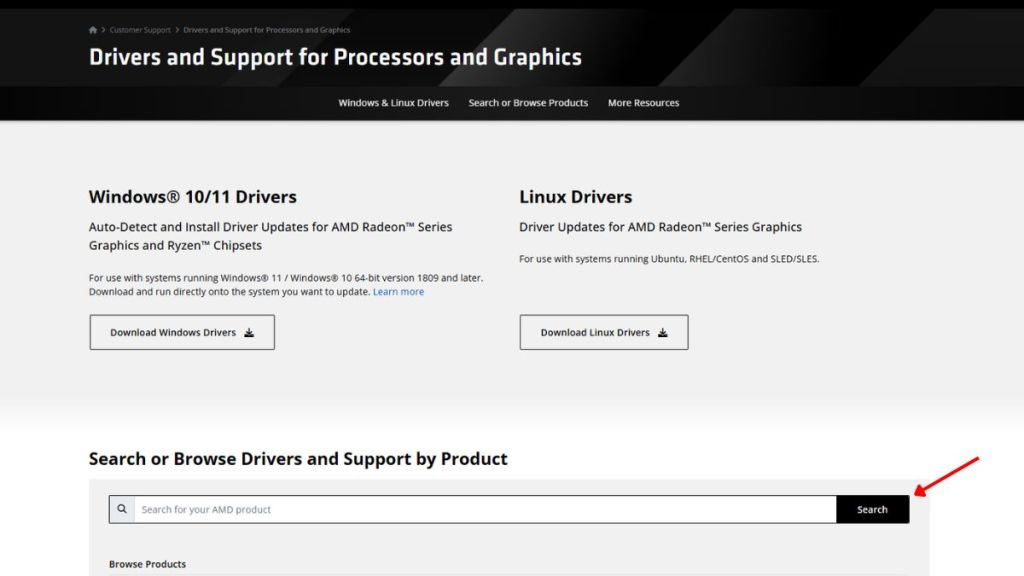
- Visit the AMD official driver page.
- Search for your GPU model in the search box.
- Download the AMD Adrenalin Edition 26.3.1.
- Install the driver and restart your PC.

A few users also claimed that updating the driver to 26.5.2 fixed the issue. So, that version can also be worth testing.
Fix 2: Lower Your Graphics Settings
If the game launches but crashes after a few minutes, try lowering your graphics settings. This step is crucial because you might have a short window to change the settings before launching the game.
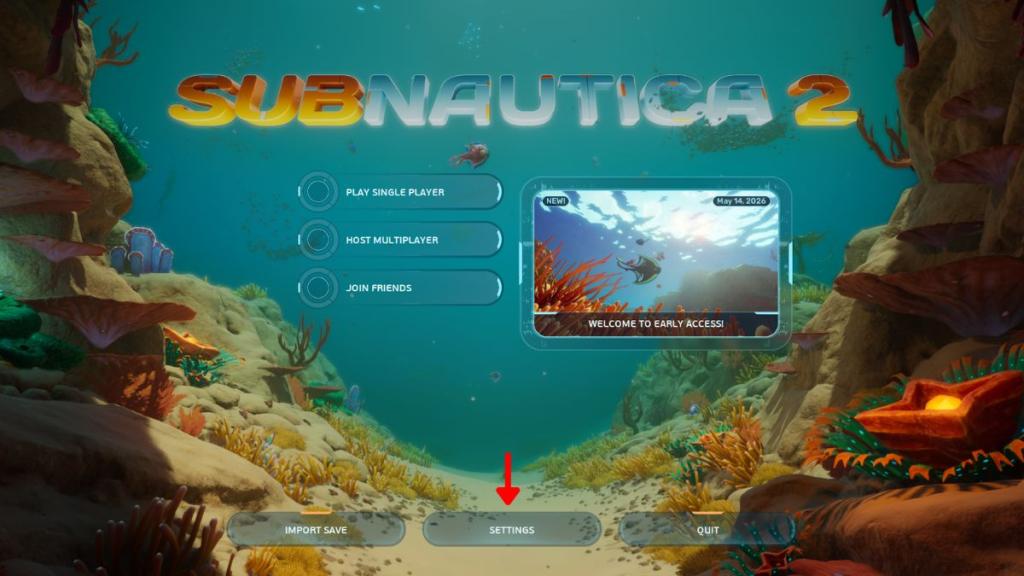
Once you open Subnautica 2, go to Settings from the title screen. Under the Graphics settings, set all graphics quality options to Low. We also recommend turning off Motion Blur, Vertical Sync, and Underwater Blur for smoother gameplay.
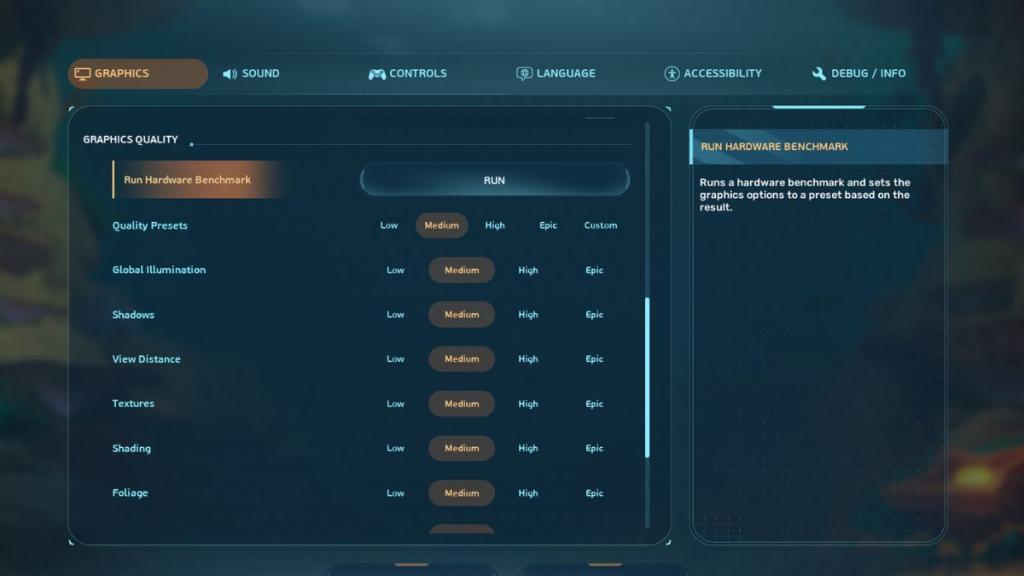
Lastly, you can choose to run the game on a lower resolution and in windowed mode. Try these fixes because the game may currently struggle with high GPU usage on certain systems.
Fix 3: Verify System Requirements on Steam
Many users are also seeing the “DirectX 12 not supported” warning during startup. So, you can try confirming that your PC meets the minimum requirements listed on Steam and that your graphics card supports DirectX 12.
Then, you should also verify the integrity of the game files. Here are the steps to do that:
- Open Steam and right-click on Subnautica 2 in your games library.
- Select Properties and go to the Installed Files tab.
- Now, click on Verify Integrity of game files.
- Doing this will help check for any missing files or repair any corrupted shader caches that may be causing crashes.
Fix 4: Disable HAGS and Reinstall the Game
Among all other fixes, one community fix surprisingly appears to have worked for several users. So, you need to disable the Hardware Accelerated GPU Scheduling (HAGS). If you’re not familiar with HAGS, note that it is a Windows 10/11 feature that transfers the load of important graphics tasks from the CPU to the GPU.
To disable HAGS on your Windows PC or laptop, you can perform the following steps:
- Open Windows Settings on your PC.
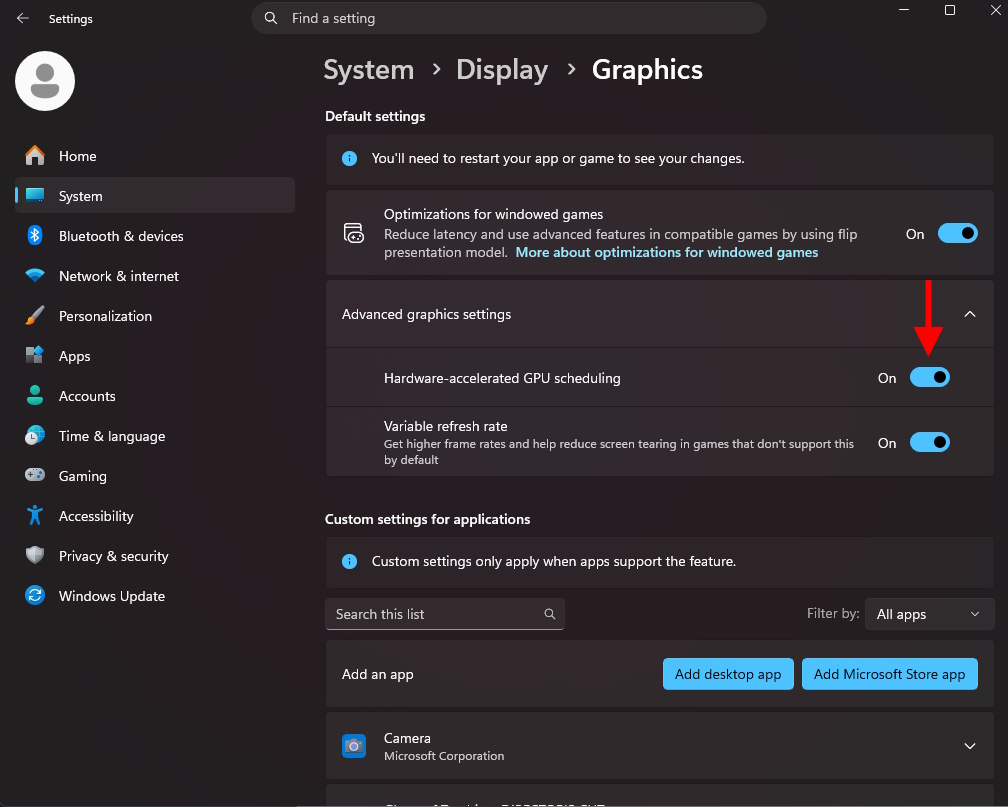
- Go to System -> Display -> Graphics.
- Click the arrow beside the Advanced Graphics Settings to show more options.
- Toggle off the Hardware Accelerated GPU Scheduling, and then restart your PC.

Some players have reported that Subnautica 2 has launched normally after the above fixes. Apart from the above tasks, you can also reinstall the game onto your main C drive instead of a secondary SSD or HDD.
So, did any of the solutions above help you solve the crashes? What other issues are you facing in the game currently, or are you more inclined towards finding silver in Subnautica 2? Tell us in the comments below.








![[EXCLUSIVE] "Pure Body Horror and Graphic Stuff" – ILL's Creator on Building the Game That Knows Exactly What Scares You](https://static.beebom.com/wp-content/uploads/2026/06/Beeboms-ILL-interview-with-Maxim-Verehin.jpg?w=300&quality=75)