- Players need a common Nintendo account to link Pokemon GO to Pokemon HOME.
- Pokemon from GO can be sent to HOME, but not the vice versa.
- Catch Pokemon in other games, bring them into HOME, and send them to visit in Champions.
Pokemon HOME serves as the middleman connecting all the Pokemon games. You can transfer the Pokemon you’ve caught across various titles, move them in HOME, and transfer them into some other games, like Pokemon GO and Champions. However, moving Pokemon across different games can be confusing, as the process to connect them is different for each game. In this guide, learn how you can link and transfer Pokemon from GO to HOME.
How to Transfer Pokemon from Pokemon GO to HOME
Pokemon caught during Pokemon GO events, raids, and any other occasion can be transferred from GO to HOME. Before transferring, make sure that you are actually prepared to say goodbye, as you cannot transfer them back in Pokemon GO. Check all the stats, IVs, moveset, and everything to ensure that you don’t need them in the game anymore.
Once you’ve linked, follow the steps below to start the transfer Pokemon from GO to HOME:
- Open the Pokemon GO app on your device.
- Tap the Poke Ball icon or Menu.
- Click on the Settings.
- Navigate to Connected Devices and Services.
- Once the Connected Devices and Services page opens, click on the Pokemon HOME option.
- Now, sign in using the Nintendo account that has been linked with Pokemon HOME.
- Click Send Pokemon. Verify the account where you want to send your Pokemon.
- Make sure you have enough GO Transporter Energy (the bar should be blue).
- Click on continue and select the Pokemon you want to send to HOME.
- After selecting, click on Transport to end the process.
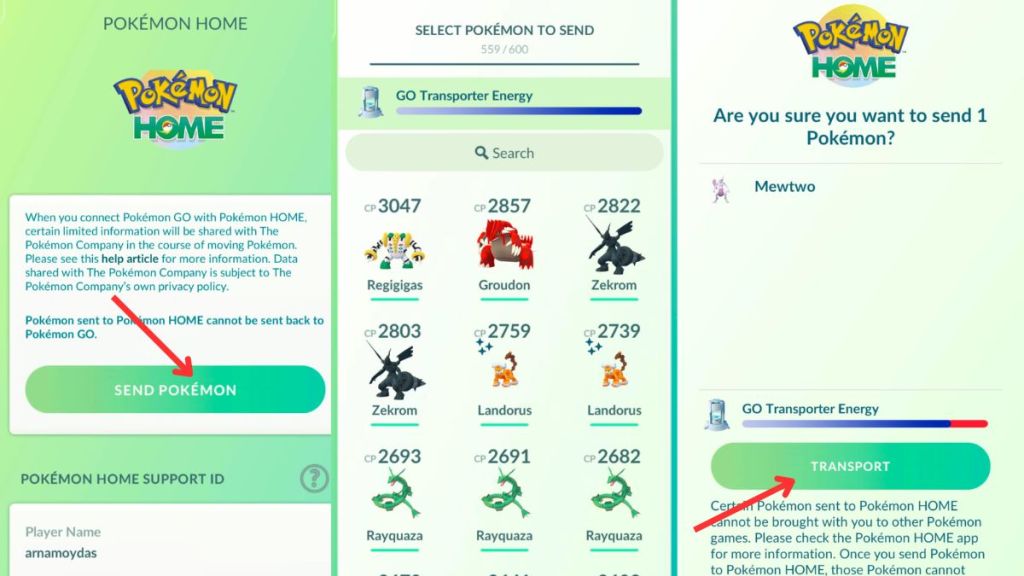
After you transfer Pokemon from GO to HOME, a Mystery Box will be given out in Pokemon GO. Mystery Box works similarly to an incense for an hour. However, it can only spawn Meltan. You can get them every three days by transferring Pokemon. This is the only way to get Meltan, as you cannot get them from Pokemon GO Raids, spotlight hours, and so on.
Other than that, you’ll get some additional rewards by logging into Pokemon HOME:
- Pikachu: First login on mobile or Switch.
- Any one starter with hidden ability (Charmander, Bulbasaur, and Squirtle): First time login on mobile
- Eevee: Use Wonder Box on mobile.
How to Transfer Pokemon from HOME to Champions
Pokemon Champions is a free-to-play game, and you can move Pokemon to your team from HOME. But to do so, you need to log into both using the same Nintendo account that you’re using to transfer Pokemon from GO to HOME. Once logged in, the process to transfer Pokemon might vary depending on whether you’re using Pokemon HOME app on your mobile device or Nintendo Switch.
Pokemon HOME Nintendo Switch App
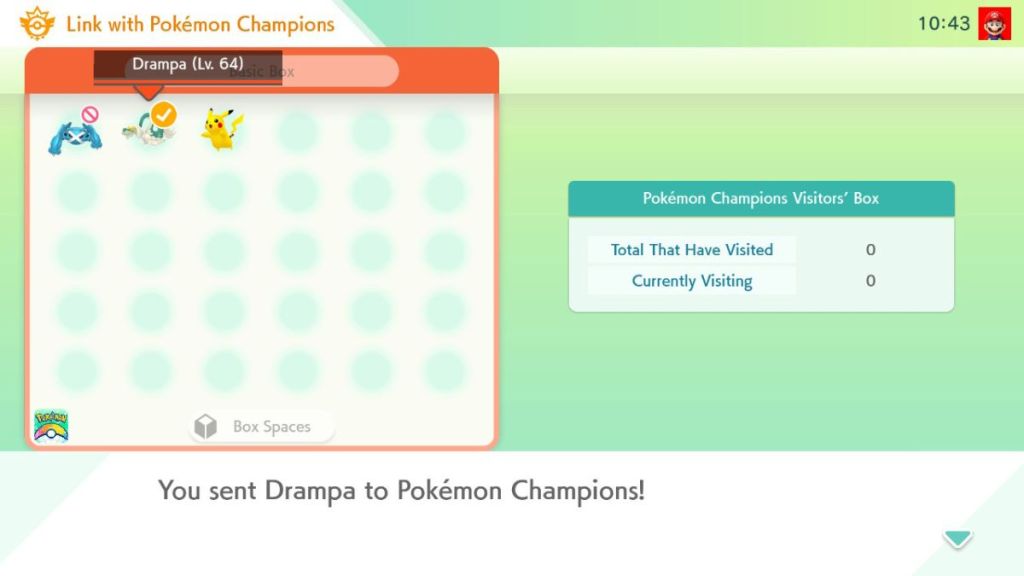
Pokemon Champions releases first for Nintendo Switch 1 and Switch 2, and the transferring process will be similar to the other Switch titles. Below, you can find a step-by-step guide for the entire process:
- Launch Pokemon HOME on your Nintendo Switch Console and select the desired account.
- Link Pokemon HOME to Pokemon Champions using the same Nintendo account
- Click on Pokemon Champions, and open the boxes.
- Select the Pokemon you want to move from HOME to Champions.
- Click YES to transfer your desired Pokemon.
Pokemon HOME Mobile App
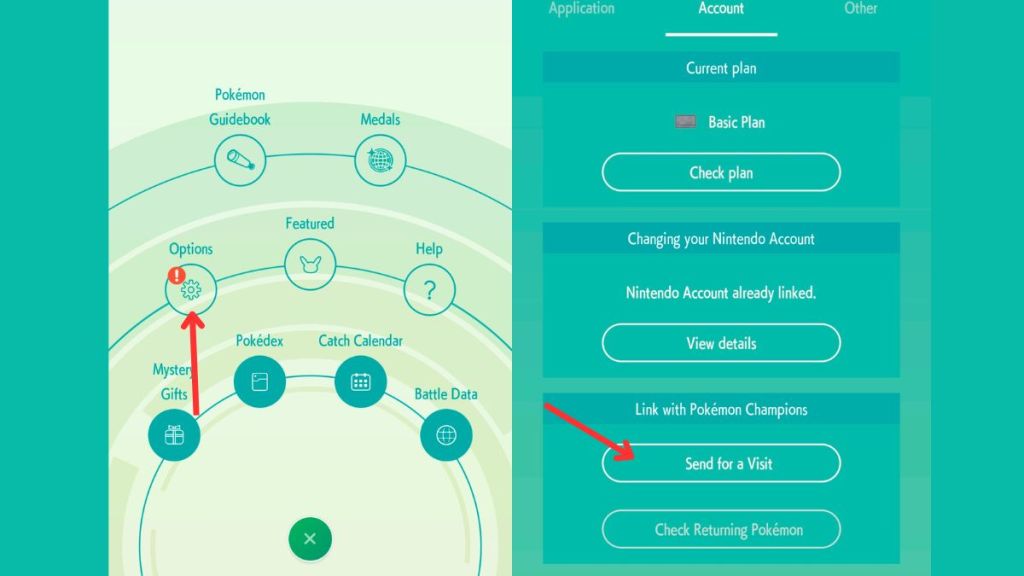
Transferring Pokemon from the mobile version of HOME to Pokemon Champions can be done by following the steps given below:
- Open Pokemon HOME on your mobile device.
- Click on the Menu.
- Select Options.
- Under the Link with Pokemon Champions, click on the Send for a Visit.
- Select the Pokemon that you want to send.
Before the game releases, make sure to hunt those rare Pokemon, such as Mewtwo in Pokemon GO, and prepare to send them into Champions later on.
Games Supported by Pokemon HOME
Here we have listed all the games that are supported by Pokemon HOME, and whether you can deposit and withdraw Pokemon from them:
| Game | Can Deposit Pokemon in HOME? | Can Withdraw Pokemon from HOME? |
|---|---|---|
| Pokemon GO | Yes | No |
| Pokemon Legends ZA | Yes (only Switch version of HOME) | Yes (only Switch version of HOME) |
| Pokemon Champions | Yes | Yes |
| Pokemon Scarlet & Violet | Yes (only Switch version of HOME) | Yes (only Switch version of HOME) |
| Pokemon Let’s Go Pikachu and Let’s Go Eevee | Yes (only Switch version of HOME) | No |
| Pokemon Bank | Yes (Pokemon HOME Premium needed) | No |
How to Transfer Pokemon From Other Games to HOME
To transfer Pokemon from other Nintendo Pokemon games like Pokemon Legends ZA, Scarlet & Violet, or Legends Arceus, you simply need a Nintendo Account. The Nintendo account should be the same one that you have used to create save data in these games. Use that account to log into the Pokemon HOME app on Nintendo Switch, and move Pokemon across the boxes from the Pokemon Menu.
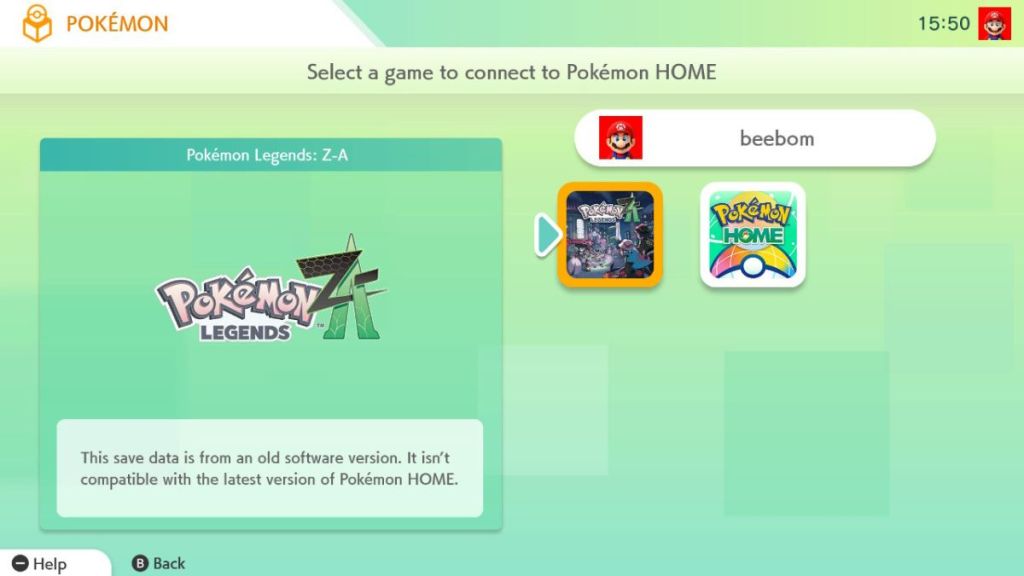
However, Nintendo 3DS players cannot transfer Pokemon, as the Pokemon Bank app has been discontinued. Users who previously had Pokemon Bank installed can still connect it to Pokemon HOME, given that they also have a Pokemon HOME Premium Plan.
As you transfer Pokemon, it’s equally important to learn about their weaknesses and resistances for building the right team. That’s why we recommend that you check our Pokemon Type Chart for a better understanding of it.
Similar to the mobile rewards, players can get various Pokemon depending on the game they are transferring from. Here’s a detailed list of all the rewards:
- Scorbunny, Grookey, and Sobble: Deposit any Pokemon from Pokemon Sword & Shield
- Turtwig, Chimchar, and Piplup: Deposit any Pokemon from Pokemon Brilliant Diamond & Shining Pearl
- Cyndaquil, Rowlet, and Oshawott: Deposit any Pokemon from Pokemon Legends Arceus
- Sprigatito, Fuecoco, and Quaxly: Deposit any Pokemon from Pokemon Scarlet & Violet
- Alpha Chikorita, Alpha Tepig, and Alpha Totodile: Deposit any Pokemon from Pokemon Legends ZA
That’s everything you needed to know on how to transfer Pokemon from GO to HOME. How many Pokemon did you transfer so far? Let us know in the comments below.
Players can link Pokemon GO to Pokemon HOME using a common Nintendo Switch account.
No, Pokemon from HOME cannot be brought back into Pokemon GO.