- Players can enable Auto-Drive in GTA 6 by setting a waypoint, entering Cinematic Mode, and holding Circle (PS5) / B (Xbox).
- Auto-Drive lets the AI follow your selected route while obeying traffic rules and stopping at red lights.
- Players can also let Jason or Lucia drive when travelling together or use the RydeMe app to skip journeys for $100.
Driving across Leonida can take a while, especially when you have to travel between distant locations. Thankfully, GTA 6 features an Auto-Drive mode that lets the AI take control of your vehicle while you enjoy the scenery.
How to Enable Auto-Drive in GTA 6 (Cinematic Mode)
You can enable the Auto-Drive feature through Cinematic Mode in GTA 6. It requires that you have a destination marked on your map. But before that, you must go to Settings -> Gameplay -> Auto Drive and switch it to ‘Unrestricted’ to make it available for all scenarios.

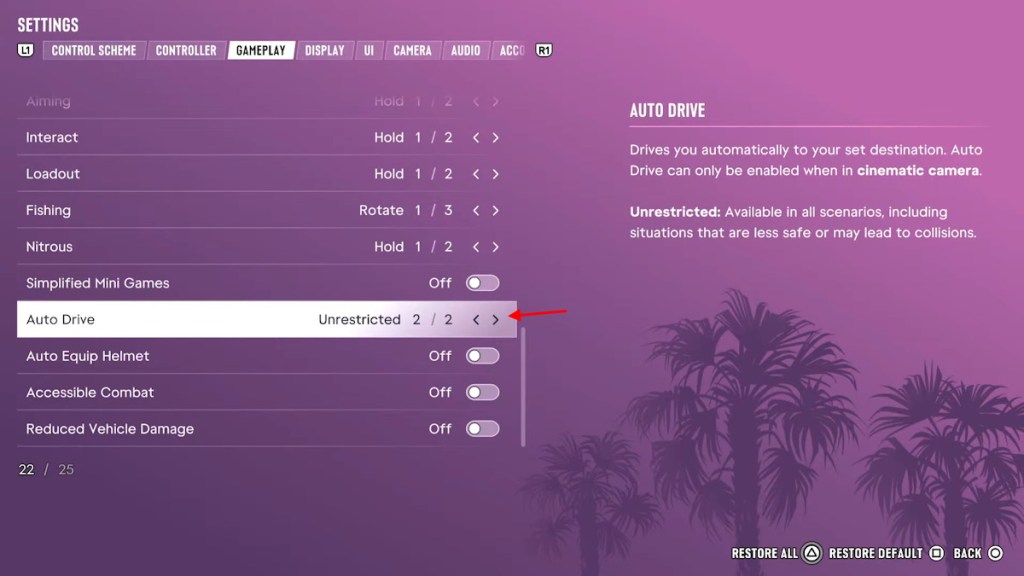
Once you enable Auto Drive in the settings, here’s how to use Auto-Drive cars in GTA 6:
- Open your map and set a waypoint to your desired destination.
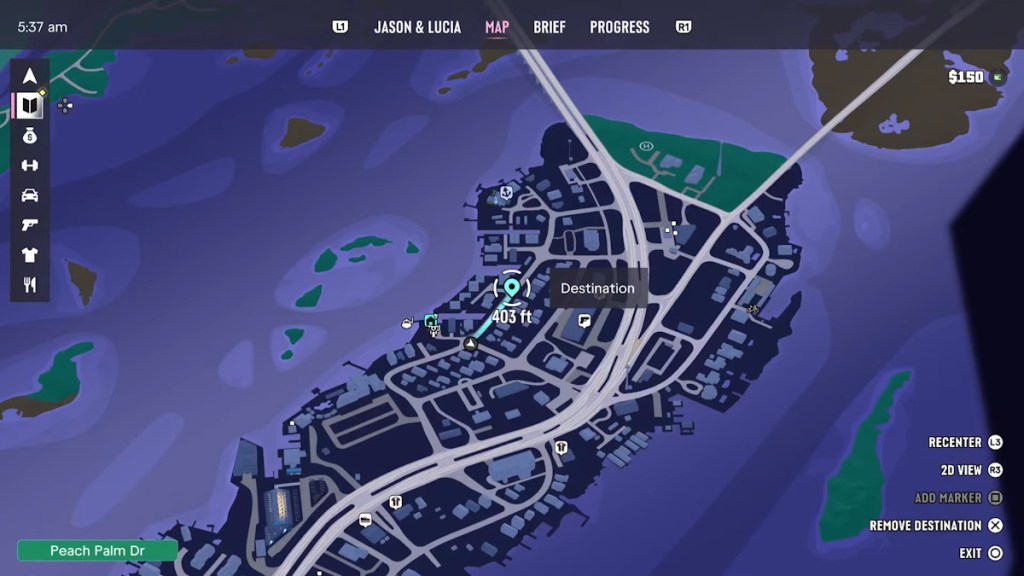
- Get inside a vehicle by pressing Triangle (PS5) / Y (Xbox) and start driving.
- Hold the down button on the D-pad and press Options (PS5) / Menu (Xbox) to enter Cinematic Mode.
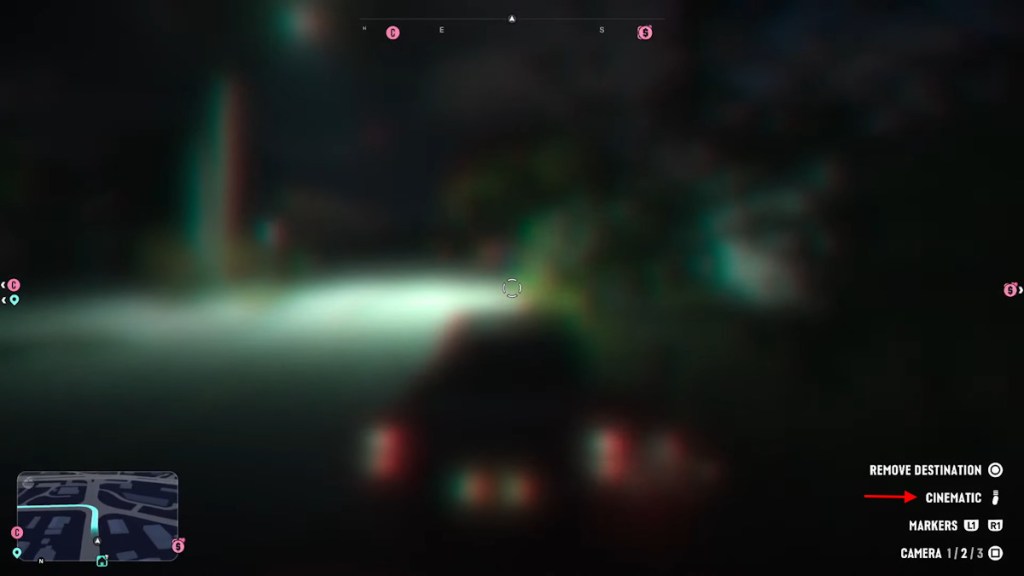
- Accelerate slightly using R2 (PS5) / RT (Xbox) until the Auto-Drive prompt appears on the screen.
- Hold Circle (PS5) / B (Xbox) to enable Auto-Drive.
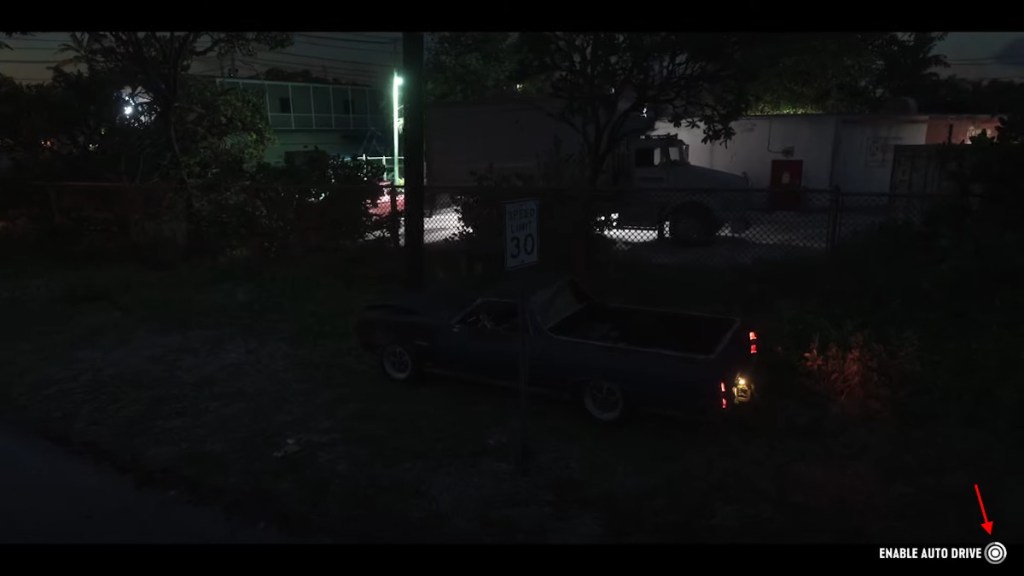
- Let the AI take control and drive you towards your marked destination.
Once Auto-Drive is active in GTA 6, you can adjust your vehicle’s speed using the following controls:
Action PS5 Xbox Slow down L2 LT Speed up R2 RT Exit Cinematic Mode Hold Down on D-pad Hold Down on D-pad
How Does Auto-Drive Work in GTA 6
Auto-Drive allows the AI to take control of your vehicle and follow the route to your selected waypoint. The driver follows traffic rules, stops at red lights, and avoids reckless driving.
However, the AI tends to take a slower, more scenic route around Leonida. This makes Auto-Drive useful for long journeys when you want to enjoy the scenery without constantly controlling the vehicle.
Remember that you need to set a destination waypoint before activating Cinematic Mode. Otherwise, the Auto-Drive option won’t appear.
How to Let Jason or Lucia Drive in GTA 6
You can also let your partner take control of the vehicle when Jason and Lucia are travelling together. This gives you another way to enjoy the ride without manually driving.
Hold Right on the D-pad and press R1 (PS5) / RB (Xbox) to switch characters and let the AI drive. If you’re sitting in the passenger seat, you can hold Right on the D-pad and press Square (PS5) / X (Xbox) to ask your partner to speed up.
If you don’t want to spend time driving across the map, you can use the RydeMe app in GTA 6. Order a ride through the app and pay the $100 skip fee once inside to skip the journey and reach your destination.
That is how you can use the Auto-Drive in GTA 6. Did you try the feature to visit GTA 6 strip clubs? Let us know in the comments.
Yes, you must mark a destination on your map before entering Cinematic Mode. Otherwise, the Auto-Drive prompt will not appear.
Yes, you can ask your partner to drive when both characters are travelling together. Hold Right on the D-pad and press R1 (PS5) / RB (Xbox) to switch characters and let the AI take control.