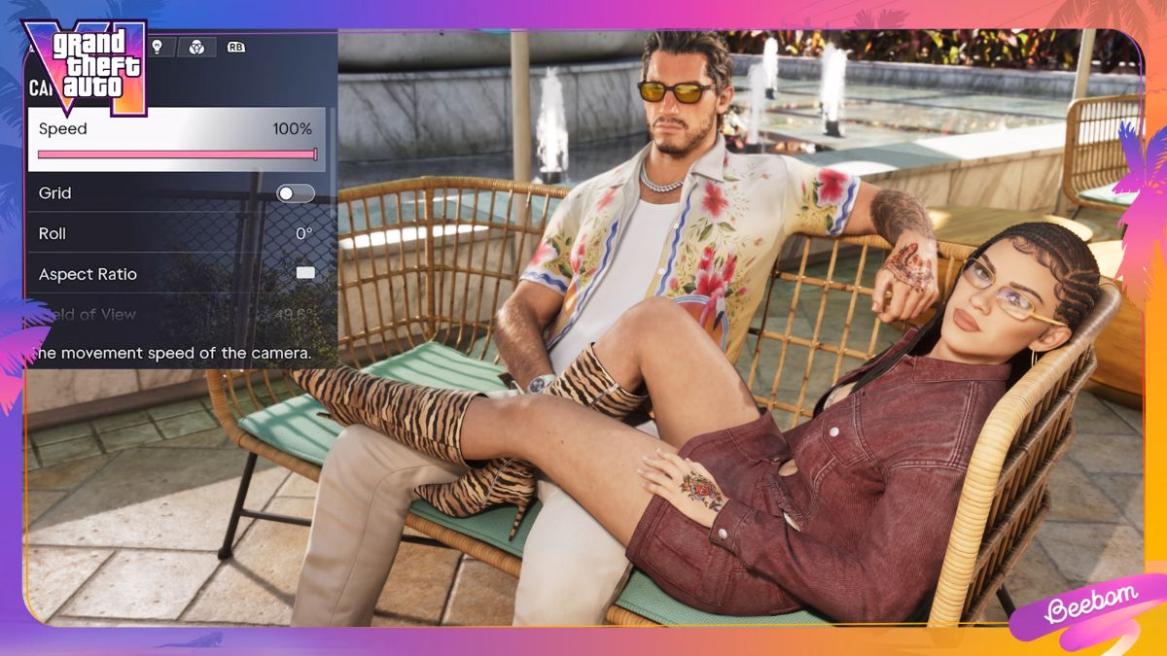
- GTA 6's Photo Mode, called Photo Studio, can be accessed from the pause menu right from Lucia's prologue.
- Photo Studio lets you adjust camera angles, lighting, filters, and other effects to capture screenshots.
- You can also use the in-game smartphone to take selfies with Jason and Lucia and customize their poses.
With its stunning visuals and detailed open world, GTA 6 offers plenty of moments worth capturing. Grand Theft Auto 6 brings a dedicated Photo Mode with several customization options to help you capture the perfect shot. You can even use your in-game smartphone to snap selfies with Jason and Lucia. So, let’s learn how to use Photo Mode in GTA 6 and take selfies.
How to Open Photo Mode in GTA 6
GTA 6’s Photo Mode, officially called Photo Studio, is available right from the get-go, right from the moment you take control of Lucia in the GTA 6 prologue.
You don’t need to complete any additional missions to unlock the photo mode. Here’s how to access it:
- Pause GTA 6 by pressing the Options button on PS5 or the Menu button on Xbox Series X|S.
- From the pause menu, select Photo Studio.
- Once inside, adjust the various camera features before you click a picture.
- Select Save Photo to capture your shot, or hide the interface and use your console’s screenshot feature.
Photo Studio offers plenty of customization options, including changing camera angles, adjusting depth of field, applying filters, and hiding your character from the shot.
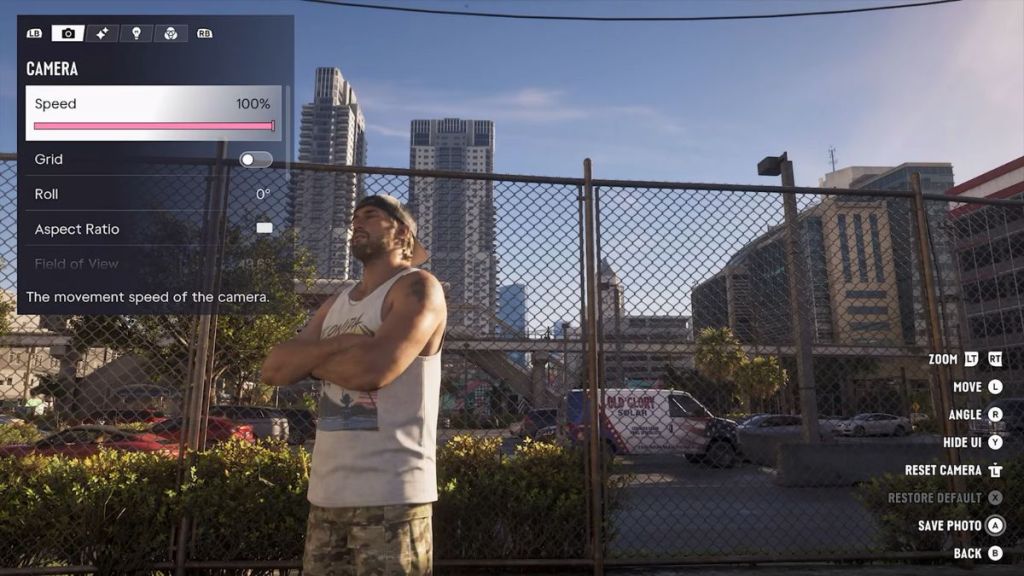

You can add up to five different light sources and adjust their colors and intensity to create different lighting effects.
You can also use Photo Studio during cutscenes, although some customization options will be restricted. These settings will appear as “Currently Unavailable” when you try to access them.
Moreover, you can adjust the lighting and overall appearance of your screenshots, but Photo Studio does not allow you to change the time of day or weather conditions.
How to Take Selfies in GTA 6
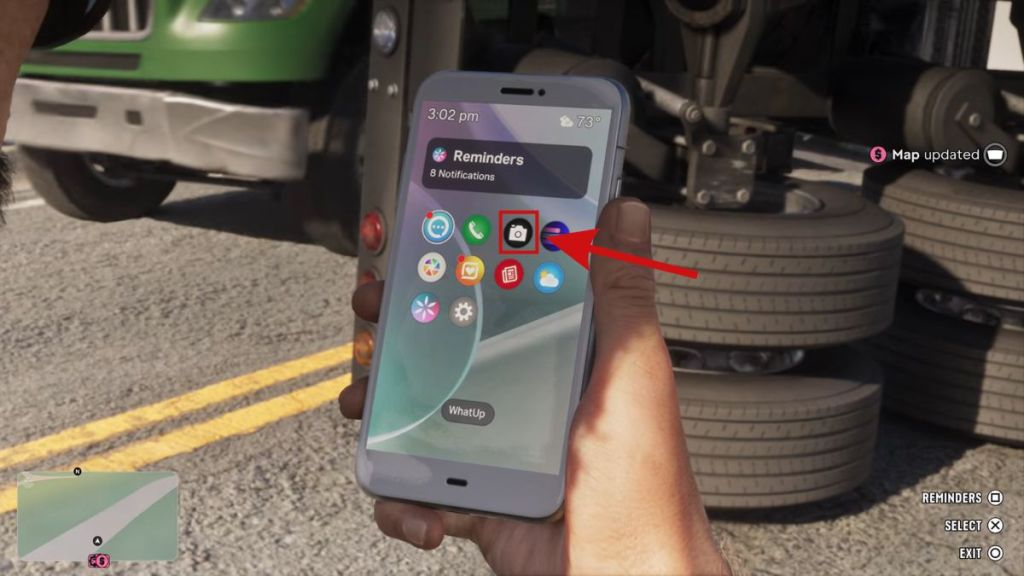
Apart from Photo Studio, GTA 6 also lets you take selfies using the Camera app, one of the many GTA 6 phone apps.
The phone camera becomes available after progressing through Lucia’s prologue and taking control of Jason. Here’s how to take selfies in GTA 6:
- Press D-Pad Up on your controller to open the phone.
- Select the Camera app, the third icon in the first row.
- Switch from the rear camera to the front-facing selfie camera.
- Frame your selfie and select Take Photo to capture it.
The smartphone camera also offers several customization options. You can choose from six different poses and seven facial expressions for Jason, and change your partner’s pose when taking selfies together.
Meanwhile, the rear camera supports up to 5x zoom, grid lines, and 17 different filters. You can also access the Gallery app to view your previously captured photos. Additionally, Snapmatic is making a return in GTA 6. It’s an in-game social media app where you can browse posts, like photos, read comments, and mark locations on your map.
Whether you want to capture the beautiful scenery across GTA 6 locations or take fun selfies with Jason and Lucia, Photo Studio and the smartphone camera give you plenty of ways to save your favorite moments in GTA 6.
Photo Studio does not allow you to change the weather or time of day.
You can use Photo Studio during cutscenes, but certain camera settings and effects will be unavailable.