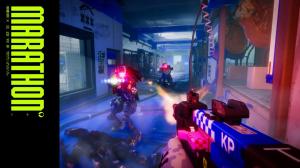
- Marathon players should use Fullscreen mode, disable VSync, and set Foliage Detail Distance to "Lowest" to boost FPS in Marathon.
- Players can also utilize DLSS/FSR for upscaling and keep Character Detail Distance high to ensure rivals remain visible during long-range engagements.
- For players facing lag when entering a new area in Marathon, lowering texture quality can go a long way.
Marathon features a high-stakes PvPvE setting, with Bungie intricately designing the gameplay and mechanics so that one misstep can send you and your squad back to the lobby. In such a tense environment, a sudden frame drop during a firefight doesn’t just look bad; it can cost you your entire loadout.
To help you secure your loot and dominate Tau Ceti IV, here are the best settings to maximize your FPS and minimize input lag in Marathon Season 1.
Best Marathon PC Graphics Settings


To gain a competitive edge in Marathon, your graphics settings, or rather “video settings” as the game likes to call them, should prioritize high frame rates and visual clarity over cinematic effects and graphical fidelity. Since the game’s realistic art style can be visually busy, reducing post-processing and fine-tuning your display settings is essential when going up against Marathon enemies and rival Runners.
Here are the best Marathon PC graphic settings you should set your game to:
Feature Best Setting Why It Helps Window Mode Fullscreen Best for performance and minimizing system latency. Resolution Native Use your monitor’s native resolution to avoid blurry textures. VSync Off Keep VSync off to avoid heavy input lag in matches. Frame Rate Cap Off No need to cap FPS unless playing on laptop battery power. Field of View 80–95 Higher FOV provides awareness but can tax FPS; 90 is a sweet spot. Graphics Quality Custom Fine-tune settings individually for the best performance balance. Anti-Aliasing DLSS / FSR Use DLSS for Nvidia RTX cards; FSR is a great alternative for others. Resolution Scaling Balanced Upscales from 50% base resolution for major performance gains. SSAO High Adds noticeable depth to environments without killing your frames. Anisotropic Filtering 16x Improves texture clarity at angles with negligible performance cost. Texture Quality VRAM Dependent 6GB: Low
8GB: Medium
12GB+: High/Highest.Shadow Quality Medium Stable visuals without flickering or massive GPU load. Env. Detail Distance Low Reduces random drops in denser areas of the map. Char. Detail Distance High Ensures enemies/Runners render clearly at long distances. Foliage Detail Dist. Lowest Improves visibility and provides a huge boost to average FPS. Light Shafts Preference Purely aesthetic; use according to your visual taste. Motion Blur Off Vital for maintaining clarity during fast-paced combat. Chromatic Aberration Preference Post-processing effect that does not impact performance. Nvidia Reflex On Keeps inputs snappy and minimizes lag for Nvidia users. UI Refresh Rate High Keeps HUD elements smooth during intense, effect-heavy fights.
One of the most important settings for competitive play in Marathon is the Foliage Detail Distance, and setting this to Lowest doesn’t just give you an FPS boost but rather a tactical edge. At a distance, thick flora like grass and bushes will stop rending, which makes it harder for rival Runners to use vegetation as cover against you.
Also, while Marathon’s Tiger Engine is efficient, it can also be very heavy on the VRAM if you push textures too high. If you experience stuttering when sprinting around Marathon maps, try dropping your Texture Quality to Medium or Low to stay within your GPU’s memory limits.
Best Marathon Controller Settings

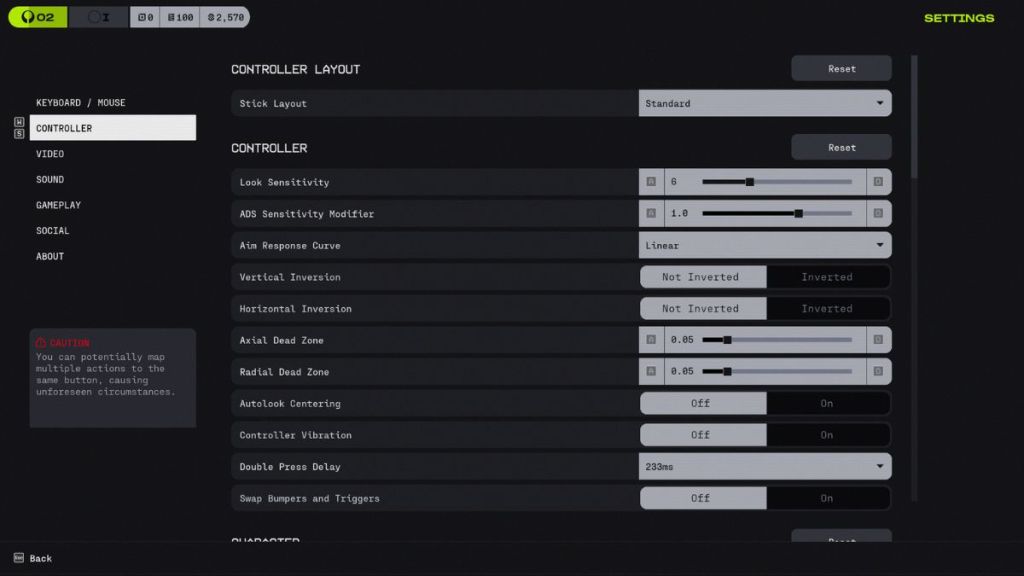
If you are playing Marathon on a controller, you can tweak the in-game settings to maximize your efficiency on Tau Ceti IV. The default controller settings might feel sluggish, and you can use the following adjustments to match the snappy gunplay in Marathon to get sticky aim and never miss a shot:
Feature Best Setting Why It Helps? Look Sensitivity 5 – 7 The “Sweet Spot.” Fast enough to 180°, stable enough for mid-range. ADS Sensitivity Modifier 1.0 Maintains a 1:1 muscle memory ratio between hip-fire and aiming. Aim Response Curve Linear Removes artificial acceleration for raw, predictable stick input. Vertical/Horizontal Inversion Not Inverted Standard for modern shooters; keeps navigation intuitive. Axial / Radial Dead Zone 0.5 High enough to prevent stick drift, low enough for micro-adjustments. Autolook Centering Off Prevents the camera from fighting your manual aim during parkour. Controller Vibration Off Essential. Removes physical interference during high-precision duels. Double Press Delay Default (233 ms) The reliable window for inputs like dashing or special abilities.
Will you be switching your Marathon settings around for an overall smoother experience? Tell us in the comments below!