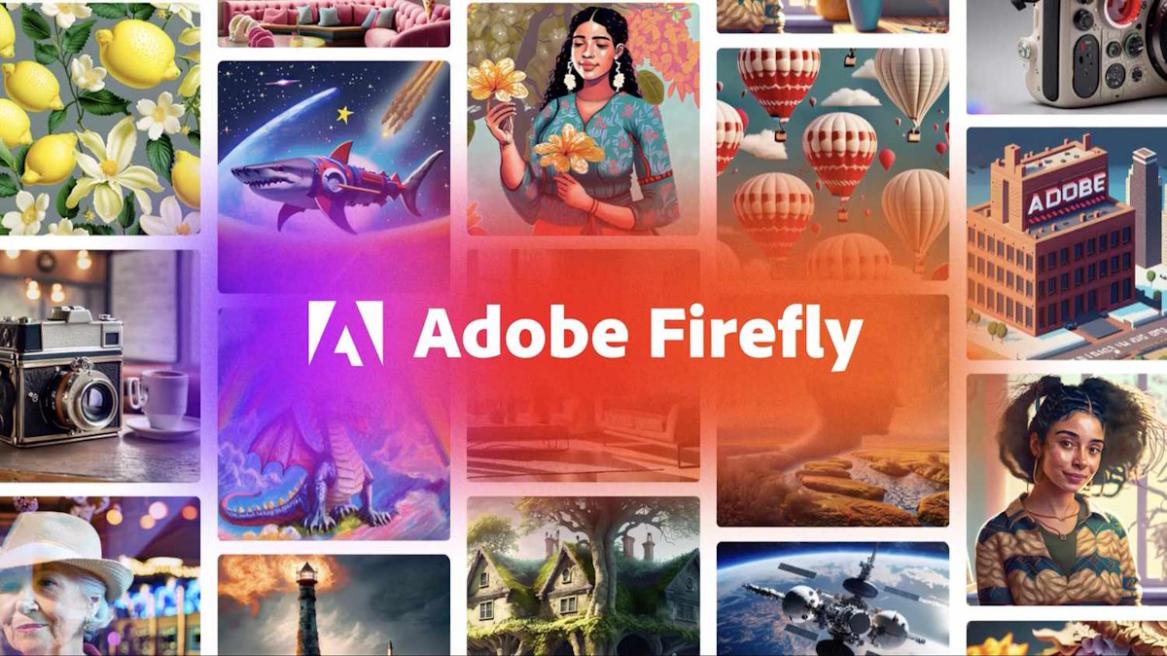
If you have been looking for a tutorial on how to edit images with AI or wondering how do I create a video with AI, well, Adobe Firefly is one of the best AI tools right now. It’s a dedicated generative AI web app, which you can use for AI image generation, video creation, and vector graphics in a single, easy-to-use interface.
I have been testing Adobe Firefly for the past few days, and what is interesting is that how easy and accessible the tool is. You don’t need Premiere skills or Photoshop expertise to generate AI images or videos. It’s especially useful for content creators, marketers, or anyone who is getting started with AI media generation.
So, in this tutorial, I have added a step-by-step guide to edit images with AI and generate videos.
What Is Adobe Firefly?
Adobe Firefly is Adobe’s Generative AI platform, which is built from scratch to help you ideate and create AI visuals. It’s basically an all-in-one creative AI studio where you can enter text prompts to generate images, turn static images into videos, create vector graphics, generate sound effects, and even translate videos.
In short, Adobe Firefly is a commercially safe AI image generator and AI video generator that works in your browser — no software download required.
What makes Firefly different from other tools is that it’s designed to be commercially safe. The in-house Firefly models are trained on a dataset of licensed content including Adobe Stock assets and public domain material. It means that outputs you generate can be employed for commercial use, which is very important if you are a marketer or brand to avoid any IP issues.
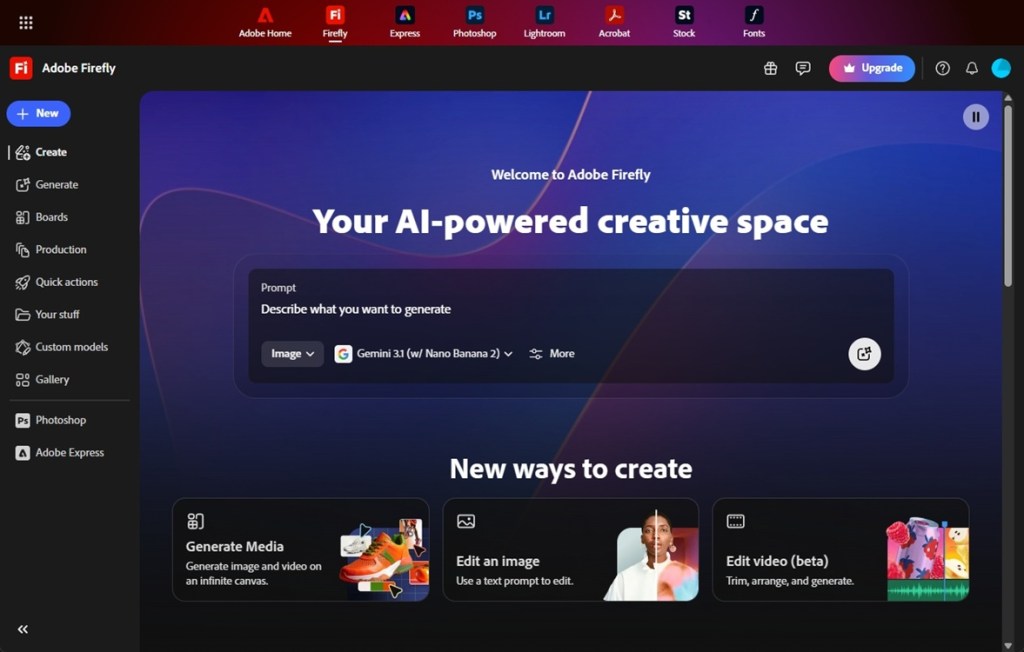
Not only that, Adobe Firefly now integrates flagship partner models from Google, OpenAI, Flux, Runway, etc. for image and video generation. Basically, on Adobe Firefly, you are not just limited to Adobe’s in-house models, but you can also pick the best third-party AI model for your specific tasks within the same interface.
How to Generate and Edit AI Images with Adobe Firefly – Best AI Image Editor Online
Now, let’s start with AI image generation inside Adobe Firefly. It also houses one of the best AI image editors you can use in 2026. Here is a step-by-step guide on how to use.
- Head to the ‘Generate AI image’ page and sign in with your Adobe account.
- If you don’t have one, you can create a free account to get started.
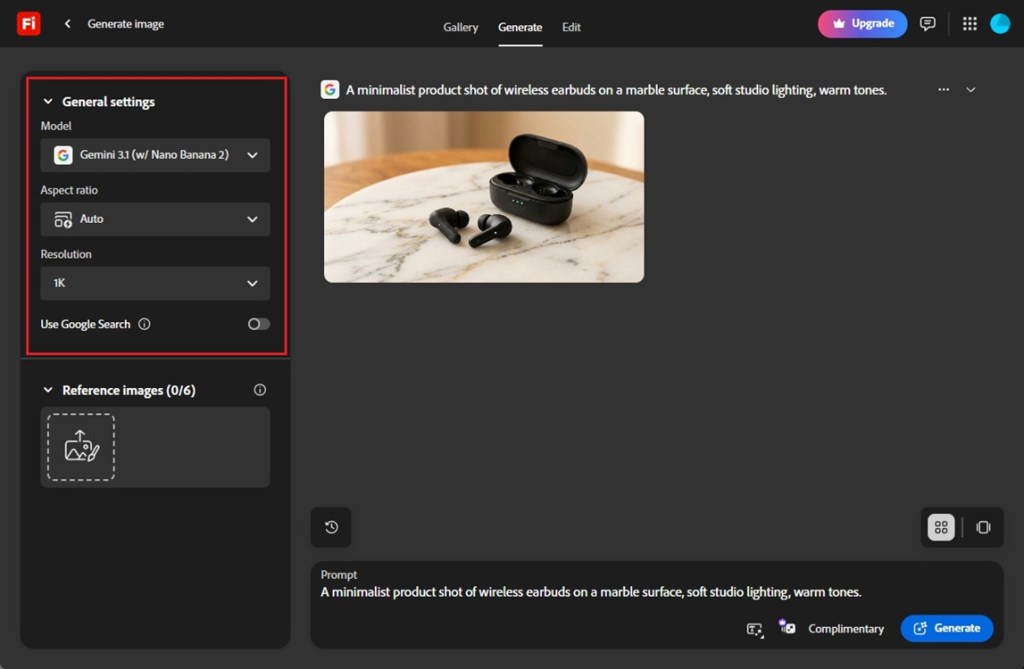
- Next, select Gemini 3.1 (w/ Nano Banana 2) if you want to use Google’s flagship image model.
- You can also choose the Aspect ratio, resolution (up to 2K) and upload a reference image too.
- Now, type a detailed prompt describing what you want to generate.
- For example, I entered the following prompt and clicked on the Generate button.
A minimalist product shot of wireless earbuds on a marble surface, soft studio lighting, warm tones.
- As you can see below, it has generated a photo-realistic image of the earbuds.
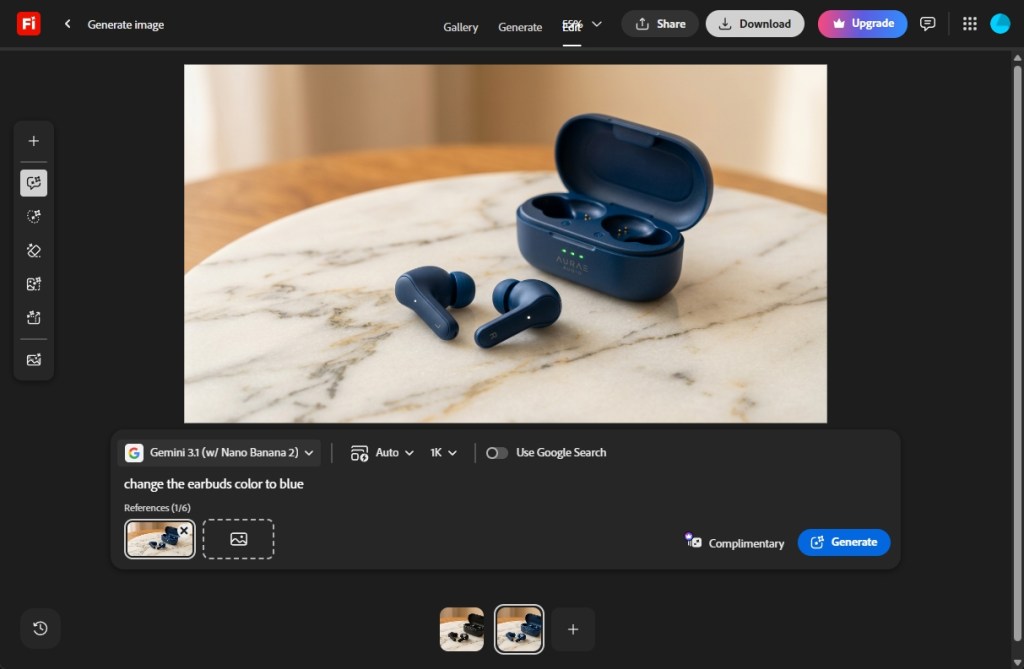
- Now, click on the image and you can edit it conversationally. You can enter the prompt again and refine it while keeping the overall image intact.
- For instance, I prompted it to change the earbuds color to blue and that’s it. This is why Firefly is a leading AI image editor in the market.
- In addition, you can use Generative Fill, Generative Expand, Generative Remove, and Generative Upscale. You can also choose to remove the background from a single interface.
- Now, you can download the image or send it to Creative Cloud apps like Photoshop, Illustrator or Adobe Express for further work.
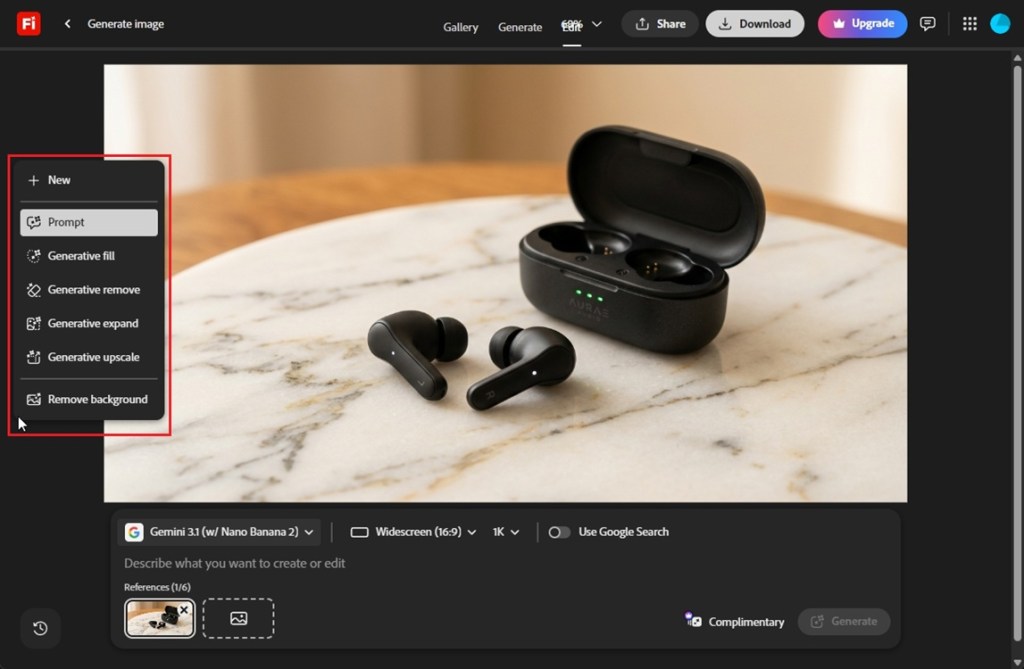
As you can notice, the image generation quality is top-notch and it handles complex scenes, product shots, and stylized art pretty well. Thanks to Adobe’s ecosystem, you get a top-rated AI image editor software, having seamless integration with Photoshop and Illustrator that other tools can’t match.
The key editing features in Adobe Firefly are: Generative Fill for adding or replacing elements, Generative Remove for one-click AI object removal from photos, Generative Expand to extend the canvas, and Generative Upscale to enlarge photos up to 2K without losing quality — making Firefly one of the best free AI photo editors for creators who need both generation and editing in one place.
How to Generate AI Videos with Adobe Firefly — Text-to-Video AI Tool
Now, let’s learn to generate AI videos with Adobe Firefly. In this tutorial, I am going to use Google’s Veo 3.1 model, but you can also try Adobe’s Firefly Video model for generating commercially safe videos. Here are the steps to follow.
- Go to the ‘Generate video’ page and sign in using your Adobe account.
- Next, choose Veo 3.1 from the model drop-down menu.
- You can also define resolution (supported up to 1080p), aspect ratio, and duration (up to 8 seconds). Veo 3.1 also supports native audio generation synced with the video.
- Next, enter the prompt and click on the Generate button.
A tiger walking through a dense rainforest at golden hour, cinematic lighting, sun rays through trees, ultra-realistic, slow motion, 4K, nature documentary style.
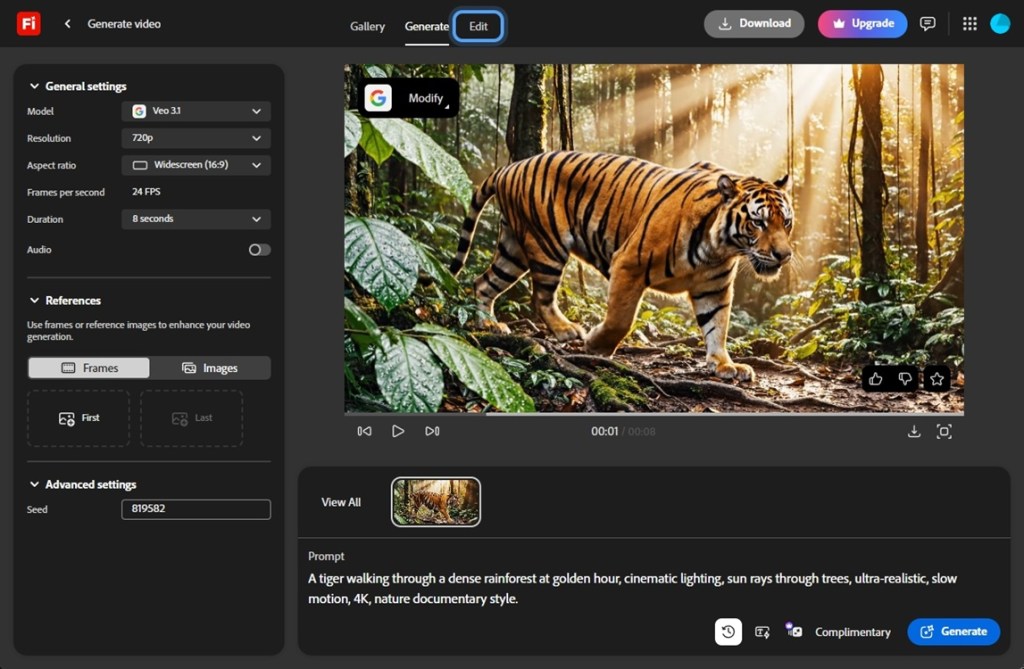
- It will take a minute or two to generate the AI video.
- You can check out the video sample below. It’s simply the best text-to-video AI tool I have used in a while.
Turn Image to Video Using Adobe Firefly
Adobe Firefly also lets you turn any static image into a video clip using AI. If you have been looking for the best image-to-video AI tool, you should definitely try Firefly’s implementation, as it supports keyframes too. Here is how you can use it.
- Open the Image to video AI page and sign in using your account.
- Next, under References, add the first and last image as keyframes.

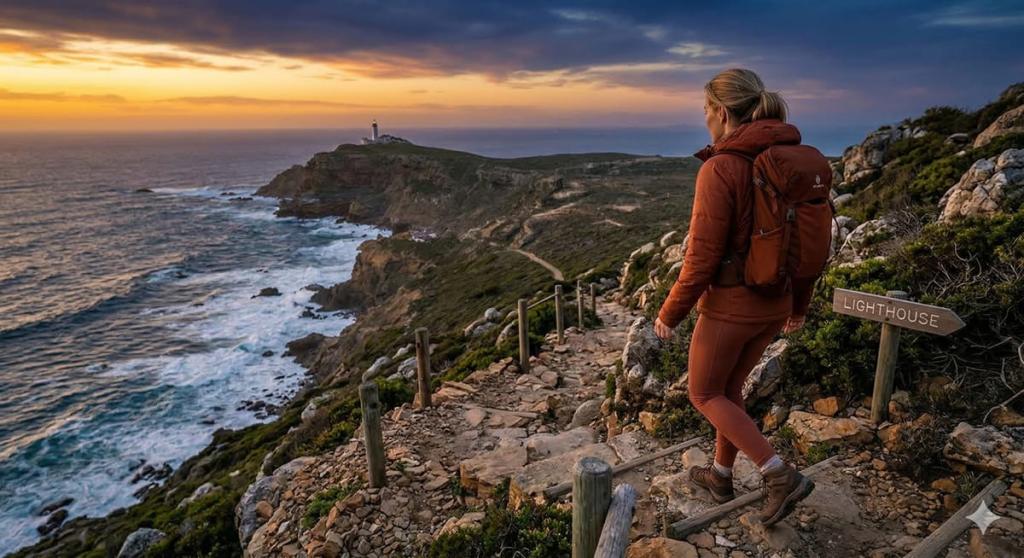
- Now, enter a text prompt to create a transition between the first frame and the last frame.
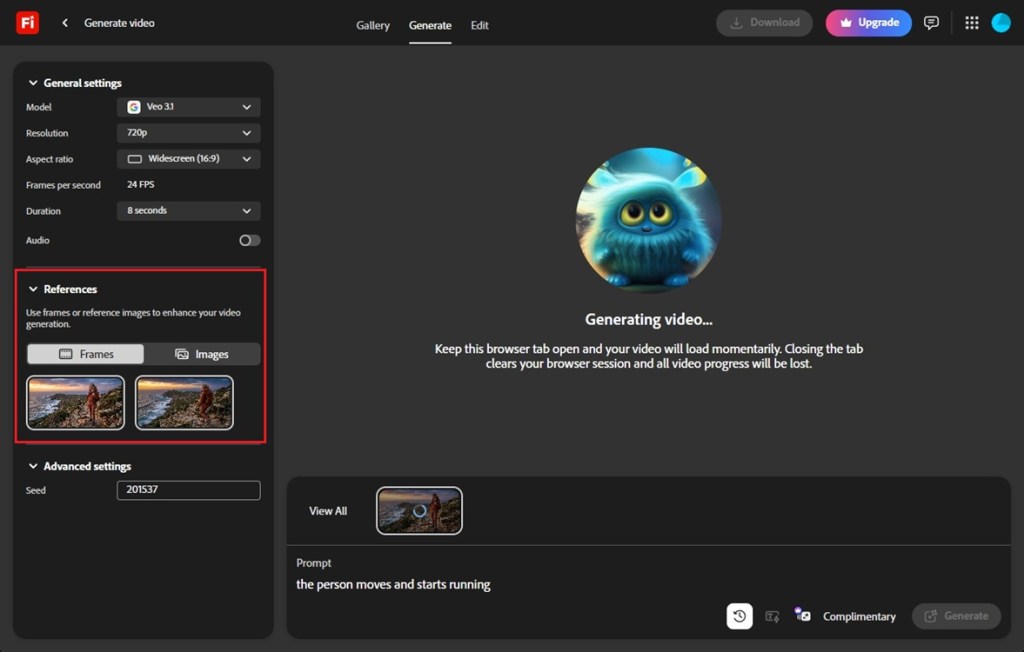
- Adobe Firefly will now create a video clip using two static images.
- You can use this as a social media post, b-roll in your video timeline, or a special effect for a scene. Check out the video sample below, and if you still have doubts, visit the official Adobe how-to page to generate videos using images.
Why Adobe Firefly Is the Best AI Video Generator for Marketing?
I want to talk about Adobe Firefly’s AI video generation because its IP protection is a big deal. If you are a marketer, you already know how expensive and time-consuming video production can be. The commercial safety angle allows you to generate AI videos without any copyright issues. In this instance, Firefly is able to offer this service because the company trained its AI model on licensed content.
Now, you can use the generated clips in ads, social media campaigns, for your clients without worrying about legal trouble. Secondly, thanks to Adobe’s deep integration, you can directly send your Firefly videos to Premiere for editing or use it in Adobe Express too. This seamless workflow integration makes Adobe Firefly the best AI video generator for marketing.
And now with the integration of third-party partner models from Google, OpenAI, Runway, etc., you can access industry-leading AI models right inside Firefly. In tandem, you have the option to access Adobe’s own models for commercially safe outputs or third-party models from Google or OpenAI for specific creative tasks.
Adobe Firefly: Plans and Pricing
Adobe Firefly offers a credit-based pricing model, which means every paid plan gives you unlimited standard generations such as text-to-image, Generative Fill, and vector creation. Your monthly credits are only used by premium features like video generation, audio translation, and outputs from 3rd-party models.
What is awesome is that Adobe is currently offering 50% discount for new subscribers. Yes, you read that right. New subscribers can get 50% off on their first 12 months on Firefly Pro Plus and Premium plans. You can check out the Adobe Firefly plans page for plan inclusions and detailed pricing information.
| Plan | Price |
|---|---|
| Firefly Free | Free, limited credits |
| Firefly Standard | $9.99 per month (Rs. 797.68 per month) |
| Firefly Pro | $19.99 per month (Rs. 1,596.54 per month) |
| Firefly Pro Plus | |
| Firefly Premium |
Who Should Use Adobe Firefly?
- Content Creators: If you are producing social media content, be it thumbnails or short-form video, you can rely on Firefly to generate incredible visuals. The image-to-video feature alone can turn your static images into engaging video content in seconds.
- Marketers and Agencies: Commercial safety is important for marketers and agencies and if you need AI-generated assets for campaigns, ads, or client work, Firefly is simply the safest option out there. It’s the best AI video generator for marketing because you can actually use the outputs without any legal risk.
- Beginners: For beginners, creating videos with Adobe Firefly is fast, easy, and requires no expertise in image or video editing. If you have never touched a video editor before, do not worry, you can still use Firefly’s Generate Video feature to quickly create professional-looking clips with just a text prompt.
- Creative Cloud Users: If you are already in the Adobe ecosystem, you can get more out of Firefly. Adobe Firefly features are integrated with Photoshop, Illustrator, Premiere, and Adobe Express. It makes the workflow even better and saves a lot of time.
Get Started with Adobe Firefly
To sum up, if you want the best AI image editor and AI video generator that is safe for commercial use, Adobe Firefly should be at the top of your list. It’s an all-in-one platform for image and video generation, and its integration of partner models from Google, OpenAI, Runway, and more gives it the flexibility that most competitors don’t offer. So, go ahead and check out Adobe Firefly, and you might be surprised by how quickly you can produce professional-quality images or videos.