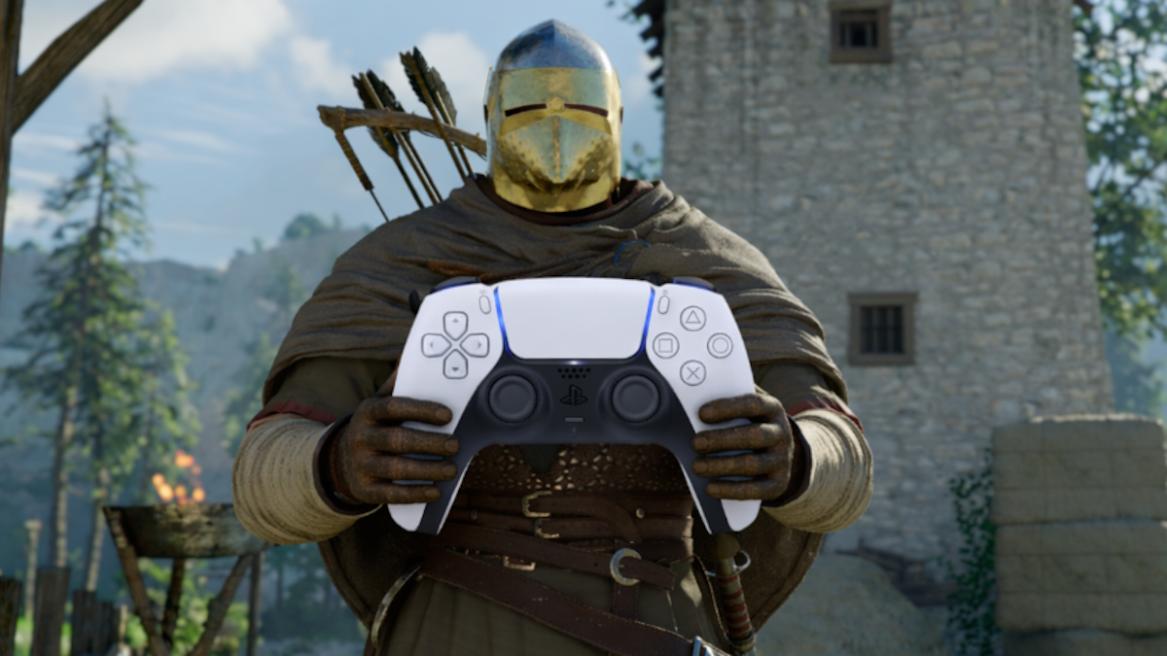
- Crimson Desert doesn't allow controller players to remap the control buttons at the moment.
- Only Keyboard and Mouse players can rebind their control keys for now.
- If you are playing with a controller on PC, you can use a mod to remap controller buttons.
Pearl Abyss’s Crimson Desert is out now after years of anticipation. While gamers praise the title for its visuals, combat, and more, one game aspect that everyone unanimously hates is its controls. It doesn’t matter whether you are playing on PC or console; the controls feel clumsy and overwhelming. If you are playing with a controller, discover more about the control scheme and find out if you can change the controller settings in Crimson Desert.
Remapping Controls in Crimson Desert
Be it a PlayStation or Xbox controller, there is no way to change the controller settings in Crimson Desert at the time of writing. PC players are allowed to change the shortcuts and input settings under the Input menu; however, you can only bind the keys for Keyboard and Mouse, not a controller at the moment.
Will Powers, Pearl Abyss’s PR and Marketing Director, advised the players earlier to take their time learning the controls, “Think of it like riding a bike, it comes naturally after you learn it. just takes a minute.”
So, it seems like Pearl Abyss has no plans to add an option to let the controller players remap the controls as they wish. If you are a console player, you cannot find any option to change the controls in the settings.
But if you are playing on PC, you are in luck, as modders have already come up with a mod for Crimson Desert that finally allows controller players to freely change their controls. You can check out the Controller Button Remapper mod in Nexus Mods.
Crimson Desert Controller Layout
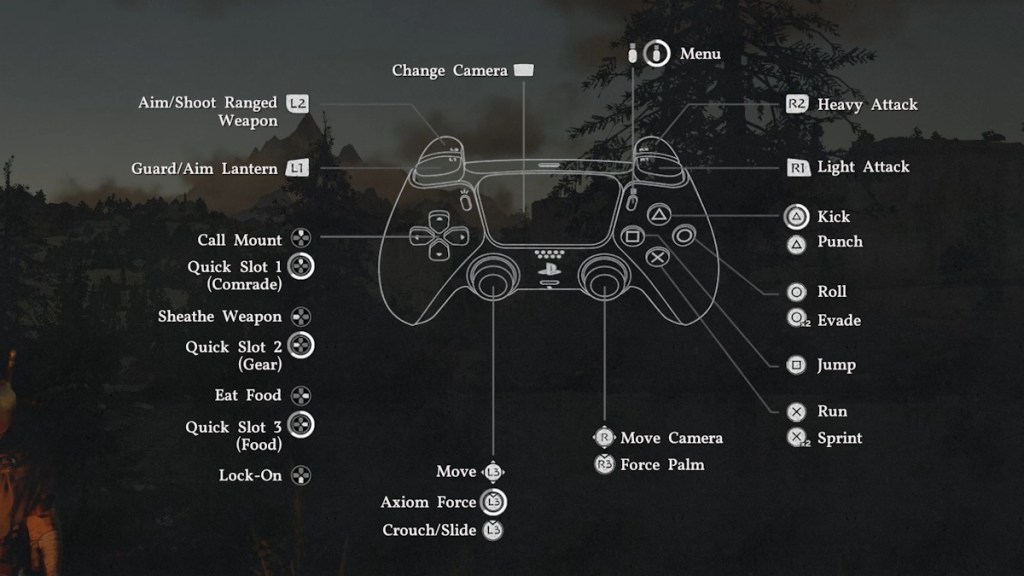
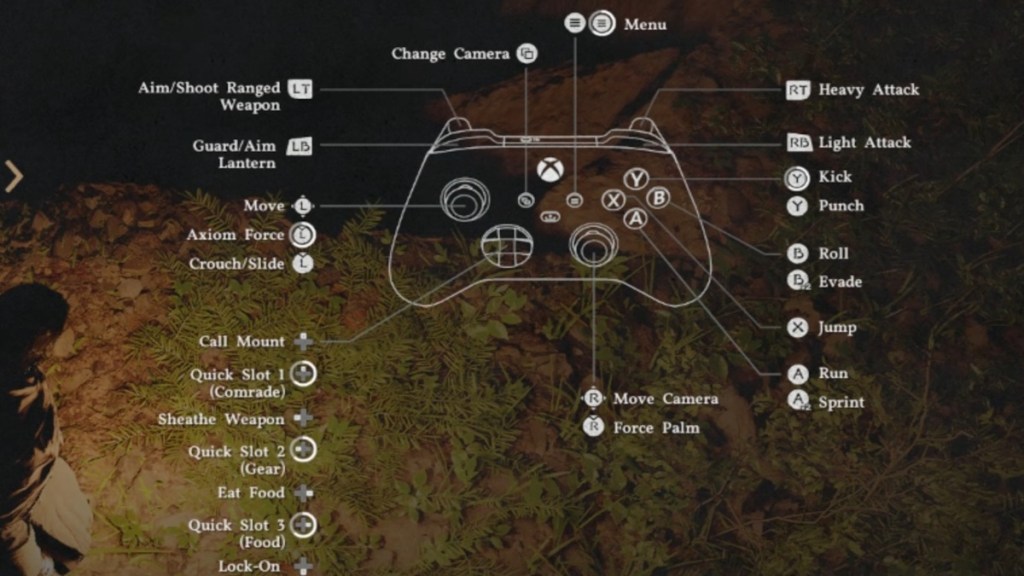
If you are playing on a controller, here are the controls for both the PlayStation and Xbox controllers for Crimson Desert:
| Category | Result | PlayStation Controller | Xbox Controllers | Input Action |
|---|---|---|---|---|
| Movement | Move Camera | RS | RS | Tilt |
| Movement | Camera Zoom In/Out | Trackpad | View | Press |
| Movement | Lock-on | D-Pad Down | D-Pad Down | Press |
| Movement | Move | LS | LS | Tilt |
| Movement | Run | X | X | Hold |
| Movement | Sprint | X | X | Double Press (Toggle) |
| Movement | Crouch | L3 | RS | Press (Toggle) |
| Movement | Slide | L3 | RS | Press (While Running) |
| Movement | Jump | Square | X | Press |
| Movement | Precision Jump | L1 + Square | LB + X | Hold Control, then Press |
| Movement | Double Jump (When Unlocked) | Square | X | Press (While Mid-air) |
| Movement | Mantle | Square | X | Press (Near Ledge) |
| Movement | Climb | Square + LS | X + LS Tilt | Jump Towards Wall |
| Movement | Roll | Circle | B | Press |
| Movement | Evade | Circle | B | Double Press |
| Basic | Quick Menu (Last) | Options | Menu | Press |
| Basic | Scroll Menu | Options | Menu | Hold |
| Basic | Use Gear | L1 | LB | Press/Hold |
| Basic | Force Palm | R3 | RS | Press |
| Basic | Call Mount | D-Pad Up | D-Pad Up | Press |
| Basic | Dismount / Put Down Held Item | Triangle | Y | Press |
| Basic | Comrade Quick Slot | D-Pad Up | D-Pad Up | Hold |
| Basic | Gear Quick Slot | D-Pad Left | D-Pad Left | Hold |
| Basic | Food Quick Slot | D-Pad Right | D-Pad Right | Hold |
| Basic | Sheathe Weapon | D-Pad Left | D-Pad Left | Press |
| Interaction | Quick Menu (Last) | Options | Menu | Press |
| Interaction | Scroll Menu | Options | Menu | Hold |
| Interaction | Use Gear | L1 | LB | Press/Hold |
| Interaction | Force Palm | R3 | RS | Press |
| Interaction | Call Mount | D-Pad Up | D-Pad Up | Press |
| Interaction | Dismount / Put Down Current Item | Triangle | Y | Press |
| Interaction | Comrade Quick Slot | D-Pad Up | D-Pad Up | Hold |
| Interaction | Gear Quick Slot | D-Pad Left | D-Pad Left | Hold |
| Interaction | Food Quick Slot | D-Pad Right | D-Pad Right | Hold |
| Interaction | Stow Weapon | D-Pad Left | D-Pad Left | Press |
| Combat | Light Attack | R1 | RB | Press Repeatedly |
| Combat | Heavy Attack | R2 | RT | Press Repeatedly |
| Combat | Punch/Kick | Triangle | Y | Press |
| Combat | Aim | L2 | LT | Hold |
| Combat | Fire | L2 | LT | Aim and Release |
| Combat | Focus | X | A | Press |
| Combat | Axiom Force | L3 | LS | Hold |
| Combat | Block/Parry in Crimson Desert | L1 | LB | Press |
| Combat | Skill 1 | R2 + R1 | RT + RB | Combo Press |
| Combat | Skill 2 | R2 + L1 | RT + LB | Combo Press |
| Combat | Skill 3 | R2 + X | RT + A | Combo Press |
| Combat | Skill 4 | R1 + Circle | RB + B | Combo Press |
| Combat | Skill 5 | R1 + X | RB + A | Combo Press |
| Combat | Skill 6 | R1 + Square | RB + X | Combo Press |
| Combat | Skill 7 | R1 + L1 | RB + LB | Combo Press |
| Combat | Grappling: Throw | Triangle + R1 | Y + RB | Combo Press |
| Combat | Grappling: Lariat | Triangle + R2 | Y + RT | Combo Press |
| Combat | Enemy Vault | Square + R1 | X + RB | Combo Press |
So, we hope Pearl Abyss listens to the player base and either changes the controls or gives the players the option to remap. Until then, let us know whether you find Crimson Desert’s controls easy or not in the comments below.
No, you cannot change controller settings in Crimson Desert.
Yes, you can change PC keybinds in Crismon Desert. In fact, you can even download a mod to change controller settings if you’re on PC.




 Sanmay Chakrabarti