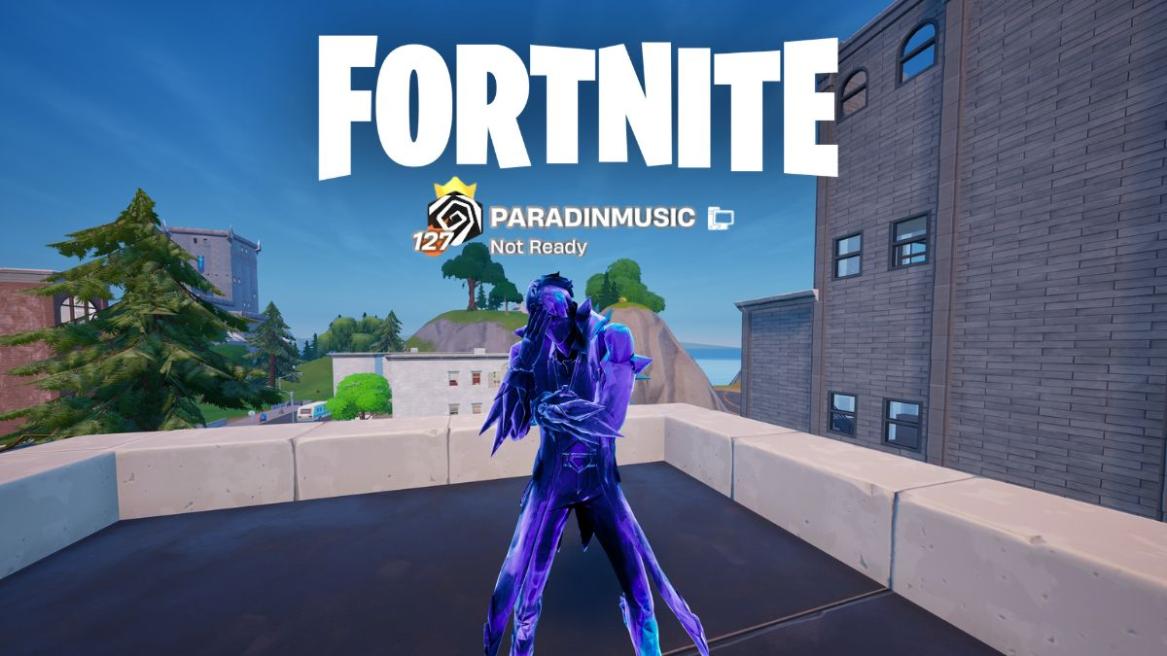
- Fortnite allows users to change their name across platforms.
- PC and Nintendo Switch players must change their Epic Games display name by heading to the official site.
- Console players need to change their platform gamertag to change their Fortnite name, with PlayStation charging a fee for a name change.
Fortnite is undoubtedly one of, if not the biggest, games on the planet, with the biggest community. When hopping into a match in Fortnite, you choose your ideal skins, emotes, etc. But all of this comes second to your Fortnite name, which needs to be snappy and stick in your opponents’ minds.
If you are not satisfied with your in-game name in Fortnite Chapter 7 Season 1 and are wondering how to change your Fortnite name, here’s a detailed guide that will help you do so on every platform out there.
How to Change Your Fortnite Name on PC
If you play on PC and are looking to change your Fortnite name, you can follow these steps:


- Head to the official Epic Games website.
- Hover over your profile picture and click on “Account” from the dropdown menu.
- On the page that opens up, look for the “Display Name” section and click on the “Edit” icon.
- Enter your new name, tick the two-week confirmation box, and click “Submit.”
With that, you will be able to change your Fortnite name on PC. However, remember to double-check before changing your name, as Epic Games enforces a 2-week cooldown for name changes.
Change Your Fortnite Name on Consoles
Note:
Unlike PC, changing your Fortnite name on consoles requires altering the gamertag itself. As such, PlayStation charges money to do so. Additionally, the new gamertag will carry to other titles too and you might lose your legacy purchases. You have been warned.
How to Change Your Fortnite Name on PlayStation
If you are looking for an Epic Games name change on PlayStation, follow the steps below:


- On your PS5’s dashboard, select the Cog icon and head over to the settings menu.
- In the settings menu, select the “Users and Accounts” section.
- In the menu that opens up, select “Account” from the left sidebar and then choose “Profile.”
- In the profile menu, select “Online ID.”
- Read the important information and then select “I Accept” and “Continue.“
- You will now need to sign in to PSN again. Scan the QR code or use your PlayStation credentials to do so.
- You can now enter your new Online ID in the text box and select “Confirm” to finish the process.
While Sony charges a set amount of money for each name change, you don’t have to worry if it is your first time, as PlayStation allows the first name change completely free of cost. You also do not need to have a PlayStation Plus membership to change your name. However, having a PlayStation Plus membership can make you eligible for some free Fortnite skins.
How to Change Your Fortnite Name on Xbox
If you play on Xbox and are looking for a Fortnite Xbox name change, you can follow the steps below:


- On your Xbox dashboard, select the Cog icon to head over to settings.
- Under the General tab, head over to “Personalization.”
- Select “Profile” and then “Customize my profile.”
- Select your existing username to be led to the edit screen.
- Here, enter your new username and select “Check availability.”
- Read through the information and select “Change gamertag” to confirm.
- Select “Change GAMERTAG” one last time to confirm it.
How to Change Your Name in Fortnite on Nintendo Switch
Much like PlayStation and Xbox, you cannot change your Fortnite name on Nintendo Switch through the in-game settings or your Nintendo profile name. You have to change your Epic Games Display Name instead. Here are the steps you can follow:
- Go to the official Epic Games website.
- Log in using your Nintendo Account credentials.
- Make sure you log in with the same account linked to your Nintendo Switch.
- Hover over your profile picture and click on “Account” from the dropdown menu.
- On the page that opens up, look for the “Display Name” section and click on the “Edit” icon.
- Enter your new name, tick the two-week confirmation box, and click “Submit.”
Troubleshooting Issues with Fortnite Name Changes
While the process of changing your Fortnite name is quite straightforward, you still might run into a few common roadblocks. If you are unable to go through with your Epic Games name change, double-check the following criteria:
- 14-Day Cooldown: If you have changed your Fortnite name, you will not be able to change it for another two weeks. Epic Games does this to prevent players from abusing the name change system and engaging in toxic behaviour.
- Unverified Email: Epic Games will not allow you to change your name if you have not verified the email registered to your account. You can head to the Account Settings page and select “Resend Verification Email” to receive a new email.
- Console Gamertag vs. Epic Games Name: On console, Fortnite prioritizes your console name (PSN Online ID or Xbox Gamertag) over your Epic Games Display Name. You can fix this by changing your name through your console account settings.
- “Cabined Account” Restrictions: Epic Games imposes name change restrictions on Cabined Accounts (accounts held by players under the age of 13). To tackle this issue, you need a parent or guardian to provide consent through the email linked to your Epic Games account.
Cool & Rare Fortnite Name Ideas for 2026
After you have mastered the “how-to” of changing your Fortnite name, you face a bigger challenge: picking an Epic Games display name that actually stands out. While there is no correct way when it comes to picking names, here are some name ideas that you can take inspiration:
- Ethereal
- Lucid
- Solace
- Thistle
- Grove
- Bayou
- Boxed
- Vexed
- BuildResets
- BoxedLikeAFish
- ZeroPing
- Byro
- Dune
It is important to remember that many of these names might already be taken. However, you can try getting around this problem by using look-alike characters from the Greek or Cyrillic alphabets. For example, you can use the Greek “o” instead of the English “o.”
Additionally, you can also utilise the popular superscript trick with a Unicode Text Generator to make part of your name look like a clan tag or a trademark. Epic Games allows most Unicode characters, as long as they aren’t “invisible”.
That is how you change your Fortnite name across all platforms. While we think the overall process is pretty simple, it’s understandable if you might need help. For all those cases and more, drop your questions in the comments below!
Your inability to change your Fortnite name might stem from the two-week cooldown period, an unverified email, or having a Cabined account.
Once you have changed your Fortnite or Epic Games display name, you have to wait two weeks before you can change it again.