- You can set a waypoint on the GTA 6 world map by choosing a shop, mission location, or spot you want to explore.
- Once you select a destination, the minimap displays a GPS route you can follow as you drive through Leonida.
- Your navigation settings let you keep the minimap visible at all times or have it appear only when needed.
With shops, missions, and activities spread across Leonida, it’s easy to lose track of where you are going in GTA 6. That’s why setting a waypoint gives you a route to follow on the minimap, whether you are going to your next mission objective or exploring an undiscovered area. So, let’s learn how to mark a destination waypoint and track it in GTA 6.
How to Set a Waypoint in GTA 6
You can set a waypoint by selecting a location on the world map in GTA 6. This works for places you can already see on the map, such as a shop, and for spots in areas you haven’t visited yet. Here’s how to set a waypoint:
- Open the world map: On PS5, press the touchpad. On Xbox Series X|S, press the Menu button
- Pick a destination: Move the cursor over a map icon or a spot you want to visit.
- Select Set Destination: Press (X) on PS5 or (A) on Xbox Series X|S
You have now set the waypoint. Check that the marker is where you want it, then close the map to return to gameplay.
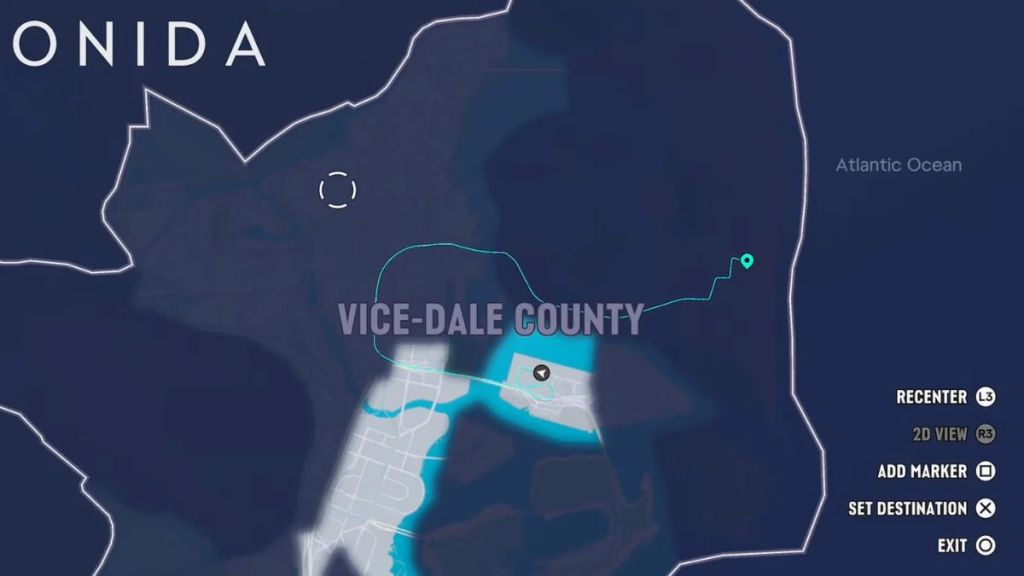

If you’re driving to a large beach, park, or industrial area, try placing the waypoint near the entrance you want to use. That gives you a more precise destination than dropping it in the middle of the area.
How to Track a Waypoint in GTA 6
Once you’ve set a waypoint, you can track it using the minimap in the bottom-left corner of your screen. The game displays a pink line connecting your current location to the selected destination, along with the remaining distance. Simply follow this route to reach your marked location without repeatedly opening the world map.
GTA 6 also offers three Navigation Experience options that determine how the minimap appears during gameplay:
- Minimap (Dynamic): The minimap appears when needed and can be brought up manually
- Minimap and Compass (Dynamic): Displays the minimap alongside a compass that shows markers, mission objectives, and nearby points of interest.
- Always On: Keeps the minimap visible on your screen throughout gameplay.
You can choose your preferred option when starting the game or change it later in the settings menu.
Whether you are following GTA 6 mission objectives, visiting a shop, or exploring Leonida, using waypoints makes navigation much easier. Just mark your destination on the world map and follow the pink route on your minimap to reach it without losing your way.