Resetting your iPad can be useful in a variety of situations. Having performance troubles or bugs in the OS? Try a soft reset. Thinking about selling your iPad instead? You should definitely do a factory reset before that. Did you forget your passcode and get locked out of your iPad? Then you need to perform a force reset. So, if you want to learn how to reset your iPad, then keep reading to find out how. Without any ado, let’s get right into it!
Quick Decision Guide: Which iPad Reset Should You Use?
If this is your first time resetting an iPad and you are confused about which iPad reset you should go with, then we have prepared a quick decision table. This will help you figure out the best solution, based on the problem you are facing.
| Problem | Recommended Reset | Data Loss? | Difficulty |
|---|---|---|---|
| iPad is frozen or unresponsive | Force Restart | No | Easy |
| Network issues (Wi-Fi or Bluetooth not working) | Reset Network Settings | No (but Wi-Fi passwords removed) | Easy |
| Some iPad settings are misconfigured | Reset All Settings | No personal data lost | Medium |
| Selling or giving away your iPad | Factory reset iPad | Yes (completely wipes all data) | Medium |
| iPad stuck on Apple logo or locked out of iPad | Factory Reset via Recovery Mode | Yes | Hard |
How to Soft Reset (Restart) Your iPad
If you have been wondering how to reset an iPad because some apps are misbehaving or you are facing issues with the latest iPadOS, then you can perform a soft reset. All you have to do is simply restart your iPad. It is one of the most effective ways to wipe out any temporary bugs or issues. Here’s how to do it:
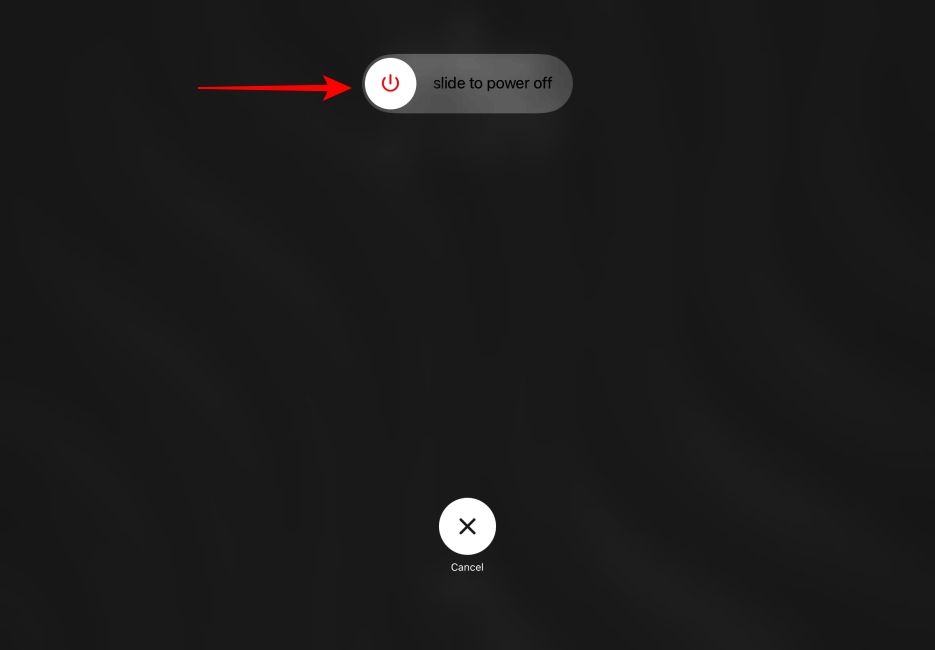
- On your iPad, long-press the Volume Up/Down + Power buttons (on the top) until you see the Power off slider.
- On iPads with a Home Button, long-press the Home button until the Power Off slider appears.
- Now, drag the slider to the right and wait for about 30 seconds to turn off your iPad.
- To turn on your iPad, long-press the Power Button until you see the Apple Logo.
How to Force Restart an iPad (Hard Reset)
There can be instances when your iPad freezes or becomes unresponsive, and the slider menu won’t open up. This is what occurred to me after updating my iPad to iPadOS 26. In such cases, you can force reset your iPad with buttons. This method clears apps stored in the memory without deleting any data. Here’s how to reset an iPad forcefully:
- Quickly press and release the Volume Up button.
- Right after that, press and release the Volume Down button.
- Finally, long-press the Power button until you see the Apple logo. Your iPad will restart and boot up normally.
- In case this isn’t working for you, try again and be faster in pressing and releasing the buttons.
On iPads with a Home Button, long-press the Power + Home buttons simultaneously until your iPad turns off. Once done, the iPad will restart on its own.
How to Reset All Settings Without Deleting Data
Another method to reset an iPad is the Reset All Settings option. It is useful when there is a particular setting causing issues with your iPad, and you cannot recall which one it is. This method resets all your iPad settings to the default, like it was when you first bought it. It won’t delete any apps, downloaded data, media, or your Apple ID account. Follow the steps below to reset all settings on your iPad:
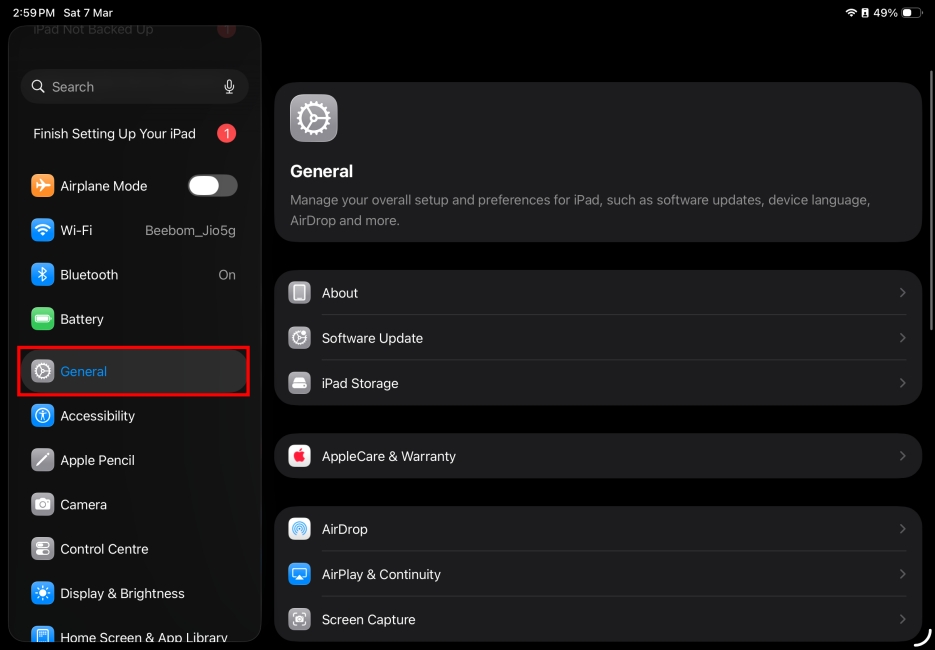
- Open the Settings app on your iPad and navigate to the General section.
- Here, scroll down to the bottom and tap on Transfer or Reset iPad.
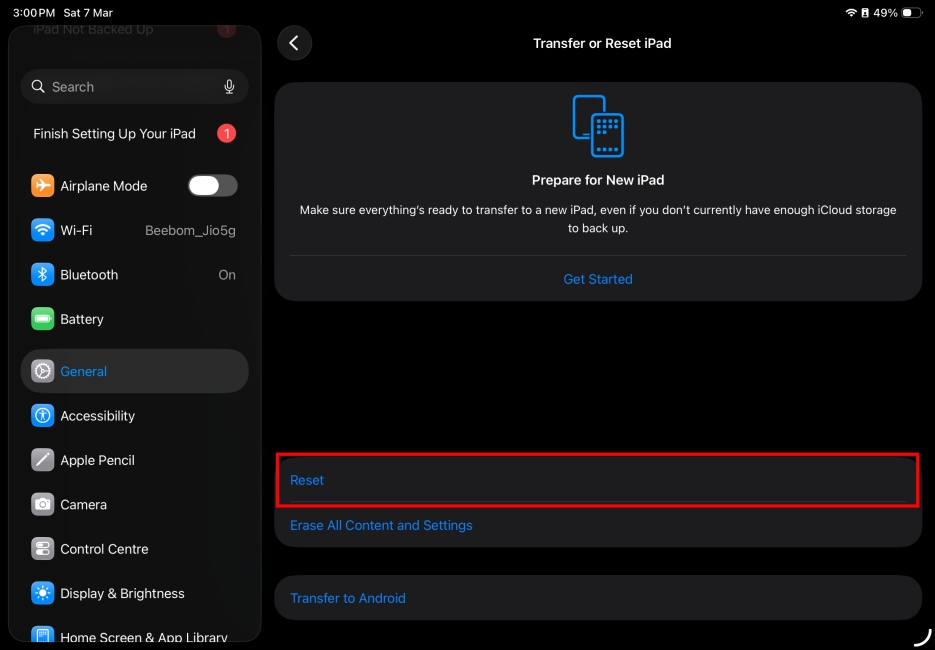
- Here, tap on Reset.
- Next, select Reset All Settings from the available options.
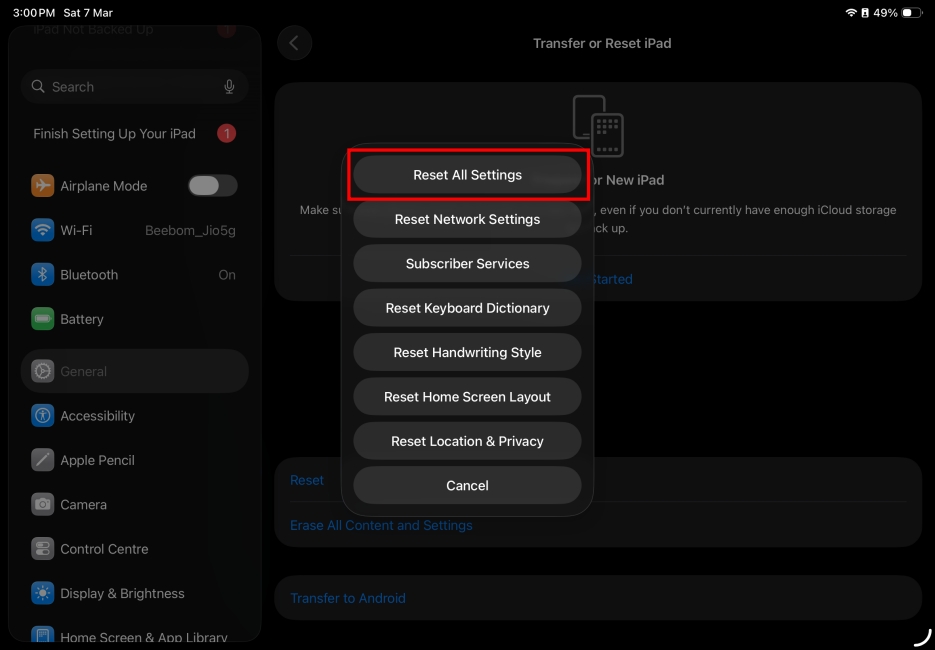
- When prompted, enter your iPad passcode and press Reset All Settings again to confirm your decision.
What to Do Before Factory Resetting Your iPad
Performing a factory reset on your iPad should be the last resort. However, it is necessary to do so if you are facing a complex issue. Like the iPad showing a black screen, overheating, excessive battery drain, or even when you are just about to sell or handover your iPad to someone else.
This method can fix most iPad issues, but it will also wipe out all your downloaded data and saved settings. Therefore, here are a few things you need to do before factory resetting your iPad, and these can save you a lot of trouble.
- Back Up Your Data: You need to create a backup of all data on your iPad so you can restore your photos, apps, and files after the reset.
- Sign Out of Apple ID (Optional): If you are planning to sell your iPad, then make sure to sign out of your Apple ID. You can do so by going to Settings > Your name at the top > Sign out. This helps to avoid the Activation Lock problem.
- Disable Find My iPad: Again, if you are transferring ownership, it would be best to turn off Find My iPad by going to Settings > Apple ID > Find My.
- Unpair Connected Accessories (Optional): You should also disconnect accessories like Apple Pencil, keyboards, or Bluetooth devices to avoid pairing issues later.
- Charge Your iPad: Make sure your iPad is fully charged before performing a factory reset, since it can take a while, and you don’t want the iPad to die in between the reset process.
How to Factory Reset iPad via Settings (With Passcode)
Now that we have covered what you need to do, let’s take a look at how to factory reset your iPad. There are two ways to do this: from the iPad directly or with a computer. You can easily perform this method, provided you know the passcode and your iPad is unlocked. Follow the steps below to factory reset your iPad without a computer:
- Open the Settings app on your iPad and go to the General section.
- Tap on Transfer or Reset iPad from the bottom of the screen.
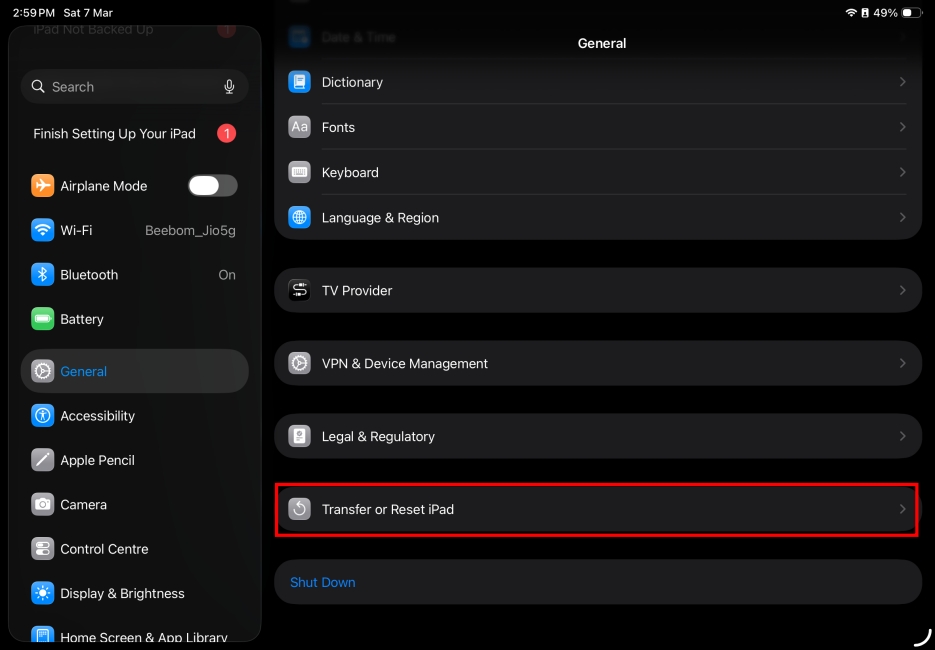
- From the list of available options, tap on Erase All Content and Settings.
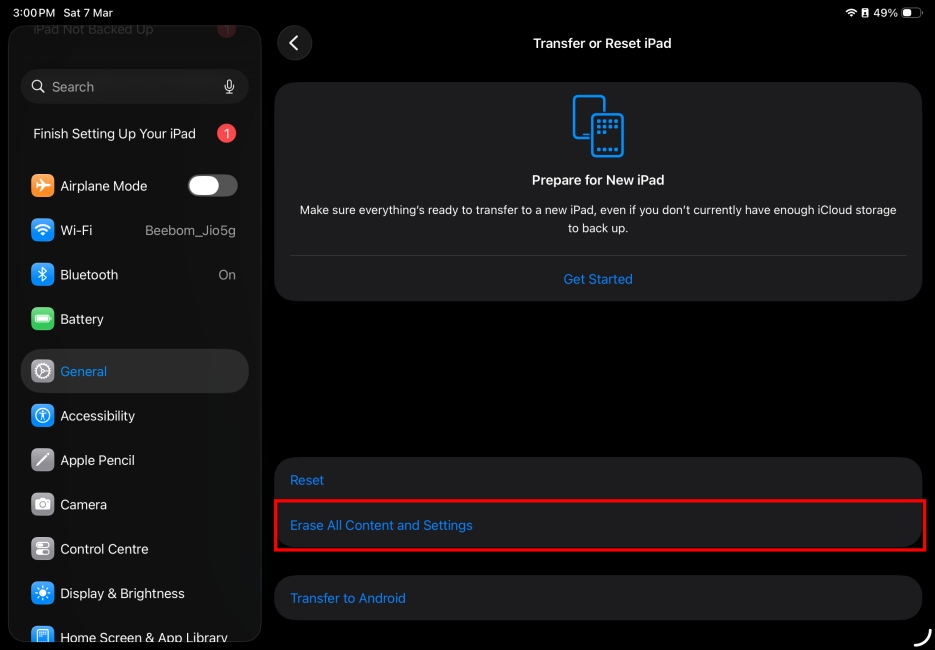
- You’ll see a screen showing information on what data will be erased. Once ready, tap on Continue.
- When prompted, enter your iPad Passcode and proceed.
- Now, you’ll see another screen showing a backup. If you’ve backed up your iPad already, choose Erase Now.
Once completed, your iPad will greet you with a setup screen. Simply follow the on-screen instructions to set up your fresh iPad or restore it from a backup.
How to Factory Reset iPad Without Passcode (via Computer)
In case you forget your iPad password and want to reset it, you will need a computer for this method. Preferably a Mac or Windows PC with iTunes installed. Again, it goes without saying that this method will wipe all your saved data.
- Connect your iPad to your Mac or Windows PC.
- When prompted to enter the passcode or allow any permissions, simply follow them.
- On Macs running macOS Catalina or later, open Finder and select your iPad from the left sidebar.
- On older Macs or Windows computers, open iTunes and click on the iPhone icon.
- Once selected, you will see your iPad details along with the iPadOS version.
- From the available options, find and tap on Restore iPad.

- A dialog box will now open up asking if you want to make a backup. Here, click on Back Up.

- Next up, select Restore to confirm your decision and let the factory reset begin. This can take up to 15 minutes.

Once the process completes, your iPad will restart and show an initial setup screen. Disconnect your iPad from the computer and restore it from a backup or set it up as new.
How to Factory Reset an iPad using Recovery Mode
If your iPad screen is completely frozen, has gone black, and there is no way for you to interact with its touchscreen, then you can use the Recovery Mode to reset your iPad. This process reinstalls iPadOS to your device and erases all the data on the device. You will require a Mac or a Windows PC for this process.
- To start with, reboot your iPad into Recovery Mode. To do this, quickly press and release the Volume up + Volume down buttons. Then long-press the Power button till the recovery screen appears.
- Now, connect your iPad to a computer.
- Open Finder on Mac with macOS Catalina or later, and iTunes on Windows machines.
- On your system, it should show a message that says your iPad needs to be updated or restored.
- Click on Restore. This will erase everything and reinstall iPadOS.
- Follow the on-screen steps and click on Agree to accept the terms and conditions.
- Wait for the process to finish.
- Once it completes, your iPad will restart with default factory settings.
How to Erase iPad Remotely via Find My / iCloud
In case you have lost your iPad, or it has been stolen, and you are unable to find your lost iPad, then it would be the best option to reset it using Find My. While this won’t help you get back your iPad, it will at least prevent your sensitive data from falling into the wrong hands. Here is how to reset an iPad remotely via Find My.
- Open the Find My app on your iPhone, Mac, or go to iCloud.com on a web browser.
- Sign in using the same Apple ID linked to your iPad.

- Click on the Find My icon on the iCloud website.

- Select your iPad from the list of devices and click on Erase.

- Confirm your choice and enter your Apple ID password if prompted.
Once done, your iPad will erase all data the next time it connects to the internet. Keep in mind that Activation Lock will remain enabled, meaning anyone who tries to set up the device will still need your Apple ID credentials unless you remove it from your account.
How to Reset iPad from Security Lockout Screen (on iPadOS 18 or later)
In case you forget your iPad passcode and keep entering the wrong one, then your iPad will show a Security Lockout screen. From iPadOS 17 or newer, Apple allows users to reset their iPad right from this screen without using a computer, as explained in the method above. So, here’s a step-by-step process on how to reset your iPad from the security lockout screen.
- Keep entering the wrong passcode until you see the Security Lockout screen.
- Next, tap on Forget Password? at the bottom right.
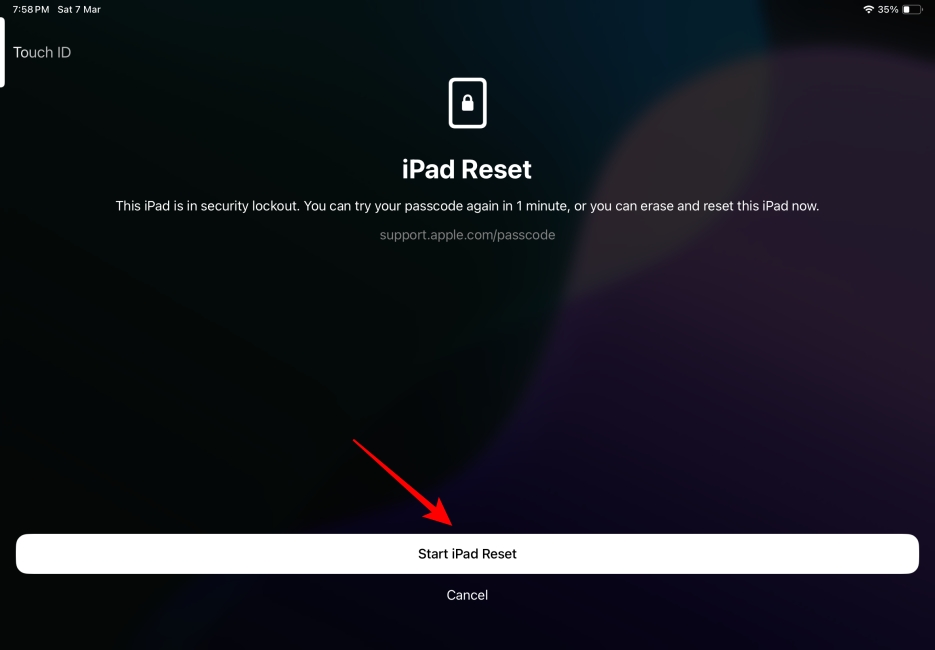
- Here, select the Start iPad Reset to confirm option.
- Enter your Apple ID password to sign out of your Apple account.
- Tap on Erase iPad to confirm your selection and factory reset your iPad.
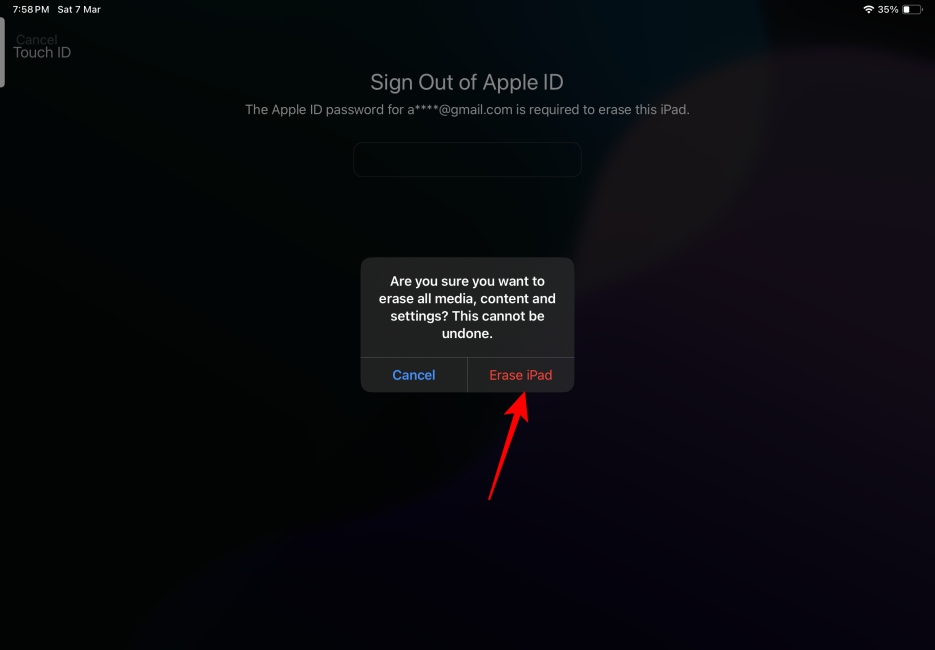
Once the process finishes, you can set up the iPad again like a new device or restore it from a backup.
How to Restore an iPad After a Factory Reset
After performing a factory reset on your iPad, you can go ahead and restore your backup from iCloud data again, provided you created a backup before resetting your iPad. This allows you to restore all your downloaded photos, media, and apps from the setup process itself. Here is how you can do it:
Restore Using Saved iCloud Backup
- Turn on your iPad and follow the on-screen setup steps.
- Connect to a Wi-Fi network when prompted.
- On the “Apps & Data” screen, select Restore from iCloud Backup.
- Sign in with your Apple ID.
- Choose the most recent backup from the list.
- Wait for the restore process to finish and complete the setup.
Restore Using a Computer Backup
- Connect your iPad to your Mac or Windows PC using a cable.
- Open Finder (on Mac) or iTunes (on Windows).
- Select your iPad from the device list.
- Now, click on Restore Backup.
- Choose the backup you want to restore and click on it again to confirm.
Once the process finishes, your iPad will restart with your apps, data, and most of the settings restored.
Resetting iPad Made Easy
That’s how you can reset your iPad. Soft reset comes in handy when your iPad is slowing down or some apps are misbehaving. A hard reset helps you fix an iPad with a frozen screen. Finally, factory resetting an iPad helps you fix the most complex issues on your device. Hopefully, you were able to easily fix issues with your iPad. In case you’re facing any issues, let us know in the comments.
A soft reset means restarting your iPad to fix minor software issues and erratic behavior on your iPad without any data loss. The hard reset lets you do the same when your iPad’s display is frozen or not responding. On the flip side, a factory reset deletes everything from your iPad and restores it to the default settings.
Quickly press and release the Volume Up button. Immediately after that, press and release the Volume Down button. Finally, long-press the Power button until you see the Apple logo.
Yes, a factory reset will delete all of your saved settings and downloaded data, including media, download apps & data, text messages, email accounts, and more.
Yes, you can reset the iPad using Recovery Mode, but you will still need the Apple ID password later to bypass Activation Lock during setup.
No. Resetting the iPad does not remove Activation Lock. The device will still require the original Apple ID and password during setup unless the previous owner removes the device from their Apple account.
First, sign out of your Apple ID, turn off Find My iPad, then go to Settings > General > Transfer or Reset iPad > Erase All Content and Settings. This removes all of your data and Activation Lock so the new owner can set it up as a fresh device.
No. A factory reset does not remove the iCloud account linked to the device. The iPad will still show Activation Lock unless you sign out of iCloud or remove the device from your Apple ID before resetting.