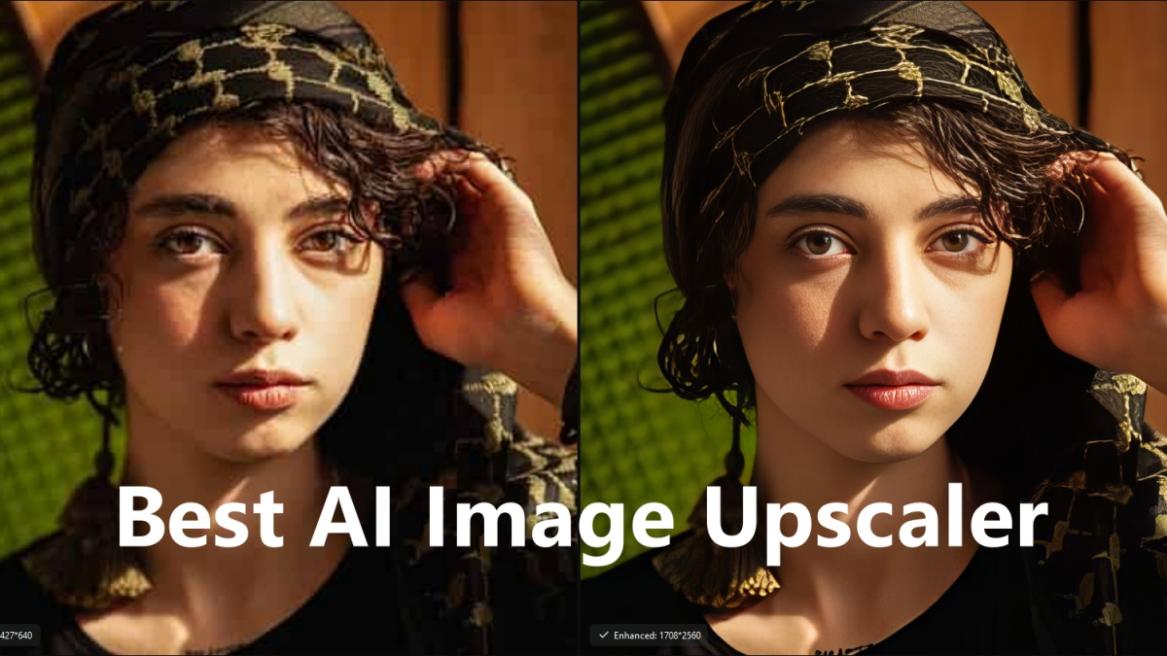
Lately, I have been testing out several different AI image upscaler tools to restore some of my old photos. There are many popular options that always come up, but they often feel too complicated or add a wax-like texture to the upscaled images. But that’s when I came across HitPaw’s FotorPea AI image upscaler. It focuses on ease of use while providing reliable results. So I put it to the test, and let me share my experience with HitPaw FotorPea.
What is HitPaw FotorPea Image Upscaler?
For those who don’t know, HitPaw FotorPea is an AI-powered image upscaler tool designed to upscale photos, restore details, and clean up low-quality images. It does all that with minimal manual effort.
Other popular options, such as Topaz Photo AI and Remini, overwhelm you with multiple advanced options and sliders. Meanwhile, FotorPea provides a simple approach to photo enhancement. This is made possible with HitPaw’s partnership with Comfy to integrate its AI upscaling technology directly into creator workflows, making professional-grade image improvements.
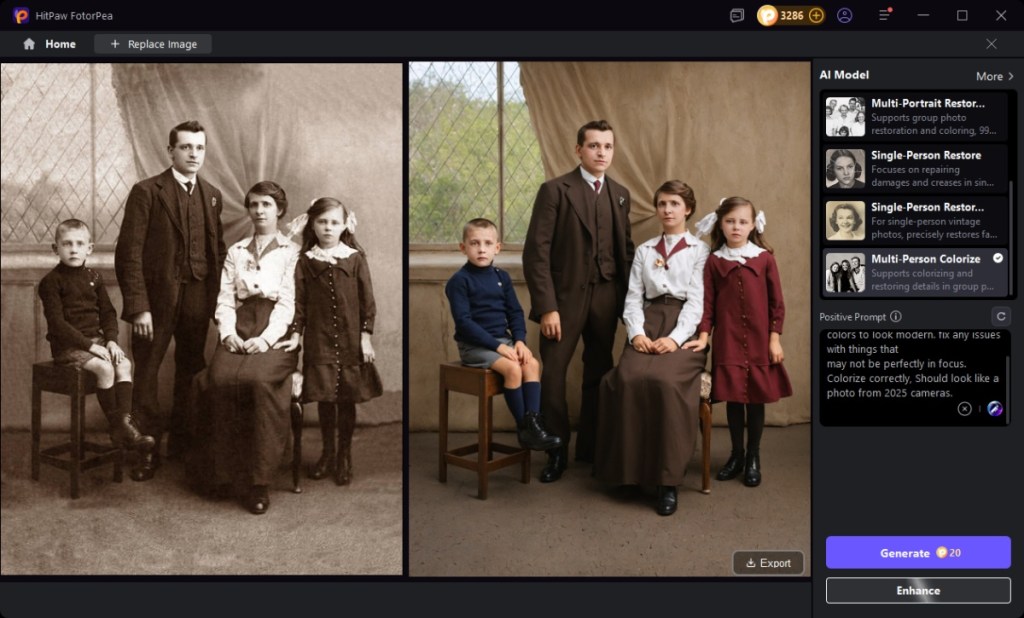
To use FotorPea, all you need to do is select the effect, upload your photo, and export it. This offers a seamless and beginner-friendly workflow that anyone can get used to.
So whether you’re looking to upscale an image to 4K, restore old photos, or sharpen images from WhatsApp, HitPaw FotorPea handles everything with ease.
Getting Started with HitPaw FotorPea: Installation, Set Up, and Overview
Let me take you through the installation and setup process for HitPaw Fotorpea. It is pretty simple, to be honest. You head over to the HitPaw FotorPea website, go to the Download page, and click on Try for free. Then download the zip file for the Windows or macOS version.
Once the file is downloaded, unpack the .zip file and run the setup wizard. There are no complicated steps in between. It literally took me a couple of minutes to set up FotorPea on my Mac Mini.
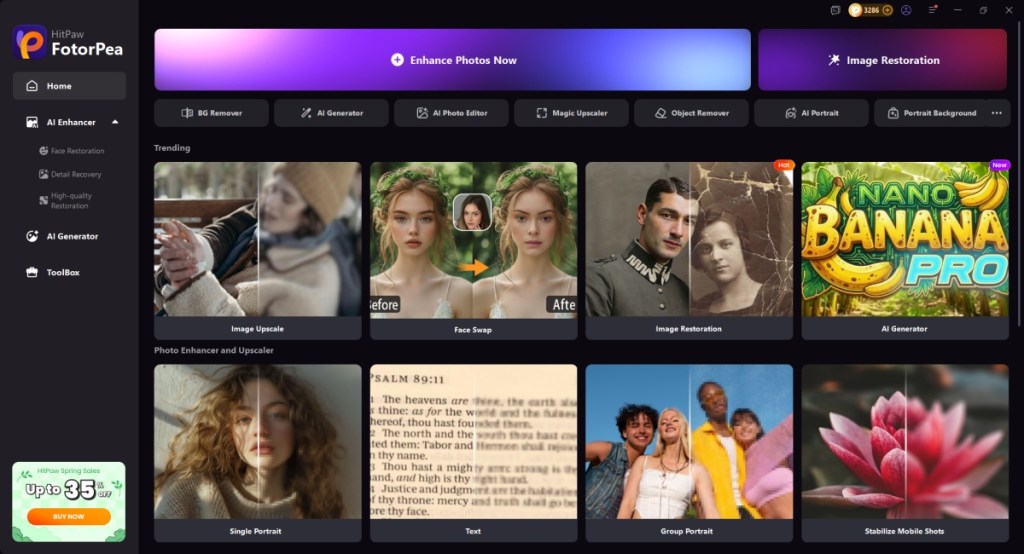
Once I launched the tool, I was met with an interface that felt clean, with neatly labelled options. I didn’t have to scour the internet for guides to use the tool, given the minimal interface. Moreover, I was almost familiar with the UI after just an hour of usage. It does not hand-hold you or show a tutorial, unlike some other tools. FotorPea is just so simple that even someone not familiar with tech can easily get started with this image upscaler.
Key Features of HitPaw FotorPea AI Image Upscaler
While the layout of HitPaw FotorPea might appear simple, the feature set is anything but that. It provides you with a bunch of AI-powered image enhancement and upscaling features. Let me go over some of the standout highlights of this tool that I quite enjoyed during my use.
- AI-Powered Image Enhancement models: HitPaw FotorPea’s main strength lies in its AI models, which intelligently upscale images while preserving textures and edges.
- Photo Restoration and Sharpening: FotorPea’s restoration model can fix any old, blurry, or compressed images, enhancing faces, reducing blur, and improving clarity.
- Image Editing Tools: FotorPea isn’t just about AI. It also ships with basic editing tools like cropping, rotation, and mirroring.
- Batch Processing: Similar to HitPaw’s VikPea, FotorPea also supports batch processing. This allows you to export multiple images at once.
- AI Background Removal: FotorPea’s AI-powered background removal and object erasing tool works with clean cutouts, saving a ton of manual labor.
- Easy to Use Interface: If I didn’t rave about it already, I might as well go ahead and mention it again. The UI is clean, easy to understand, and well laid out.
Processing Speed and System Requirements
While I have been testing the Hitpaw FotorPea on my latest M4 Mac Mini with 16GB RAM, I haven’t encountered any performance issues from the tool yet. But that does not mean it needs the latest and best hardware to perform. It supports Apple Silicon and can run on any Mac, as long as it’s powered by an M-series chipset. On the other hand, here are the minimum system requirements for HitPaw FotorPea:
- Supported OS: Windows 11/10 64-bit, macOS 10.15 or later
- Processor (CPU): Intel i3 4th generation or AMD Ryzen 3 equivalent, or above
- Disk Space: 2GB or above free space
- System Memory (RAM): 8GB or above
- Graphics Card (GPU): NVIDIA GTX 950 or AMD Radeon 460 equivalent or above
- OpenGL: 3.3 or above
- DirectX: Version:12
- Display (Monitor): 1366*768 or above
Choosing the Best Image Upscaler
Let me go over the reason I chose HitPaw FotorPea as the best image upscaler and why its results have managed to swoon me over. It delivers consistent results, has a quick setup, and adds natural-looking enhancements to the photo. It’s praised by other users in the community too.
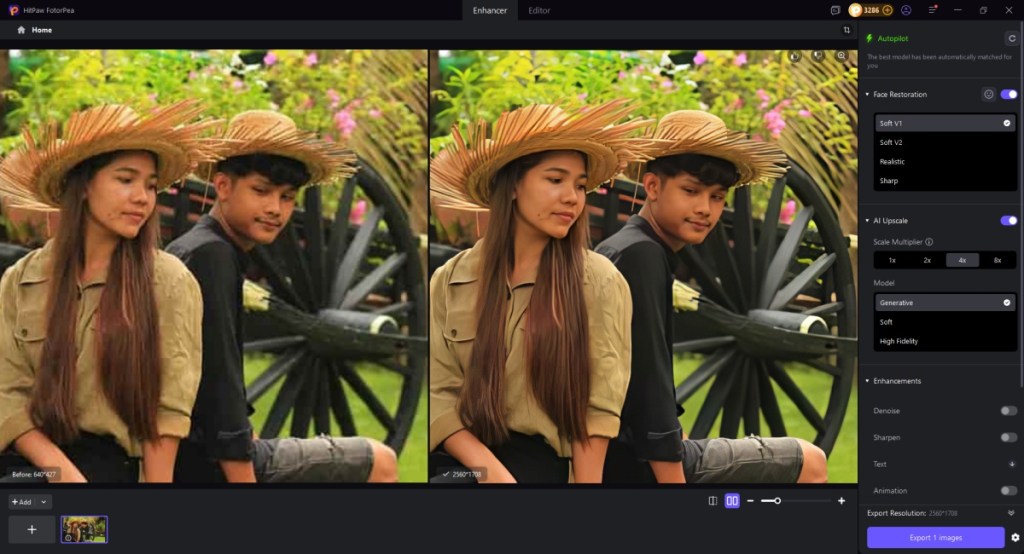
You get better results than other heavier AI image upscalers. It’s because of all these reasons, and even my experience with the tool, that I would suggest HitPaw FotorPea as an essential for creators, photographers, and even casual users who want sharper results without learning complex editing software.
HitPaw FotorPea: Pricing
When it comes to pricing, HitPaw FotorPea image upscaler offers a 7-day free trial. This is the one I got as it allowed me to try out all of its features like AI enhancer, Photo restoration, and batch processing. But if you are interested in buying the tool, here’s a breakdown of its plans and pricing.
| HitPaw FotorPea Plans | Pricing |
|---|---|
| 7-day Trial | Free |
| Monthly plan | $29.99 (Tax Excl.) |
| Annual plan | $99.99 (Tax Excl.) |
| Perpetual License | $179.99 (Tax Excl.) |
In my opinion, if you are satisfied with the AI image upscaler tool, then you should consider getting the perpetual license. This offers the best value, as you can own the tool for a lifetime, for half the price of 6 monthly plans.
Choosing The Best Image Upscaler By Comparing Reviews
In case you don’t want to take my word for it, I have also referred to other reviews online. These reviews tend to focus on three things: output quality, ease of use, and processing speed. High-end tools like Topaz Photo AI are often praised for professional-grade detail recovery, but they also come with higher costs and a steeper learning curve.
One Reddit user said this about HitPaw Fotorpea in their review, “suitable for a range of users, including professional photographers, image collectors, and photography enthusiasts.“
“One of the best options available if you want the best features available with no additional effort,” said The Silicon Review about Fotorpea in their coverage of the tool.
As you can see from user opinions, people love HitPaw FotorPea’s several AI upscaling features. This makes it ultimately the best choice, depending on your needs, but balancing quality, usability, and speed is what matters most when selecting an image enhancement tool.
HitPaw FotorPea Image Upscaler: The Only Tool You Need
HitPaw FotorPea strikes a strong balance between simplicity and performance. It may not replace high-end professional tools like Photoshop or some other alternatives, but it delivers reliable and natural results as an AI image upscaler for everyday use, restoration, and quick enhancements. If you are looking for an easy-to-use image upscaler that works offline and doesn’t overwhelm you, HitPaw FotorPea is a solid pick in 2026.








 Anshuman Jain