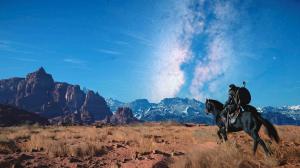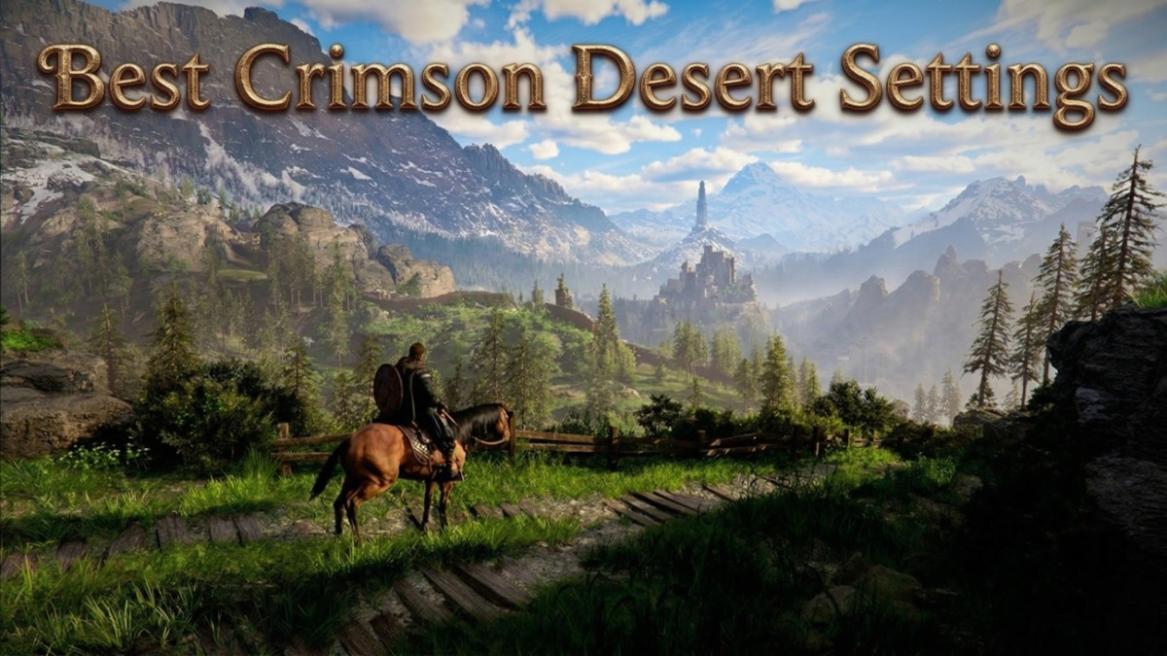
Crimson Desert looks amazing, and the developers seem to particularly take pride in the game’s performance. Although the game’s system requirements are fairly low, you need to optimize the game’s settings properly to make them run at the best capacity on your PC and Mac. Here is an in-depth guide on the best Crimson Desert settings for PC and Mac, so that you can get the maximum FPS during your playthrough.
Best Crimson Desert Settings to Boost Your FPS
Crimson Desert‘s biggest visual issue is its noticeable noise. Although the game looks fantastic in most locations, in certain areas, especially in the low-lit interiors, the noise is considerably noticeable. The game offers multiple preset settings that you can use to turn down the game’s graphics. However, simply changing the preset from Cinematic to Low is not recommended for the most FPS boost.
Most settings are not even influenced by the setting preset, and in many cases, turning it down from Cinematic to Low can lead to a worse performance while also looking bad. With the Crimson Desert system requirements being fairly low, the game does run well on even lower-end PCs with the correct settings. So, here are the best Crimson Desert graphics settings we recommend for low-end, high-end PCs, and Macs.
Low-End PCs
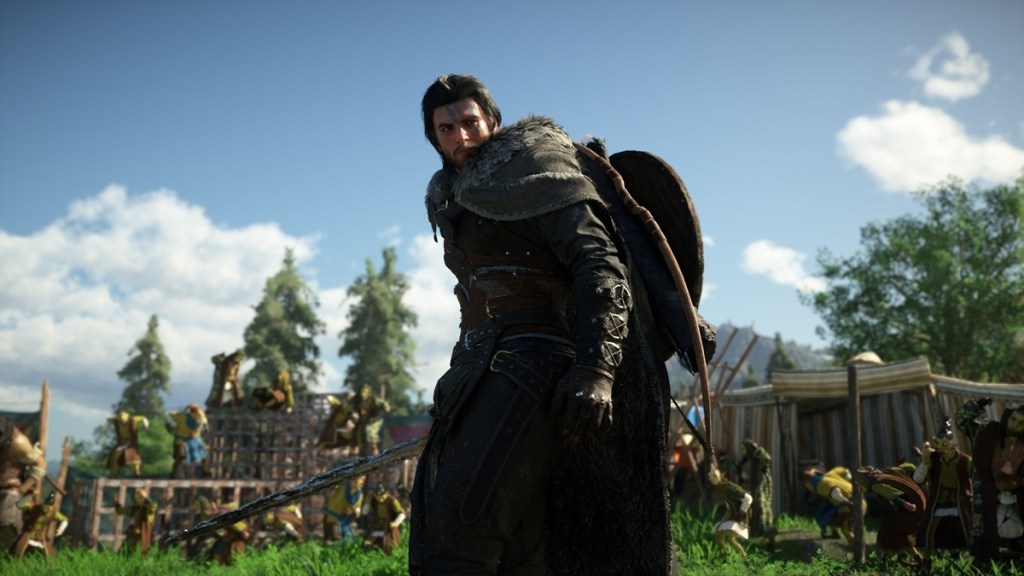
For low-end PCs, it is best to keep the Model Quality to Low, as this gives a nearly 9% performance boost. You can lower the shadow quality to High or Ultra for a slight FPS boost, but it has little effect on the game’s performance. Next, make sure to turn off the Advanced Weather Effect for low-end PCs, and also crank down the Foliage Density to low or medium for performance.
If your PC has an older GPU that doesn’t support Ray Tracing properly, then I recommend turning it off. Otherwise, keep it on as the game seems to be optimized with Ray Tracing in mind. Other than that, you can keep most of the settings to Cinematic or Ultra. Here are all the best Crimson Desert settings for low-end PCs:
| Setting Type | Recommended |
|---|---|
| Model Quality | Low |
| Texture Quality | Cinematic |
| Shadow Quality | High / Ultra |
| Raytracing | Off |
| Lighting Quality | Ultra |
| Reflection Quality | High |
| Advanced Weather Effect | Off |
| Water Quality | Ultra |
| Foliage Density | Low / Medium |
| Volumetric Fog Quality | High |
| Effect Quality | Cinematic |
| Simulation Quality | Cinematic |
| Post-processing Effect Quality | Cinematic |
| Blur Intensity | 0 |
| Best Upscaling Mode (Low Noise) | DLSS Quality / DLAA |
| Ray Reconstruction (Best Upscaling Mode) | On (DLSS Performance) |
| Ray Regeneration (Best Upscaling Mode) | On (DLSS Performance) |
High-End PCs
When it comes to high-end PCs, you can run Crimson Desert on the Cinematic preset for the most part. However, you can make certain changes to decrease the noise. First, make sure to play with DLAA or DLSS quality upscaling. For Ray Reconstruction, use the DLSS Performance setting, and for Ray Regeneration, use the FSR Performance setting.
Keep the Volumetric Fog Quality to High, as cranking it up doesn’t bring any major visual change to the game. Keeping the Model Quality to Ultra will also give you a slight performance boost, while keeping the visual unchanged for the most part. For all the Crimson Desert graphics settings for your high-end PC, check the table below:
| Setting Type | Recommended |
|---|---|
| Model Quality | Ultra |
| Texture Quality | Cinematic |
| Shadow Quality | Ultra |
| Raytracing | On |
| Lighting Quality | Cinematic / Ultra |
| Reflection Quality | Cinematic |
| Advanced Weather Effect | On |
| Water Quality | Cinematic |
| Foliage Density | Cinematic |
| Volumetric Fog Quality | High |
| Effect Quality | Cinematic |
| Simulation Quality | Cinematic |
| Post-processing Effect Quality | Cinematic |
| Blur Intensity | 0 |
| Best Upscaling Mode | DLSS Quality / DLAA |
| Ray Reconstruction (Best Upscaling Mode) | On (DLSS Performance) |
| Ray Regeneration (Best Upscaling Mode) | On (FSR Performance) |
Mac
When it comes to the Mac, we have seen that running the game at a lower setting is the best option. The best Crimson Desert settings for the Mac are the same as the low-end PCs, but you can further tone down some of the settings to get a bit more performance.
| Setting Type | Recommended |
|---|---|
| Model Quality | Low |
| Texture Quality | Cinematic |
| Shadow Quality | High / Ultra |
| Raytracing | Off |
| Lighting Quality | Ultra |
| Reflection Quality | High |
| Advanced Weather Effect | Off |
| Water Quality | Ultra |
| Foliage Density | Low / Medium |
| Volumetric Fog Quality | High |
| Effect Quality | Cinematic |
| Simulation Quality | Cinematic |
| Post-processing Effect Quality | Cinematic |
| Blur Intensity | 0 |
| Best Upscaling Mode (Low Noise) | DLSS Quality / DLAA |
| Ray Reconstruction (Best Upscaling Mode) | On (DLSS Performance) |
| Ray Regeneration (Best Upscaling Mode) | On (DLSS Performance) |
If you are more interested in checking the performance on consoles, then check our Crimson Desert console performance specs and our guide on Crimson Desert PS5 vs PS5 Pro performance breakdown.
So, these are the best Crimson Desert settings we found for low-end and high-end PCs. The performance on PC has been great with only minor bugs and noise issues. If you have more suggestions for Crimson Desert graphics settings, then let us know in the comments below.


 Sanmay Chakrabarti