- Set ALLM, VRR, and 120 Hz Output to Automatic on PS5 and PS5 Pro for GTA 6.
- If the player's monitor supports 4K, they should change the resolution to 4K; otherwise, keep it on Automatic.
- Finally, keep the TV Motion Smoothing off on your TV.
GTA 6 is on Xbox Series X/S, and the game can run pretty well on both consoles. But to have the best experience while playing GTA 6, you must make sure all the settings are properly set up. Here are the best Xbox settings to play GTA 6.
Best PS5 and PS5 Pro Settings to Play GTA 6
These are the best possible settings for running GTA 6 on the PlayStation 5 and PlayStation 5 Pro:
Setting PlayStation 5 PlayStation 5 Pro Resolution Automatic Automatic ALLM Automatic Automatic HDR Always On Always On VRR Automatic Automatic 120 Hz Output Automatic Automatic TV Motion Smoothing Off Off HGiG On if supported On if supported Audio Setup 3D Audio Setup 3D Audio
Resolution and HDR
PlayStation 5 and PlayStation 5 Pro are the best GTA 6 platforms, and they both can comfortably run the game in 4K. So, if you have a 4K monitor, do not worry about cranking the resolution to 4K. You can also keep the setting on Automatic and let PS5 detect the best resolution by itself.
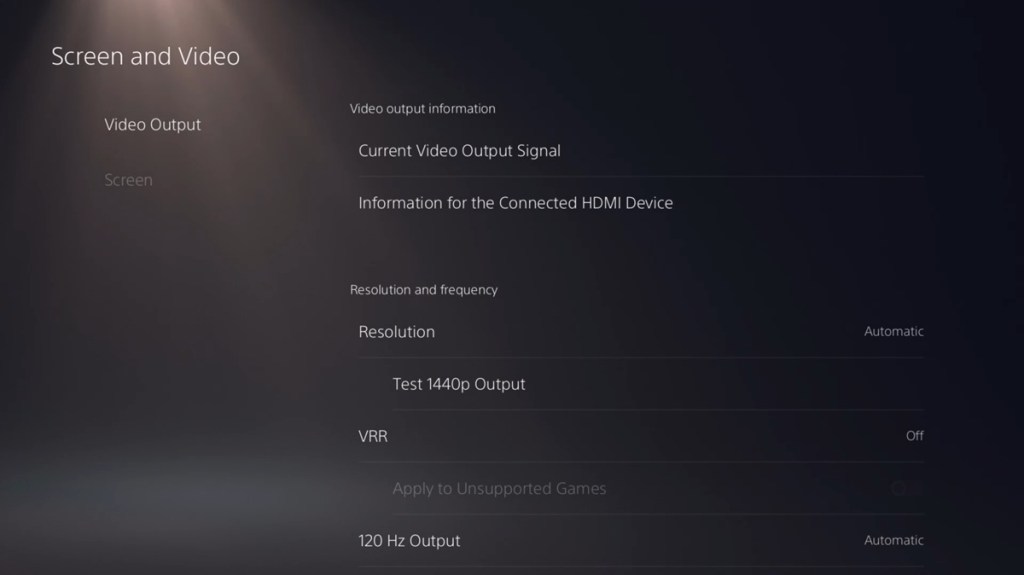

Other than that, you should also keep the HDR option set to Always On. This way, even if your monitor doesn’t support HDR, PlayStation 5 can put the screen into HDR mode.
120 Hz Output
GTA 6 is locked to 30 FPS, so there is literally no point in having the 120 Hz Output option enabled. Keeping it enabled can even lead to screen tearing. The best option here is to keep it on Automatic, letting the console decide. However, if you see any screen tearing happening, simply turn off this option to solve it.

Variable Refresh Rate
Variable Refresh Rate is another setting that many GTA 6 players would be confused about on their PlayStation 5. Disabling this option seems to be the correct choice, as the game can only run at 30 FPS.

However, as VRR is known to only work for 40 FPS and above on PlayStation 5 and PlayStation 5 Pro, there is no point in turning off this option. You can simply keep it on automatic instead, unless you see it cause any specific issues.
Audio
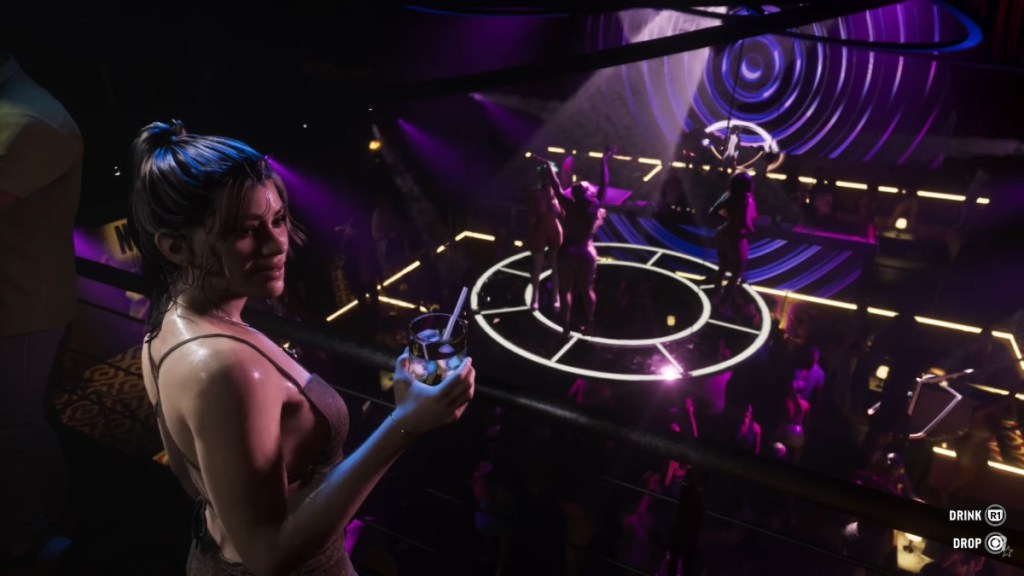
To get the best audio experience of GTA 6 on your PlayStation 5, players must make sure to turn on the 3D sound settings and calibrate it for your TV or headphones. This option can be found inside Settings > Sound > 3D Audio. This is the best way to enjoy the GTA 6 soundtrack.
So, these are the best PS5 settings for GTA 6. Have more questions or suggestions? Tell us in the comments section below.