

PDF documents are probably one of the most (if, in fact, not the most) common digital file types that we have to work with regularly. PDF files are used everywhere, from software help manuals and technical documentation to academic textbooks and novels. So it makes all the sense to have a capable PDF viewer handy. And since there are quite a few of them, we’ve shortlisted 5 of the best PDF reader software you can use.
Overview of the Best PDF Readers Compared
Here’s a quick overview of the best PDF readers that we have curated for this list, including their limitations and pricing.
Best PDF Readers Features Pricing Sumatra PDF Lightweight, fast performance, support for multiple formats including PDF, ePub, MOBI, XPS, DjVu, CBZ, and CBR, runs without installation Free Adobe Acrobat Reader DC Industry-standard PDF compatibility, annotation and highlighting tools, digital signatures, cloud syncing with Adobe Document Cloud, cross-platform support across Free, Pro plan starts at $24.99/month SodaPDF All-in-one PDF tools including viewing, annotation, and highlighting, page rearrangement and merging, form filling and digital signatures, OCR for scanned documents, cloud integrations Free, Paid versions start from $48/year Foxit Reader Fast PDF viewing with tabbed interface, annotation and commenting tools, form filling and basic editing, text search and selection, multi-platform support Free PDF Reader on Google Chrome, Firefox, or Edge Native in-browser PDF viewing, fast rendering of PDF files, basic zoom and scroll controls, text selection and copy, print and download buttons, simple searching within the document Free
Best PDF Readers Compared for Effortless Viewing
The PDF format offers numerous advantages, such as convenience, compatibility with a wide variety of hardware and software, and the ability to retain its formatting at all times. We have tried to include some of the best and free PDF readers in this list, and they’re incredibly capable.
1. Sumatra PDF – Best Overall PDF Reader
What if you don’t really care for fancy features like annotations, form-filling, or document signing? You just want a simple, free PDF reader application that lets you view PDF files. You’re in luck, as that’s exactly what Sumatra PDF is all about. It’s an open-source PDF reader that is incredibly lightweight, fast, and easy to use.

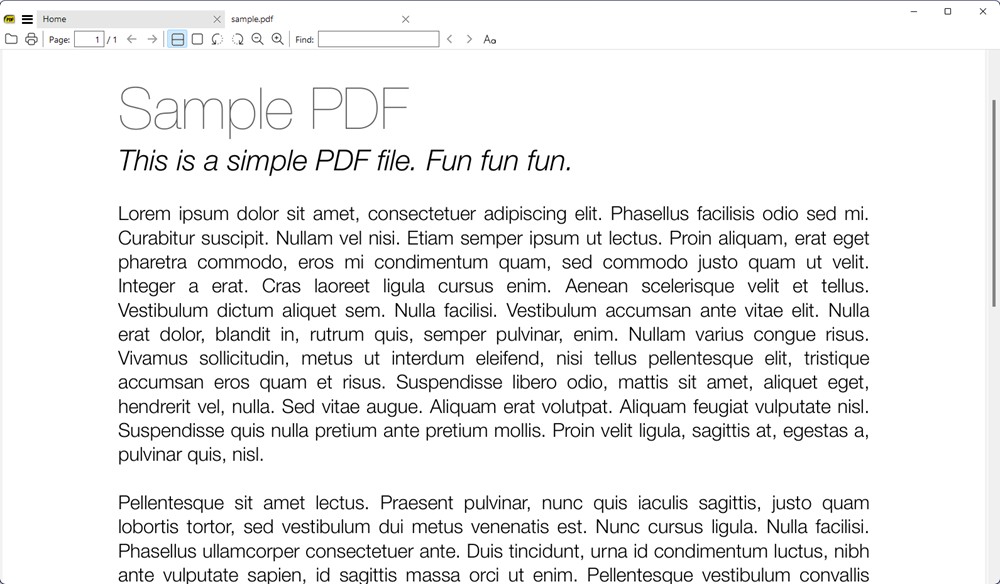
Recent documents show up as thumbnails for easier access, and all the standard PDF reader features, such as multiple viewing modes, adjustable zoom levels, and standard search, are all there. There’s also bookmark support, and you can add certain pages of PDF documents to favorites as well. However, what sets Sumatra PDF apart from the lot is that, despite primarily being a PDF reader software, it can display a bunch of other files, such as DJVU, CBR, CHM, ePuB, and MOBI. And yes, it’s also available as a portable app.
For those who just want solid PDF reader software, Sumatra PDF is definitely worth checking out. That said, it’s also a bit too basic and doesn’t contain any unique features apart from the aforementioned multi-format support.
PROS CONS Opens PDFs instantly, even large files You cannot annotate, highlight, or add text Supports multiple formats, including ePub, MOBI, XPS, DjVu, CHM, CBZ, CBR Supports bookmarking PDF pages
Platform: Windows
Price: Free
2. Adobe Acrobat Reader DC – Best PDF Reader for Most People
It’s nearly impossible to discuss anything related to PDF without mentioning Adobe Acrobat Reader DC. Being undoubtedly the most popular tool, Adobe Acrobat Reader DC has long been the de–facto solution as a free PDF reader. And in its latest iteration, it’s better than ever.
You can open multiple PDF files and view them simultaneously, thanks to the tabbed interface. But viewing PDF docs is just one of the many things Adobe Acrobat Reader DC does. Apart from that, it can also work as a PDF editor, although you have to pay for it.

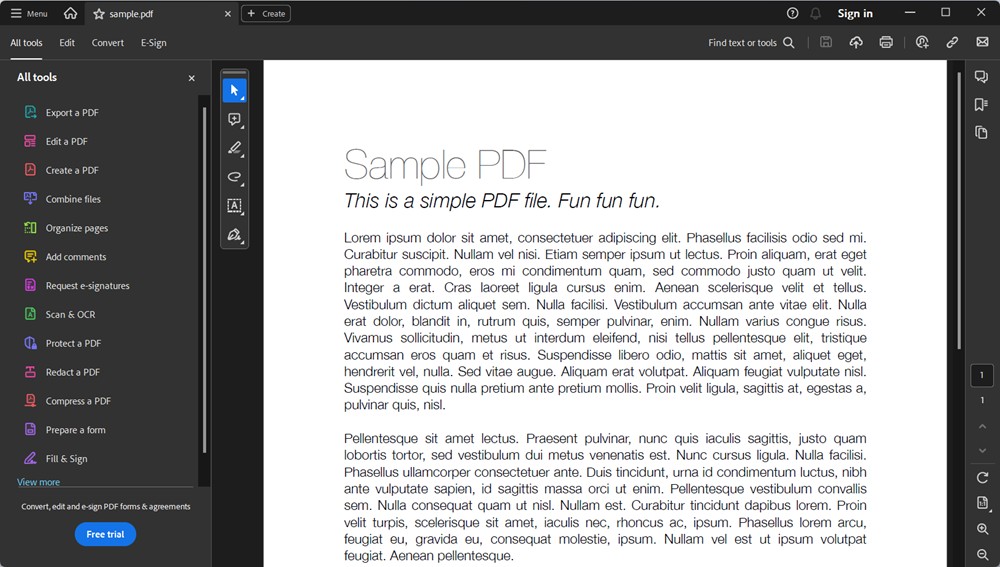
The application supports all kinds of PDF documents, including password-protected files and those having multiple bookmarks, and form-filling features are available as well. You can even upload your PDF documents to the cloud by configuring the application with the Adobe Document Cloud.
In a nutshell, if you’re looking for the best and most reliable cross-platform PDF reader, go for Adobe Acrobat Reader DC. It’s tried, tested, and the gold standard of PDF viewer programs.
PROS CONS Excellent compatibility with all PDF types Heavy on system resources Annotation, commenting, and form-filling tools Advanced features are locked behind a subscription Cross-platform support
Platform: Windows, macOS
Price: Free, Pro plan starts at $24.99/month
3. SodaPDF – PDF Reader with Best Feature Set
When it comes to the sheer number of features (at least as far as PDF readers are concerned), there’s hardly an application that can even come close to SodaPDF. You can spend hours exploring everything that’s crammed into this free PDF Reader. It features, from multi-document tabbed viewing and reading modes to form-filling and annotation/highlights, SodaPDF has just about everything taken care of.

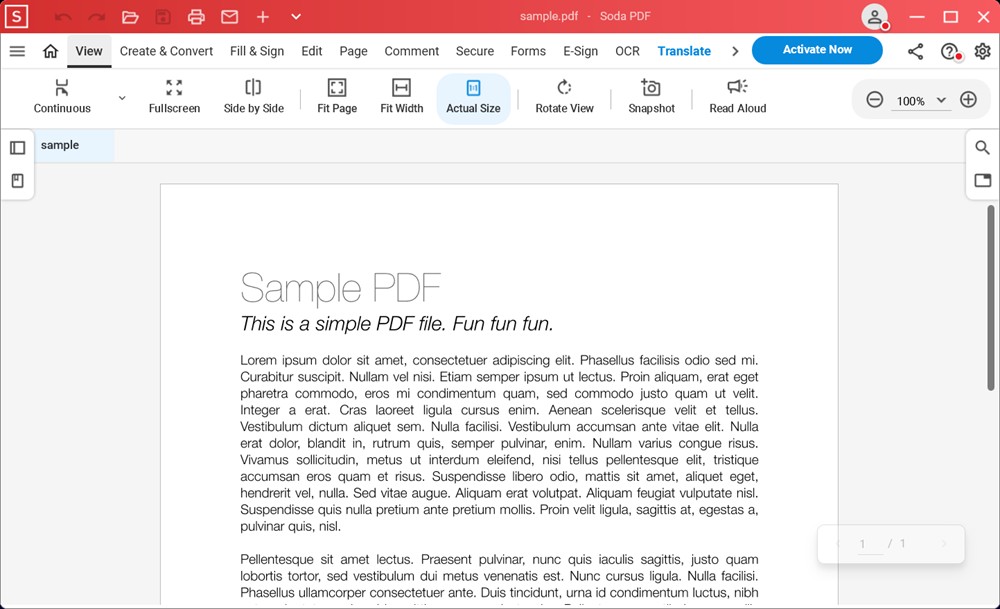
In addition, it also lets you add geometric shapes, textual stamps, and sticker notes to your PDF documents. SodaPDF makes it easy to create PDF documents from a truckload of different files, and supports batch mode for bulk creation as well. Apart from that, you can use it to reverse convert into other document formats such as HTML, TXT, and RTF.
The application includes the ability to securely sign PDF documents. As one of its unique features, includes a bunch of (paid) plug-ins that you can use to turn images to PDF (via OCR functionality). To sum things up, if you’re looking for a professional-grade PDF reader, editor, converter (and then some more), and don’t mind shelling out a few bucks for it, SodaPDF is going to serve you just fine. The app also has an online PDF viewer and editor you can use, and it’s one of the best tools around.
| PROS | CONS |
|---|---|
| Good variety of PDF reading and editing tools | Some advanced features require a paid plan |
| OCR support to search and edit scanned PDFs | |
| Cloud integration and cross platform support |
Platform: Windows
Price: Free, Paid versions start from $48/year
4. Foxit Reader
We found Foxit PDF Editor to be one of the best PDF editors out there, and it turns out Foxit Reader is yet another amazing product from the firm. Bursting at the seams with all kinds of features, Foxit Reader is an impressively capable free PDF reader software that is more than enough for all your PDF viewing needs, and also wields some great PDF editing features.

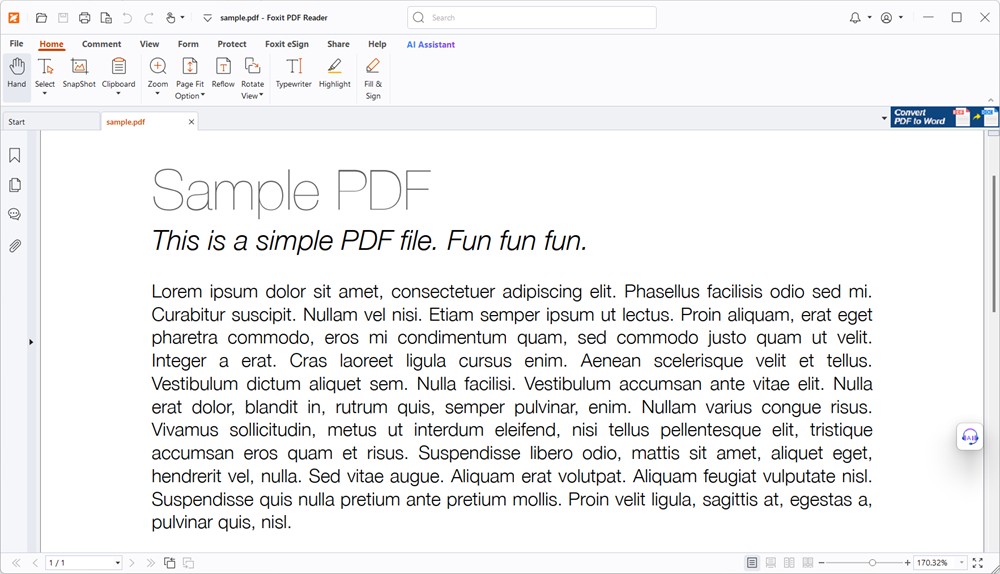
Having a lean and modern UI, complete with the Ribbon menu and tabbed support for multiple PDF documents, Foxit Reader is a looker. Even the heaviest of PDF files is no slouch for it, and numerous standard viewing modes (e.g., Fit page, Fit width) are supported.
It’s possible to add all kinds of extra information, such as textual notes, callouts, and other annotations, to PDF files. You can also highlight selected part(s) of the PDF documents. There are multiple reading modes available, along with form-filling functionality. Everything from attached files to document security settings can be accessed from a simple sidebar on the left.
Foxit Reader even lets you share your PDF documents via email or Evernote, so that’s a good thing too. If you’re on the hunt for powerful PDF reader software that also has quite some editing and sharing prowess, Foxit Reader is an absolute must-have. It is that good.
| PROS | CONS |
|---|---|
| Opens PDFs quickly without lag | Annotation features aren’t as powerful as dedicated editor |
| Annotation tools cover highlights, notes, and shapes | Advanced editing tools are behind a paid subscription |
| Tabbed interface makes managing multiple documents easy |
Platform: Windows, macOS, and Linux
Price: Free
5. PDF Reader on Google Chrome, Firefox, or Edge
Surprised at seeing web browsers mentioned as PDF readers? Well, don’t be. Believe it or not, all modern web browsers include the functionality to view PDF files, baked right into them. So if you need a simple solution to view PDF files sometimes, you don’t even need to bother with installing a third-party PDF reader application.

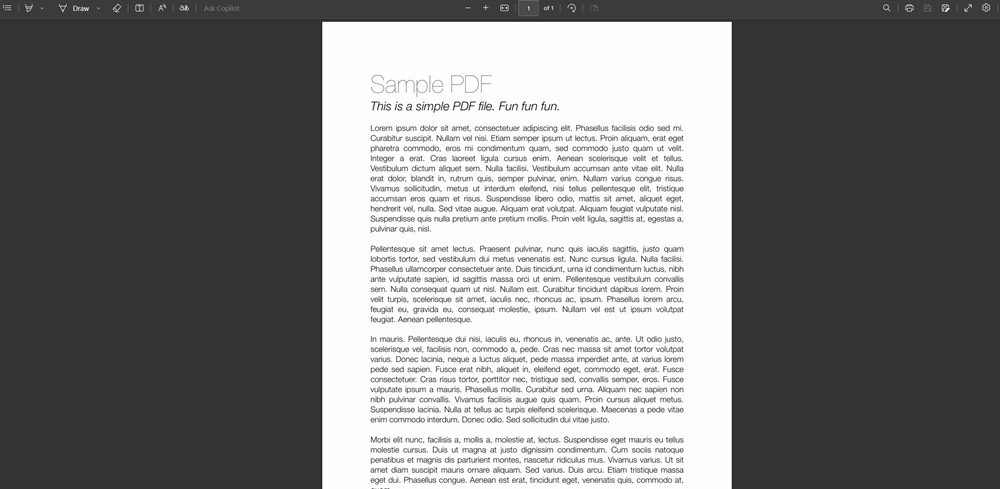
For those using the latest version of Windows, Microsoft Edge can open up your PDF files or even edit them for you. On the other hand, if your browser of choice is Google Chrome or Mozilla Firefox, you can use them to view PDF documents as well.
PROS CONS Works right in your browser No form filling or digital signatures Opens PDFs instantly with minimal lag No advanced features like OCR, editing, or merging Good for quick reading and casual document access
Platform: Windows, Linux, macOS
Price: Free
PDF documents are used by almost everyone, and thanks to the above-discussed PDF readers, you can not just view them better, but also take care of the occasional editing. Want the absolute best PDF viewing and editing experience? Go for Adobe Acrobat Reader DC, Foxit Reader, or SodaPDF. Don’t really care for all the extra stuff? Try SumatraPDF, or even your favorite web browser(s). Try them out, and see which one(s) work out the best for you.

