- GTA 6 includes a Screen Narration accessibility setting for visually impaired players.
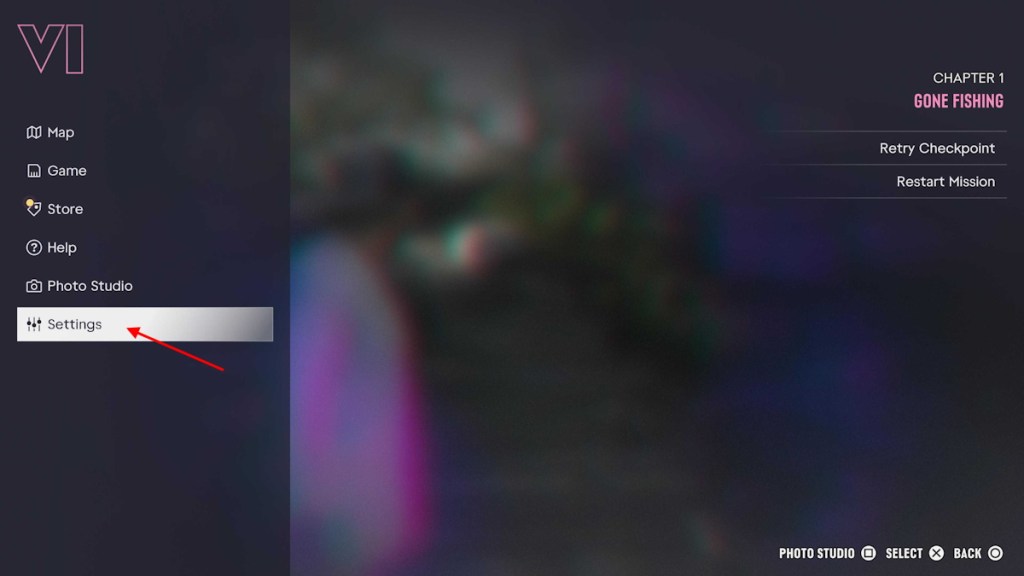
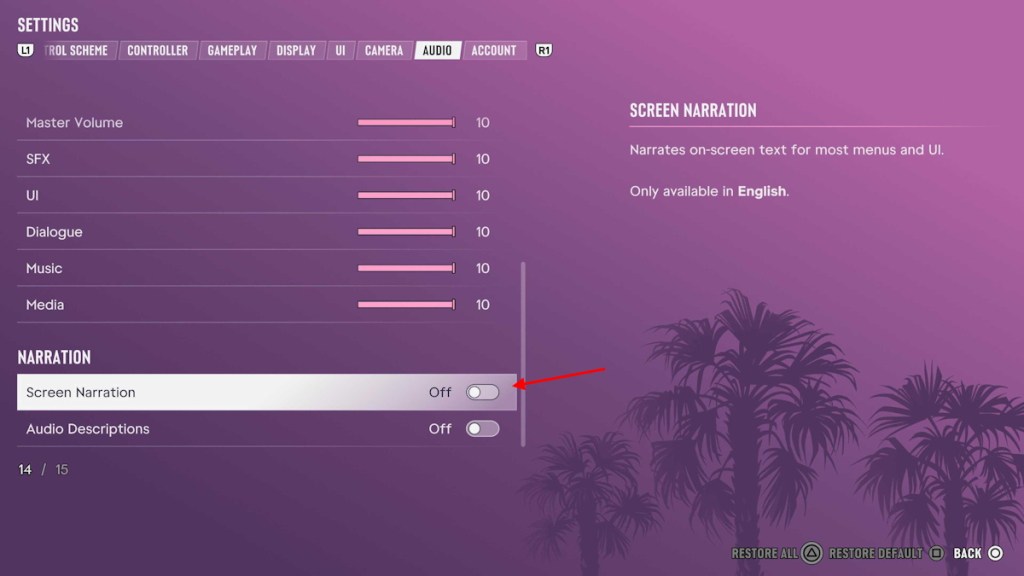
- To turn Screen Narration on or off, go to the Pause menu -> Settings -> Audio -> toggle on the feature.
- Screen Narration setting lets you adjust the narration volume, speed, and voice.
GTA 6 includes several accessibility features that make it easier for users with disabilities to play the game. One such feature is Screen Narration, which you get a chance to adjust right at the start of the game. However, if you want to turn on or off Screen Narration in GTA 6 later on, follow the step-by-step process below:
How to Enable or Disable Screen Narration in GTA 6
The process to change the Screen Narration (or Screen Reader) setting in GTA 6 remains the same on PS5 and Xbox Series X|S. Follow the steps below:
- Press the Option button on PS5 and Menu button on Xbox to open the GTA 6 Pause menu.
- Scroll down and go to the Settings Menu.

- Use the L1/LB and R1/RB buttons to go to the Audio settings menu.
- Scroll down until you reach the ‘Narration‘ section.
- Here, turn on the toggle to enable Screen Narration.
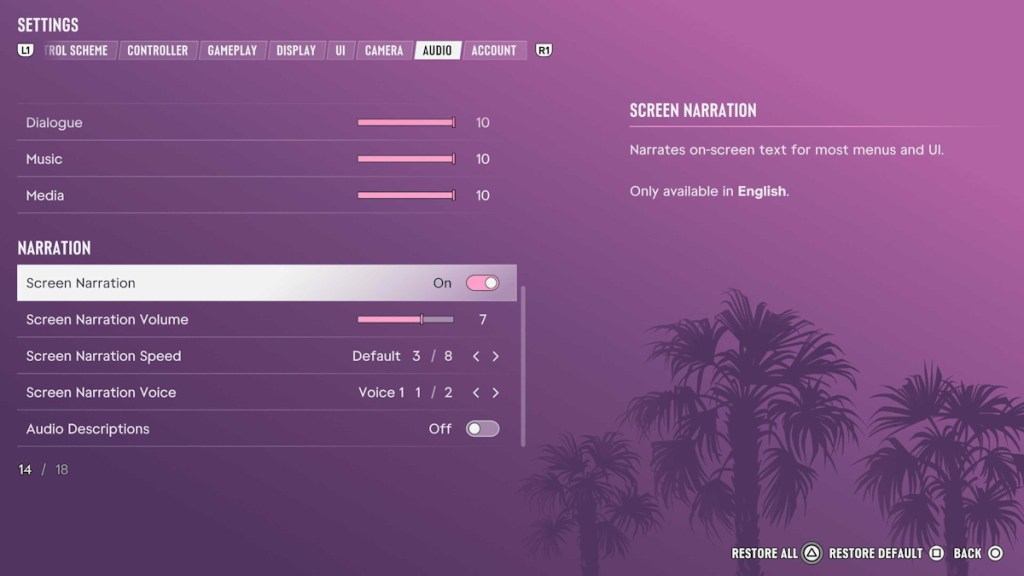
Once you enable the Screen Narration feature, you can change the following related settings:
- Screen Narration Volume: Default 7, Adjust from 1 to 10
- Screen Narration Speed: Default 3, Adjust from 1 to 8
- Screen Narration Voice: 2 options
To disable Screen Narration in GTA 6, retrace the steps above until Step 4 and then toggle off the setting.
GTA 6 Screen Narration Setting Explained
For those unaware, Screen Narration is an accessibility setting that uses text-to-speech to read on-screen text, UI elements, and menus. This feature is especially useful for players with vision or hearing impairments, as it makes it simpler for them to navigate the game.
That’s how easy it is to find and adjust the screen narration accessibility feature in GTA 6. It can be difficult to locate for some due to the lack of a dedicated Accessibility section in the Settings menu. So, do you have screen narration enabled or disabled?