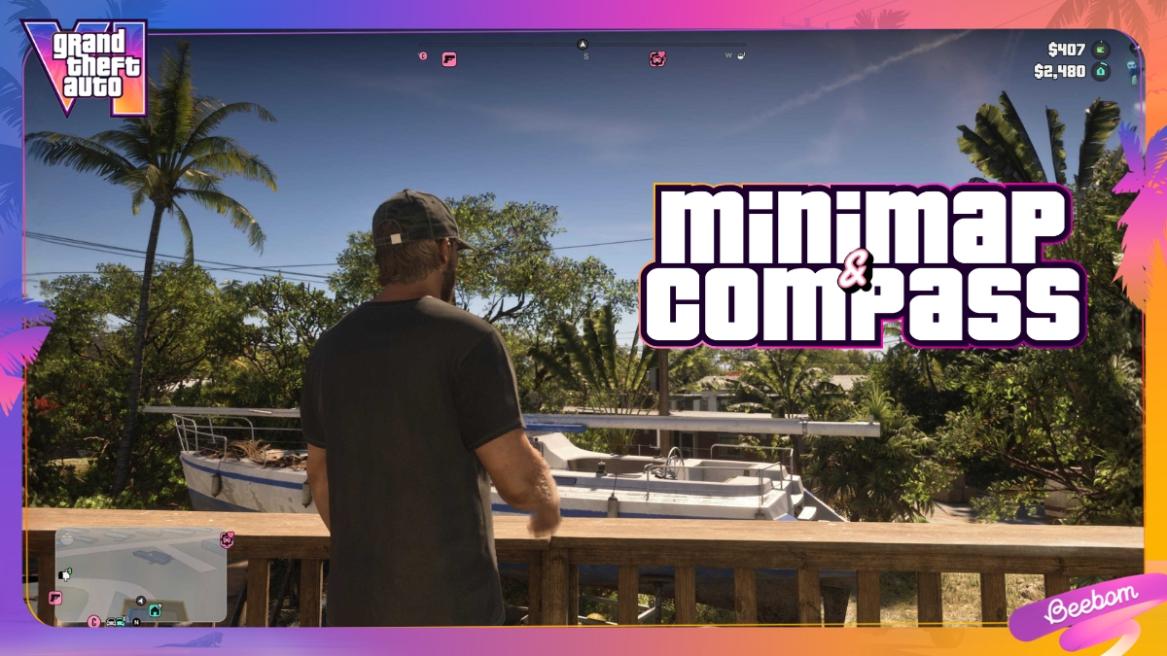
- Players can adjust the navigation experience when they load into GTA 6.
- GTA 6 includes three navigation options: Minimap (Dynamic), Minimap & Compass (Dynamic), and Minimap Always On.
- You can change the minimap and compass settings from the UI section in the Settings menu.
Rockstar is well aware of the scale of Leonida’s massive open world. With that in mind, it has made sure to offer you the option to select the ‘Navigation Experience’ right when you load into the game. But what does each navigation experience setting mean? Which minimap setting should you pick? Let’s find out.
GTA 6 Navigation Minimap Options
GTA 6 Minimap (Dynamic)
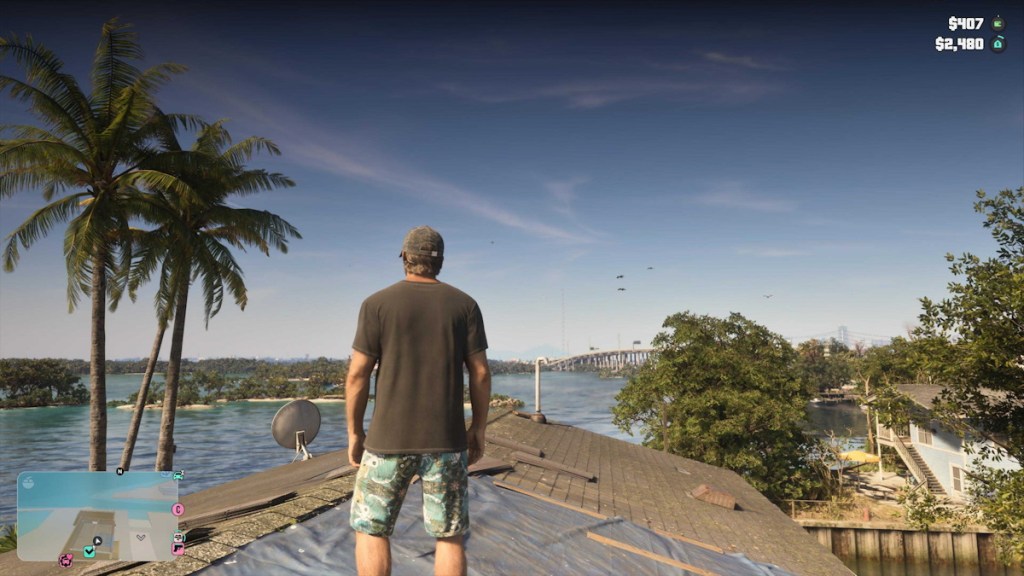
This option means the minimap will only show up when it’s essential. You will see the minimap for gameplay purposes in this case, as noted by Rockstar.
So, you will automatically see the minimap pop up when driving, during GTA 6 missions, when you mark objectives, and more. The minimap will disappear when you’re in and around your safehouse for a cinematic look.
GTA 6 Minimap & Compass (Dynamic)
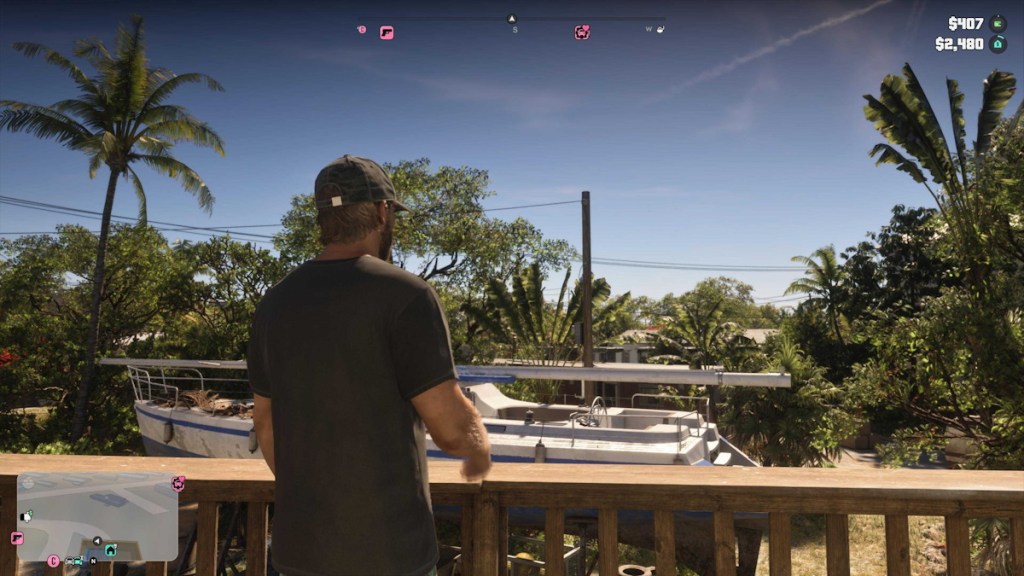
This Navigation Experience setting is similar to the one above, but the compass is now dynamic as well. Alongside the minimap, the compass will now also show up when it’s needed.
The compass will display map markers and symbols at the top of the screen, making it easier to track nearby shops, mission locations, and other major POIs. The compass lights up in red and blue to show the police heat when you commit a crime and are on the run.
GTA 6 Minimap Always On
As the name suggests, the minimap at the bottom left is shown at all times during gameplay – not cutscenes.
You can use the settings (steps below) to set the minimap and compass to “Always on,” but it can seem like an information overload if you’re new to GTA games. So, we suggest selecting either the Minimap On or Dynamic setting. I’m playing with the Minimap Dynamic setting.
How to Change Navigation Minimap Experience in GTA 6?
Players can go to GTA 6’s settings to change the Minimap and compass settings. Here are the steps to follow:
- Press the Options button on PS5 and Menu button on Xbox to open the GTA 6 Pause Menu.
- Go to Settings from the Pause menu.
- Then, go to UI settings using R1 and RB on PS5 and Xbox, respectively.
- Scroll down to the Navigation section.
- Here, you can change the ‘Minimap’ and ‘Compass’ settings.
- Both Minimap and Compass have three options:
- Off
- Dynamic
- On
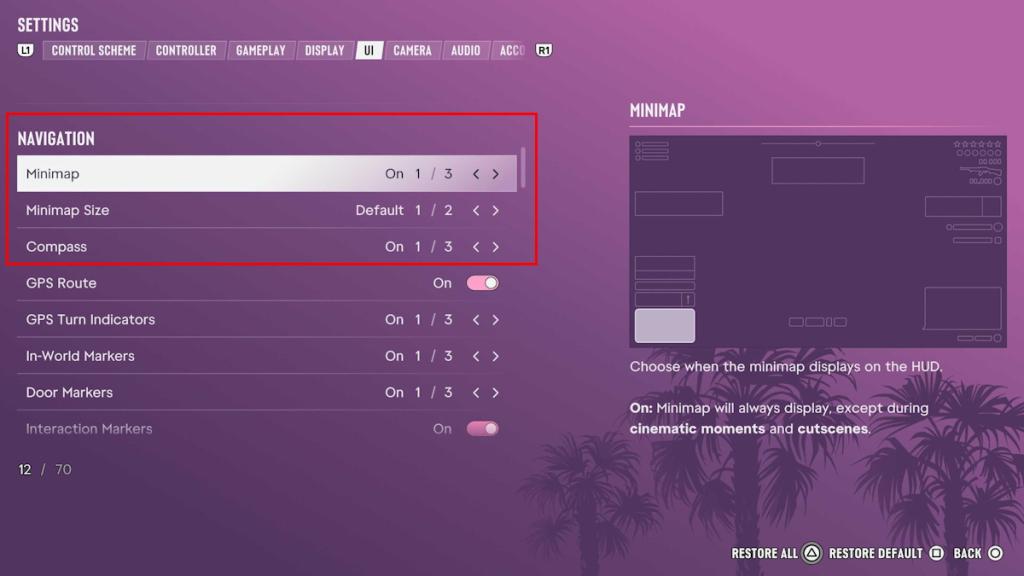
While the initial setup screen in GTA 6 only offers three Navigation experiences to choose from, the settings are a bit more granular. You can mix and match the Minimap and Compass settings to your liking while exploring GTA 6 locations as Lucia and Jason.
Moreover, if you accidentally turned on Screen Narrator in GTA 6, or want to help a friend set it up, we have a dedicated guide for you.
That said, which GTA 6 minimap setting are you using? Let us know in the comments section.



















 Sanmay Chakrabarti